
Actions and action rules
Action rules execute scripted movements you configure when specific conditions are fulfilled - running a pattern, changing the camera rotation, returning to the sprinkler, or walking to specific waypoints. Instead of always collecting tokens or standing at the sprinkler, you can direct the macro to make movements you customize, some of which can significantly enhance your honeymaking. This guide covers writing an action rule and where its score comes from.
How this fits
Section titled “How this fits”Actions are scored the same way as any other rule. Every tick, Return to Sprinkler and any action you’ve written are ranked alongside the tokens on the field, and the highest score still wins, which is why you’ll find Return to Sprinkler sitting in the Simulator’s ranking with a score of its own. What’s different is how that score is earned. A token starts from a base weight and is reshaped by the built-in curves, because a token has a position, a class, and a lifetime. An action has none of those - there’s no distance to a camera rotation, no cluster around a Wait, and no expiry either - so every curve that shapes a token score is meaningless for it. An action’s score comes entirely from the rules you write under Configure → Actions.
Camera rotations are critical to increasing bubble collection. While you gather, your dipper will constantly be sending out waves or petals that pop bubbles where your player is facing - creating rules that rotate the camera periodically can provide a significant boost in your bubbles popped. Similarly, a pattern rule that periodically collects bubbles around the sprinkler can increase bubble popping even further. These strategies ship in the default profile for Blue hives because of how critical they are to honeymaking. You can see them under Configure → Actions: Oscillate camera after return on Pine Tree and Execute PopShift after Pop Star or Tide Surge pulse on Pine Tree.
Write an action rule
Section titled “Write an action rule”-
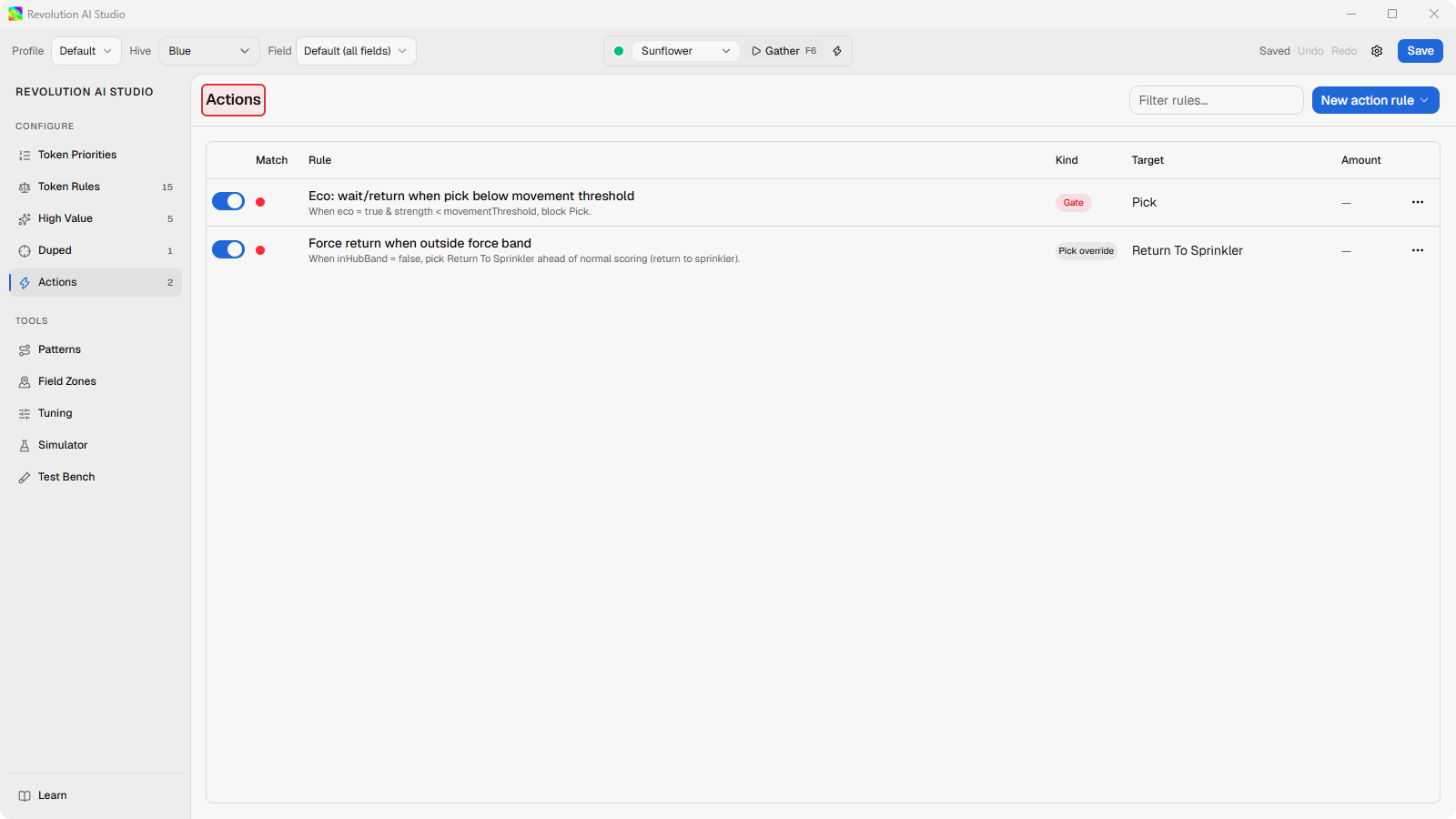
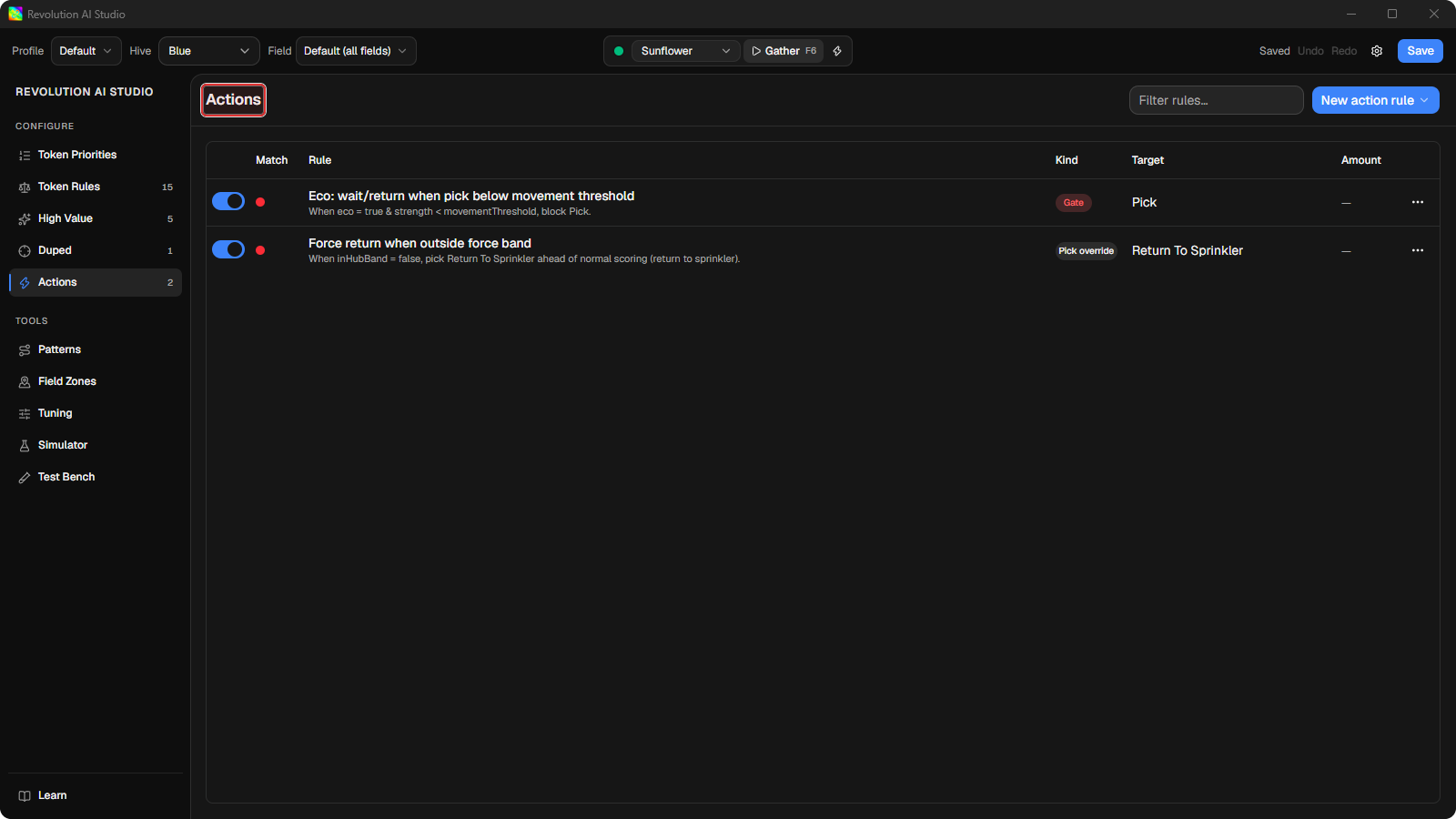
Open Configure → Actions.
On the default profile you see the action rules that already ship. On an empty profile you see a welcome panel instead.
-
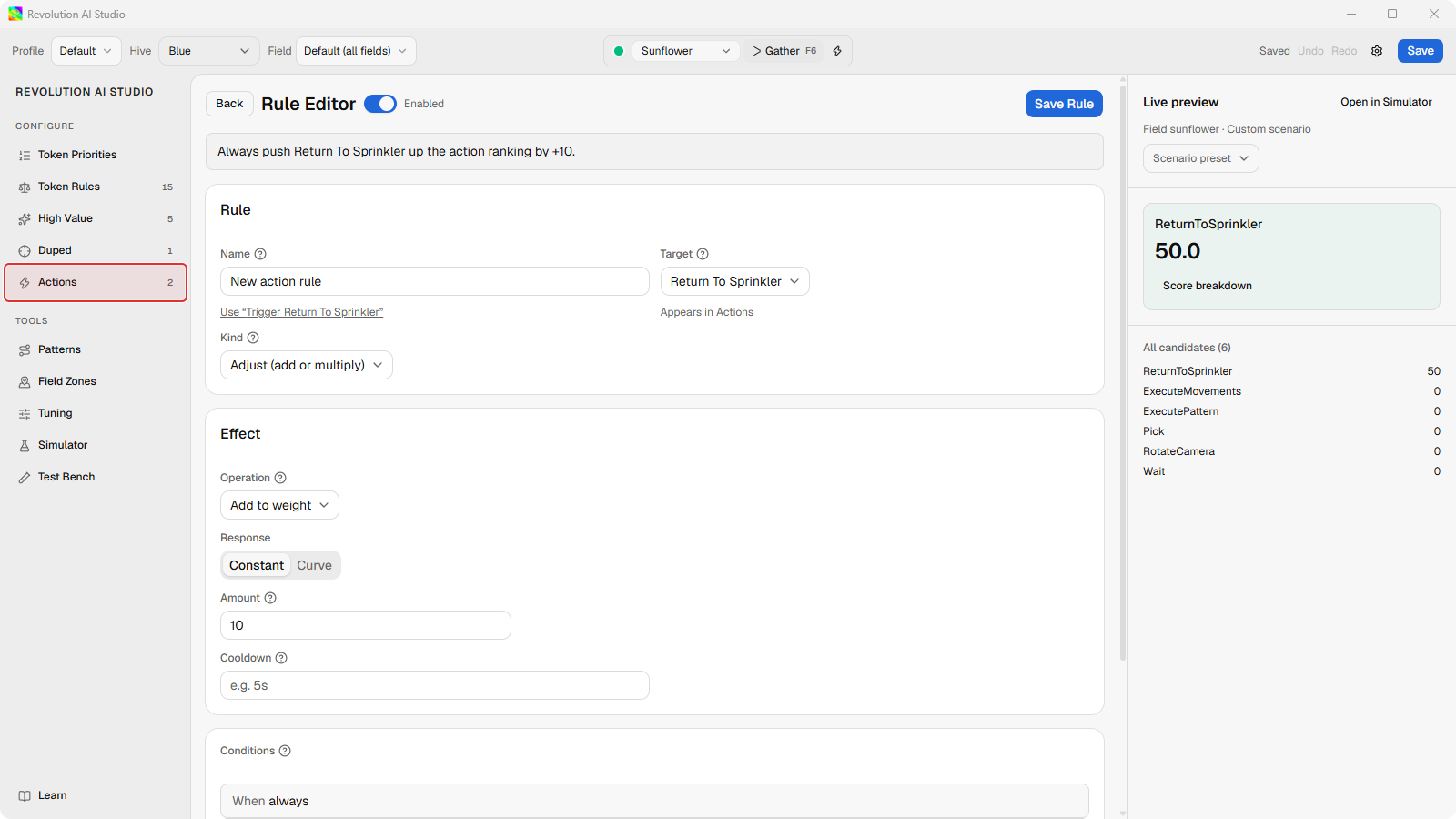
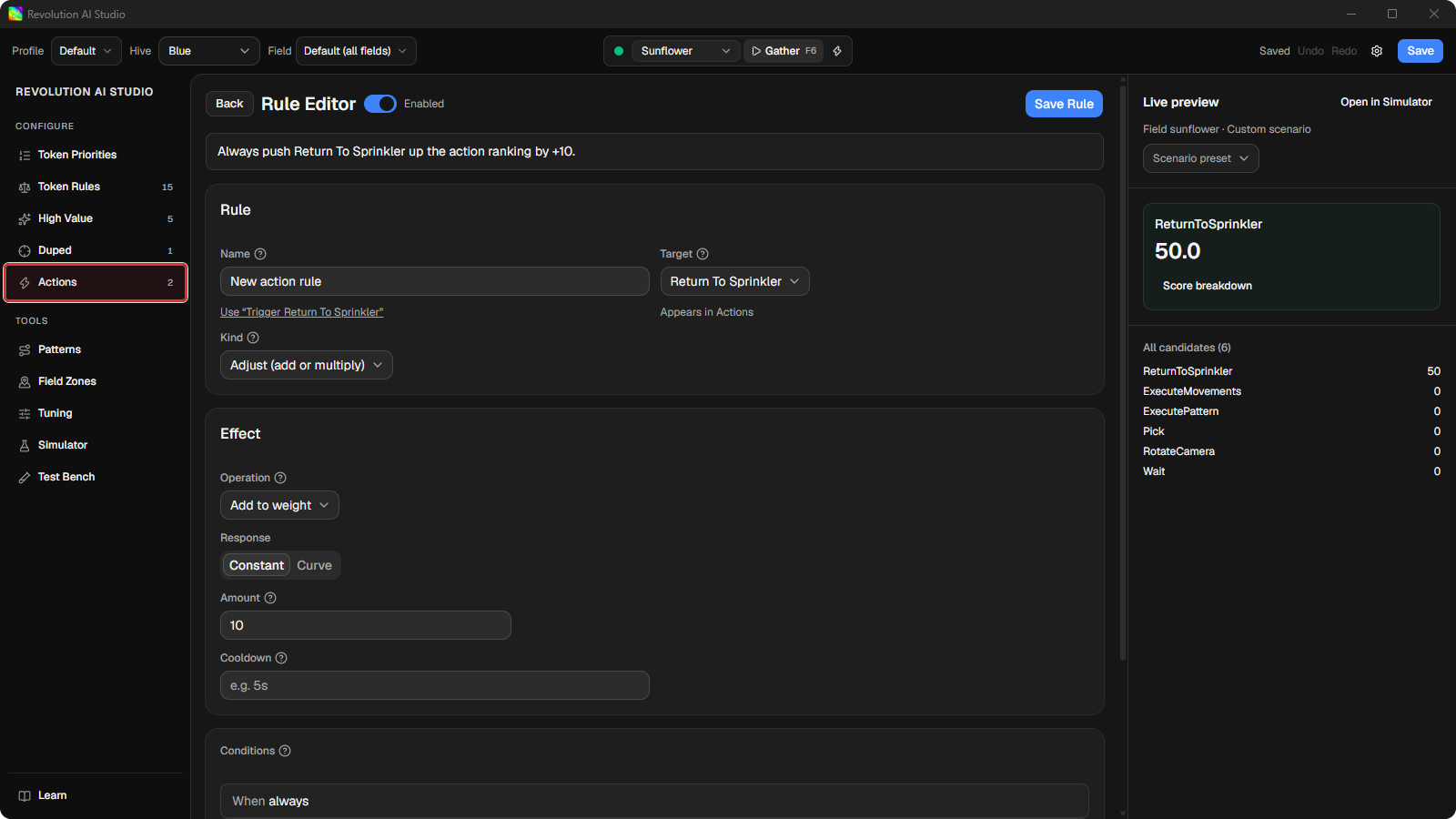
Click New action rule.
The Rule Editor opens with Target action set to Return to Sprinkler. Change it if you want a different movement.
-
Choose the Kind and add conditions.
Adjust gives the action a score while the conditions match. An action with no score never wins, so most action rules are Adjust rules. Pick override puts the action ahead of ordinary tokens outright, which is how the default PopShift rules work. Conditions for actions describe the field and the session rather than a token: which field you’re in, whether Pop Star is active, how long since the last return. Use Seconds since action when you want a gap between runs.
-
Click Save Rule, then Save in the file bar.
The actions you can pick
Section titled “The actions you can pick”- Return to Sprinkler walks your character back to the sprinkler.
- Execute Pattern runs a pattern from your profile. Pick it under Pattern (.lua), and turn on Return to sprinkler before executing if the route should start from the sprinkler. A pattern always runs to the end once it starts.
- Execute Movements walks a list of waypoints measured from the sprinkler.
- Wait stands at the sprinkler until a new token or action wins. There’s no duration on the action itself. How long the macro idles between looks is a Tuning setting.
- Rotate Camera turns the camera to one of eight directions, Camera yaw 0 through 7, from North round to Northwest.
- Oscillate Camera sweeps the camera back and forth. The sweep range is a Tuning setting, and the rule links you to it.
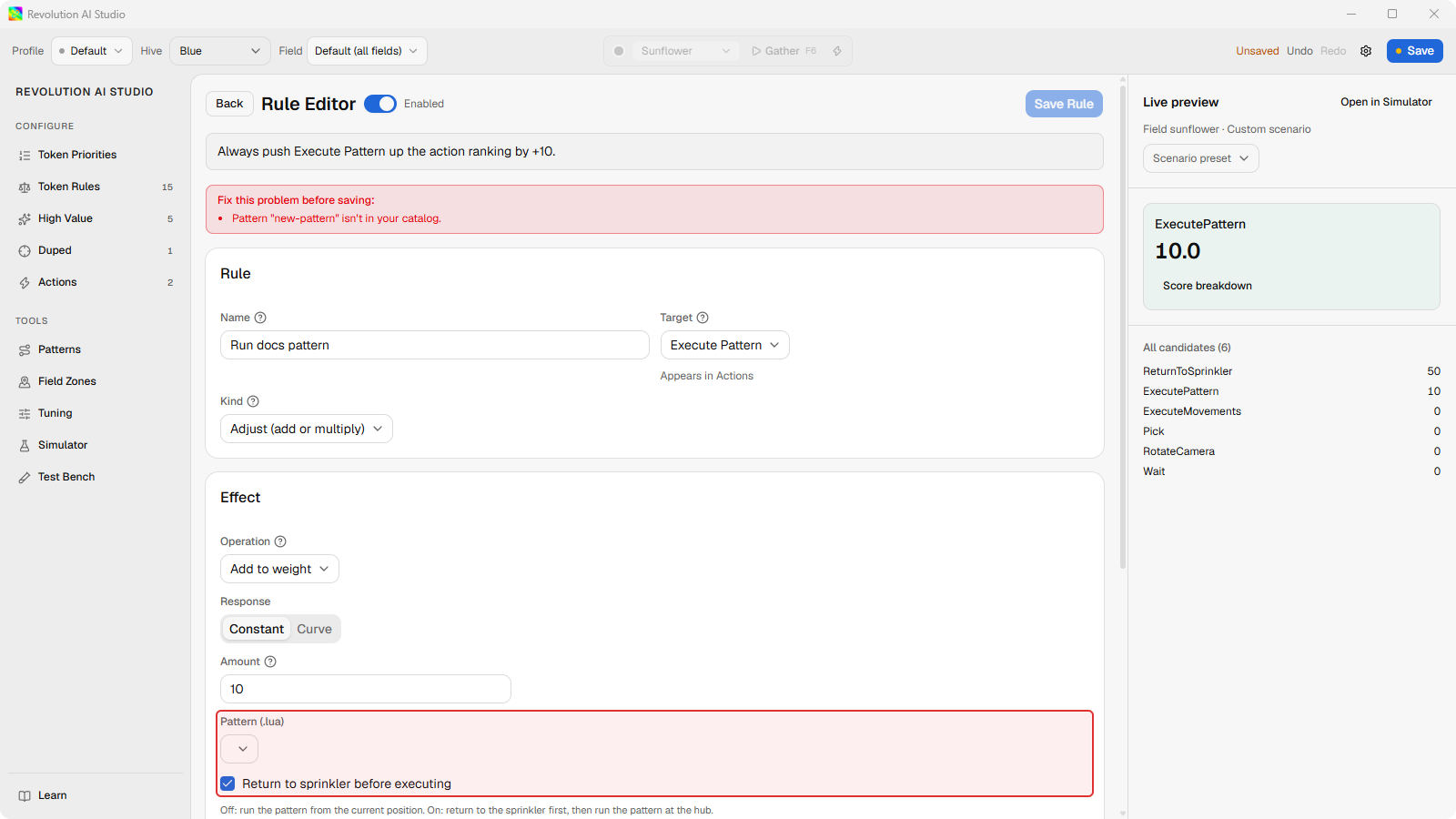
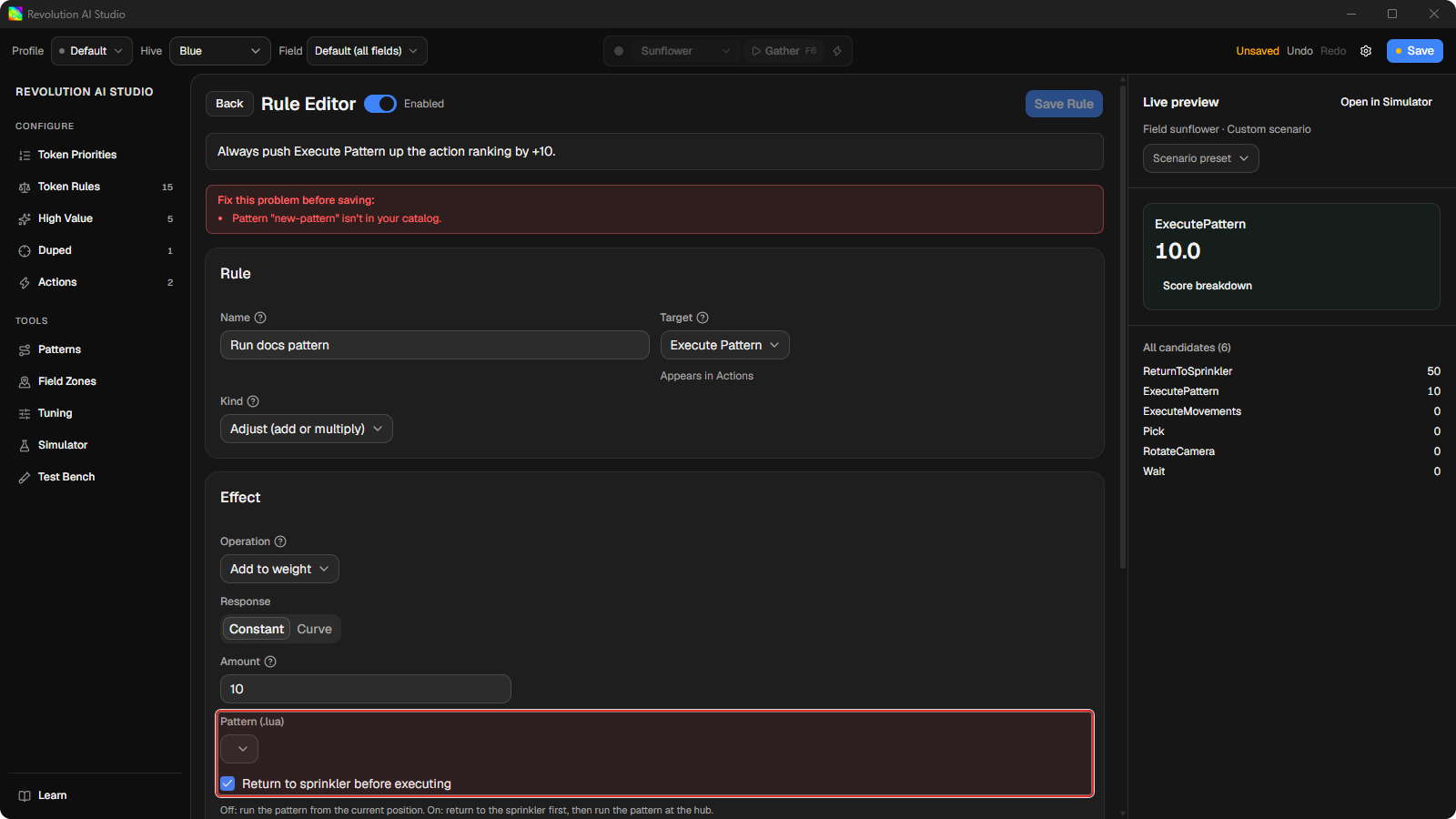
Return to Sprinkler, Wait, and Execute Movements also offer Cannot be interrupted. Select it when the action must finish every time it starts, no matter what appears on the field. Interrupt rules covers when you’d want that and when a rule is the better tool.
If something’s off
Section titled “If something’s off”- Execute Pattern has nothing to pick. Create or import a pattern under Tools → Patterns first, so it shows In profile.
- The rule won’t save. Execute Pattern needs a pattern chosen. The editor tells you which parameter is missing.
- You wanted to change how a token scores. That’s Configure → Token Rules, not Actions. See Token rules and High Value.