
Save and sync a movement profile
Nothing you change in AI Studio reaches the macro until it’s written to disk. Save does that, the sync badge next to it tells you whether it happened, and Live Apply does it for you while you tune during a gather. This guide covers all three, plus the profile library where the files end up.
Save, and what the badge tells you
Section titled “Save, and what the badge tells you”-
Change anything in your profile.
The badge in the file bar shows
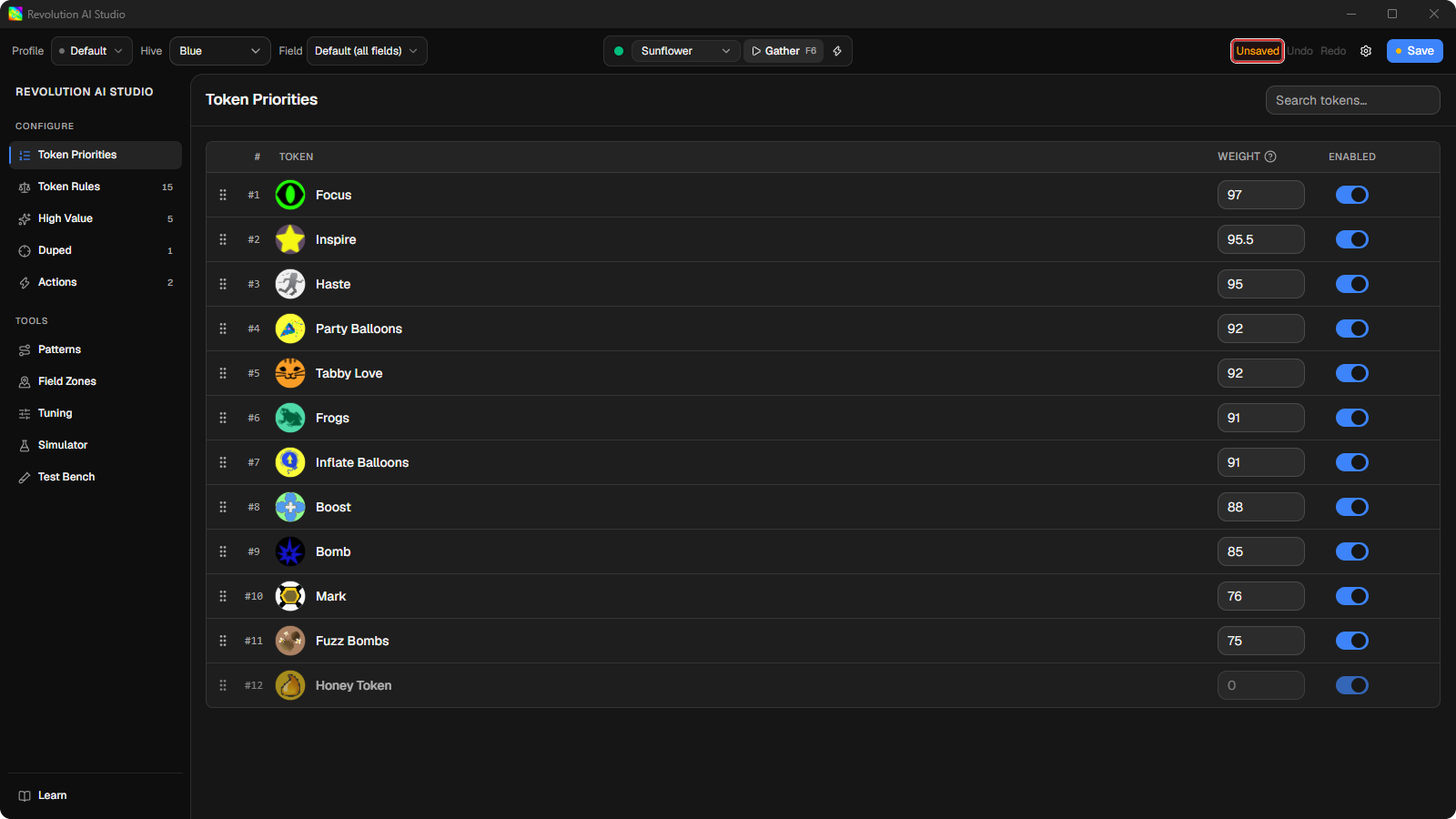
Unsaved. The macro is still using the last file it loaded, and it will keep using it until you save.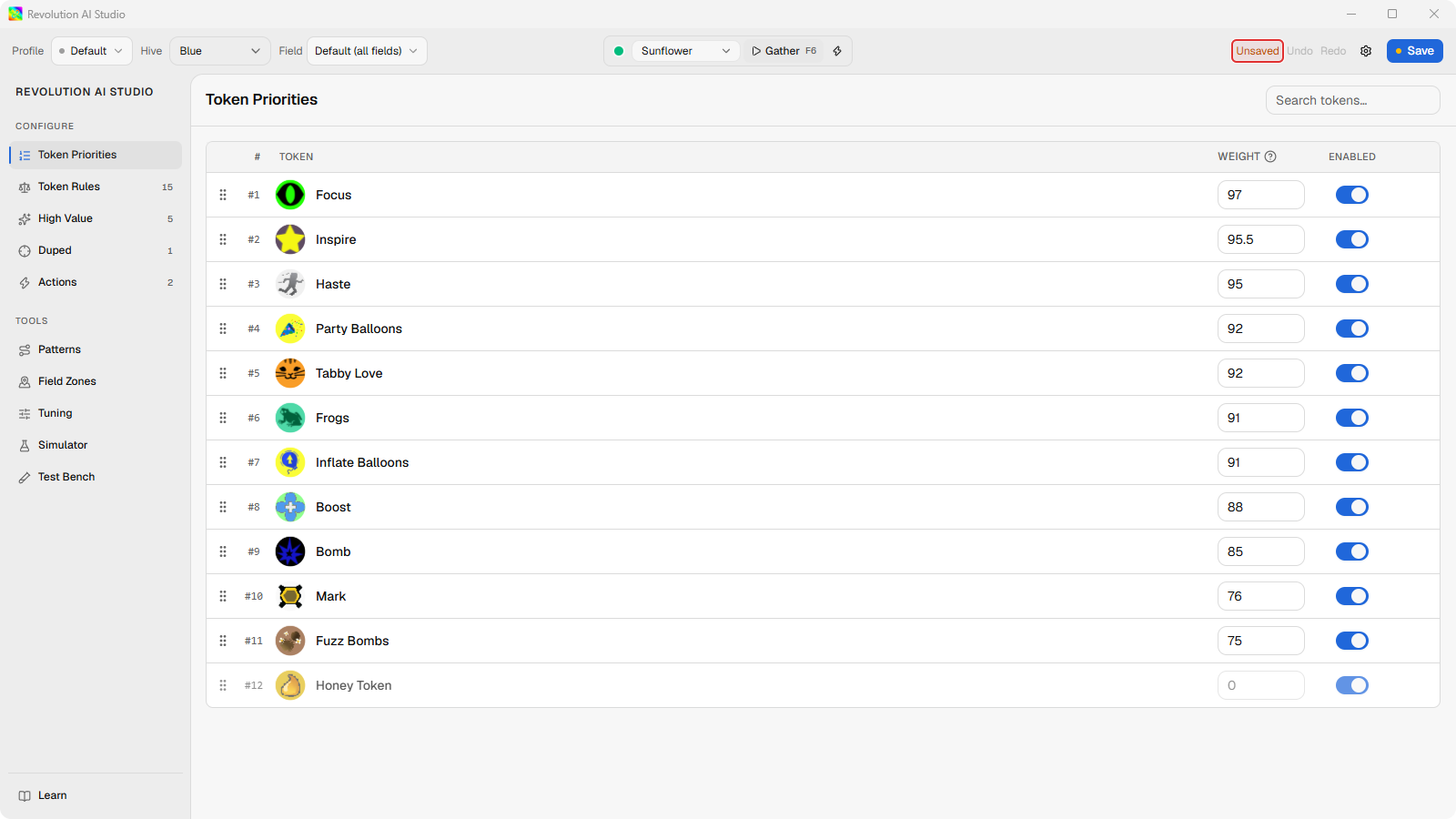
-
Click Save.
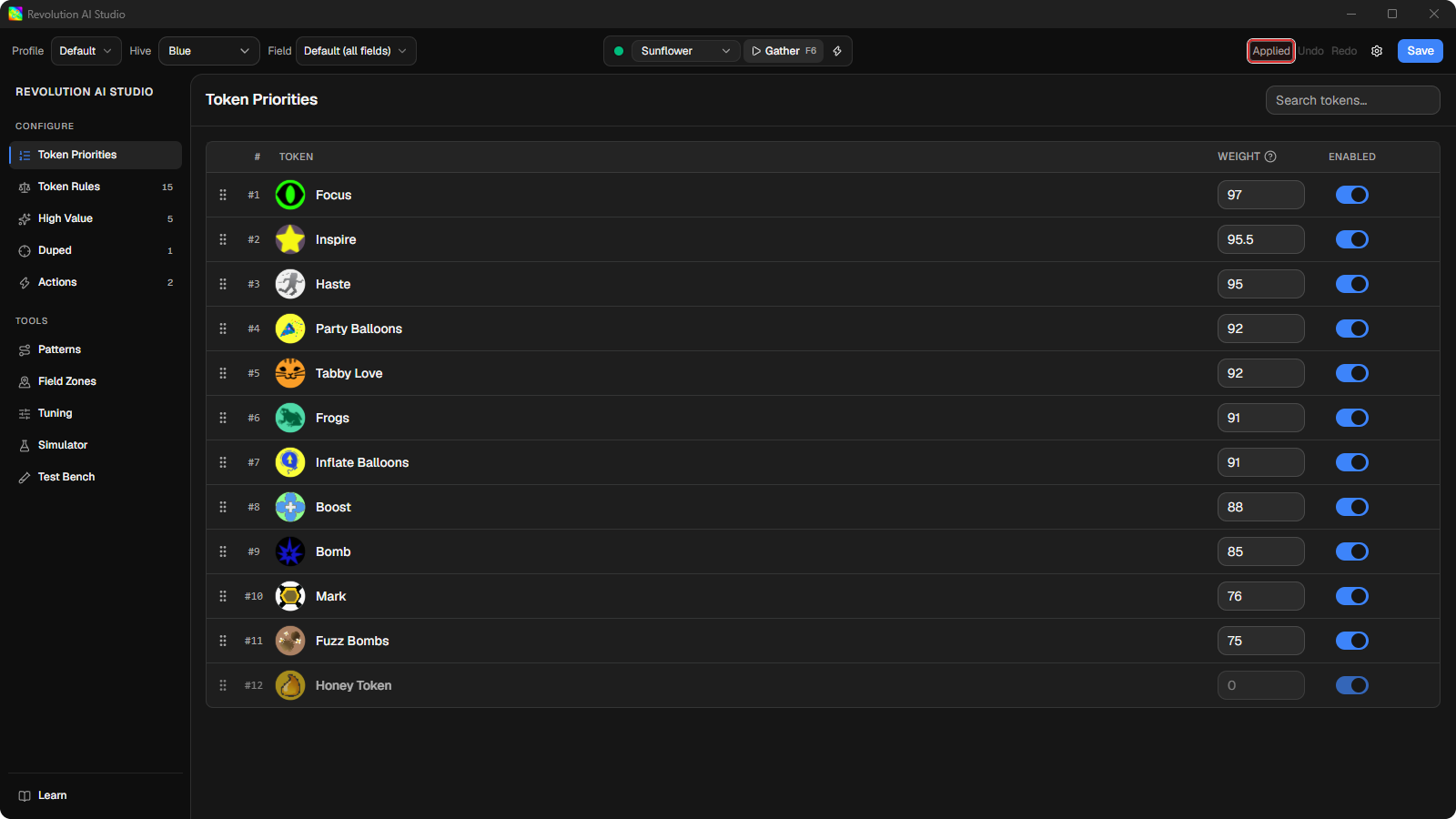
If Revolution Macro is linked, it reloads the profile straight away and the badge flashes
Appliedto tell you so. The macro is now gathering with the change.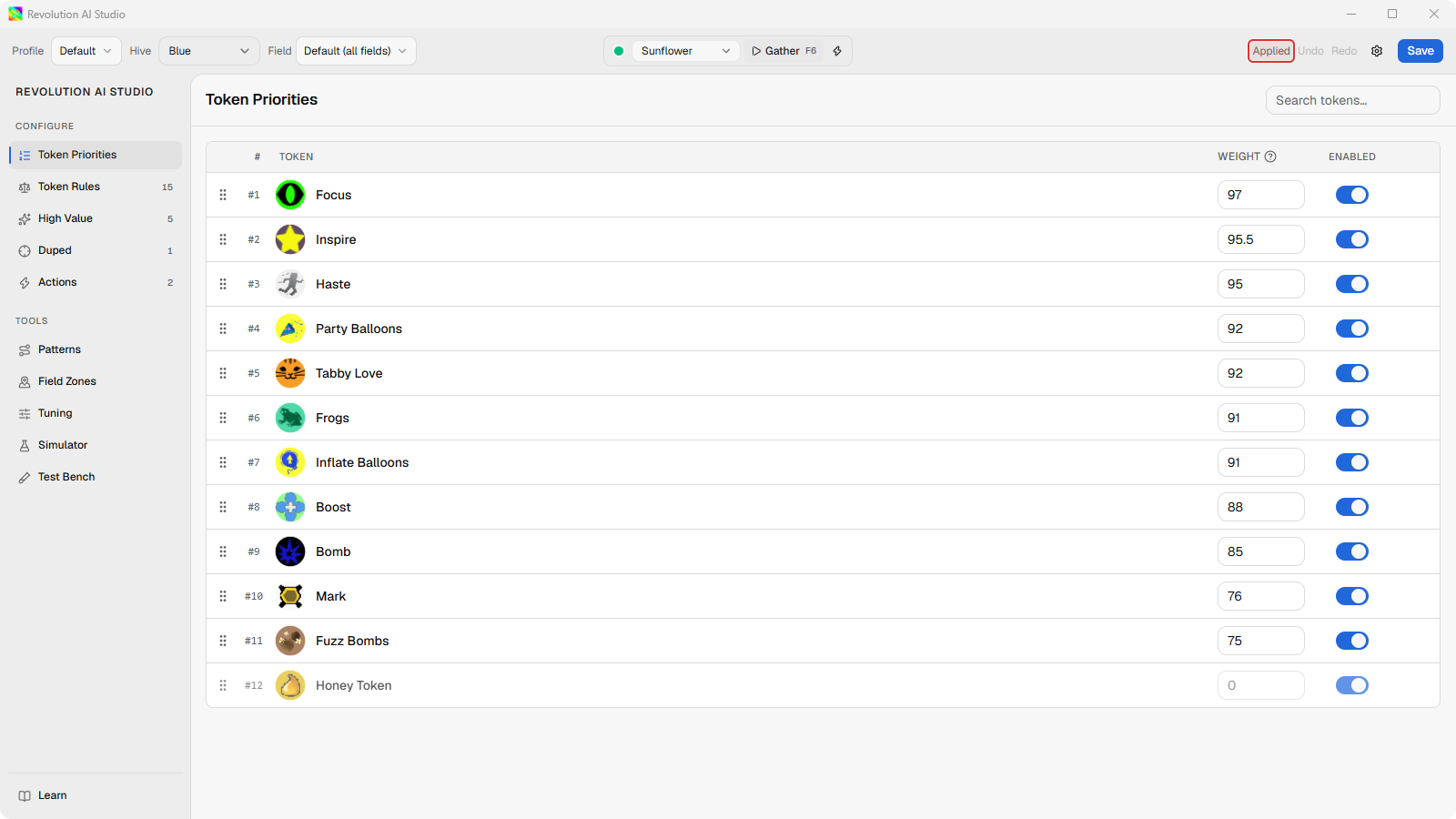
-
Check that the badge settles on
Saved.That’s the state you want to see before you close AI Studio or start a gather. With Revolution Macro closed, you go straight from
UnsavedtoSaved, and the macro picks the file up the next time it loads the profile.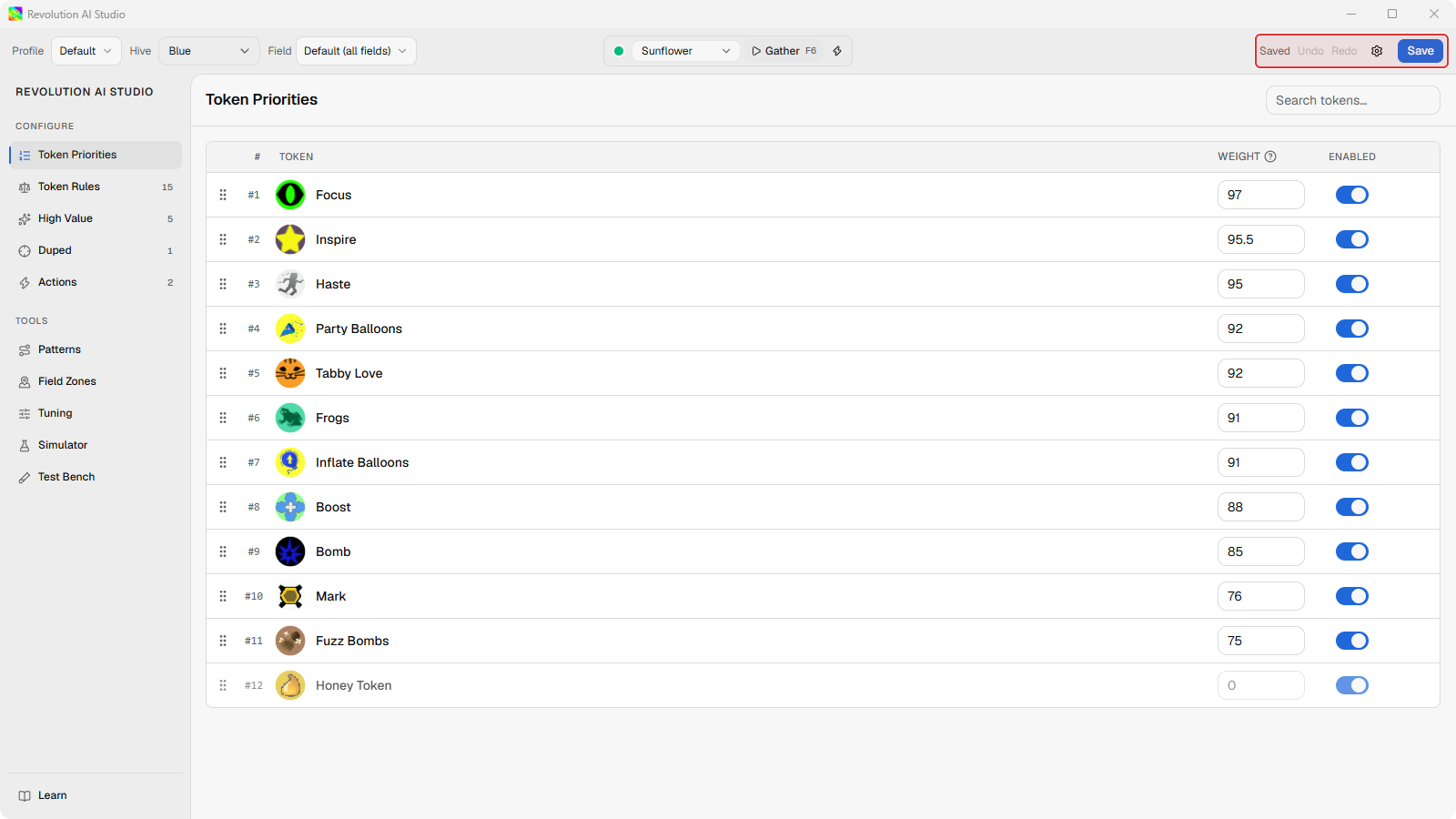
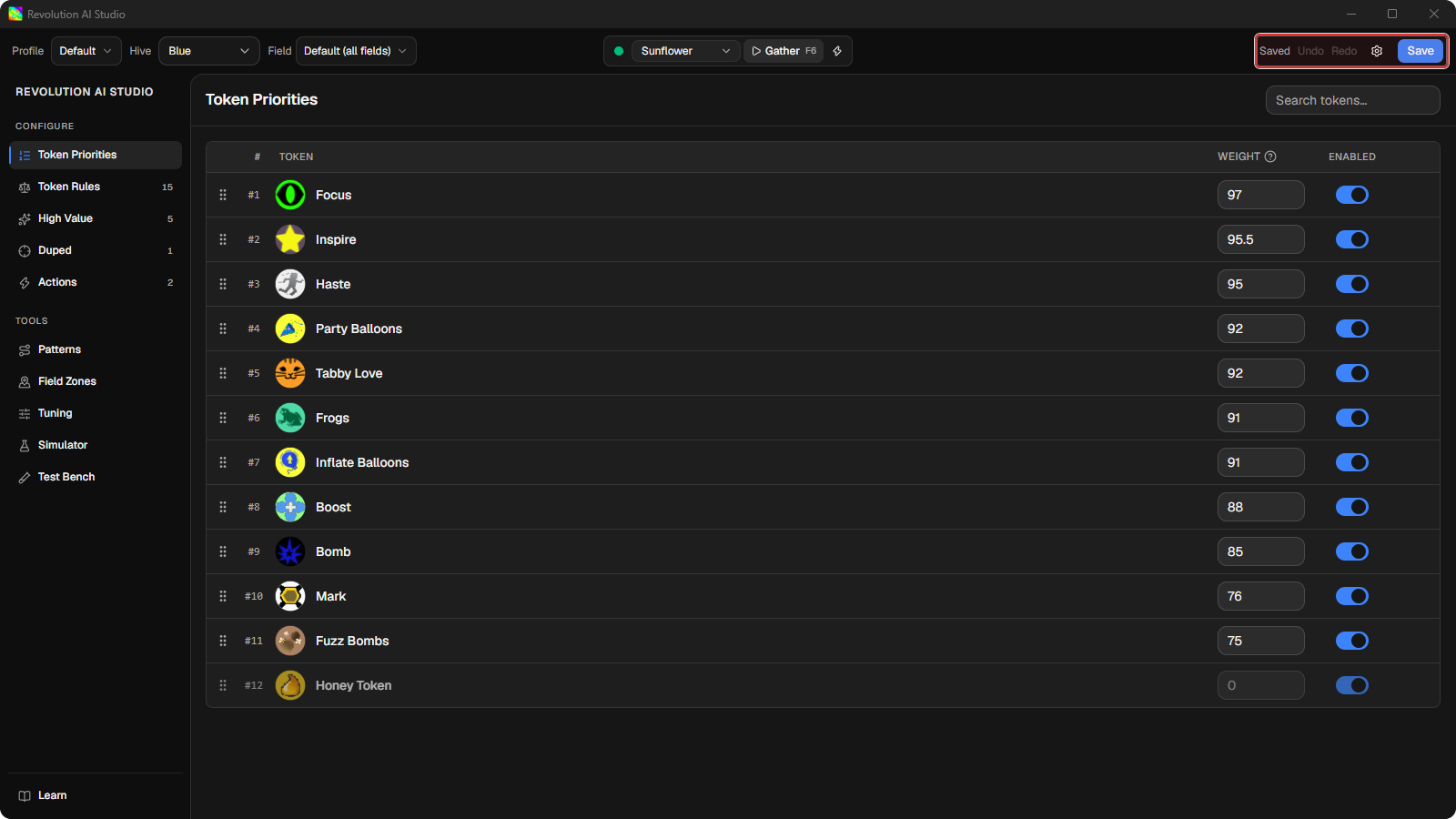
If the badge shows a number instead, that’s a count of validation errors. Click the Validation issues indicator next to Hive, click an error to jump to it, and fix it. Rules with errors are ignored while gathering until you do.
Live Apply
Section titled “Live Apply”When you’re making several small edits during one gather, clicking Save
after every one gets old. Turn on Live Apply, the lightning control next to
Save. From then on every valid edit is saved on its own and the linked
macro reloads it, and the badge shows Live while the two are in step.
Live Apply is off by default and stays greyed out until Revolution Macro is linked. It won’t save while the profile has a validation error, so fix the error count first, then turn it back on.
Where the file goes
Section titled “Where the file goes”Your profile is a .movement.json file in the shared profile library. The
Profile menu in the file bar manages it: New profile…, Import
profile…, Duplicate…, Rename…, Delete…, and Reveal profile
library, which opens the folder. On Windows the library is
RevolutionMacro/profiles in your user config folder. On a Mac it’s under
Library/Application Support/RevolutionMacro/profiles.
When you import a profile someone shared, choose Import as copy so it gets its own name. Choose Replace existing only when you mean to overwrite a profile you already have.
If something’s off
Section titled “If something’s off”- You closed AI Studio and it asked
Save your profile before closing?You had unsaved edits. Save, or discard them on purpose. - Live Apply stays greyed out. The apps aren’t linked. See Link a movement profile to Revolution.
- Import failed. The file didn’t validate or couldn’t be copied into the library. See AI Studio problems.