
Use Simulator and scenarios
The Simulator answers the question you’ll ask most while tuning: why did that token win? Load a scenario and it ranks every token and action under your current profile, then shows you the score breakdown behind any row. This guide covers loading a scenario, reading Trace, and building a scenario that looks like the moment you saw in the field.
How this fits
Section titled “How this fits”A scenario is a pretend field: a set of tokens at set distances, your buffs at set levels, and your character at a set spot. The Simulator ranks that field with your active profile, exactly as the macro would, without a gather running. Two presets do most of the work. Early field, low buffs is sparse, with Melody and Focus near empty and three tokens near you, so a buff rule is easy to read. Dense cluster packs six tokens together so the scores are close and a weight or distance change shows up clearly.
The Simulator ranks ordinary tokens and actions. Duped tokens are scored separately and don’t appear here. For a decision from a real gather, with the field and buffs exactly as they were, use Test Bench.
Read why a token won
Section titled “Read why a token won”-
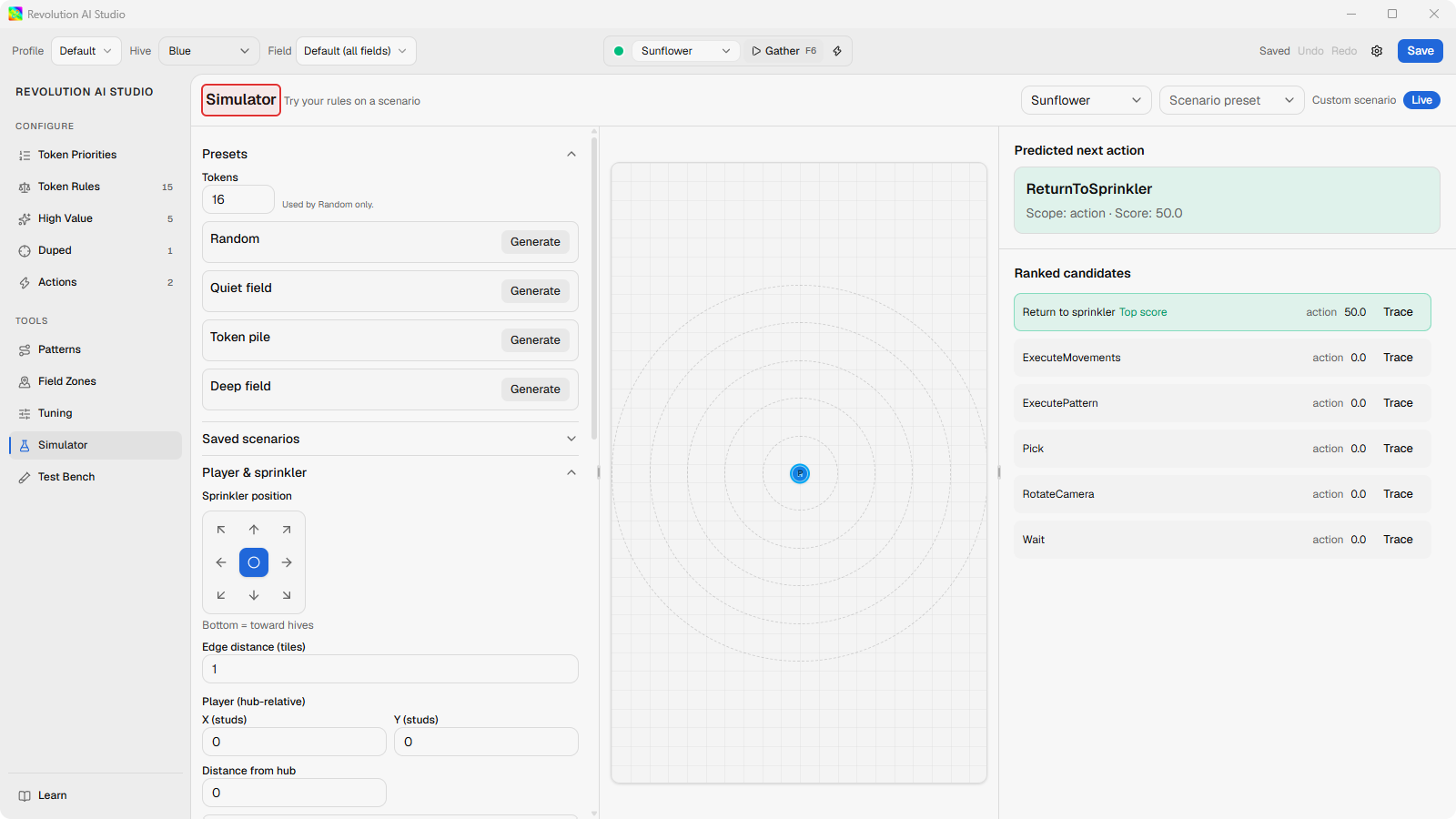
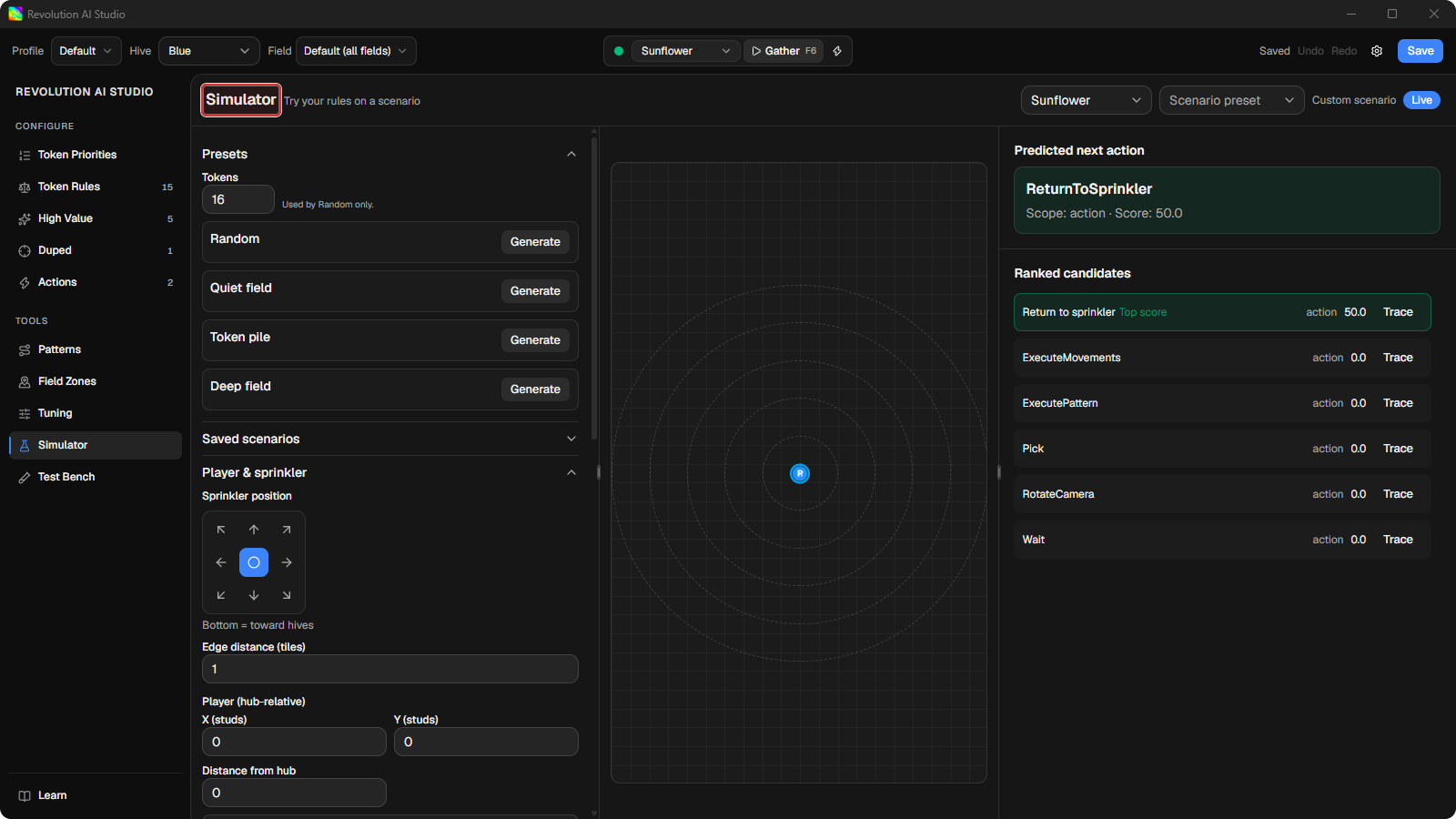
Open Tools → Simulator, or start Sidebar → Learn → See why a token won.
-
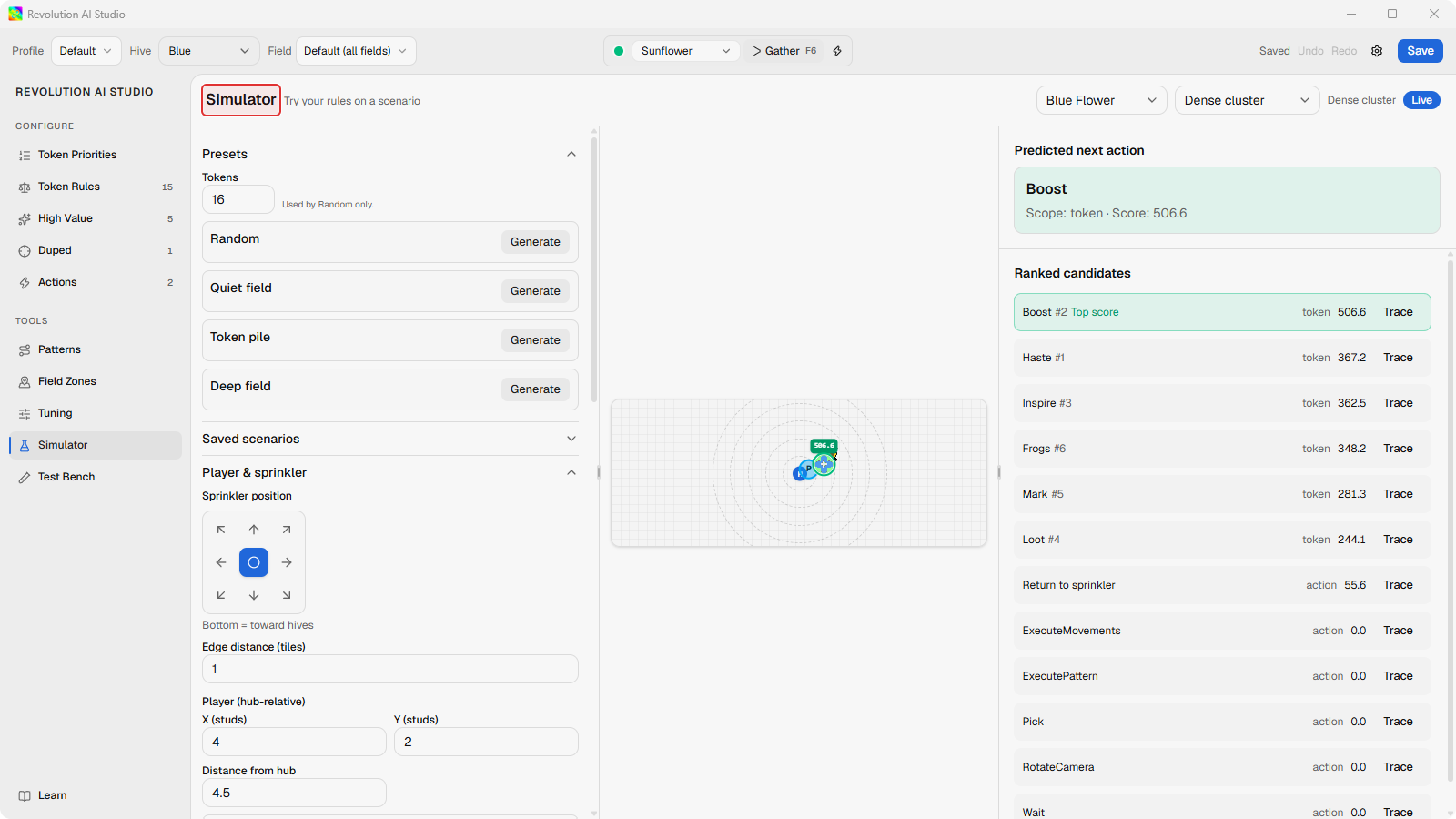
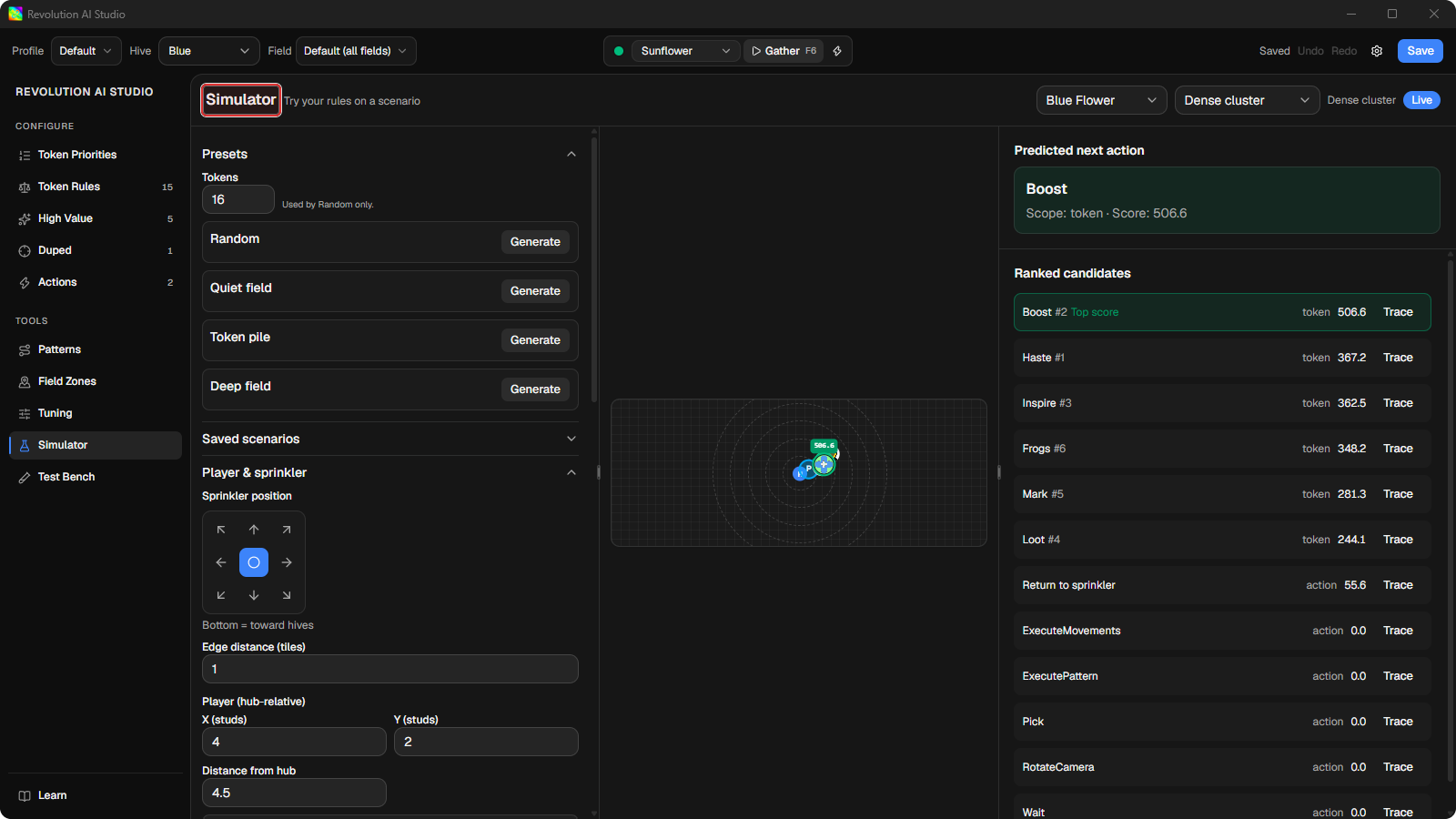
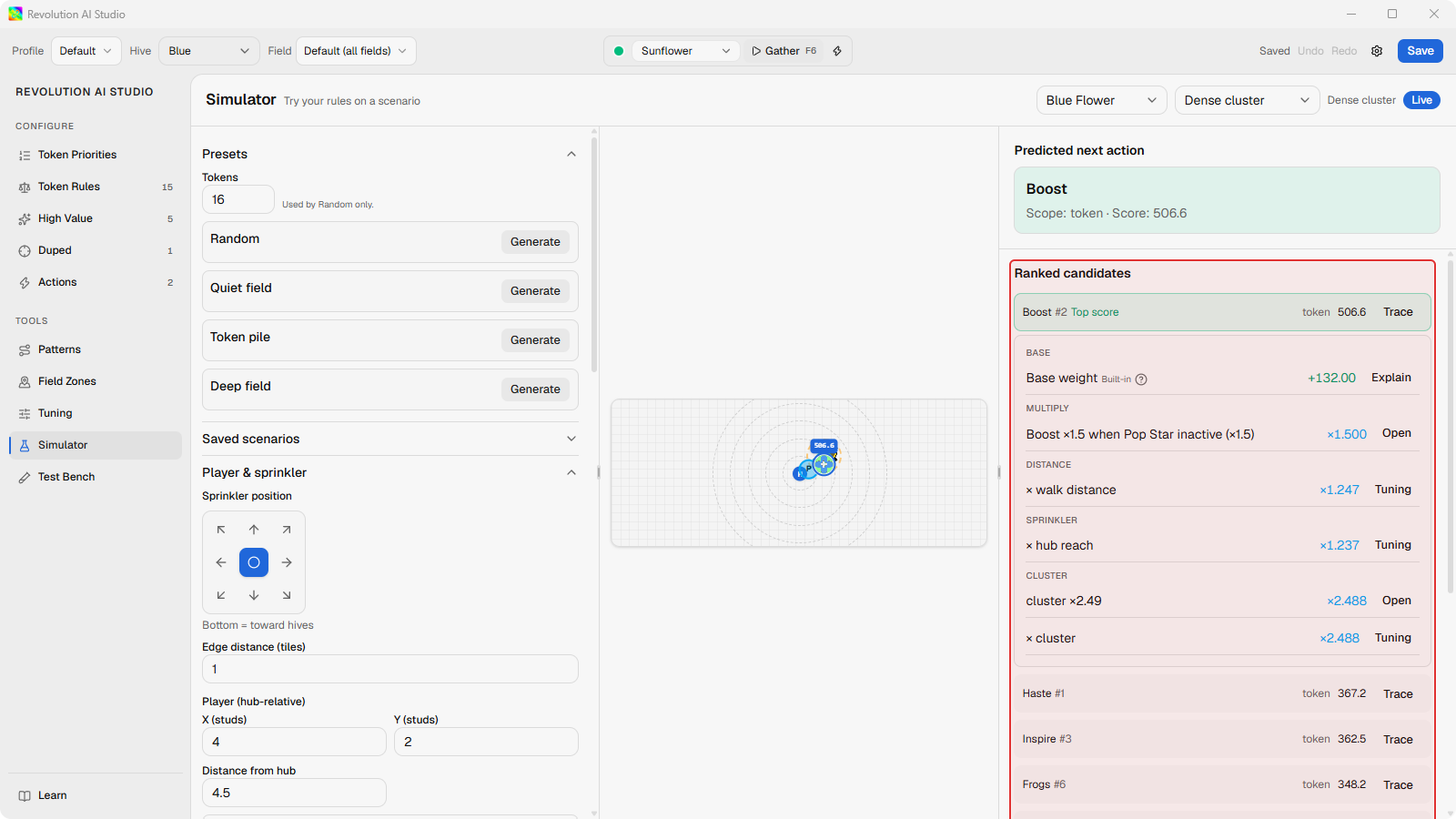
In Scenario preset in the header, choose Dense cluster.
Six tokens appear around your character on the field map, and the ranked list on the right fills in.
-
Wait for the header to show
Live.It shows
Evaluating…while it ranks. Predicted next action at the top is the candidate the macro would go for. Before you open anything, guess which of the six it is and roughly why. -
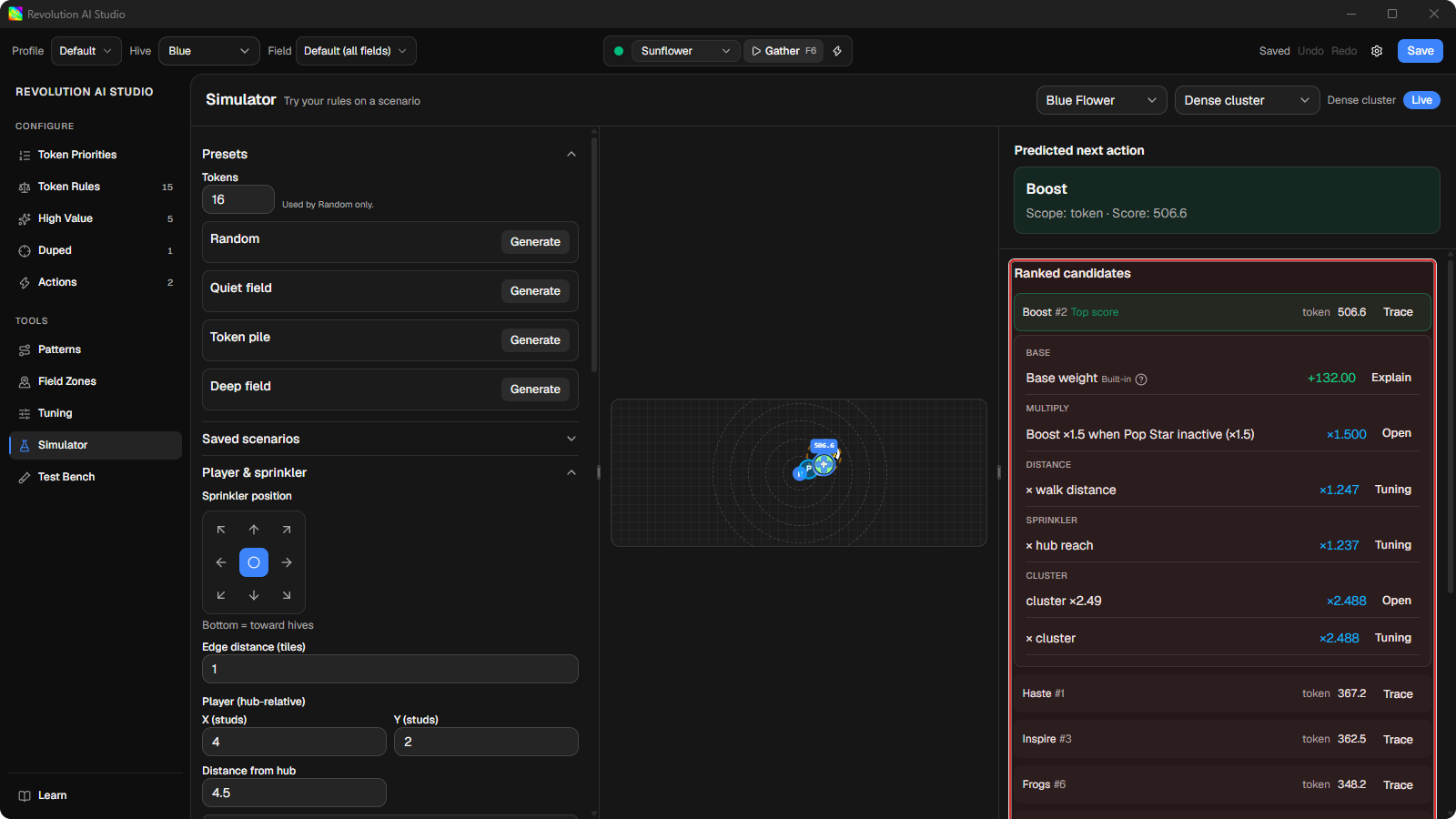
Under Ranked candidates, click Trace on the row marked Top score.
The score breakdown lists everything that made up that number, in the order the macro applied it: the base weight, then your rules, then each Built-in curve as a multiplier. On Dense cluster you’ll see every token get the same cluster bonus, which is why base weight decides the order here. How scoring works walks through these exact numbers.
Build the moment you saw
Section titled “Build the moment you saw”A preset gets you started, but the decision you want to fix happened on your field with your buffs. The Scenario panel on the left lets you rebuild it.
- Buffs. Click Add buff, pick the buff, choose Percent or Stacks, and set the value. Set Melody low before you test a rule about Melody at low buff.
- Abilities. Tick the ones that were active, and set Pop Star stacks or Scorching Star stacks if a rule depends on them.
- Tokens. Under Add token, pick a class. The new token is selected, and you can set its position, how many times vision matched it, its age, and whether it’s confirmed, or just drag it on the map.
- Current commitment. Set what the macro was already doing, a token move or an action, when you’re testing an Interrupt rule.
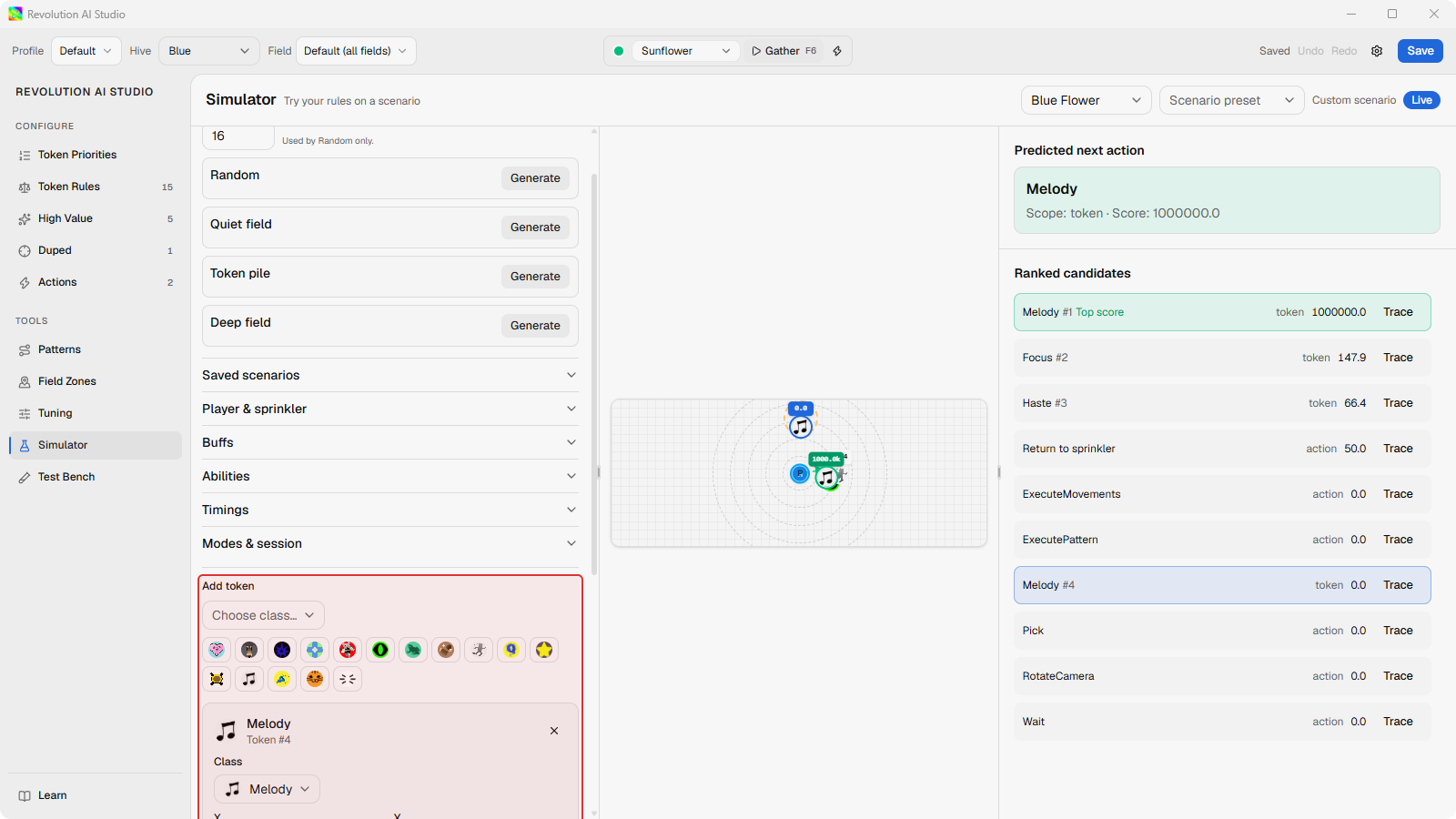
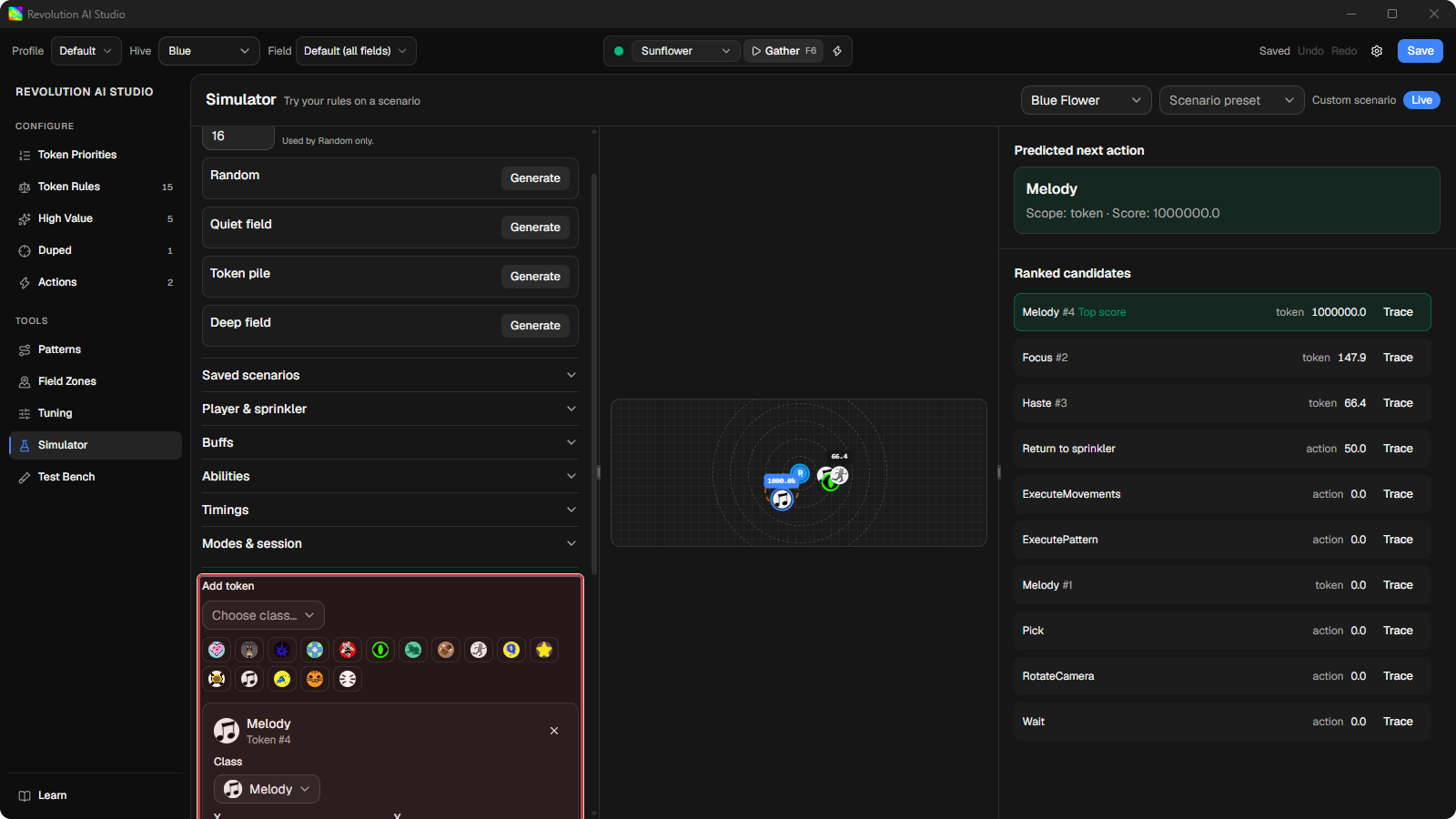
The Simulator re-evaluates after every change. Wait for Live, then open Trace
again. If you want a rough field fast, the Presets accordion has
generators: Random, Quiet field, Token pile, and Deep field. You
can keep a scenario you built under Saved scenarios.
While you’re editing a rule, Live preview in the Rule Editor ranks the same scenario. Open in Simulator takes you here with the field intact.
What the Simulator can’t tell you
Section titled “What the Simulator can’t tell you”It has no memory of a session, so conditions like Seconds Since Return use the numbers you type into the scenario’s time fields rather than anything real. It doesn’t rank Duped tokens. And it only knows about tokens you put on the field, so it can’t tell you about a token the vision models missed. For all three, replay a real gather in Test Bench.
If something’s off
Section titled “If something’s off”- Trace is greyed out. The header still says
Evaluating…. Wait forLive. - The header says
No eligible candidate.Every candidate is Gated. Check your Gate rules under Configure → Token Rules. - The header says
Eval error. See AI Studio problems.