
Shape your field with Field Zones
Some parts of a field are worse than others. A corner blocked by props where the macro can’t see tokens well, or a stretch near the sprinkler where balloons cluster. A Token Rule can’t tell those apart, because it doesn’t know where your character is standing. A Field Zone can. This guide walks you through drawing one and checking what it did.
How this fits
Section titled “How this fits”Zones encode spatial relationships into a token’s score. The macro is always tracking where your character is relative to the sprinkler, and AI Studio lets you adjust scores depending on where that position is. Adding a rule or increasing a token’s weight answers “which class should I prefer?” - a zone answers “where on the field should that preference change?” Raising Melody’s weight increases the score of every Melody token. Painting an Avoid over a corner blocked by props only changes scores while your character is in that place.
Draw a zone when you want the macro to avoid an area, such as spots with limited visibility, or when an area is more worth collecting in, such as near the sprinkler or the corners where balloons cluster most. Zones can also act as conditions in your rules, through the Player In Zone and Token In Zone conditions.
Draw a zone
Section titled “Draw a zone”-
Open Tools → Field Zones.
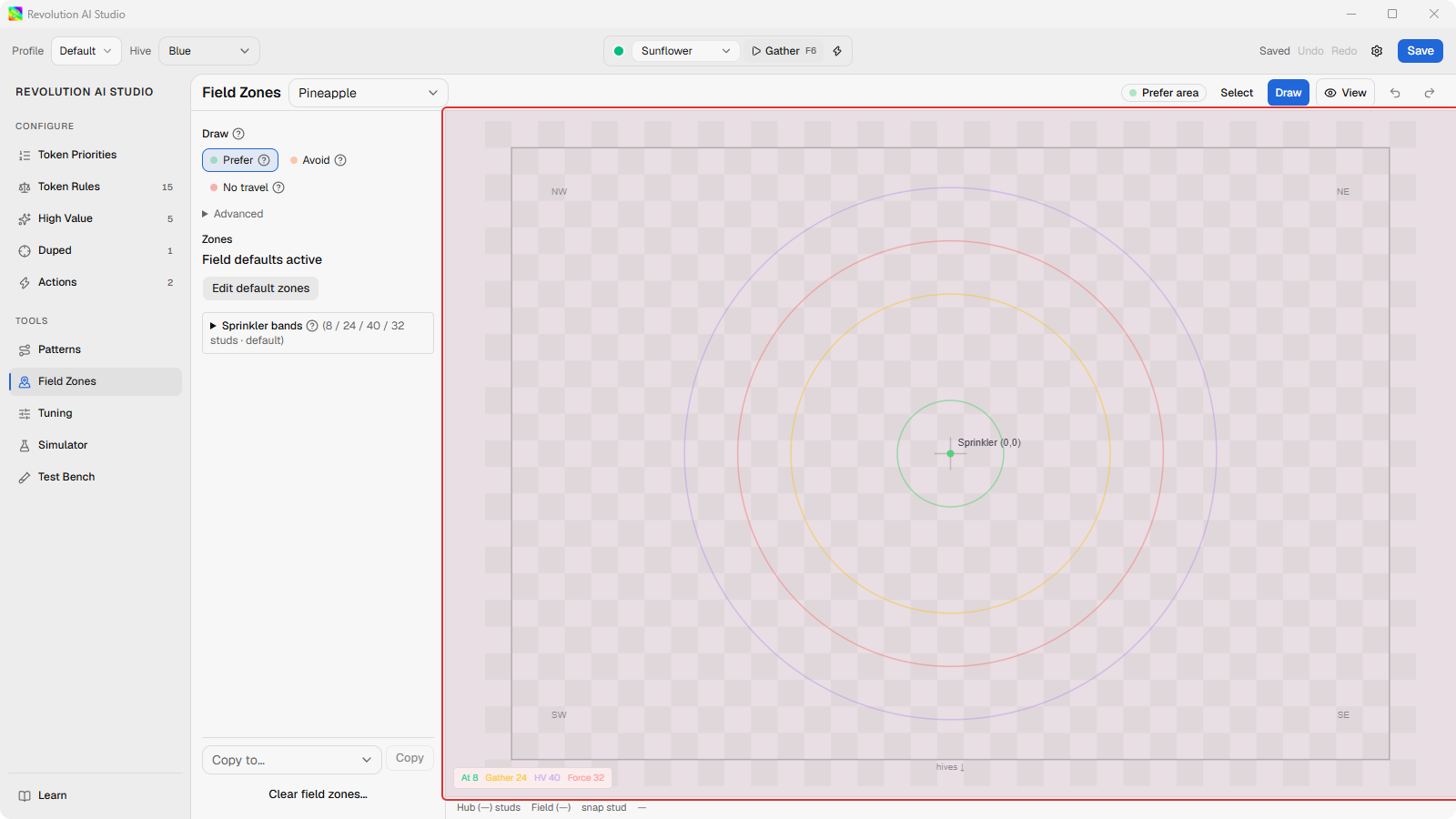
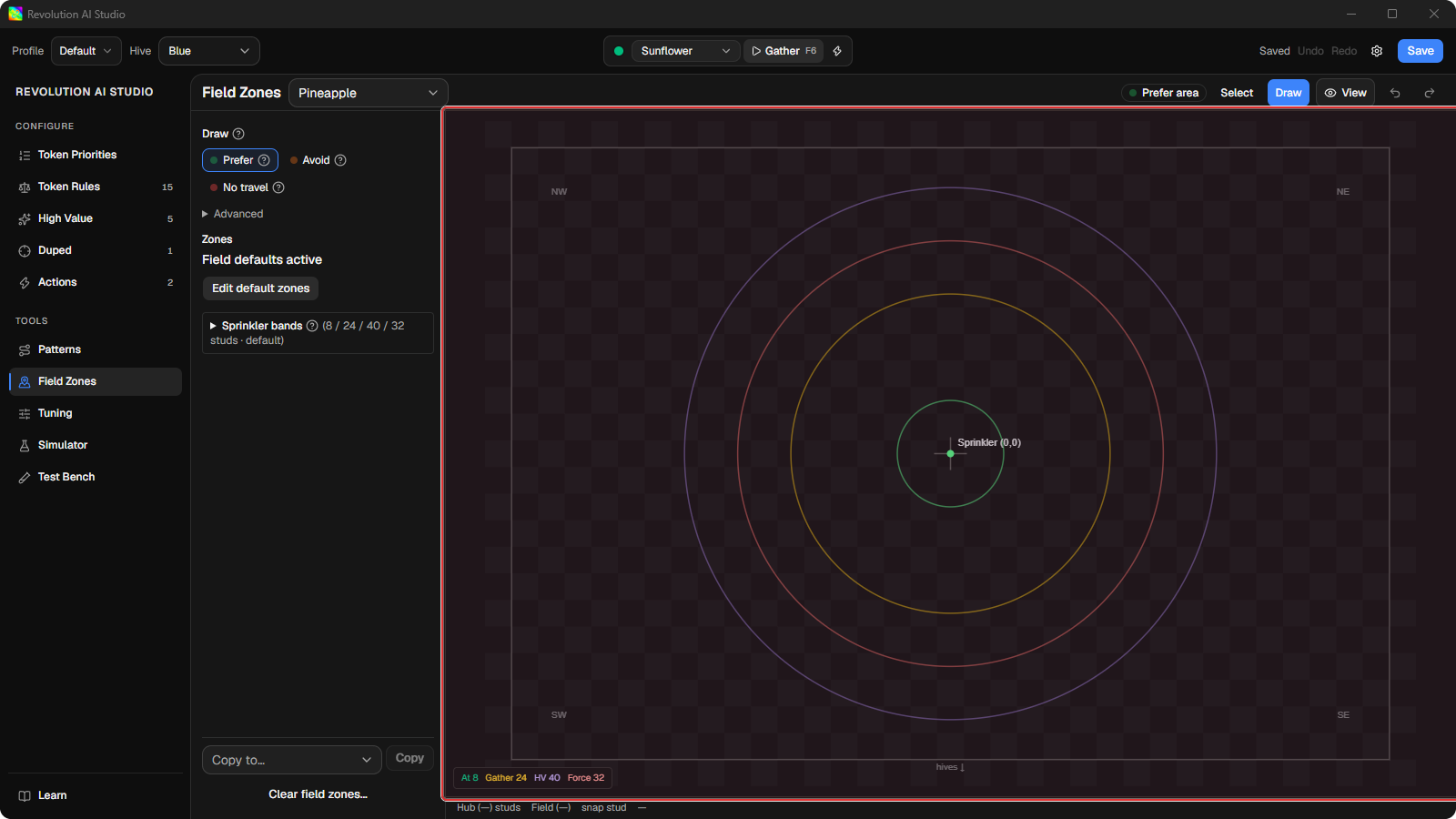
You see the field map for your current gather field, with the sprinkler bands drawn as circles around the sprinkler.
-
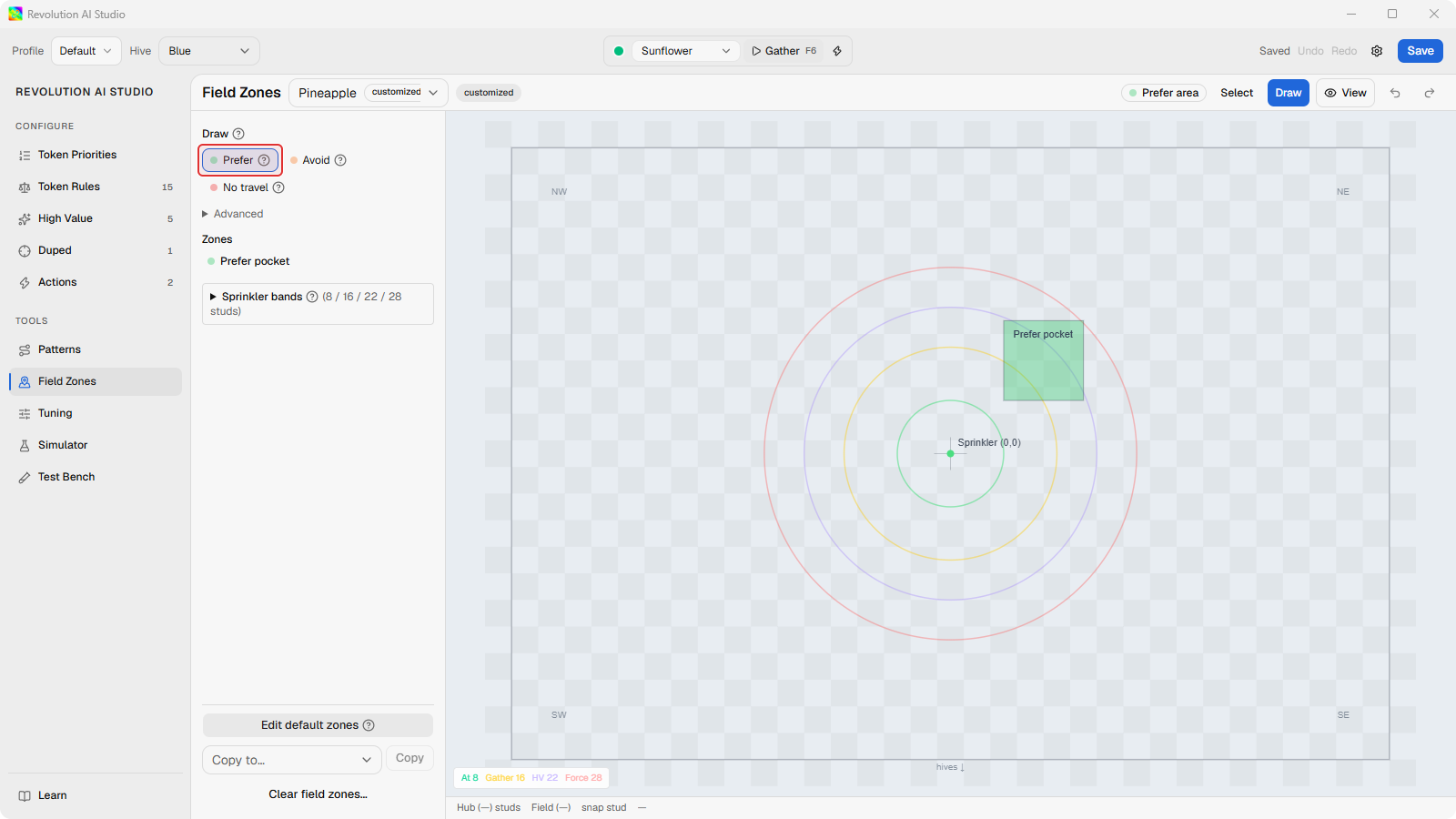
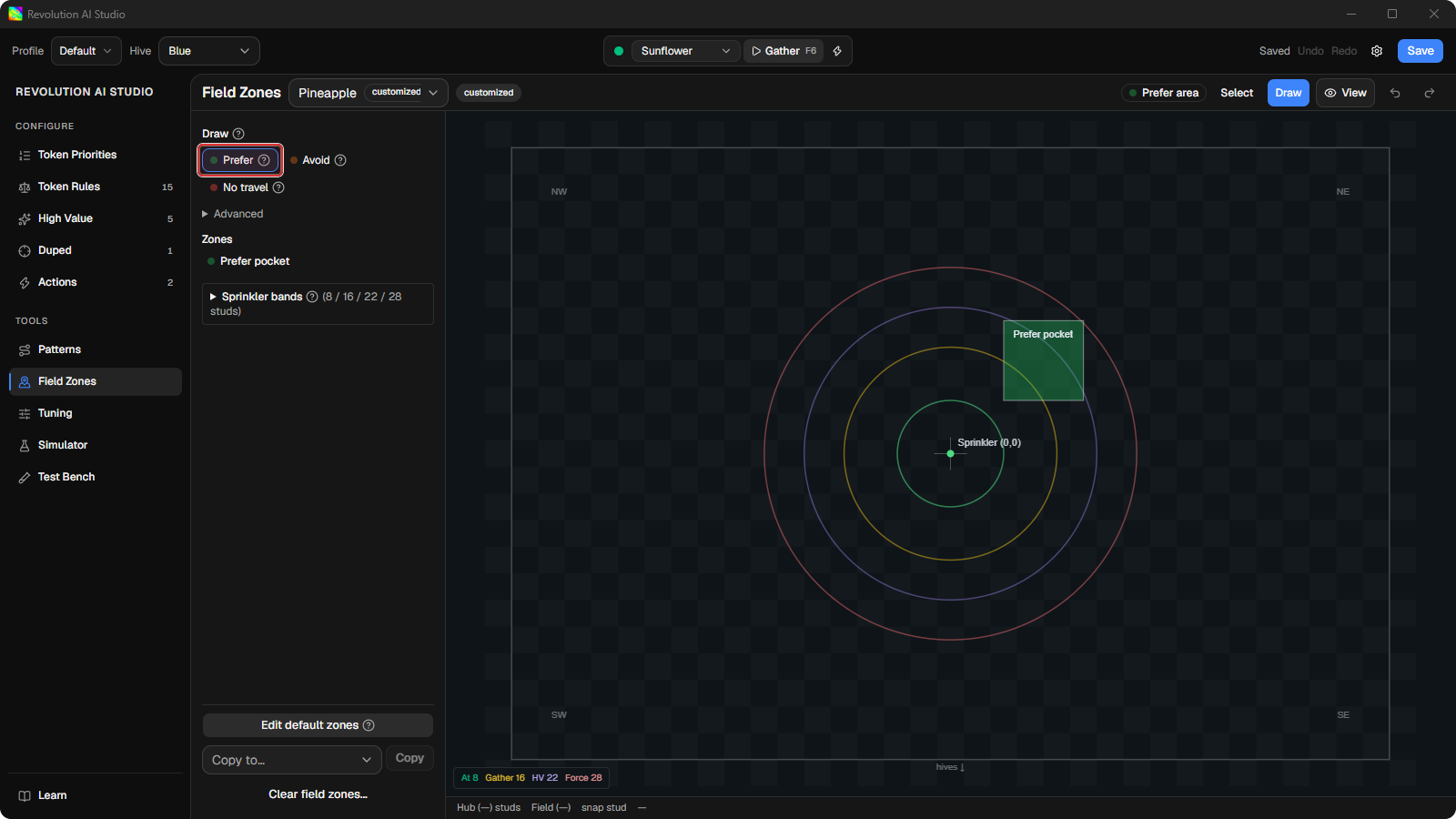
In the Draw palette, keep Prefer area selected, or switch to Avoid area. Then drag a rectangle on the map.
A Prefer zone multiplies the score of tokens inside it by ×2. An Avoid zone multiplies by ×½. The new zone appears in the Zones list with Priority 1.
-
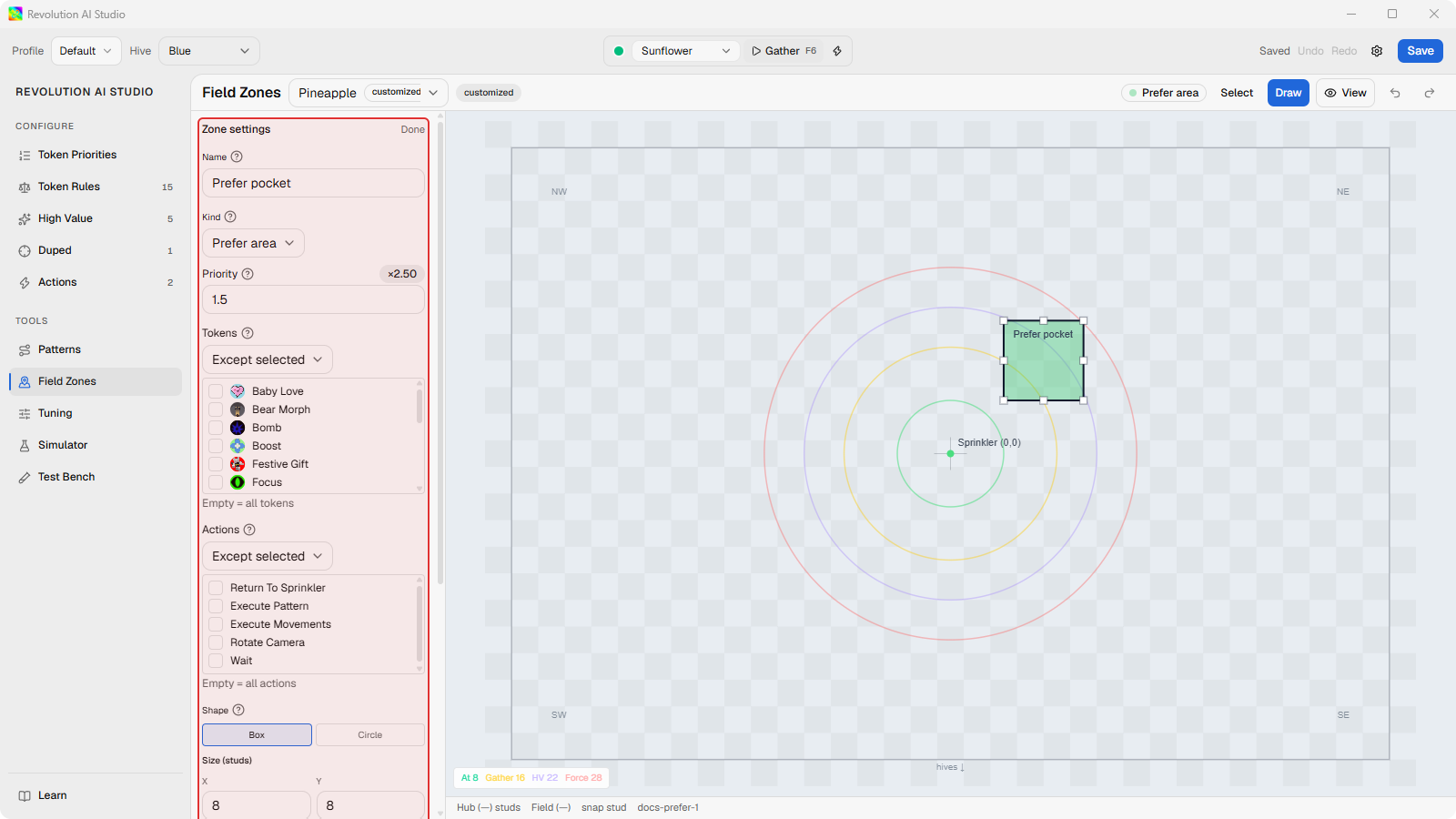
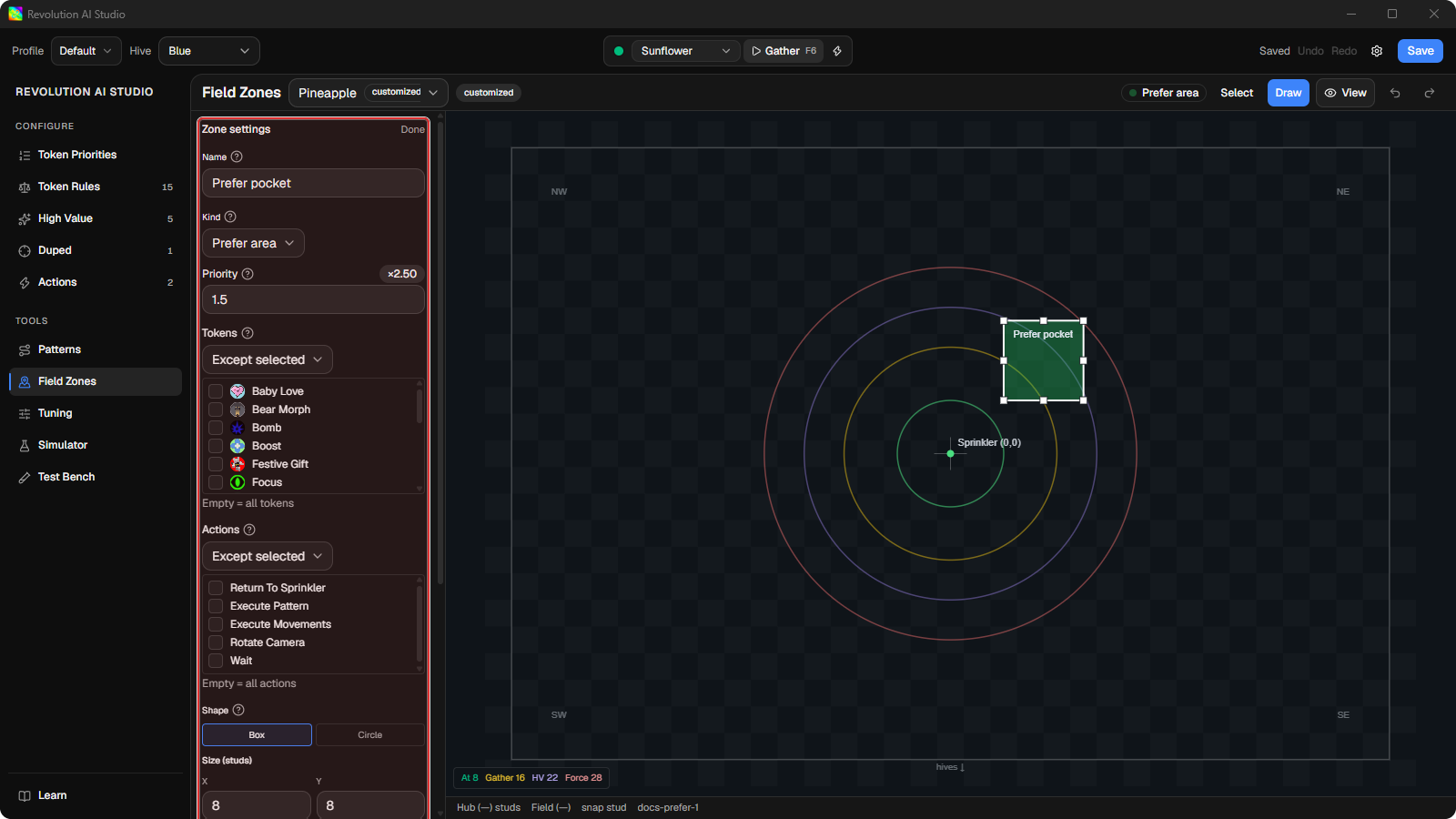
Click the zone in the Zones list to open its inspector.
Here you can raise Priority to make the zone matter more, change the Shape to a circle, and limit the zone to specific Tokens or Actions. Empty lists mean the zone applies to everything.
-
Click Save in the file bar, then open Tools → Simulator.
Drag a token into your zone and read Trace on it. The zone shows up as its own line in the breakdown, so you can see it multiply the score. Predict whether it’s enough to change the winner before you look.
Sprinkler bands
Section titled “Sprinkler bands”The circles around the sprinkler are bands, and they set reach limits for the whole field: how close counts as being at the sprinkler, how far out ordinary tokens may be collected, how far the macro will go for a High Value token, and how far away it must be before it returns. Click the bands to see and change them.
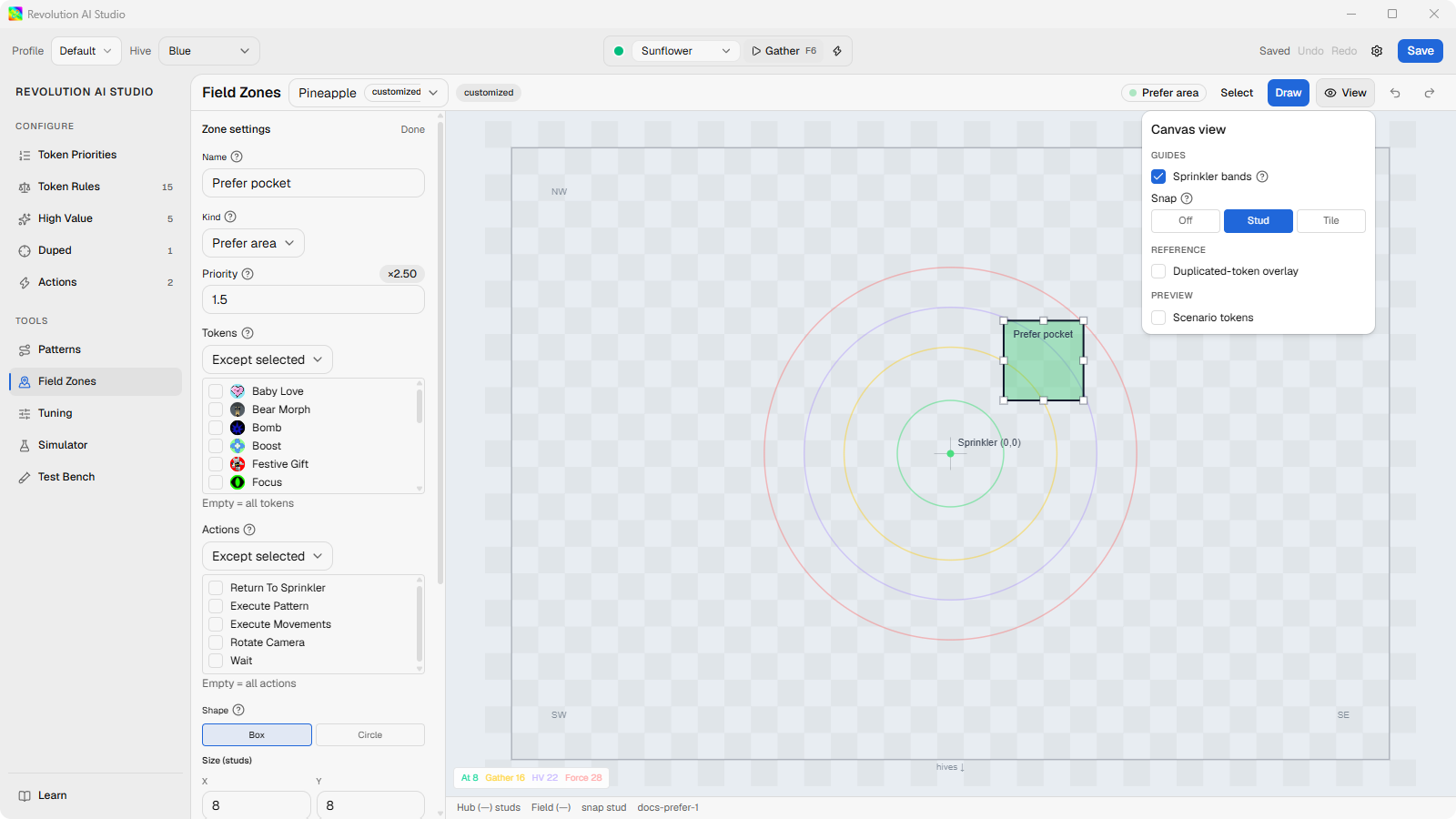
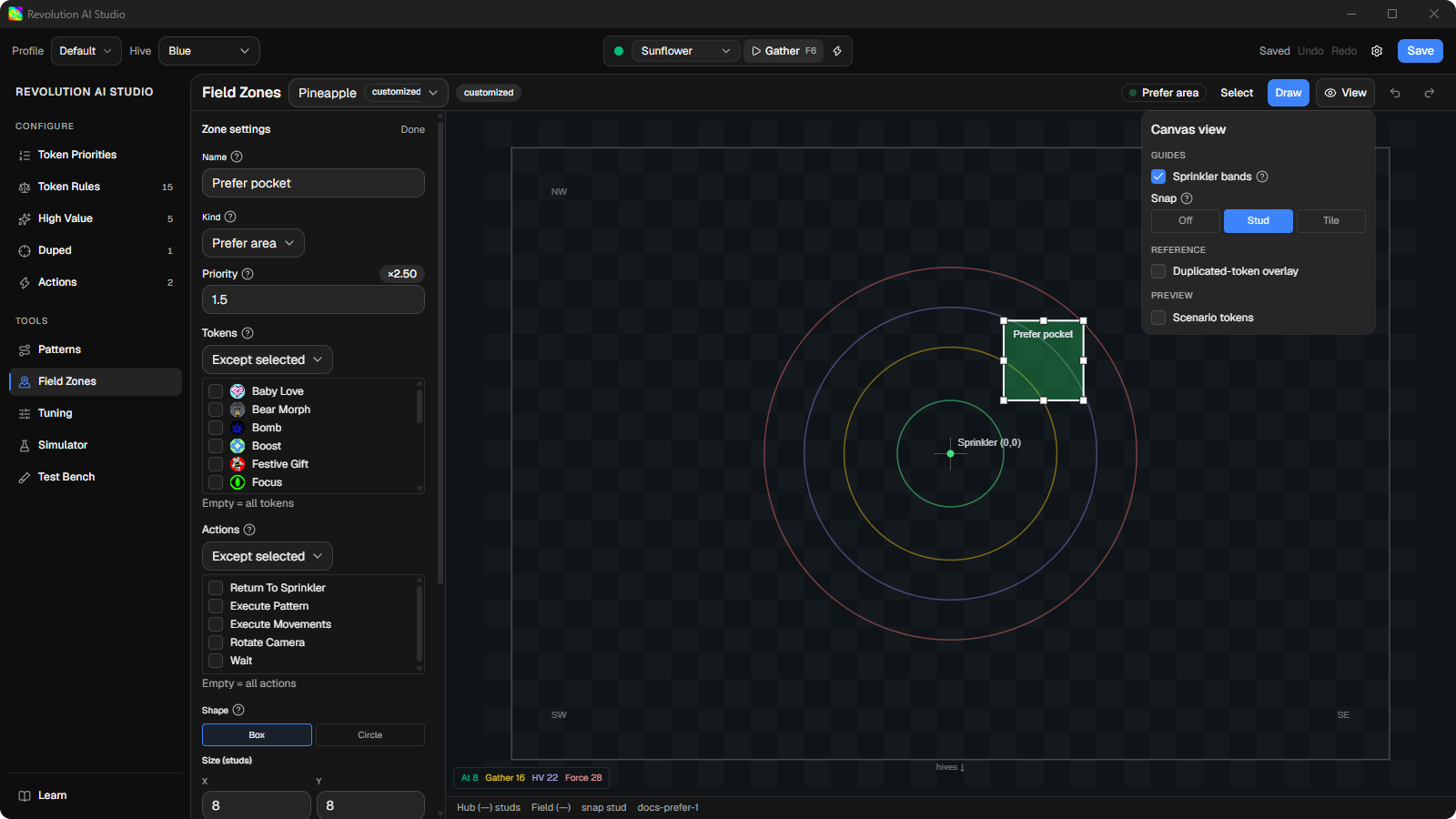
The defaults are At sprinkler 8 studs, Gather range 24, High-value chase 40, and Force return 32 for Blue or 40 for Red. If the macro wanders too far for ordinary tokens, tighten Gather range here rather than writing rules for every class.
Zones for one field only
Section titled “Zones for one field only”A movement profile applies to every field. When you want different zones or rules on one field, choose that field under File bar → Field before you edit. That creates a field override, and everything you change while it’s selected applies only there. Choose Default (all fields) to go back to editing the whole profile. One exception: the live macro always uses the profile-wide Duped list, even inside a field override.
If something’s off
Section titled “If something’s off”- The rectangle snaps to the grid. Snap is on by default. Open View and set Snap to Off, or hold Alt while you drag.
- You can’t find Search area or Corner spot. Those Draw kinds only appear when the profile’s Hive is Red.
- The Field menu says
Could not load fields.Close and reopen AI Studio. If it persists, see AI Studio problems.