
Token rules and High Value
Most of what you’ll ever change in a profile is one of two things: how an ordinary token scores in one situation, or which rare tokens the macro drops everything for. Token Rules handle the first and High Value handles the second, and they sit in different tabs because they work differently. This guide covers both, and where Duped tokens fit.
How this fits
Section titled “How this fits”Every ordinary token class starts with a base weight under Configure → Token Priorities. A Token Rule changes that weight in one situation, or blocks the token from being collected at all. High Value is a separate list of tokens the macro collects ahead of ordinary ones, in the order you set. Duped tokens are detected and scored on their own, so they have their own tab. If you haven’t seen how those numbers turn into a pick, read How scoring works first. It takes five minutes and makes this page much easier.
Write a Token Rule
Section titled “Write a Token Rule”-
Open Configure → Token Rules.
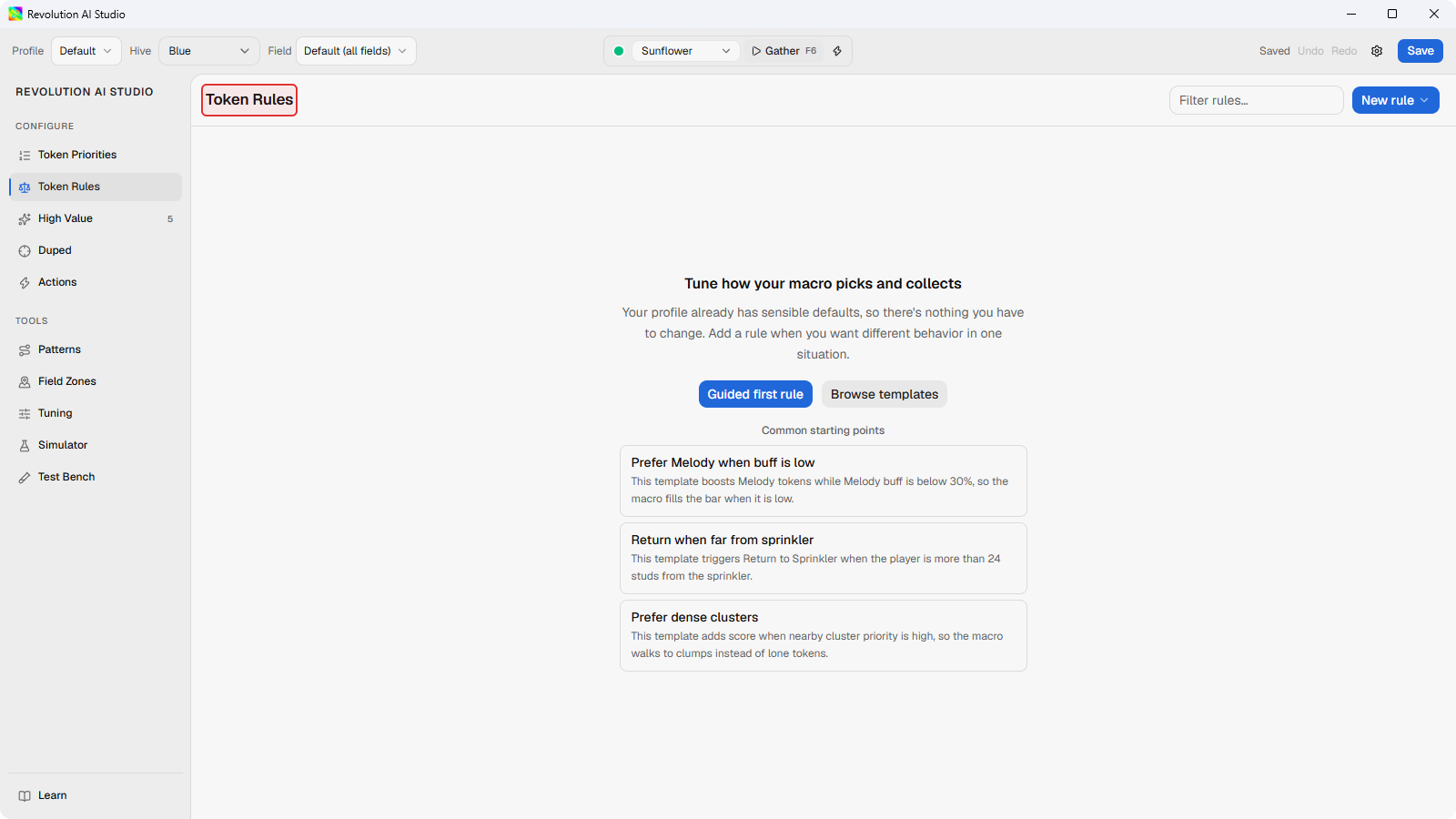
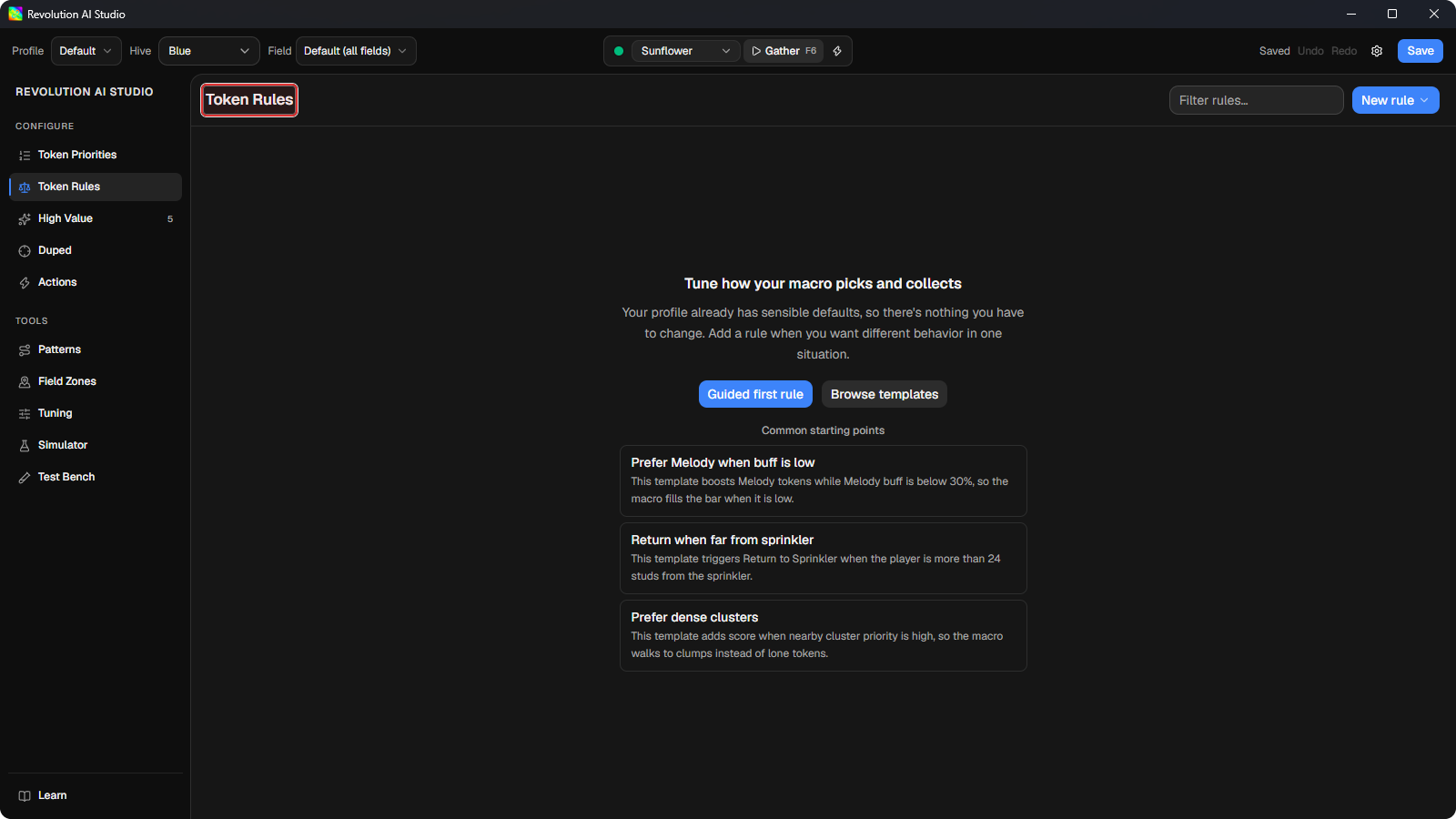
On the default profile you’ll see the rules table, with the buff gates and depletion curves that already ship. On an empty profile you’ll see a welcome panel with Guided first rule and Browse templates.
-
Click New rule. Or click Browse templates if a ready-made rule already says what you want, such as Stop Melody above 30% buff.
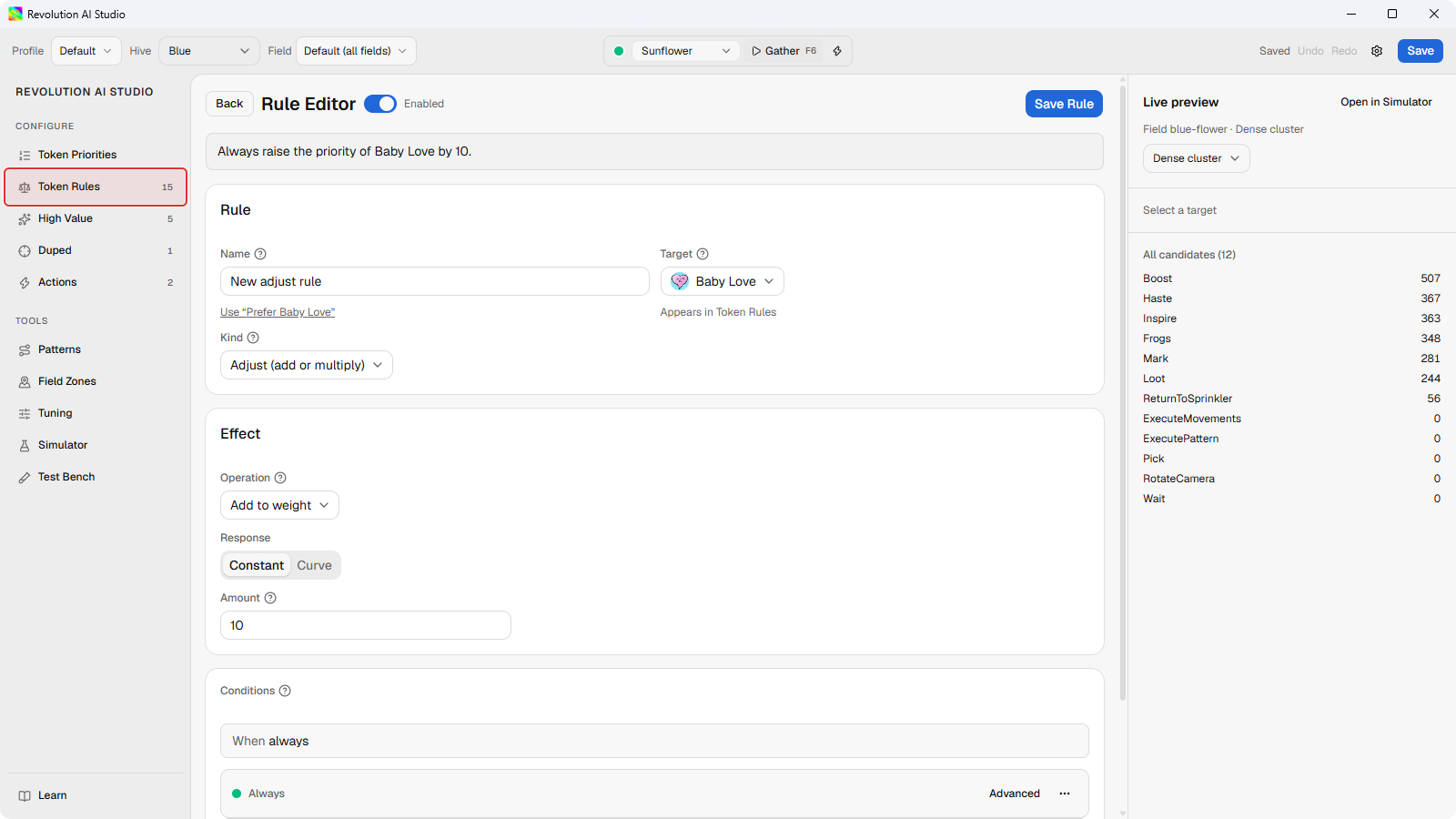
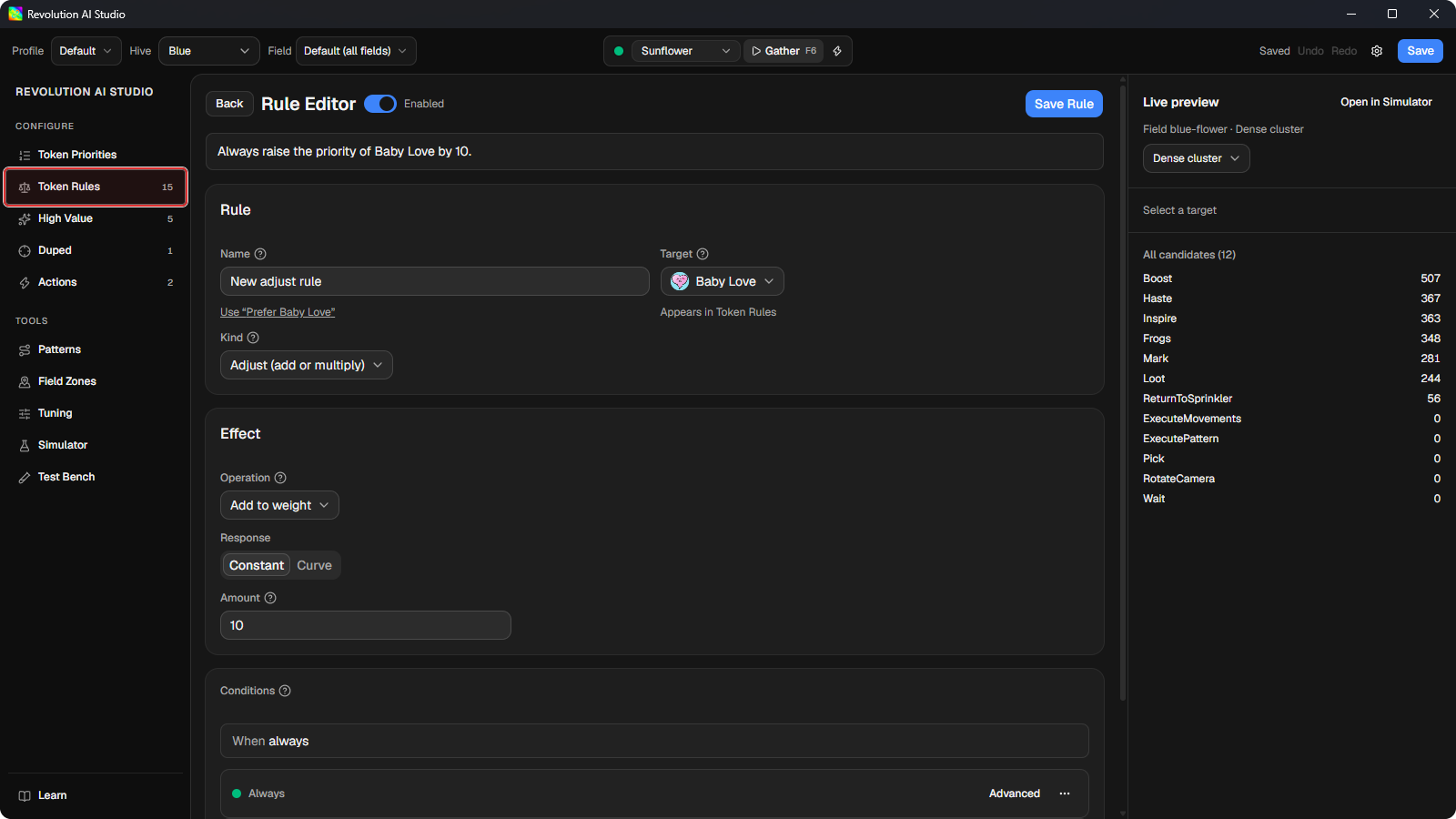
The Rule Editor opens with a draft. Pick the token class under Target, then the Kind. Adjust adds to the score or multiplies it. Gate blocks collection while the conditions match. You’ll rarely need the other kinds on your first profiles.
-
Add a condition that describes the situation.
A condition is something AI Studio can check at the moment of the decision: a buff percentage, how far the token is from you, how long it’s been on the field, whether your character is inside a zone. A rule with no condition applies all the time. Rule conditions reference lists every one.
-
Watch Live preview on the right while you edit.
It reranks the scenario’s tokens as you change the draft, so you can see whether your rule moved the token you meant, and by how much. If a token shows
Gated, a Gate rule is blocking it. -
Click Save Rule, then Save in the file bar.
The rule appears in the table next to the defaults. The macro reloads the profile after the save if Revolution is linked.
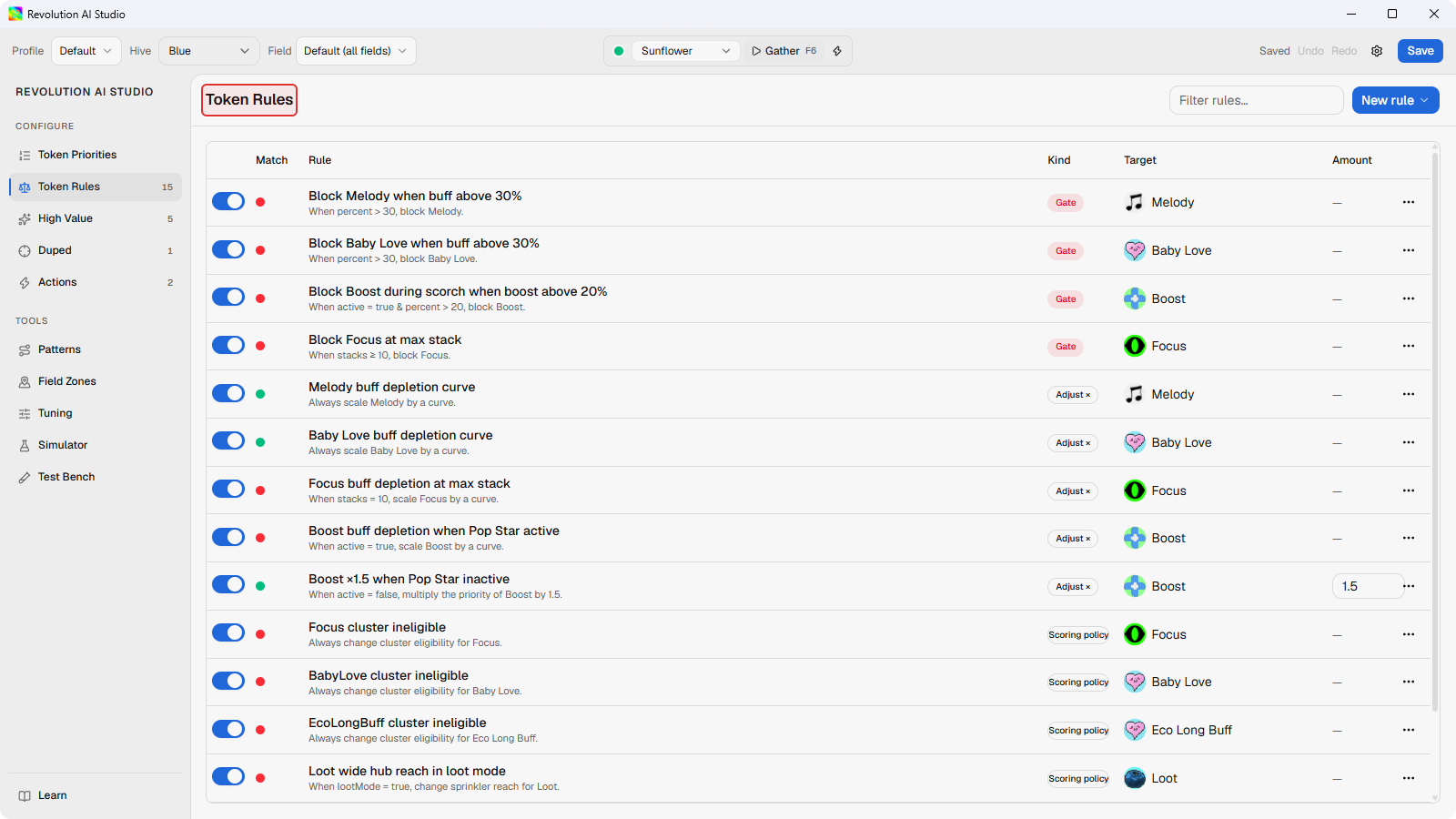
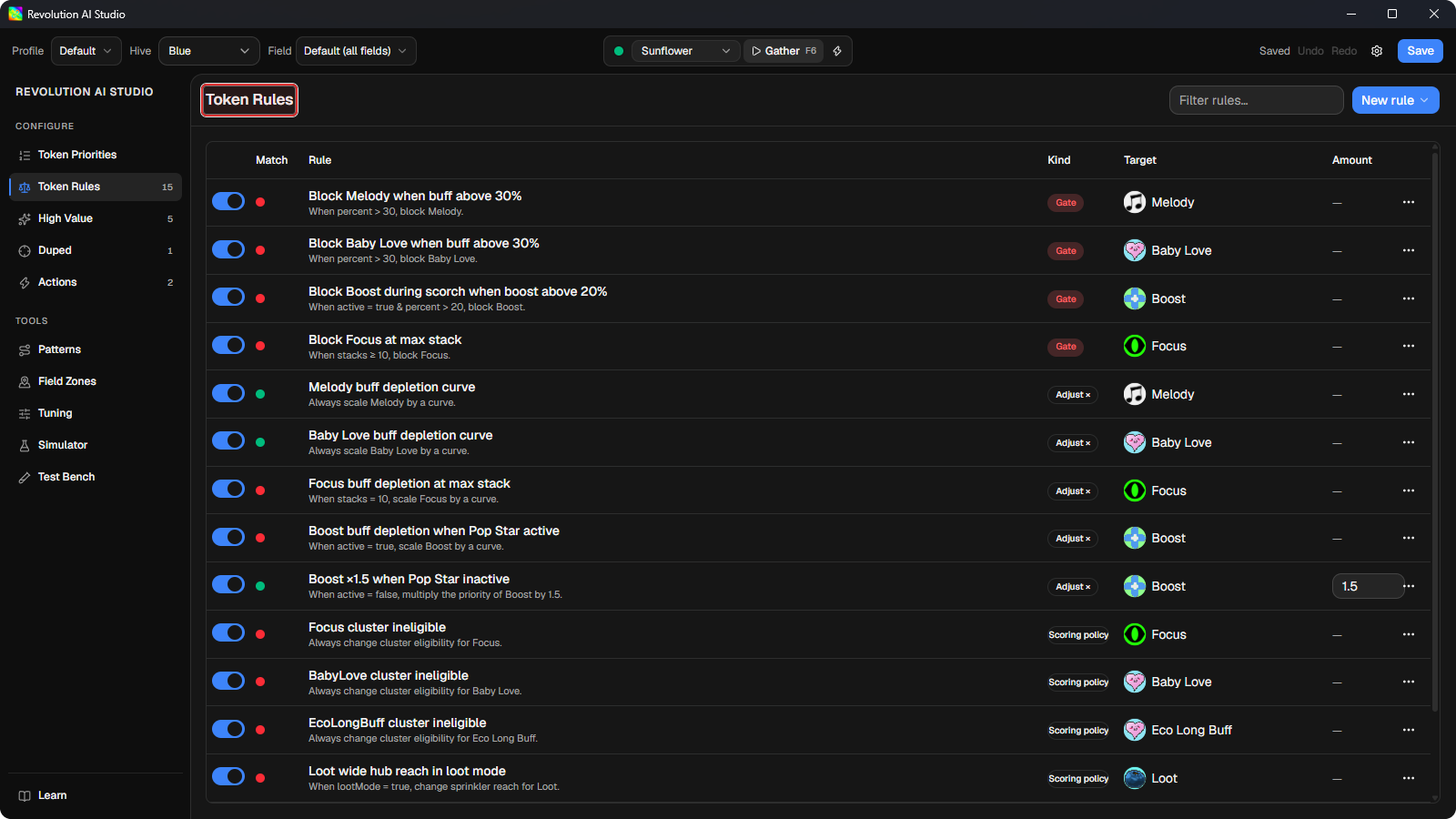
One thing to know about Gates before you write one: when a Block gate and an Allow gate both match the same token, Block wins, every time, no matter which you wrote first. It keeps a broad Allow from quietly switching off a protection you wrote elsewhere. To make an exception, narrow the Block’s conditions instead. How scoring works explains why.
Put a token in High Value
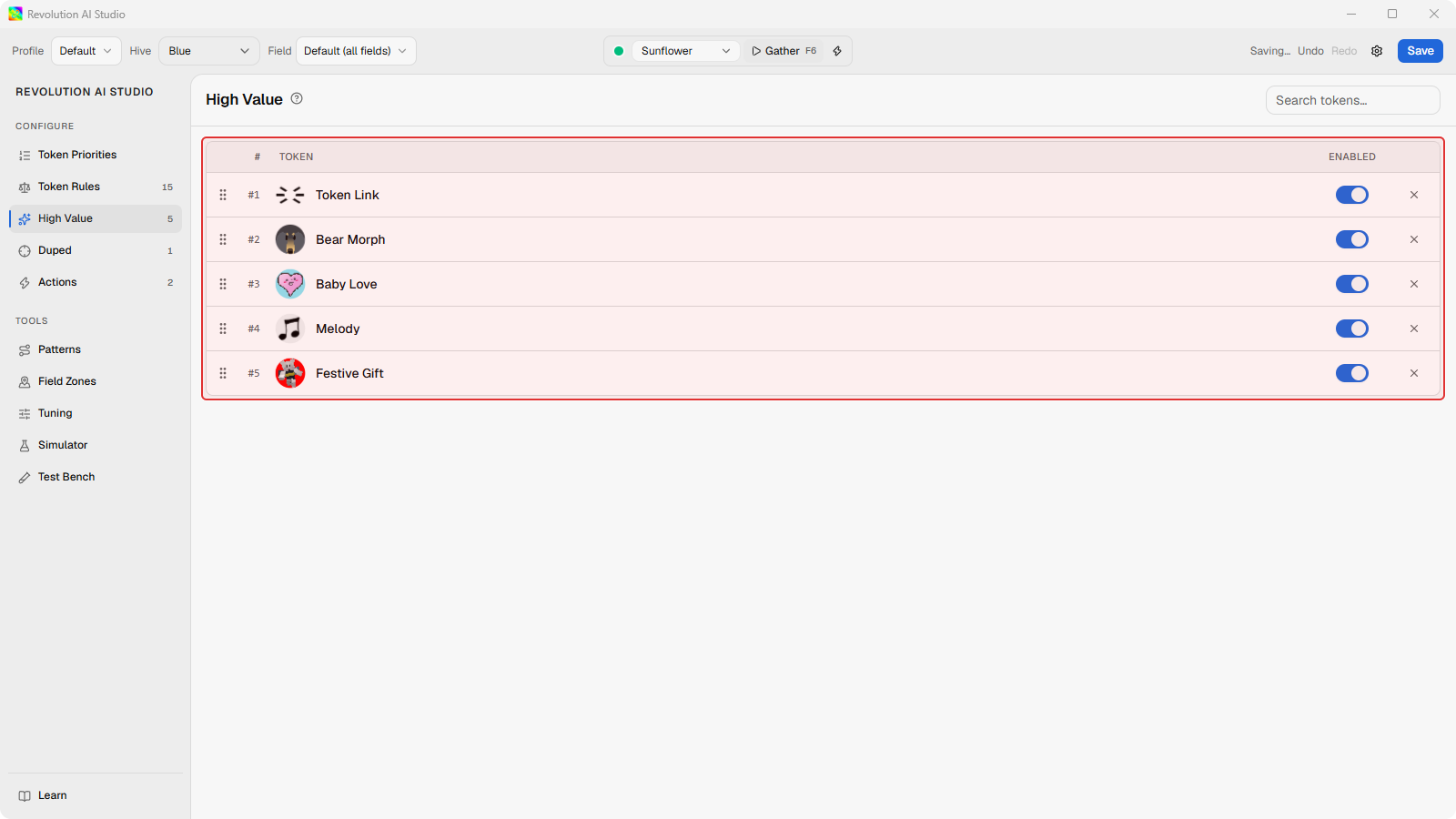
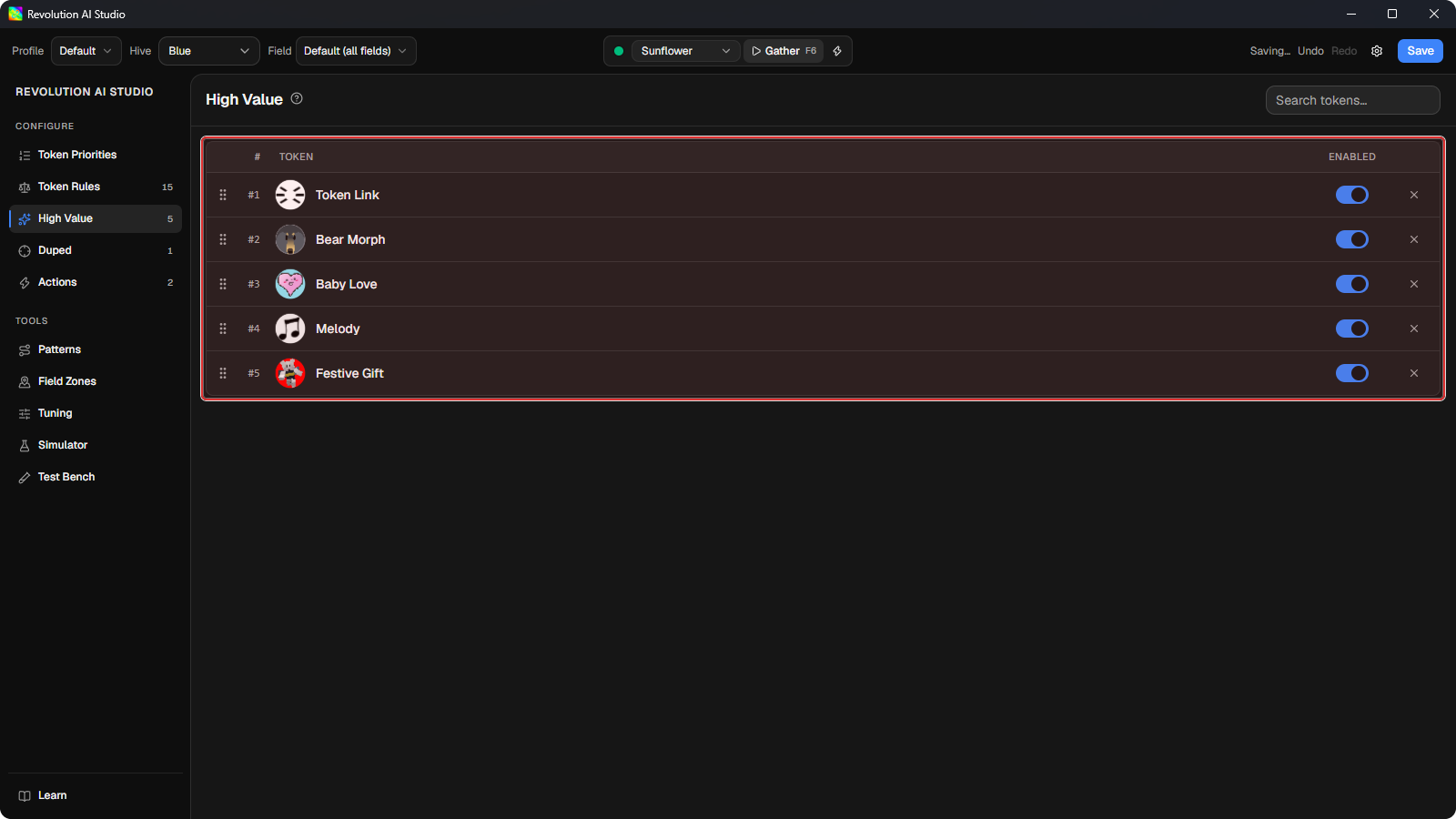
Section titled “Put a token in High Value”High Value is for tokens that must be collected at all cost, like Bear Morph and Festive Gift, where missing one hurts your honeymaking more than any ordinary pick could make up. The macro collects them ahead of ordinary tokens, from farther away, and the order of the list decides which one it goes for when two are on the field at once. Raising a token’s base weight can’t do this, because High Value tokens don’t compete on score at all.
-
Open Configure → High Value, or start Sidebar → Learn → Put high-value tokens in order.
The list shows the High Value tokens for your hive. Higher rows are collected first.
-
Drag a row handle to change the order. Click Add high-value token to add a class that isn’t listed.
If the handles won’t drag, clear Search first.
-
Click Save in the file bar.
How far the macro will go for a High Value token is a separate setting. The High-value chase band under Tools → Field Zones is 40 studs by default, against 24 for ordinary gathering. Shape your field with Field Zones covers the bands.
Where Duped tokens fit
Section titled “Where Duped tokens fit”Duped tokens are different in nature. New ones show up infrequently, they last a long time, and they sit in predictable spots, so the macro detects them separately and only considers collecting one when it’s returning to the sprinkler or has just arrived at one. That lets ordinary token collection come first, since duped tokens will still be there.
They get their own tab, Configure → Duped, with their own Priority List and their own rules. What you save there does score live Duped collection when the profile is loaded. Two things to know: the Simulator ranks ordinary tokens and actions, so you check Duped order on a real gather, and the live macro always uses the profile-wide Duped list, even when you’ve selected a field override. Mixed hive ships with Duped collection off.
If something’s off
Section titled “If something’s off”- Rows won’t drag. Clear Search on the High Value or Duped page, then try again.
- The rule saved but the macro ignores it. Check that the field’s gather pattern is AI Gather, then check the sync badge shows
Saved. See AI Studio problems.