
Read a gather recording in Test Bench
While testing your profile live, your field and buffs can lead to decisions that can be incorrect, and a scenario can’t reproduce all of them. Test Bench replays a recording of a real gather one decision at a time, with the field, buffs, and scores exactly as the macro saw them. This guide covers loading a recording and stepping to the decision you care about.
How this fits
Section titled “How this fits”The Simulator asks “what would the macro do here?” Test Bench asks “what did
it do, and why?” Every gather you start from AI Studio’s Gather button is
recorded as a .airec file in the macro’s sessions folder, and AI Studio opens
the recording for you when the session stops.
Watch a gather and find one thing to change
walks through making one.
Replay a gather
Section titled “Replay a gather”-
Open Tools → Test Bench.
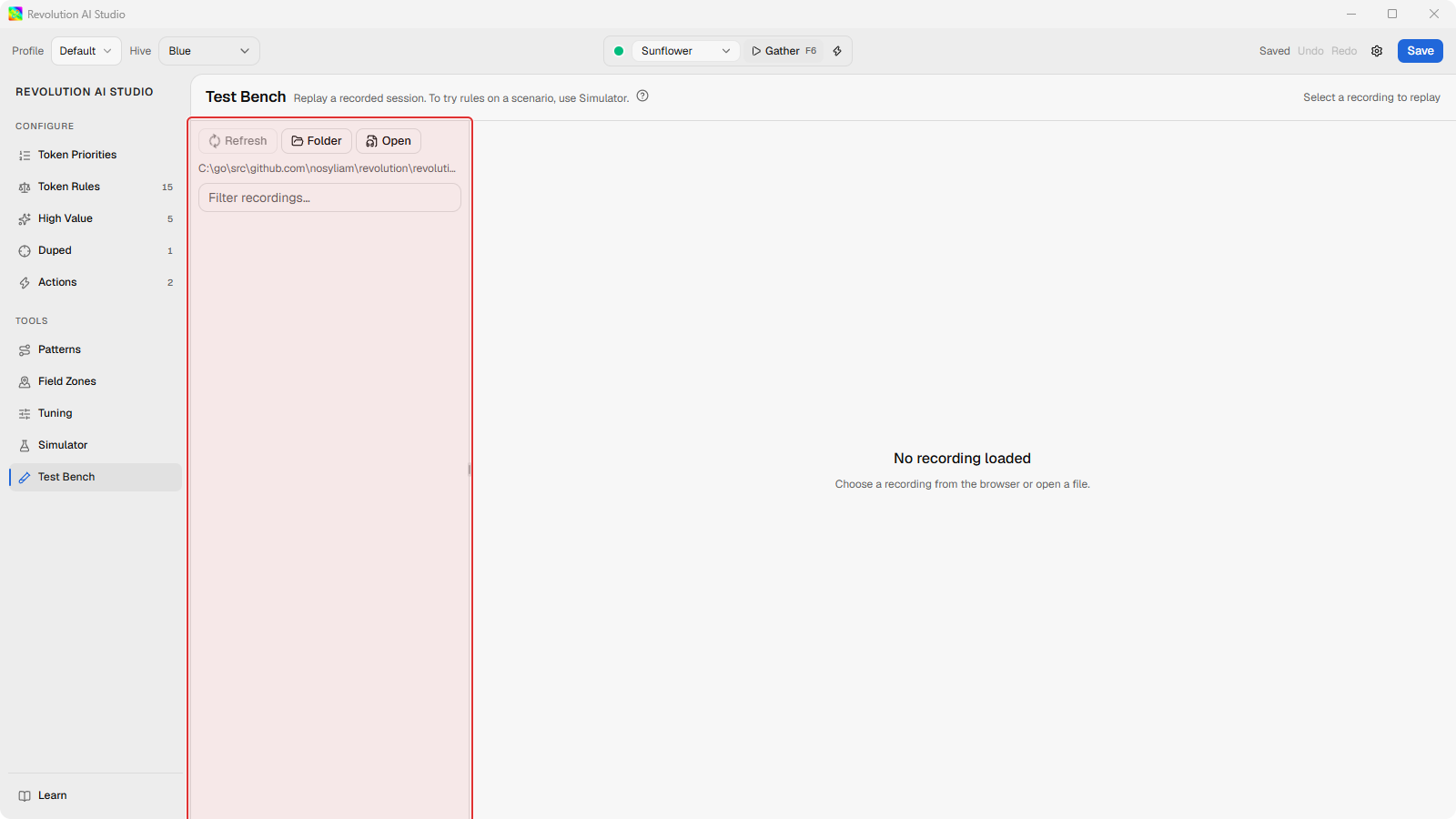
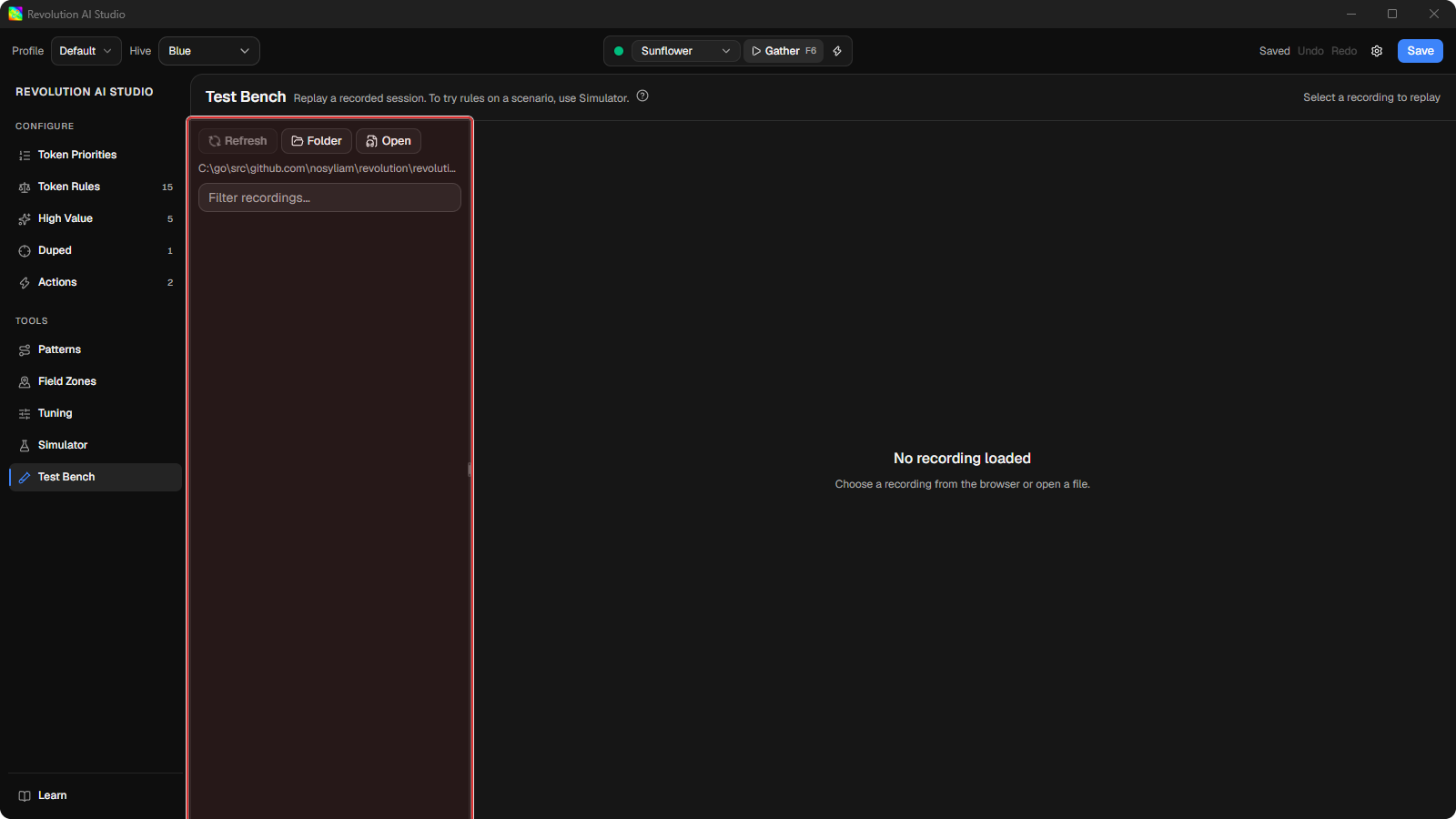
The left side lists your recordings, newest first, or says Select a recording to replay.
-
Click a recording. Or click Open and pick a
.airecor.airec.gzfile yourself.Parsing…shows progress while it loads. Then you get the field map, the timeline along the bottom, and Scores on the right at tick 0.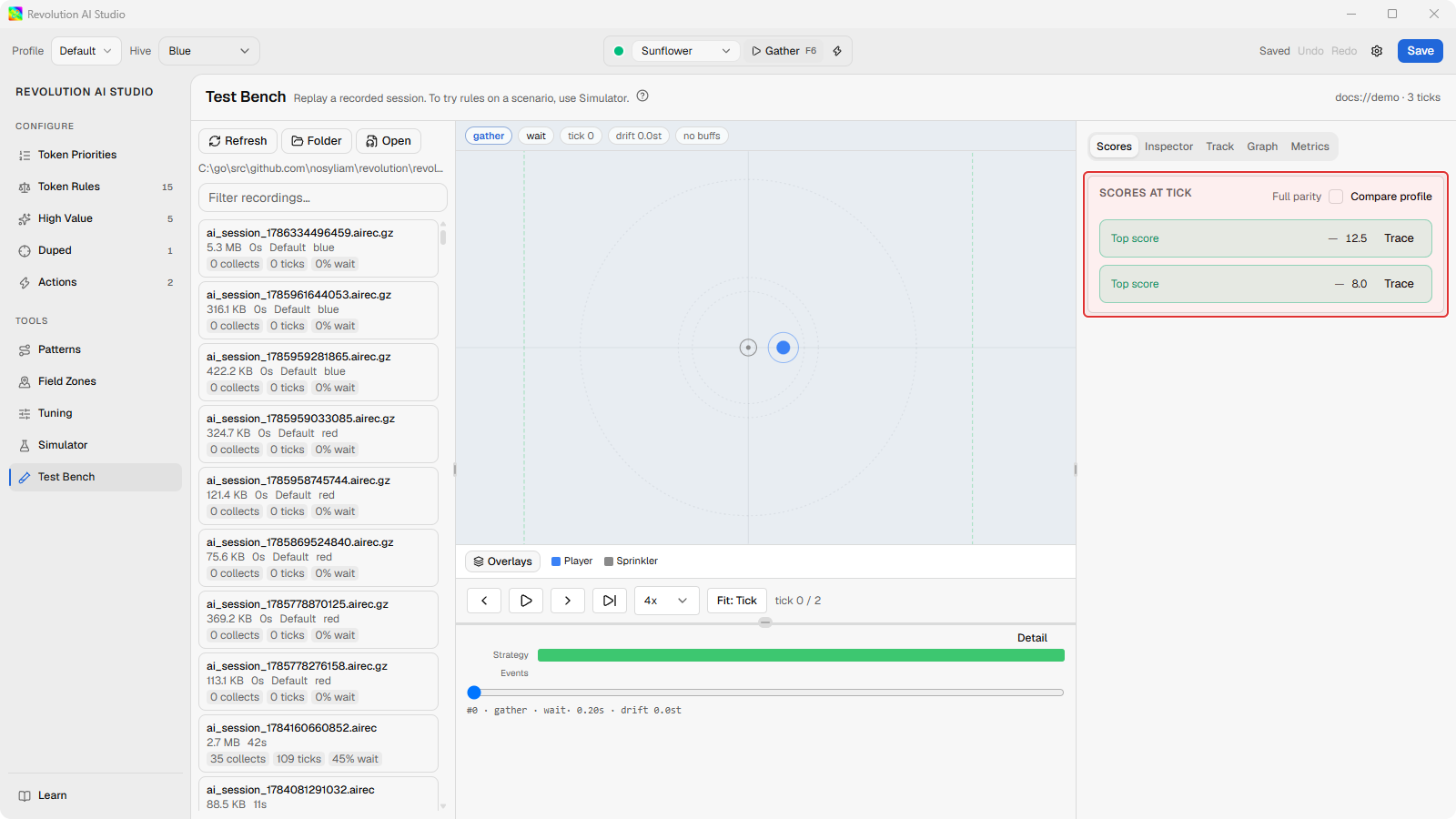
-
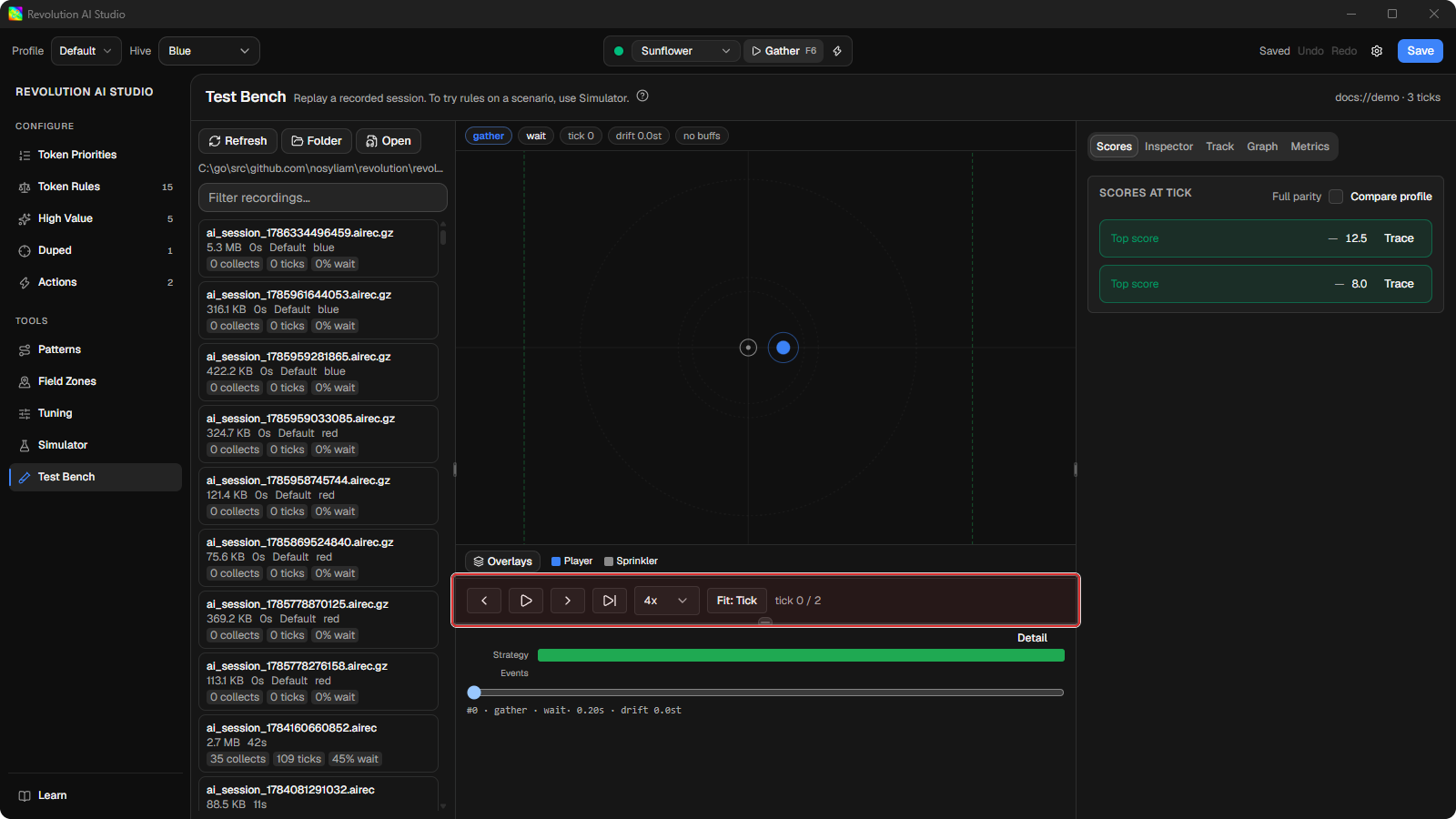
Click Next event in the transport bar, or press
.on the keyboard.The replay jumps to the macro’s next decision: a pick, a collection, or a return. Keep clicking until you reach the moment you noticed in the field.
,steps back.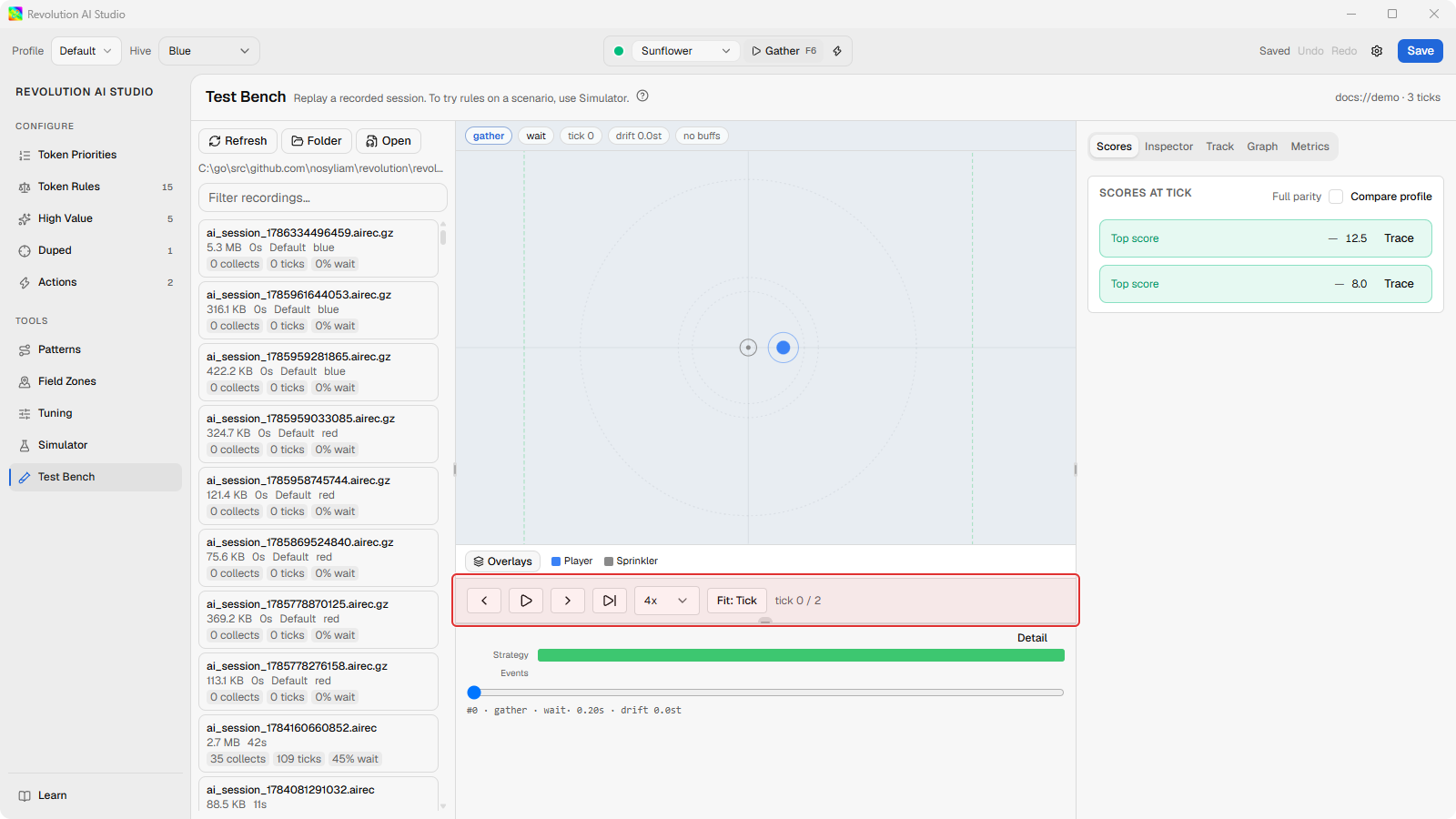
-
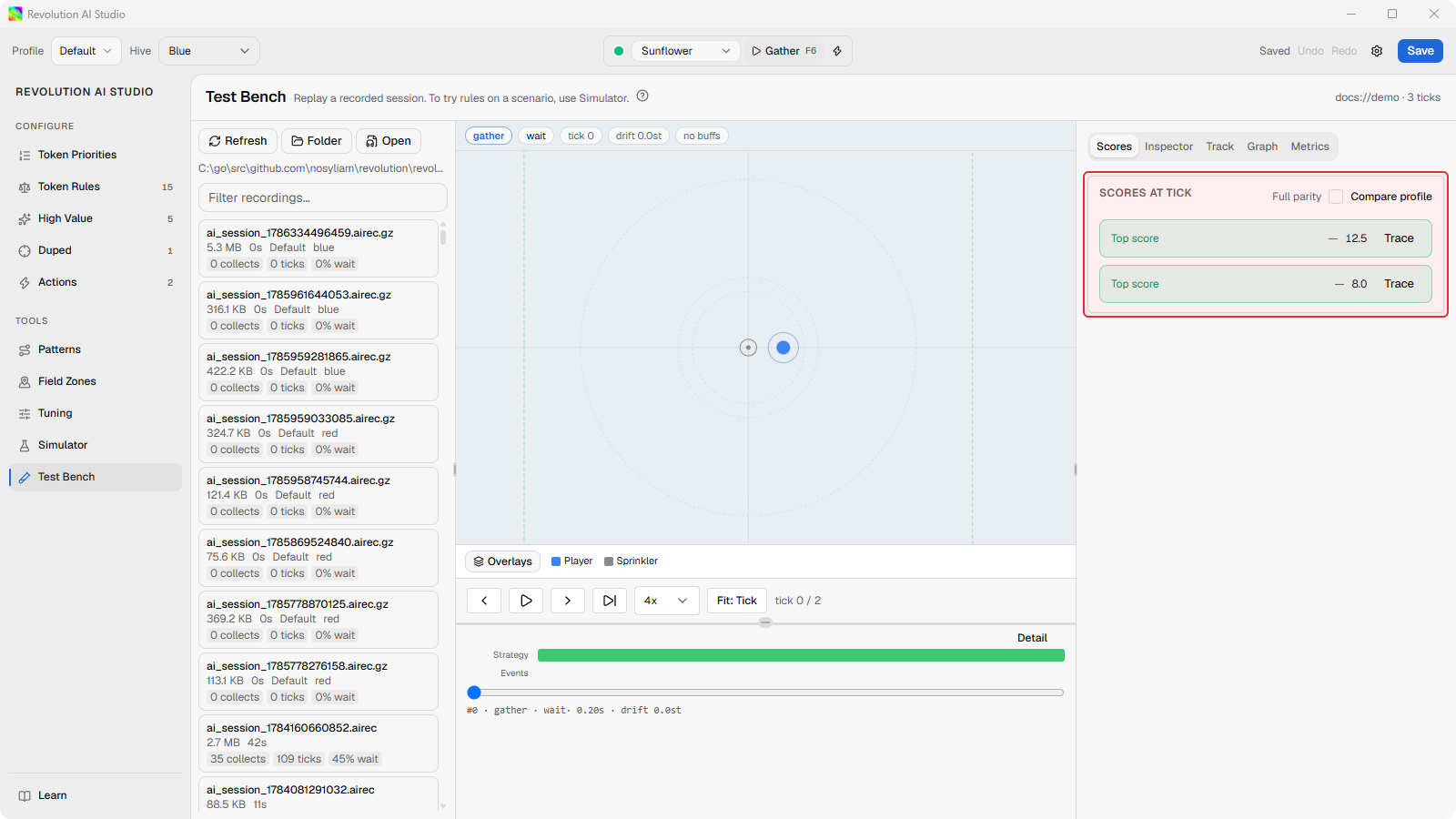
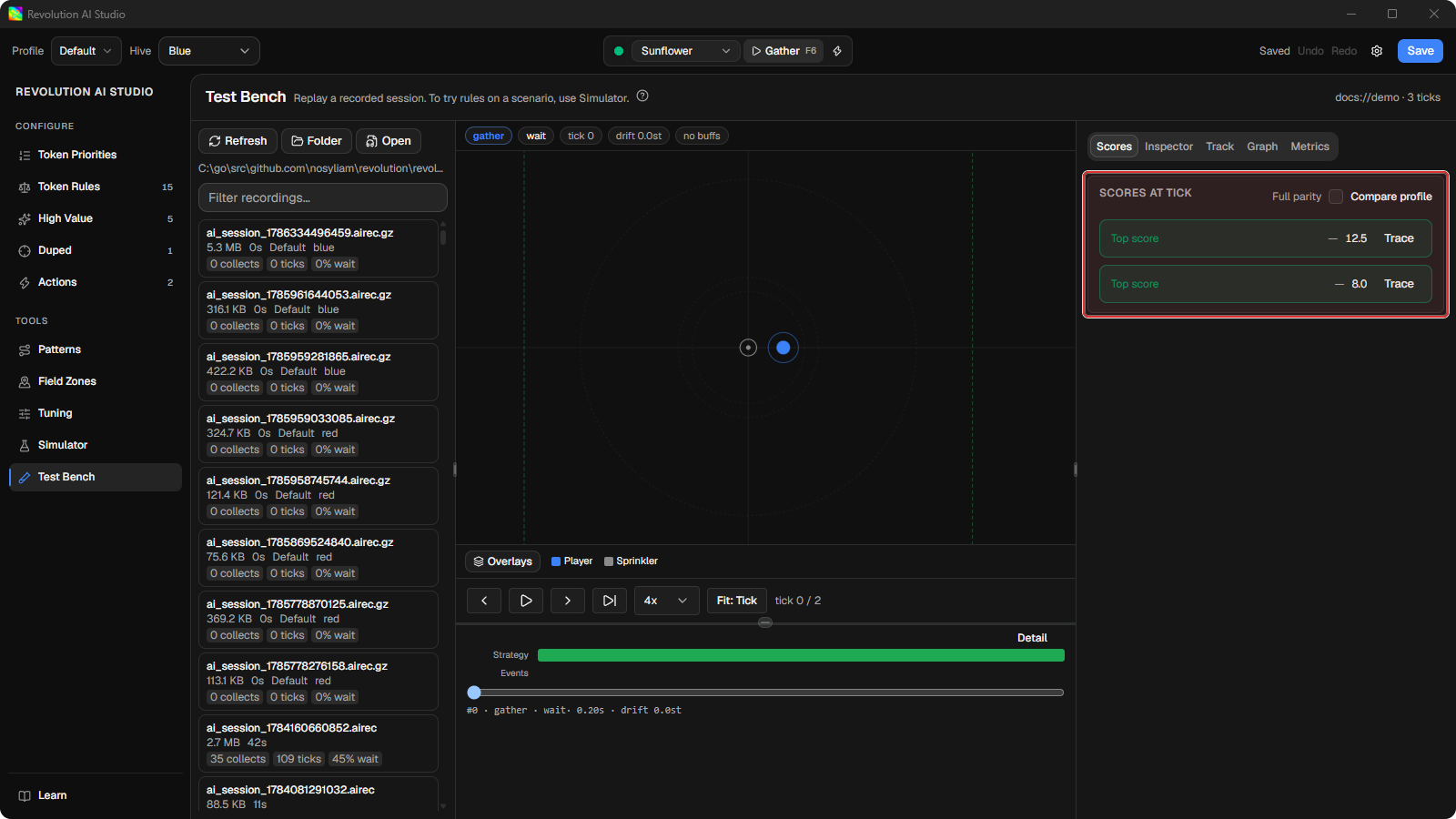
Read Scores.
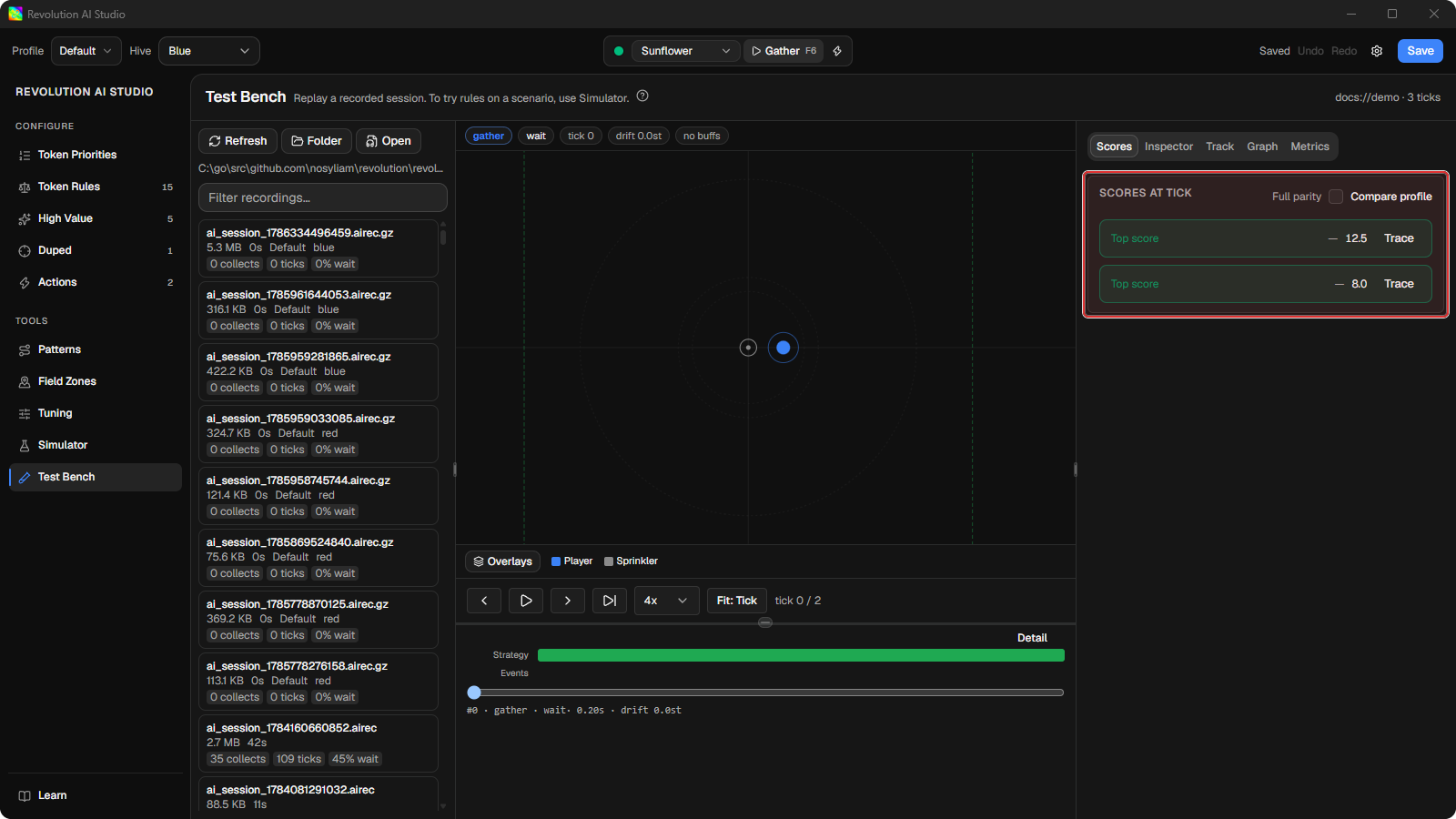
It’s the ranked list at that moment, winner on top, the same list the Simulator shows for a scenario. Before you read it, guess which token you think won. Inspector has more detail on each candidate, and Track follows one token’s history when you click it on the map.
Compare with the profile you have open now
Section titled “Compare with the profile you have open now”Turn on Compare profile in the Scores panel and Test Bench re-scores the
loaded moment with the profile you’re editing right now, not the one the
recording was made with. That’s how you check whether an edit would have
changed that pick, without running another gather. Full parity re-checks
the whole ranked list against the recording and reports Parity OK at tick
when they match.
Playback and the timeline
Section titled “Playback and the timeline”Play runs the replay at 4x, and you can pick anything from 1x to 16x. Strategy and Events always show on the timeline. The Detail toggle can add Yaw, Buffs, Decisions, and other lanes when the recording has that data. Decisions is the one to open when you’re working on Interrupt rules: it shows whether each interrupt was allowed or blocked, and which rule decided it.
If something’s off
Section titled “If something’s off”- No recordings yet, or no sessions folder found. Start a gather from AI Studio and stop it, then click Refresh. Or click Folder and choose the sessions folder yourself.
- The recording won’t load. Click Open and pick the
.airecfile directly. Test Bench reads.airec,.airec.gz, and.ndjson. - A session stopped with no recording. See AI Studio problems.