
Link a movement profile to Revolution
You can edit and save a profile with Revolution Macro closed. You need the two apps linked, on the same PC, for three things: starting a gather from AI Studio, reloading edits while the macro gathers, and recording sessions for Test Bench. This guide covers connecting, starting a gather session, and the camera checks that come with it.
How the link works
Section titled “How the link works”There’s nothing to configure. AI Studio looks for Revolution Macro on the same
PC and connects as soon as it finds it. It can’t connect to a macro on another
computer. The session controls in the file bar show where you stand:
Standalone — start Revolution to connect automatically when the macro isn’t
running, Connected to Revolution when it is, and Reconnecting… after a
drop, while the two find each other again.
Start a gather session
Section titled “Start a gather session”-
Open AI Studio before Revolution Macro, and you’ll see the standalone tip.
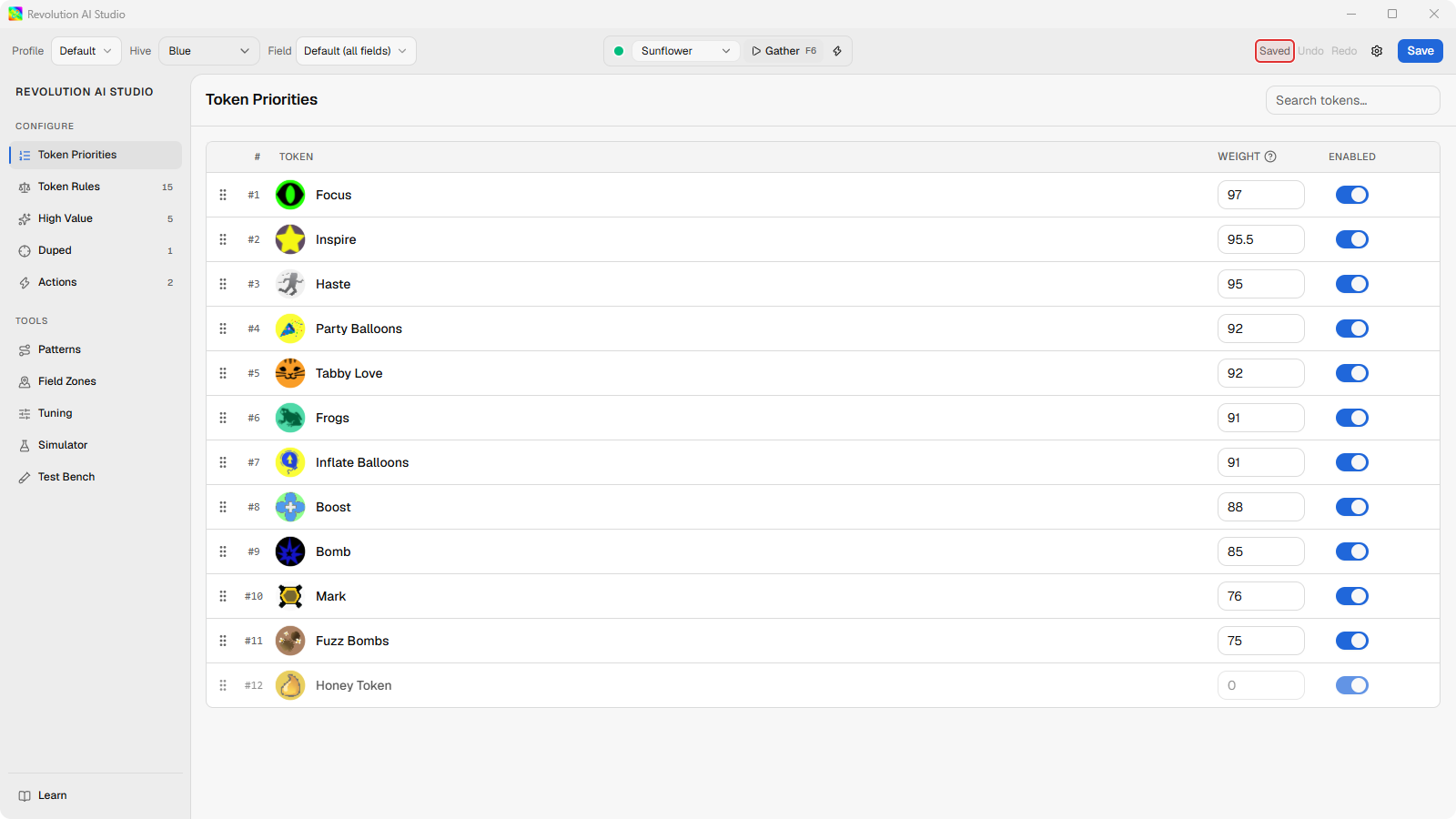
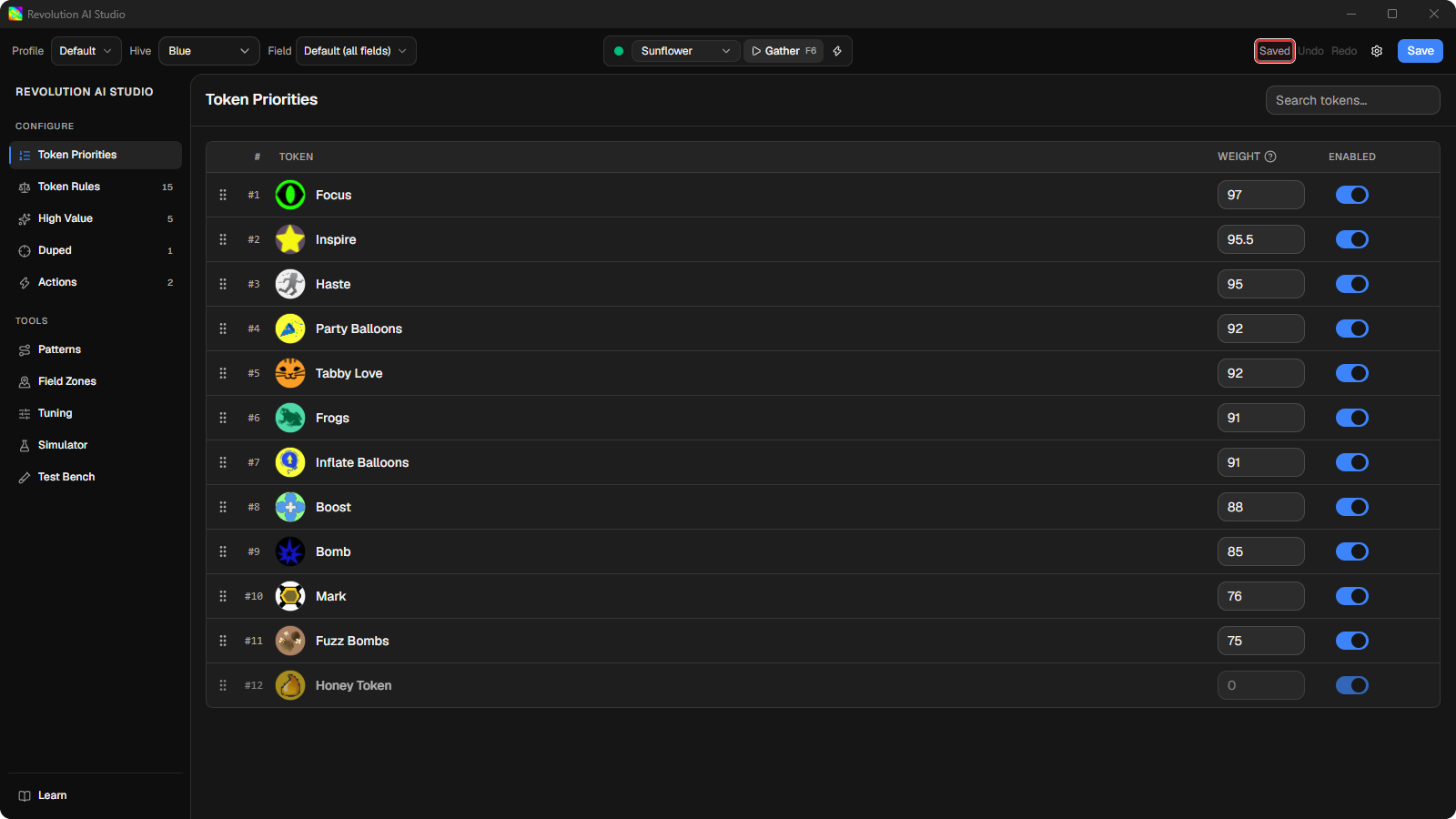
Everything under Configure and Tools works in this state. Only Gather, Live Apply, and the camera control wait for the link.
-
Launch Revolution Macro and wait for
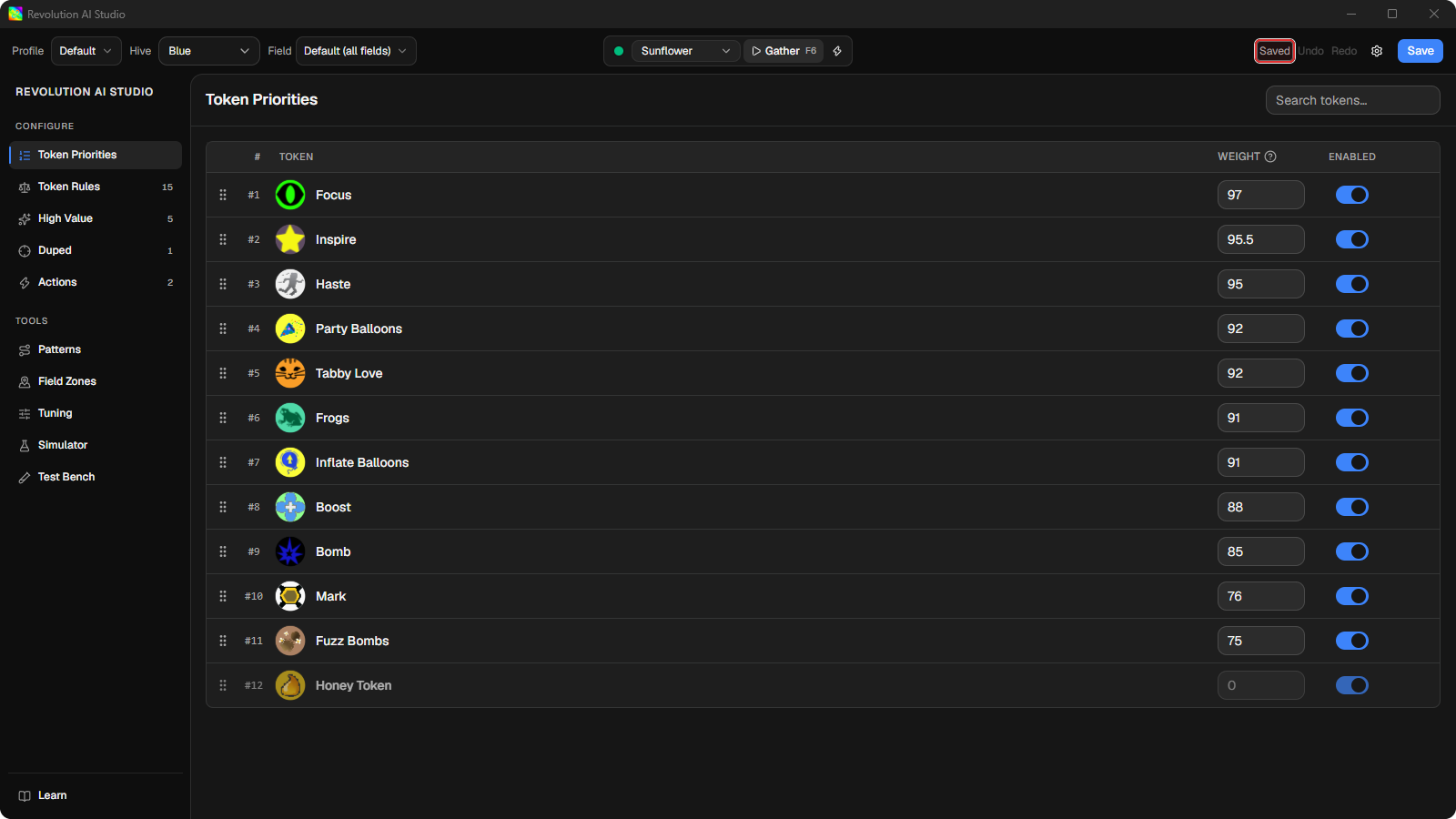
Connected to Revolution.Gather becomes clickable. If your profile shows
Unsaved, click Save now so the session uses the version you’re looking at.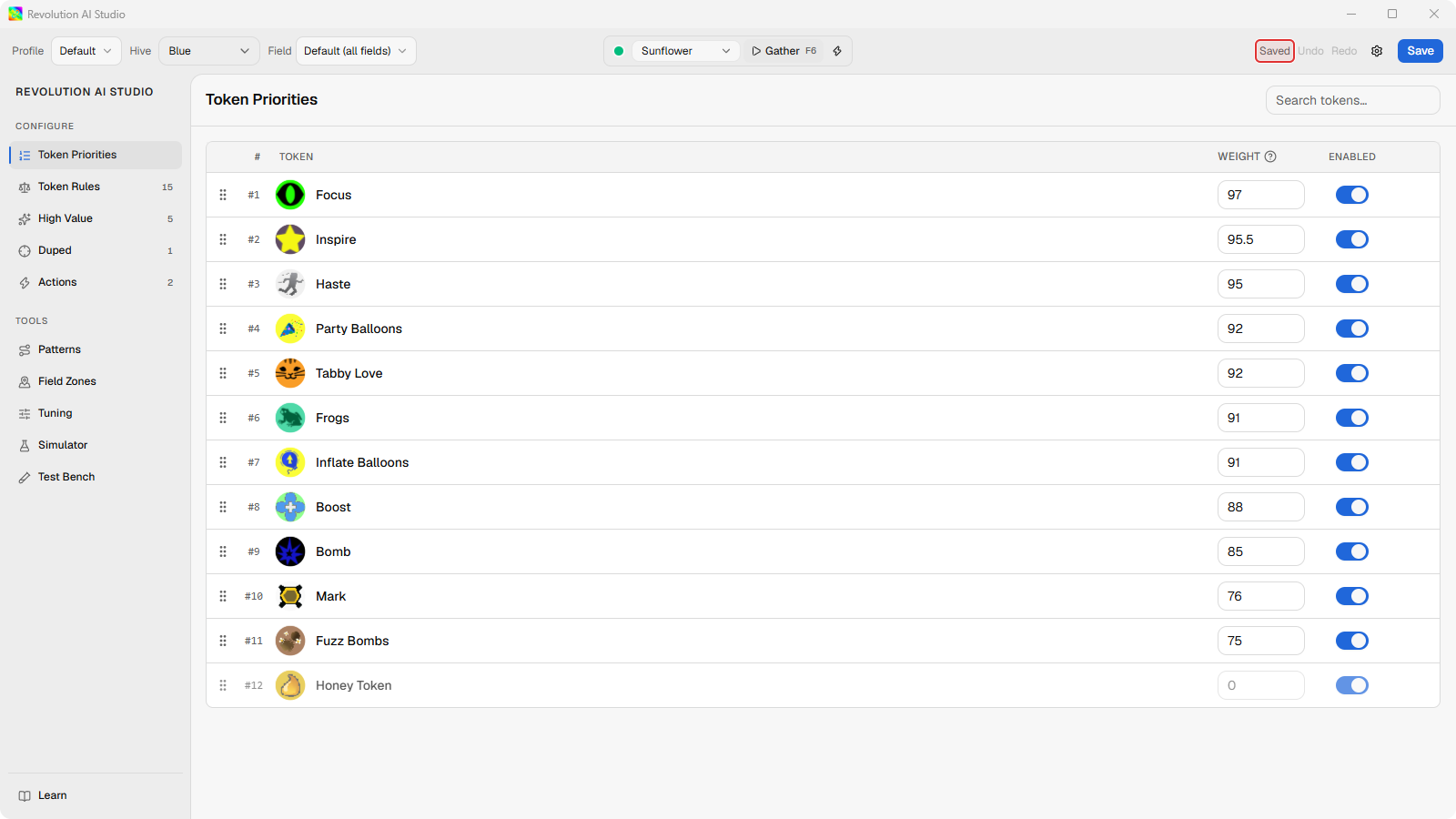
-
Click the Camera rotation button at the right end of the session controls and set the compass to the direction your camera faces in Roblox.
AI Studio uses this to place the field relative to your character and to follow any camera rules in your profile.
-
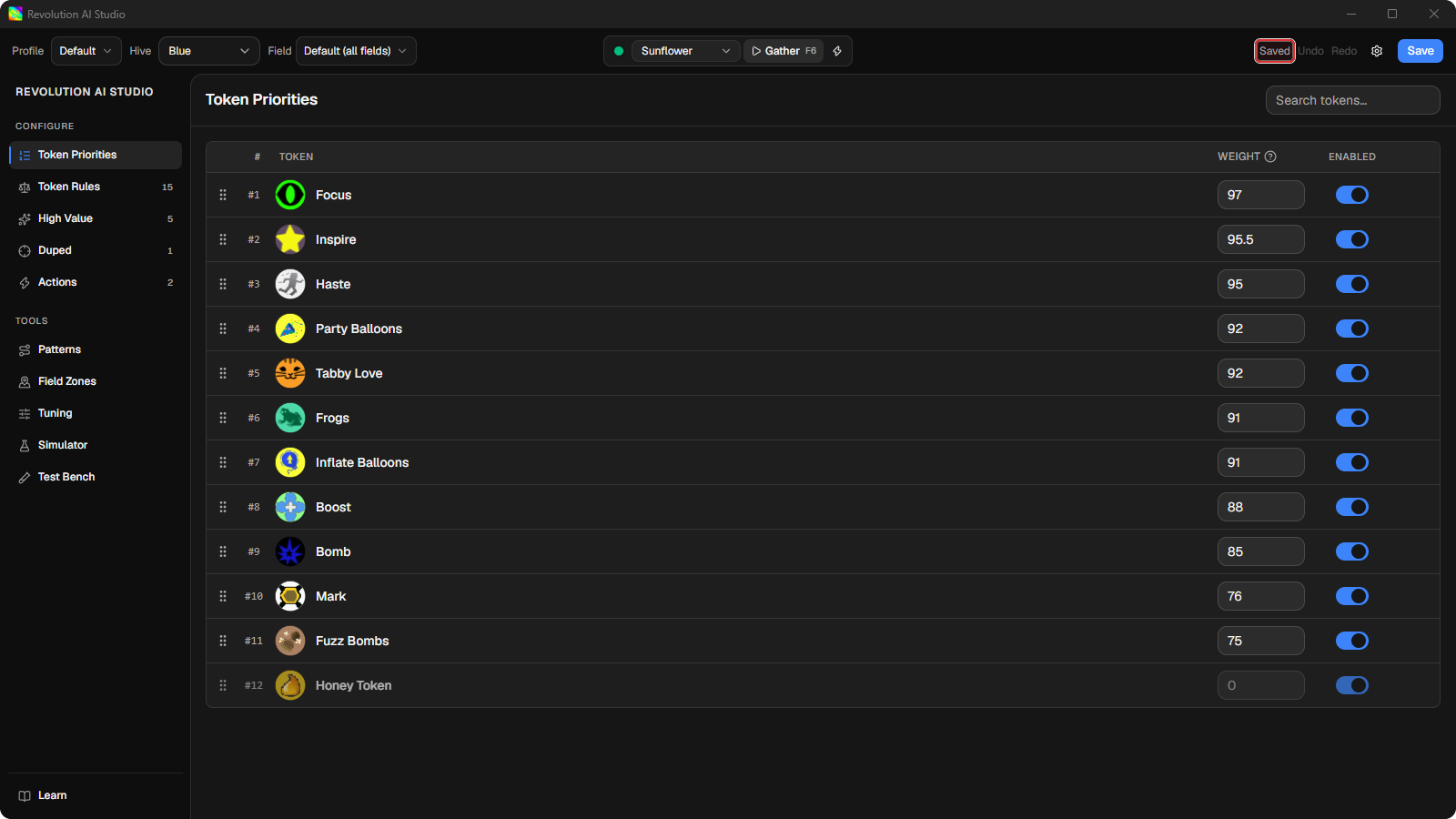
Choose a field under Gather field, then click Gather.
The button shows
Starting…and the macro walks your character to that field and starts gathering with your profile. The session is recorded.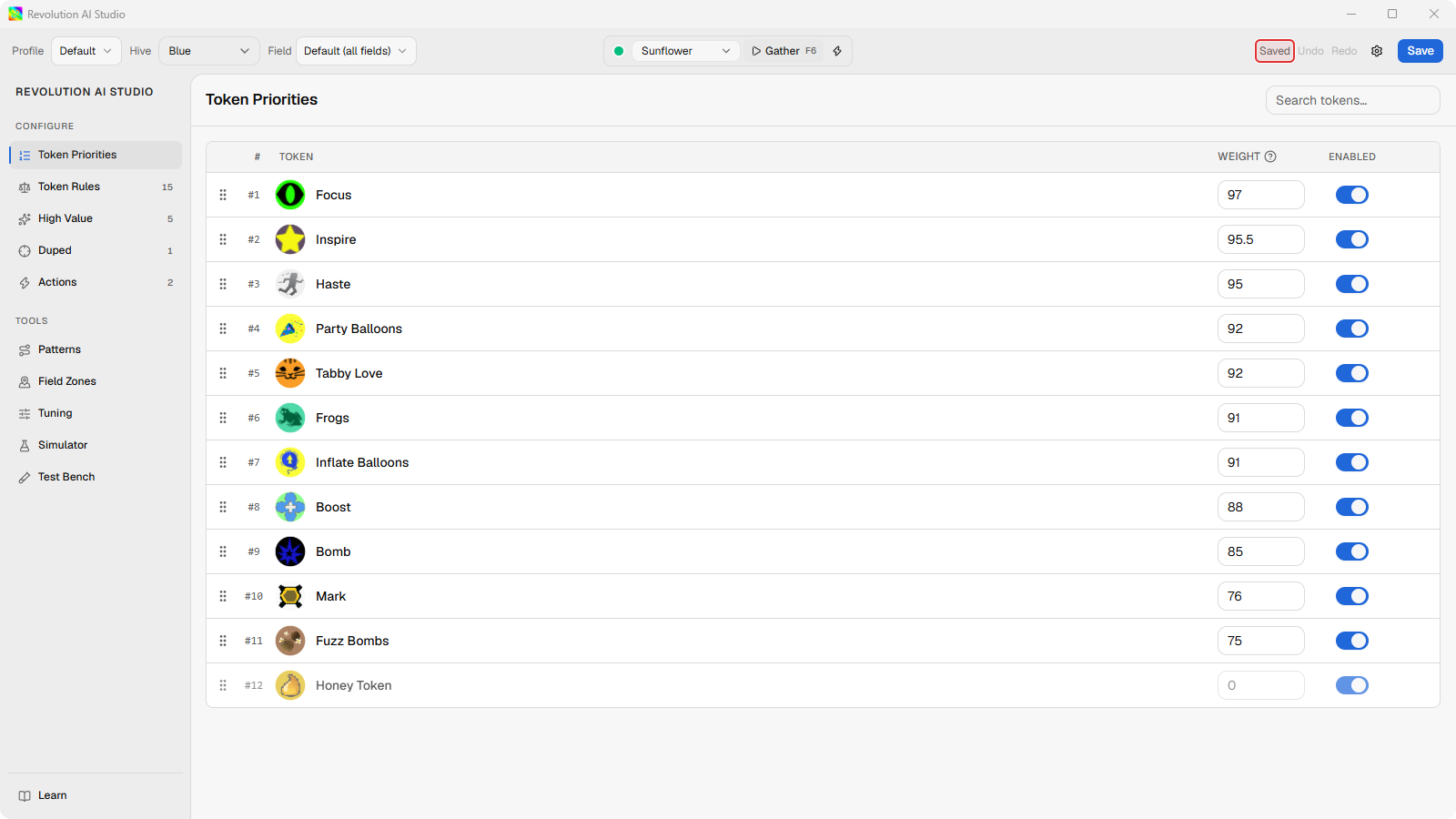
-
If a Check Camera Tilt dialog appears, set the tilt in Roblox, then click Tilt is set.
Token detection needs the camera at a specific angle. From the default camera angle after a reset, press PgUp once for Blue or Blue Eco, twice for Red. A toast says
Gathering with camera tilt setand the session carries on. -
Click Stop when you’ve seen enough.
AI Studio shows
Opening recording in Test Bench…and opens the recording. Read a gather recording in Test Bench picks up from there.
What a gather session is
Section titled “What a gather session is”A gather started from AI Studio is a gather-only session. The macro walks to the field you chose and gathers with your profile, and it skips quests, planters, and the other tasks it would normally cycle through. It’s for watching your profile work, not for a night of honeymaking. Blue and Blue Eco sessions are free. Red and Mixed need Revolution Pro on the linked account, and the macro tells you with a Subscription Required dialog if it doesn’t have it. Editing a Red or Mixed profile is free either way.
You can also start and stop a session from anywhere with the Gather toggle hotkey under Settings → Hotkeys. It’s F6 by default, it works while AI Studio is in the background, and it needs the link just like the button does.
If something’s off
Section titled “If something’s off”- The standalone tip won’t go away. Revolution Macro has to be running on the same PC. Start it and wait a few seconds.
- It says
Reconnecting…. The link dropped. Keep both apps open and wait. Commands stay disabled until it’s back. - Gather shows
Revolution did not respond in time. Wait forConnected to Revolution, then click Gather again. - You see Subscription Required. Switch Hive in the file bar to Blue, or subscribe on the linked account.