
Patterns in AI Studio
A pattern is a short route you write once and let an action rule run whenever its conditions match - a lap around the sprinkler to pop bubbles after a Pop Star, or a walk into a corner the macro would otherwise ignore. Pattern Maker is where you draw and test that route. This guide covers creating a pattern, checking it on the canvas, and saving it into your profile.
How this fits
Section titled “How this fits”Patterns are Lua movement scripts stored in your profile. On their own they do nothing. An Execute Pattern action rule under Configure → Actions decides when the macro runs one. The default blue profile ships a pattern called PopShift and a rule that runs it after a Pop Star or Tide Surge pulse on Pine Tree, which is a good one to open and read before you write your own. Actions and action rules covers the rule side.
Create a pattern
Section titled “Create a pattern”-
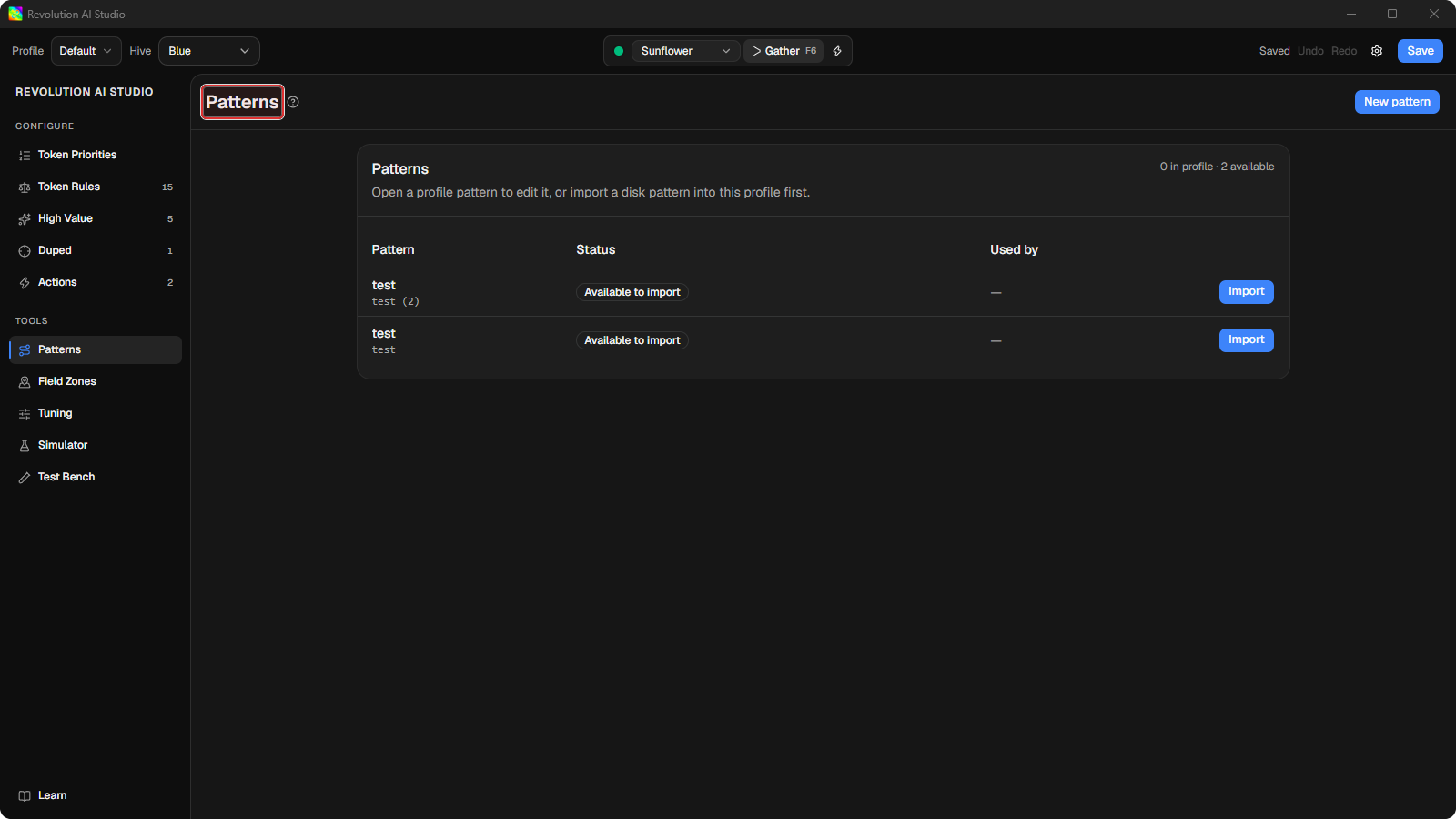
Open Tools → Patterns.
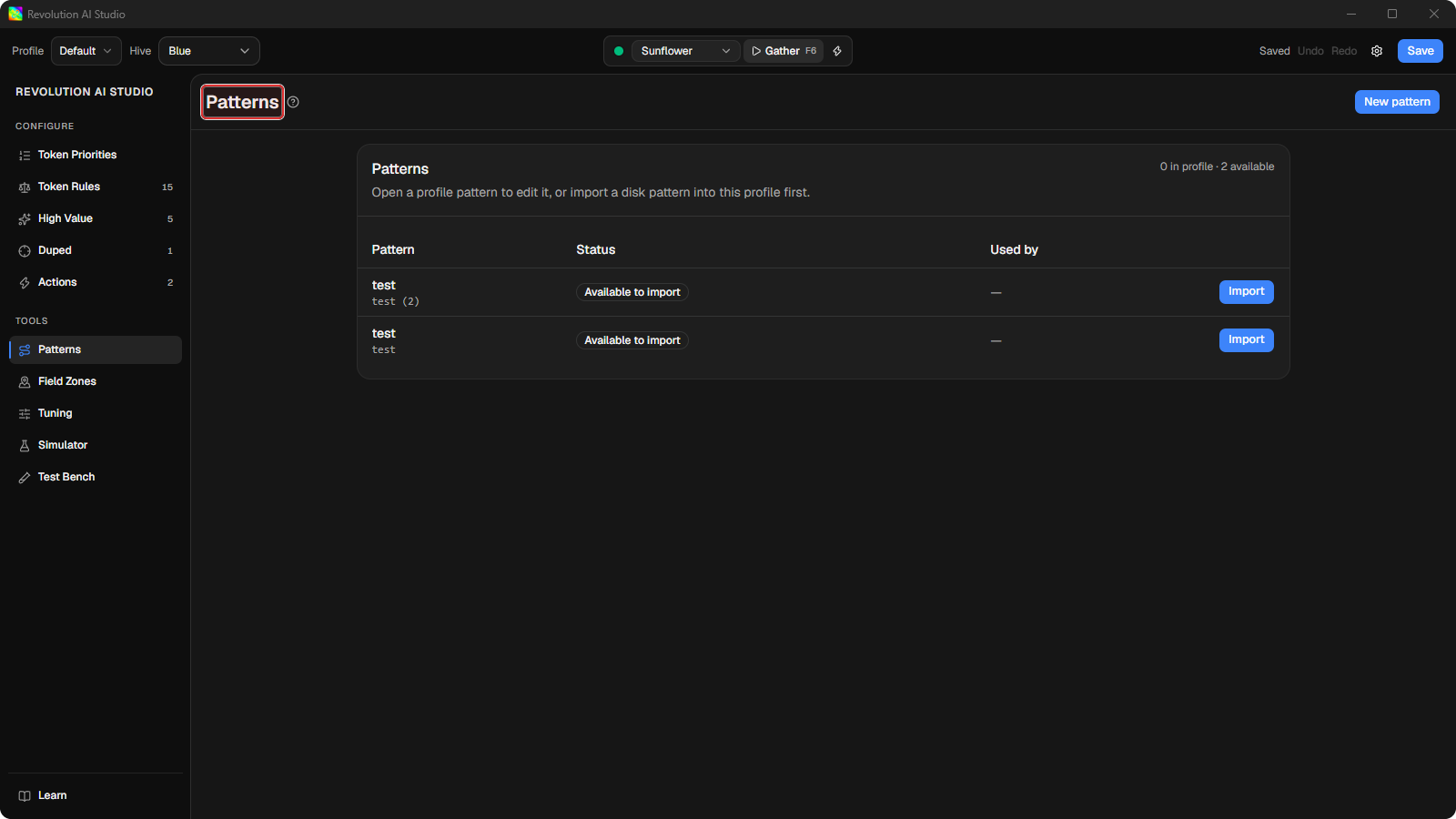
The library lists patterns marked In profile and
.luafiles on disk marked Available to import. The Used by column shows how many rules or zones point at each one, orNot used.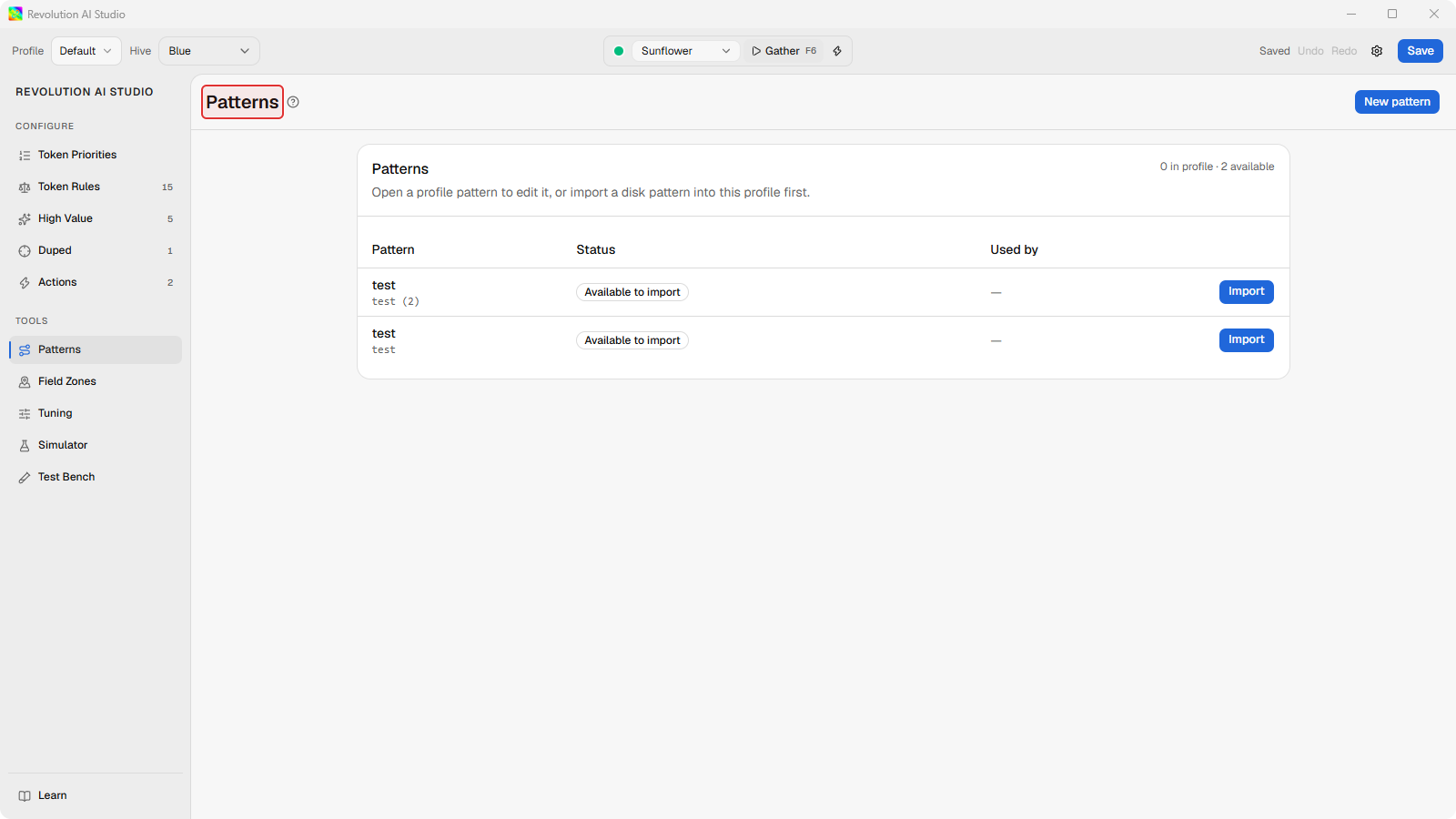
-
Click New pattern.
Pattern Maker opens with a starter script,
SetNameplusWalk(Forward, 8), and the name field focused. Give it a name you’ll recognize in a rule.
-
Drag the cyan endpoint on the canvas, or edit the Lua line. Either way, the other one updates.
Keep Live Edit on. The status bar shows Walks and Distance in studs for the route you’ve drawn, and the header shows
Saving…thenSavedas the pattern autosaves into your profile.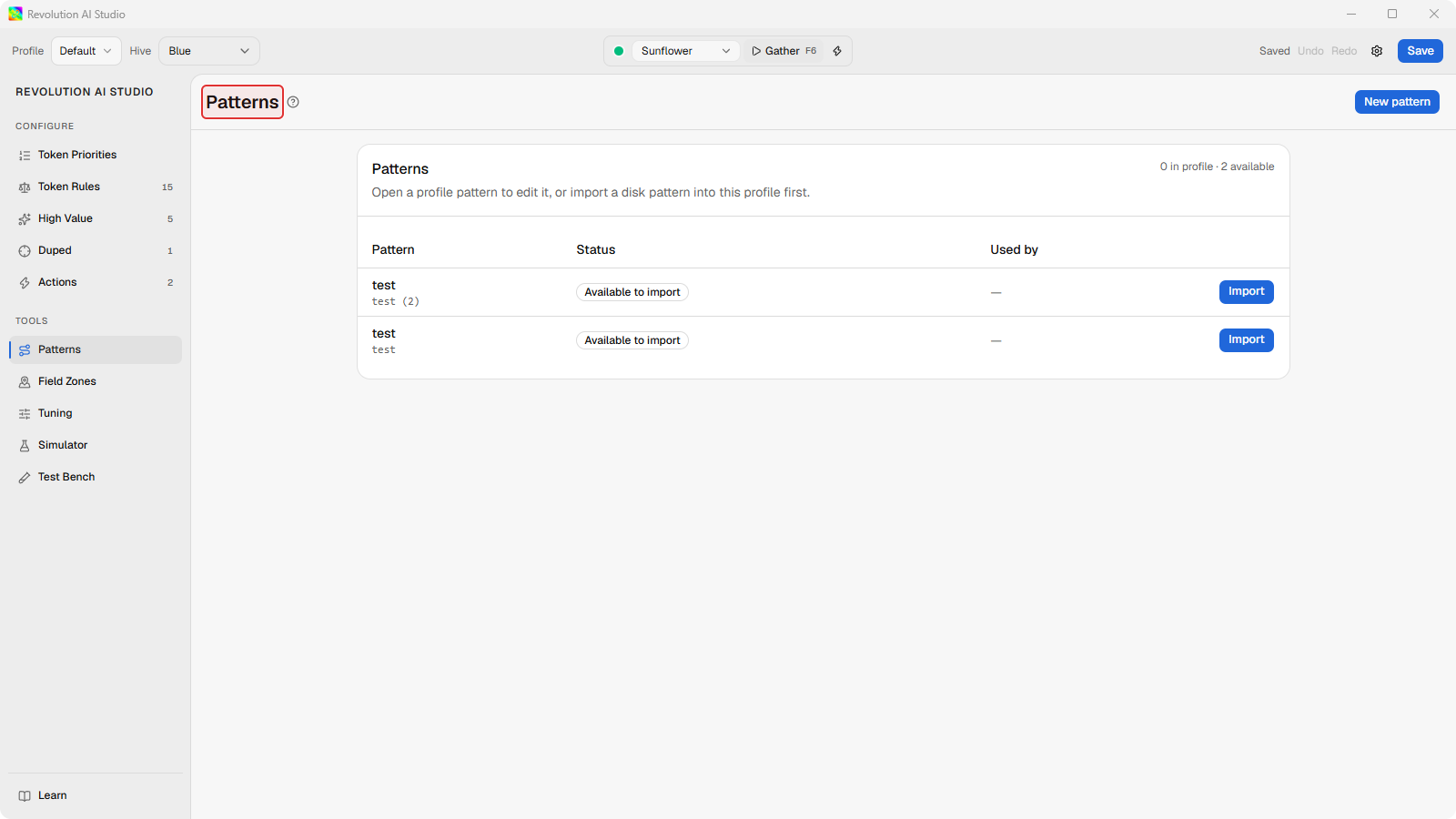
-
Click Save profile, or press Ctrl+S (Cmd+S on a Mac).
That writes the profile file the macro loads. Ctrl+Enter refreshes the preview without saving.
Now attach it. Open Configure → Actions, add a rule with Target action set to Execute Pattern, pick your pattern under Pattern (.lua), and give it a condition.
What the canvas is, and isn’t
Section titled “What the canvas is, and isn’t”The canvas previews the route. It reads the movement calls in your Lua, draws
them, and plays them back, and it understands loops, if, and local variables.
It doesn’t run the full macro, so calls that only matter in a live gather are
ignored without stopping the preview. Field presets in Settings only change
the walls drawn around the preview. They don’t change how the macro walks.
Pattern Maker Lua reference lists what
the preview understands, and
Edit Pattern Maker paths on the canvas
covers selecting Walks and wrapping them in a loop.
Import a pattern you already have
Section titled “Import a pattern you already have”Any .lua file in your Revolution Macro patterns folder
(RevolutionMacro/settings/patterns under your user config folder) shows up
as Available to import. Open the row to bring it into the profile. If a
pattern with the same id is already there, Re-import from disk asks whether
to Overwrite it or Import as copy. A row’s menu also lets you
Duplicate, Rename, and Remove from profile. Rename updates every
rule that points at the pattern, and Remove warns you when a rule would lose
its pattern.
If something’s off
Section titled “If something’s off”- A red error shows under the editor. The preview couldn’t read the Lua. Fix the line it names, then press Ctrl+Enter. The Warnings tab lists limits the preview hit, such as loop caps or distance.
- Wrap in for loop is disabled. Live Edit has to be on, and every selected Walk has to be next to the others at the same loop depth. The reason shows beside the button.
- Import fails. Check the
.luafile is still in the patterns folder with the same name.