
Edit Pattern Maker paths on the canvas
When a route needs a small change, dragging it on the canvas is faster than counting directions in a Lua line. Pattern Maker rewrites the matching Walk line as you drag, then previews the route so you can see it before an action rule runs it. This guide covers dragging, selecting, looping, and playing back.
Before you start
Section titled “Before you start”Open a pattern under Tools → Patterns. Live Edit is on for a new pattern. Keep it on for all of these steps, because dragging, selecting, and looping all need it.
-
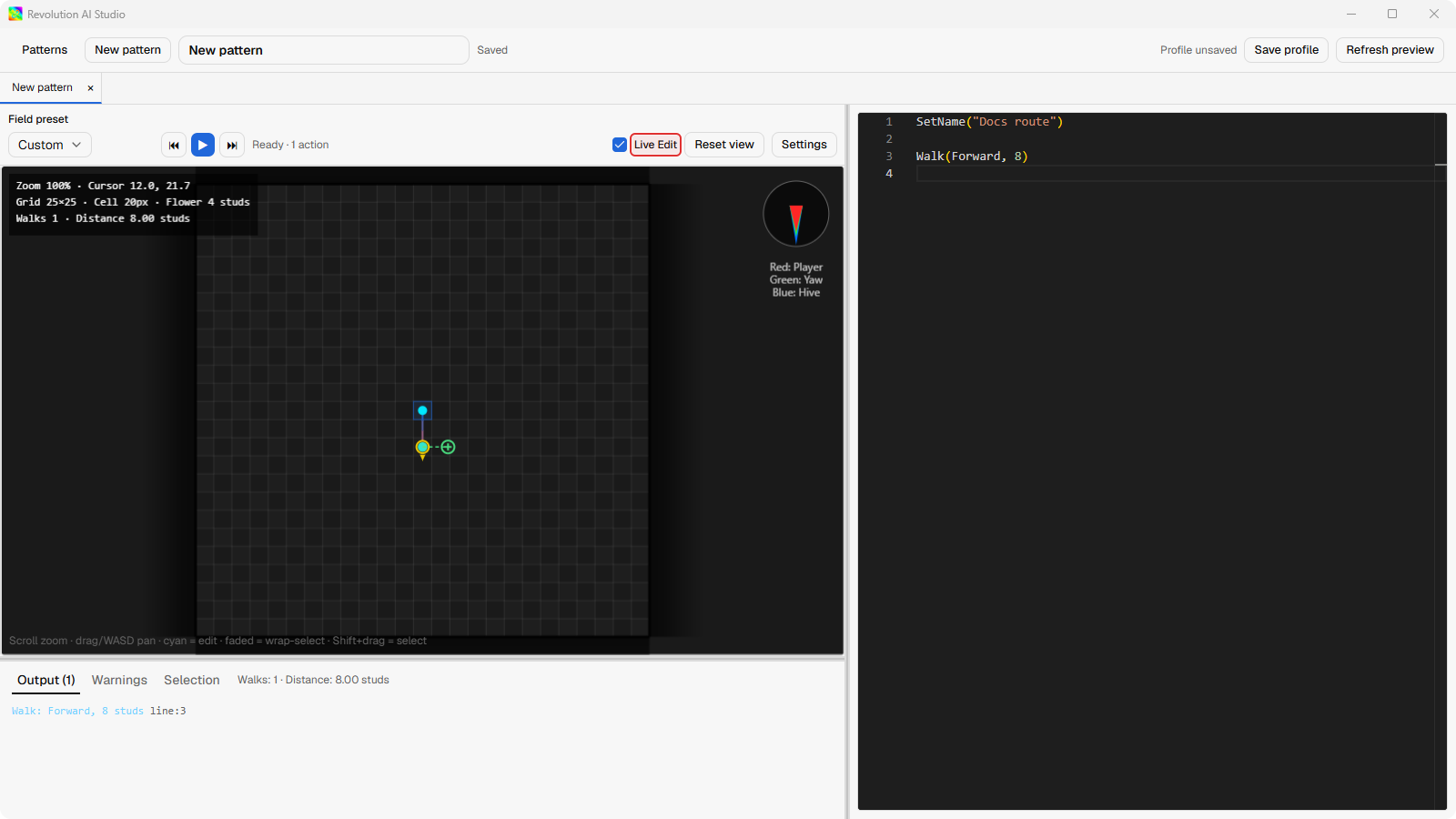
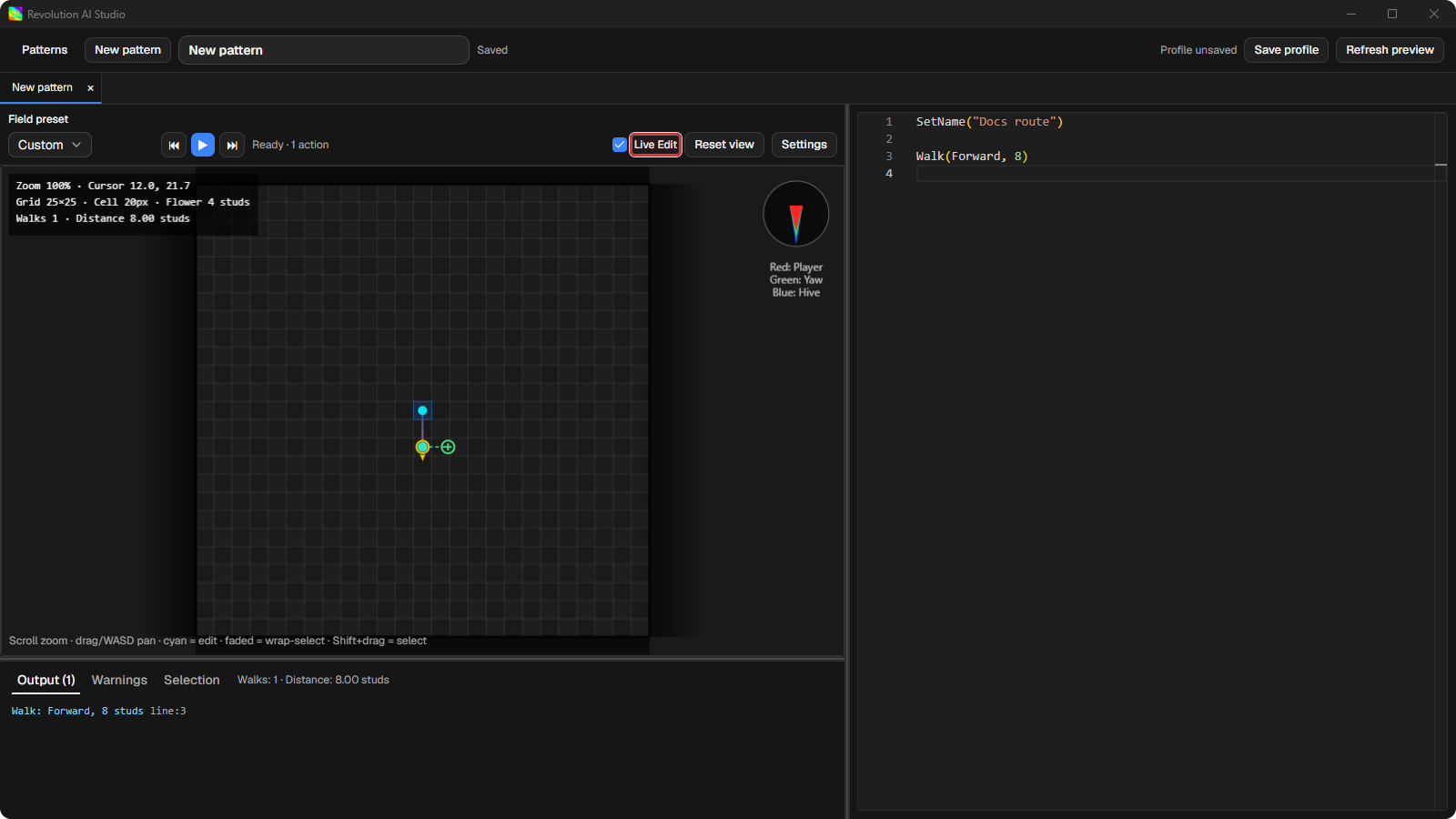
Look at the endpoints on the canvas.
Cyan endpoints belong to Walks you can drag. Faded endpoints belong to a repeat of a loop, and dragging them does nothing, because the source line is the first copy.
-
Drag a cyan endpoint to where that move should end.
The Walk line in the Lua editor changes with it, and the preview redraws. To add another move, drag the green anchor after the last one.
-
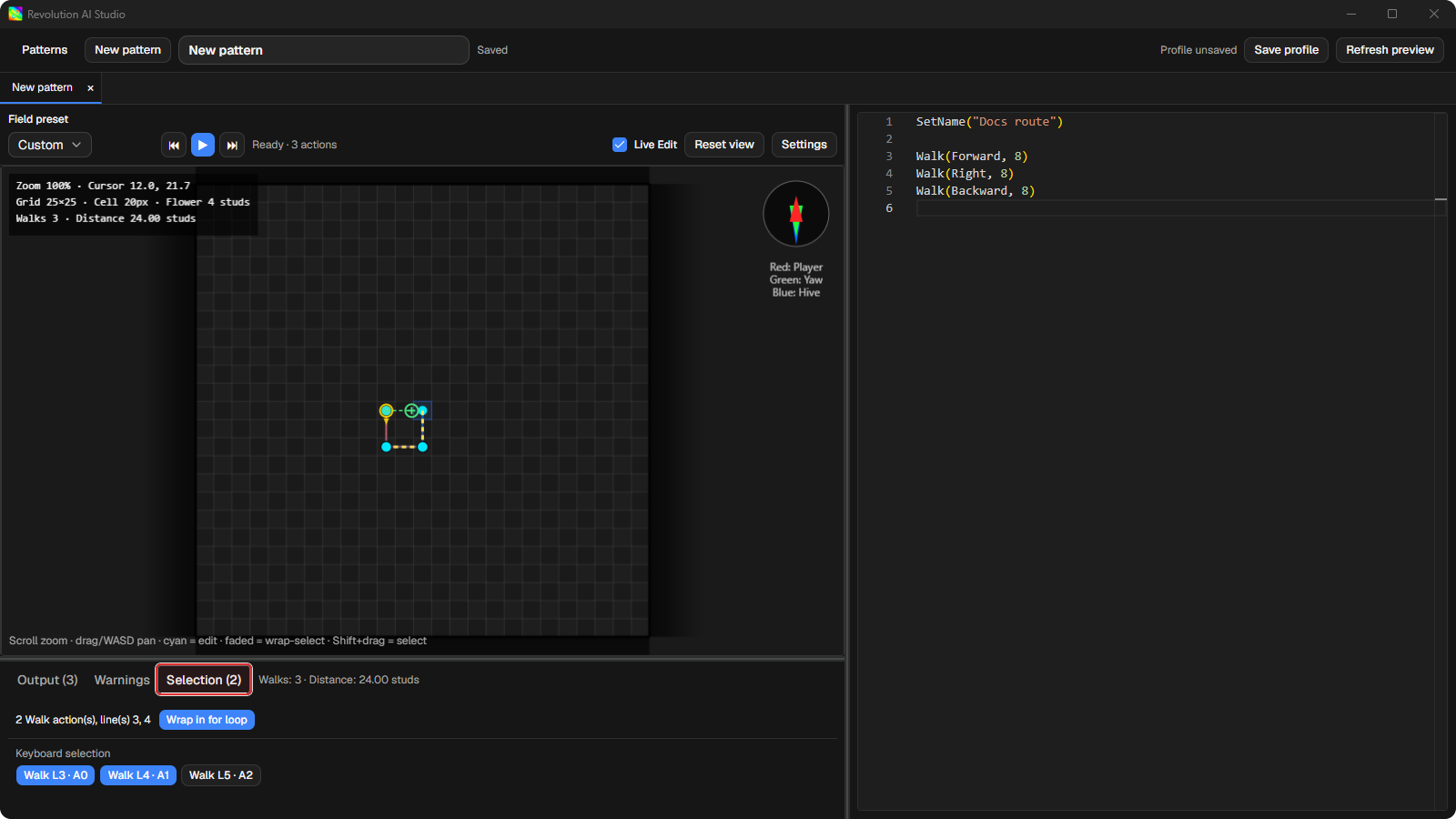
Select the Walks you want to repeat, then choose Wrap in for loop.
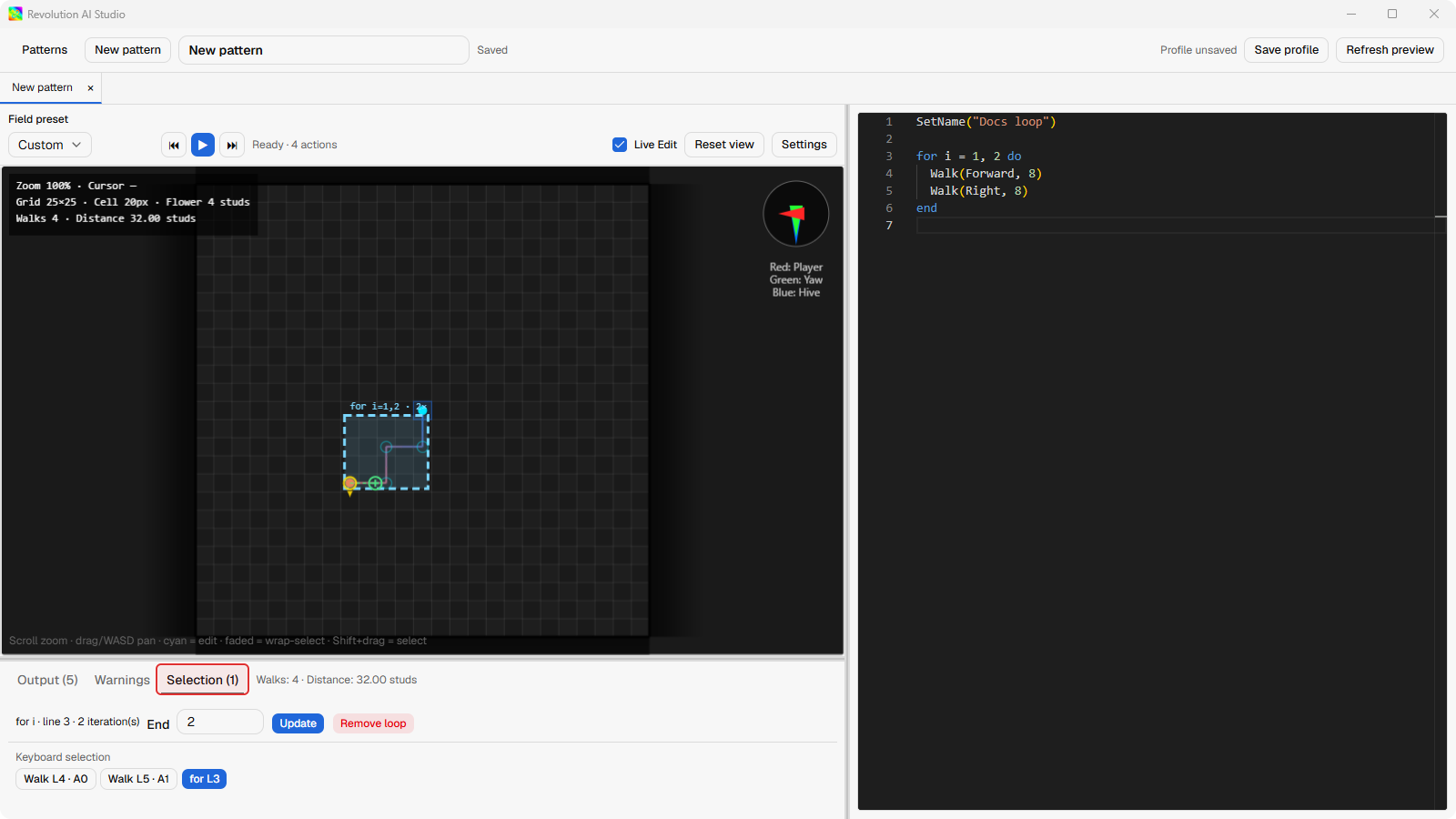
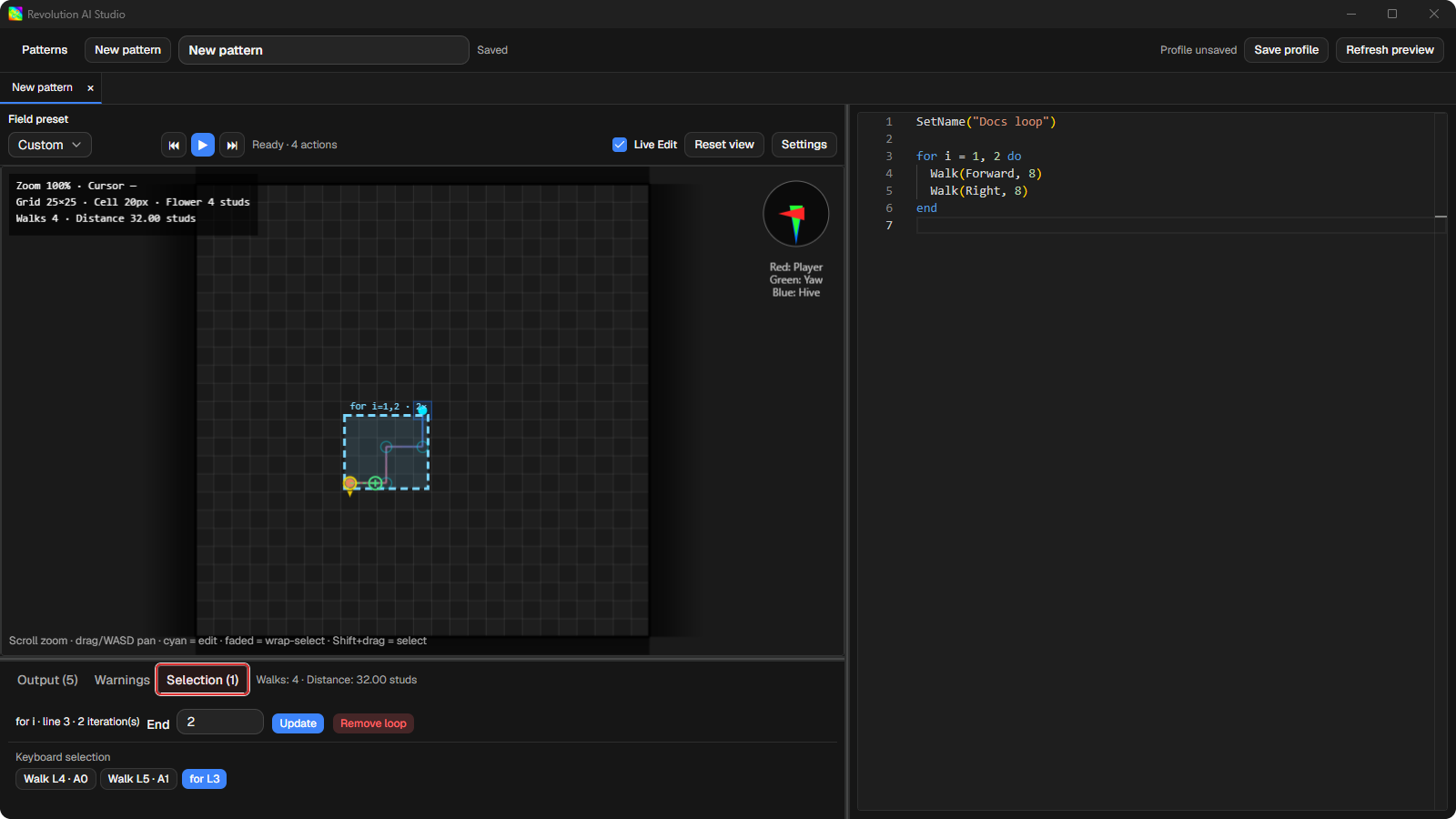
Click one endpoint, hold Shift and click another, or drag a box around several. The Selection tab and the canvas right-click menu both offer Wrap in for loop. The loop starts as
for i = 1, 2 do, and you can change the count in the Selection tab.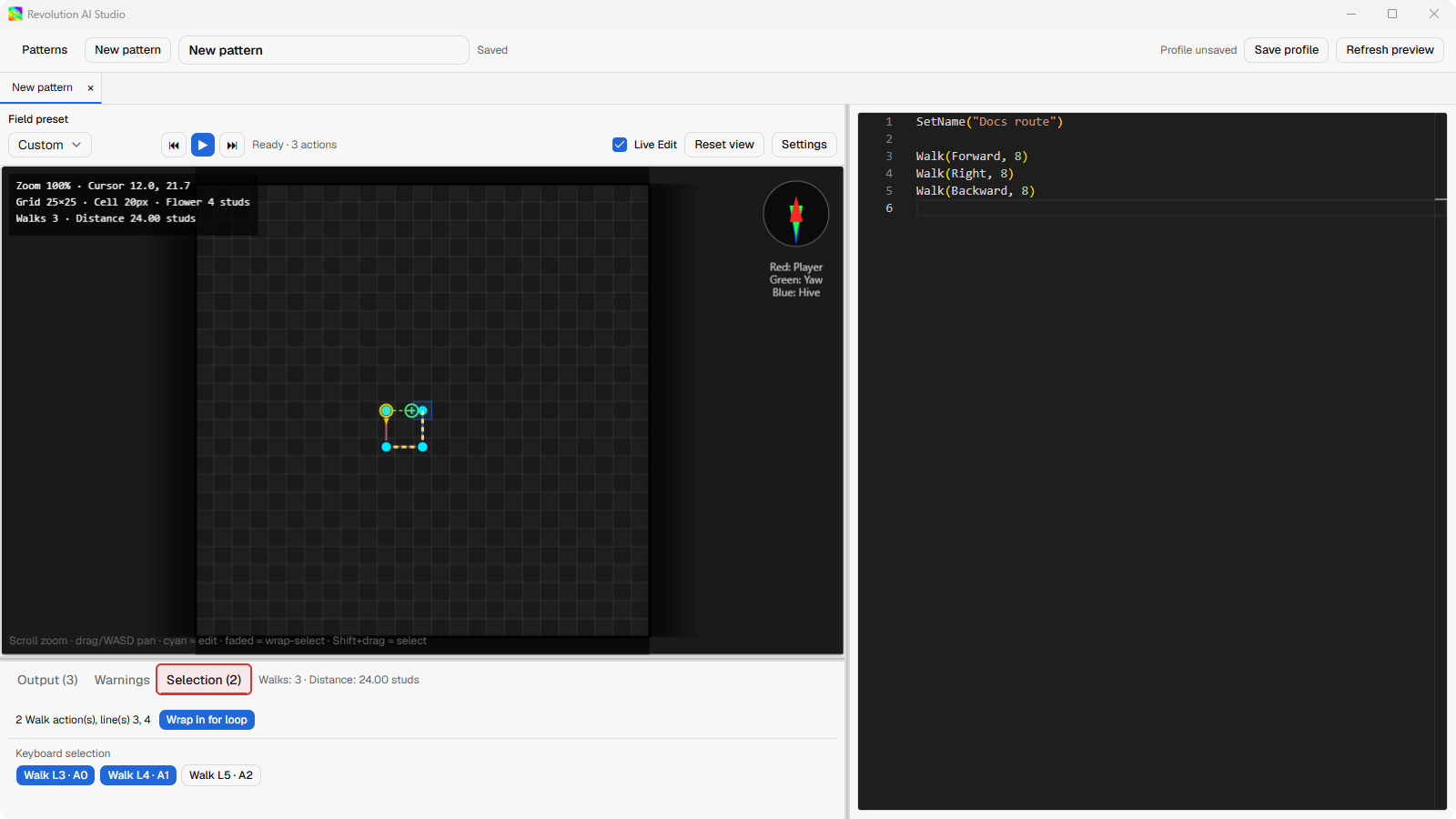
-
Press Play, or Space, and watch the marker walk the route.
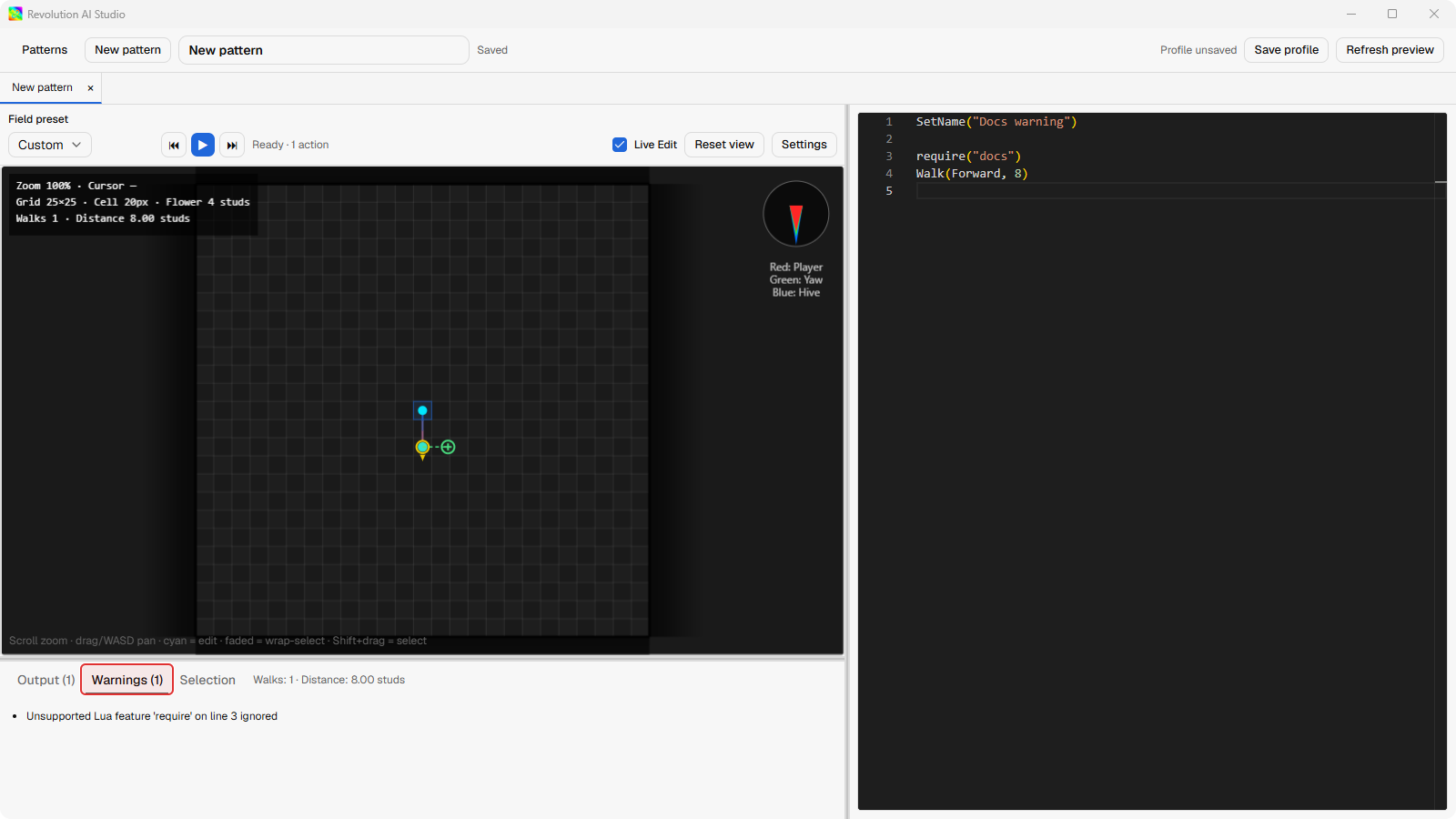
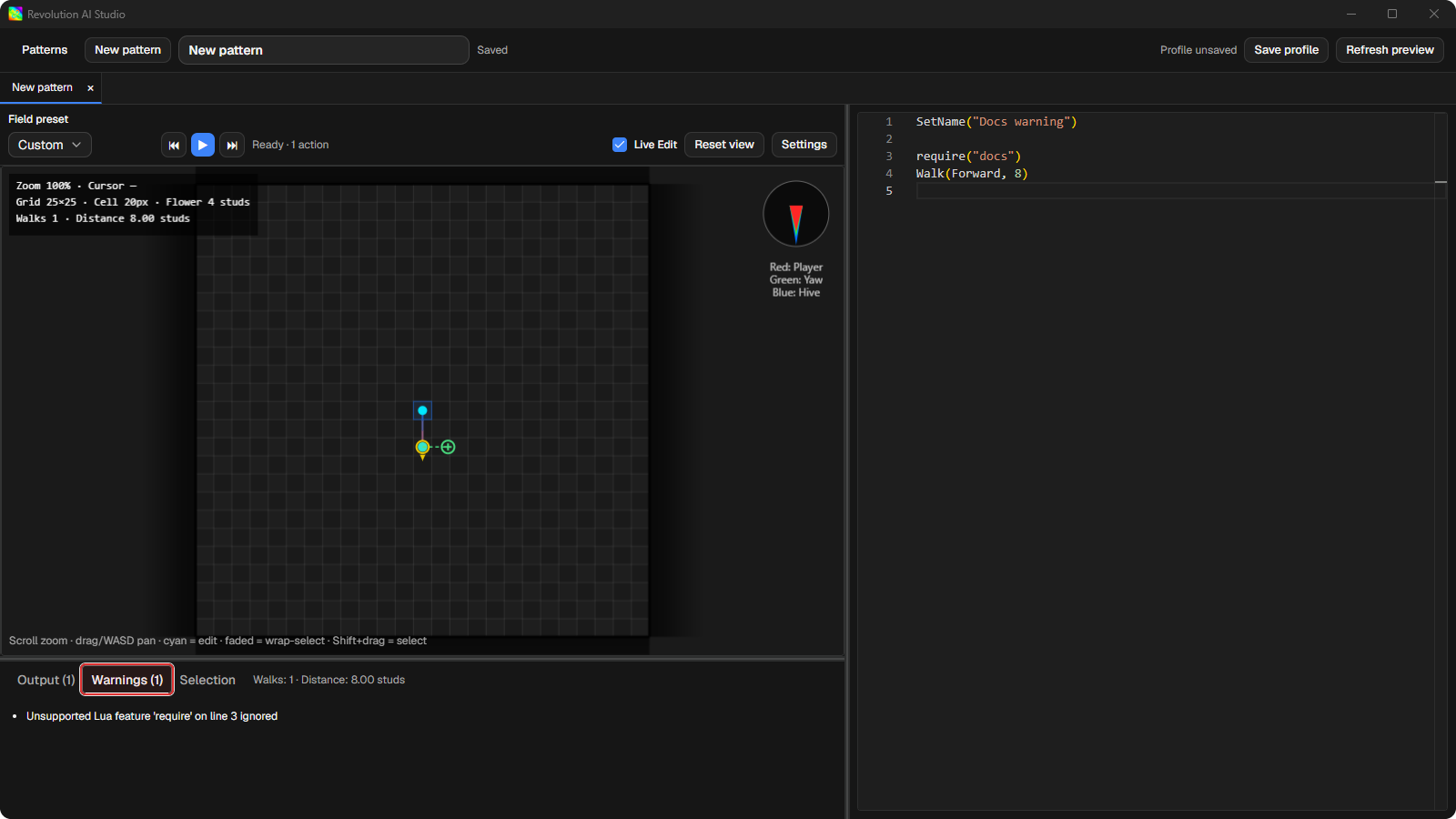
The status bar names the action it’s on. Output lists every line the preview ran, and Warnings lists anything the preview couldn’t do, such as a Lua call it doesn’t understand or a loop over the limit.
Loops on the canvas
Section titled “Loops on the canvas”Each loop is drawn as a colored region, one color per nesting depth. Click a
region to see it in Selection. A numeric for loop has an End field
you can change there. A while loop can be looked at but not removed from the
canvas.
When Wrap in for loop is greyed out, the reason is written beside it. The selected Walks have to be next to each other in the source and at the same loop depth, Live Edit has to be on, and loops can only nest three deep.
Space plays. Left and Right step one action at a time. W, A, S, and D move the
view, and 0 resets it. Esc clears the selection. Ctrl+S saves the profile,
and Ctrl+Enter refreshes the preview without saving. On a Mac, use Cmd in
place of Ctrl.
Pattern Maker can hold more than one pattern open in tabs across the top. Each tab keeps its own view and unsaved source.