
Tuning basics
When the macro hikes across the field for tokens that aren’t worth the walk, you could write a rule for every token class it’s doing that with. Or you could change the one curve that decides how much distance matters to all of them. This guide walks you through changing the walk distance curve and reading the result on a single token.
How this fits
Section titled “How this fits”Tuning curves reshape a token’s score based on its intrinsic properties. Under Tools → Tuning you’ll find the built-in curves the macro applies to every token candidate - walk distance, sprinkler reach, cluster bonus, expiring-token urgency, new and stale token decay, and match confidence. Each one encodes a specific aspect of a token: how far away it is, how many tokens are nearby, how close it is to expiring, how many times the vision models have matched it. Once a token’s score is calculated from its base weight and rules, its position on each curve becomes a multiplier applied to that score.
A Token Rule answers “this class, in this situation, should be worth more” - a tuning curve answers “how much should distance, crowding, or expiry matter to everything?” Tune a curve when the behavior you want to change isn’t specific to one class. If the macro is walking too far for tokens that aren’t worth the distance, tune the walk distance curve. If it’s passing up clusters that should be collected, tune the cluster bonus curve. Because a curve applies to every token, one edit reshapes your entire collection strategy.
Change the walk distance curve
Section titled “Change the walk distance curve”-
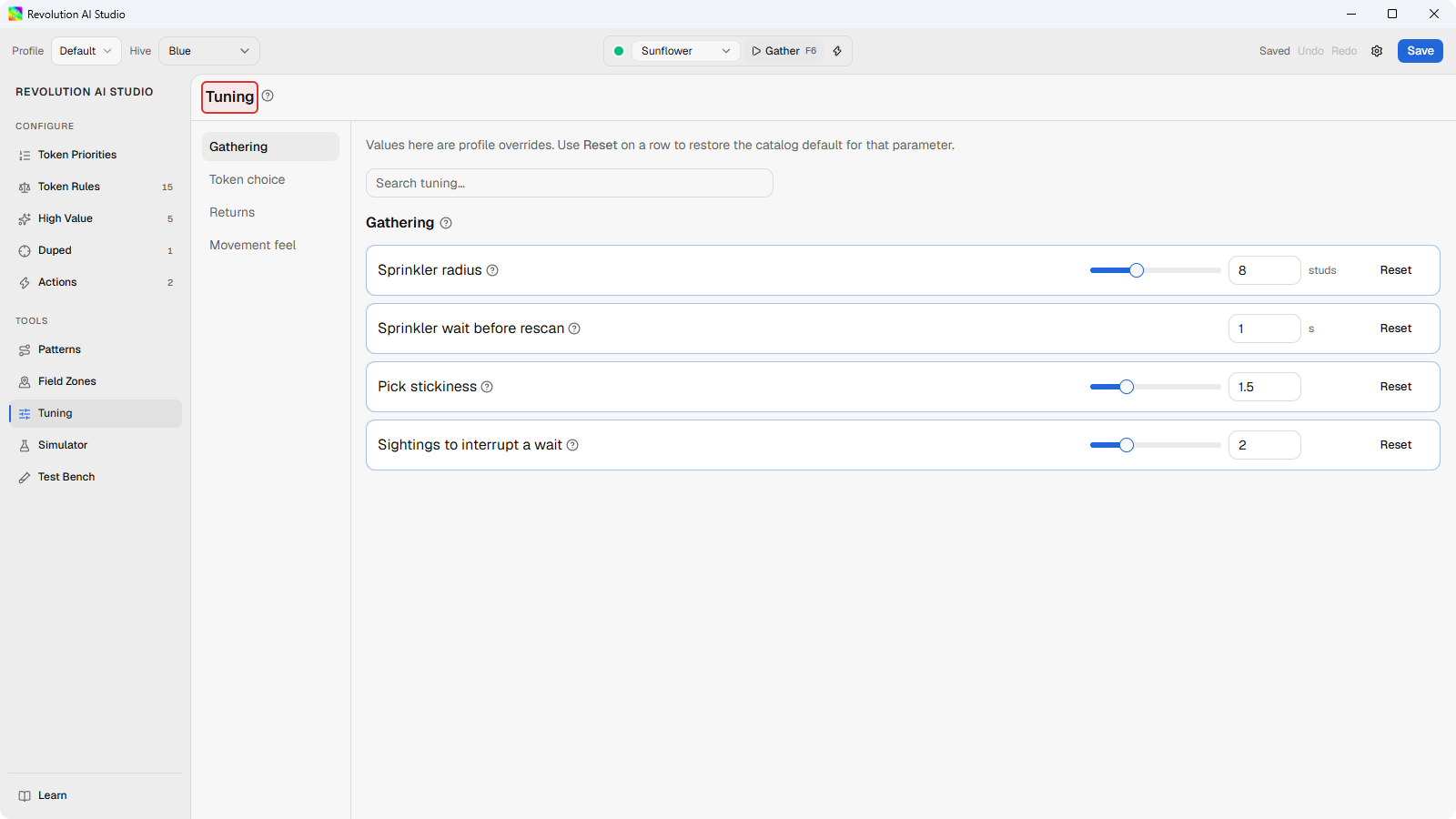
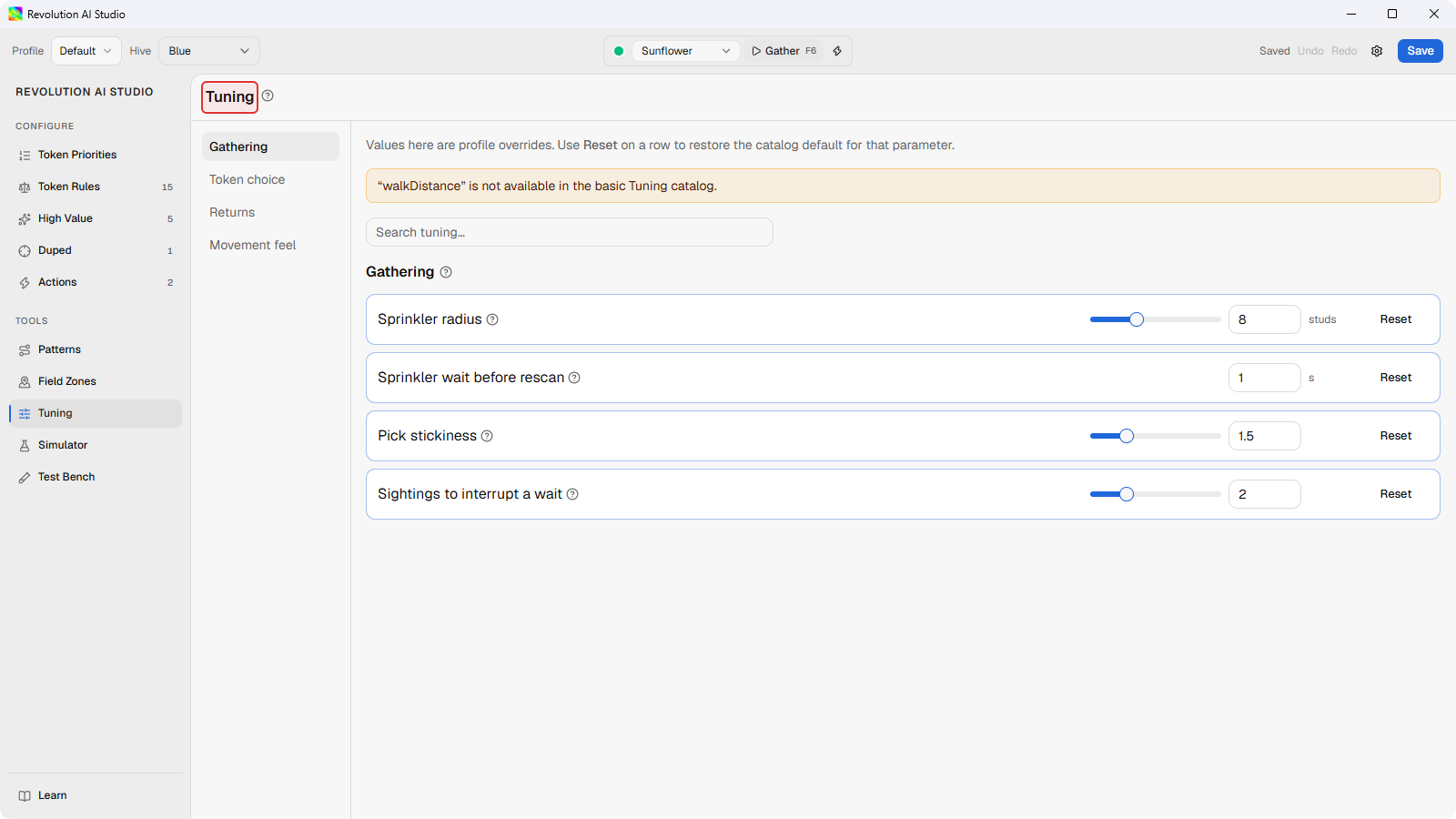
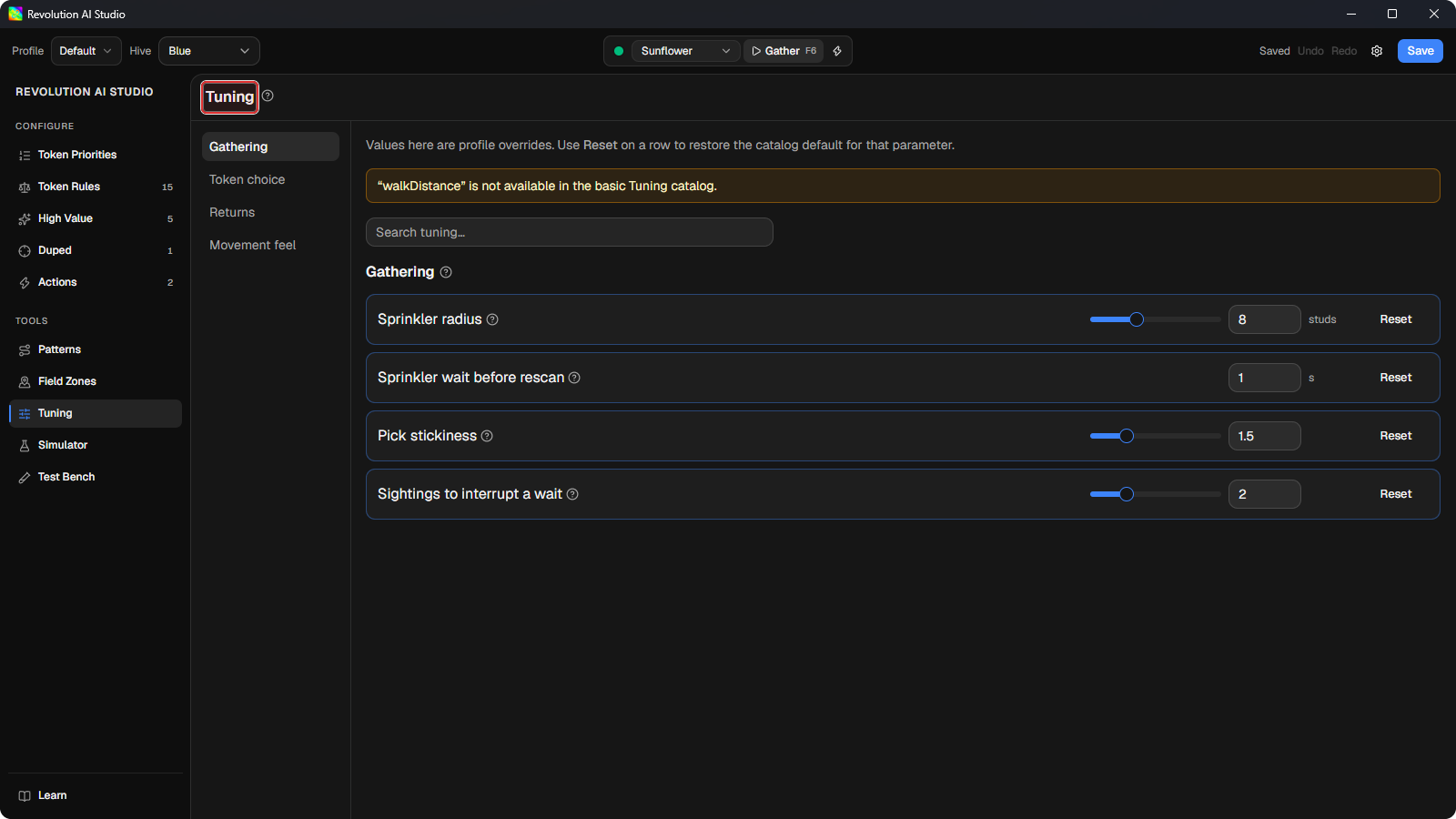
Open Tools → Tuning, or start Sidebar → Learn → Tune walk distance.
-
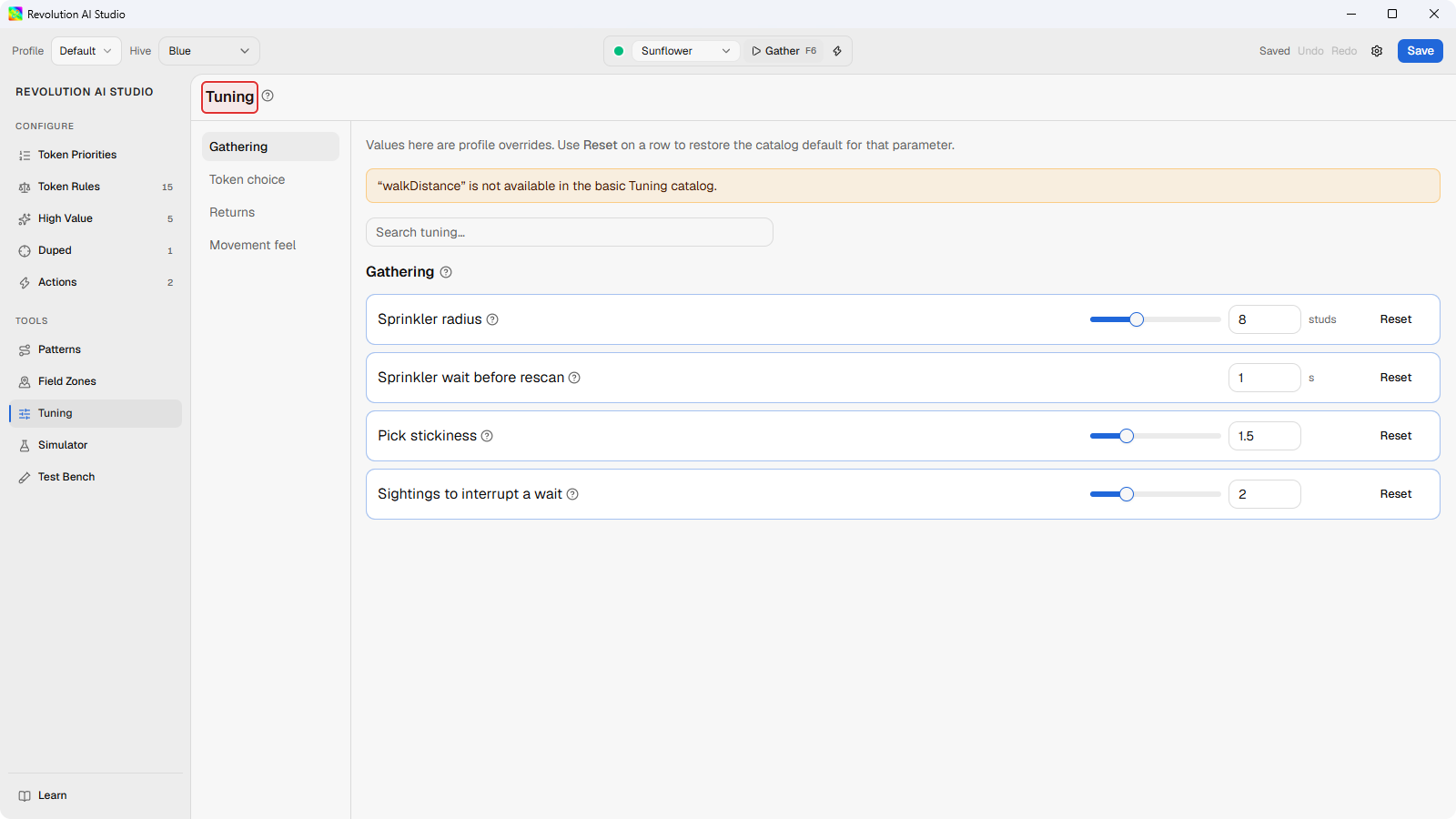
Under Token choice, open Walk distance curve.
The chart’s X axis is distance to the token in studs. The Y axis is the multiplier a token gets at that distance. By default a token right next to you is multiplied by 1.25 and a token 40 studs out by 0.25, with the curve falling between them.
-
Drag Cutoff inward a little, from 40 to 30 for example.
Cutoff is the distance where the multiplier reaches its lowest value, so pulling it in makes far tokens lose value sooner. Near is the distance inside which every token gets the full multiplier. Ceiling and Floor are the highest and lowest multipliers. Shape changes how quickly the curve falls between them.
-
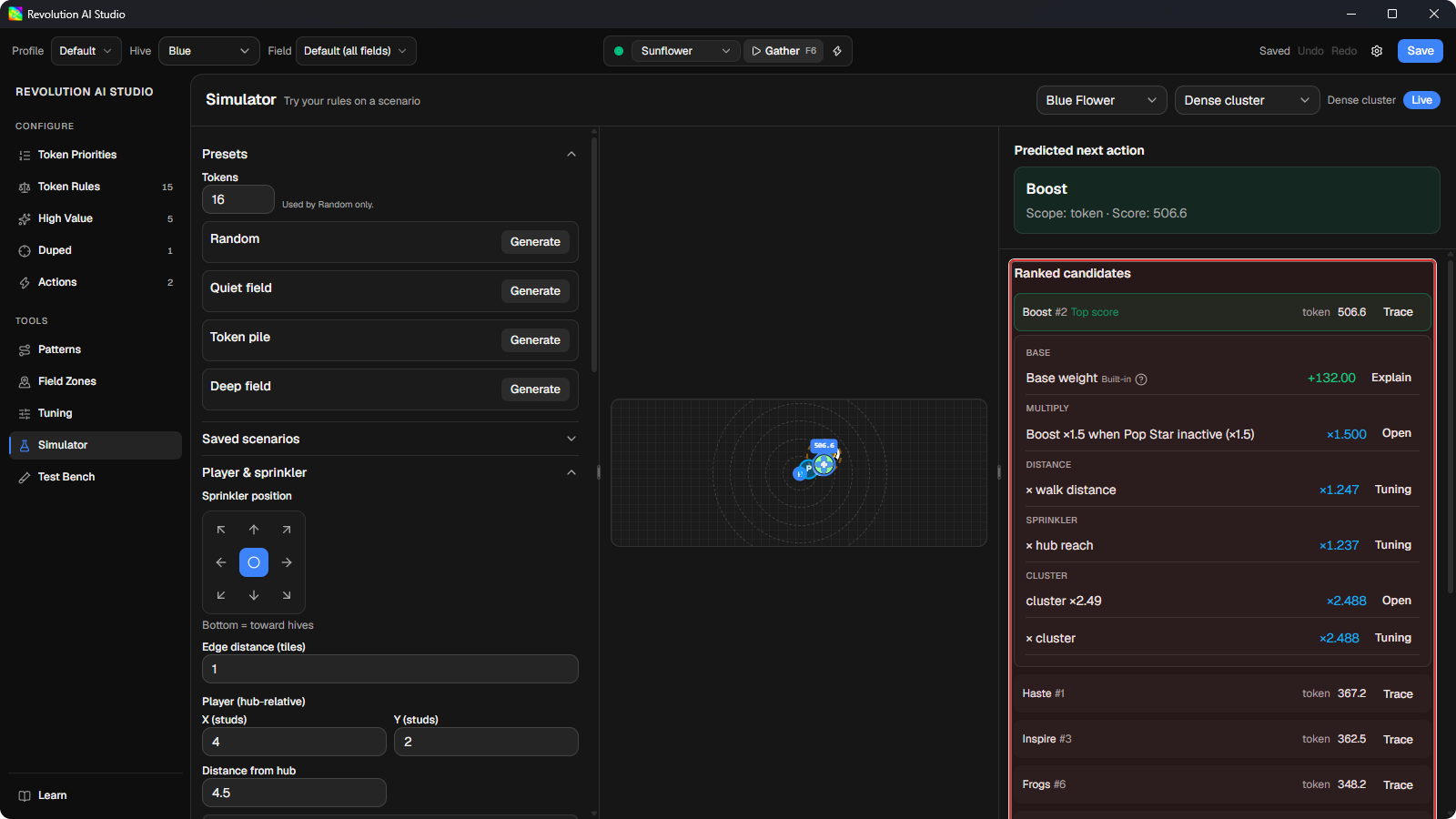
Open Tools → Simulator, load Dense cluster, and click Trace on the farthest token.
Before you look, guess whether Loot, 13 studs out, still finishes last, and whether it lost more than before. The
× walk distanceline in the breakdown shows the multiplier at that distance. If it moved the way you expected, save the profile. If not, click Reset on the curve’s row to put the default back.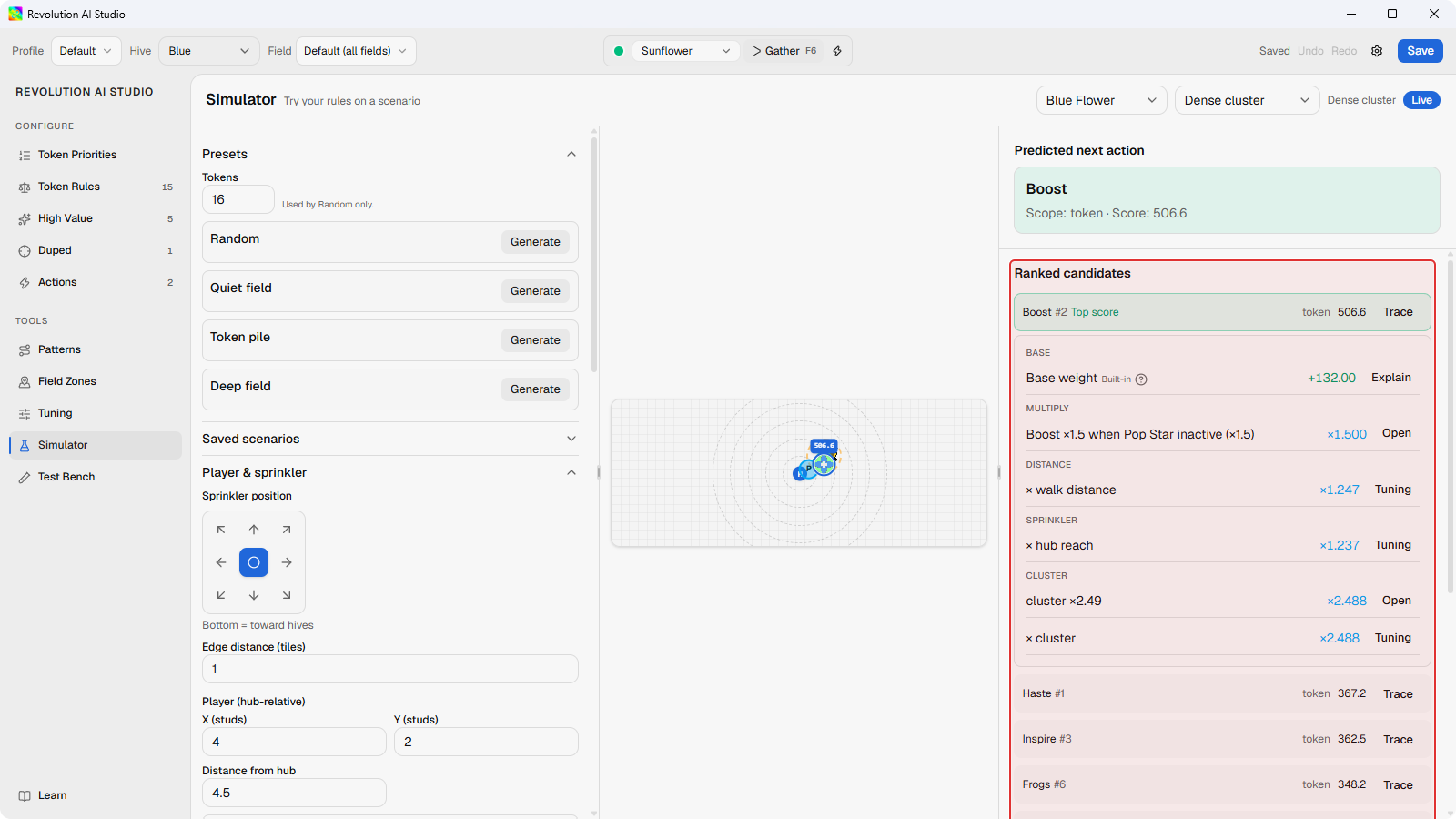
The other curves
Section titled “The other curves”Every curve under Token choice works the same way: a token property on the X axis, a multiplier on the Y axis. Cluster bonus rewards tokens with other tokens nearby, which is why every token in Dense cluster earns ×2.488. Expiring-token urgency raises a token that’s about to disappear. New-token caution and Stale-token decay lower a token you’ve only just seen or haven’t seen for a while. Match confidence lowers a token the vision models have only matched once. Open About this curve on any row for its axes and defaults, and Tuning settings reference has every label in one table.
Values you change here are stored in your profile. Reset on a row puts the built-in default back, and it stays disabled until the row differs from that default. The Red-hive section only appears when the profile’s Hive is Red.