
Your first movement rule
Your profile already has rules in it, so your first rule isn’t really the first. It’s one more line in a strategy that already gathers well. This guide walks you through the guided Melody rule, asks you to guess what it will do before AI Studio shows you, and ends with the profile saved. Keep AI Studio open beside this page while you read.
Two words you’ll need
Section titled “Two words you’ll need”A rule’s score. The macro gives every token it can see a score and walks to the highest one. A rule can raise or lower that score while something is true, like “while my Melody buff is below 30%”.
A gate. A gate is a blocking rule. While its condition is true, the macro won’t collect that token at all, however high its score is.
-
Open Configure → Token Rules and find Block Melody when buff above 30% in the table.
That’s a gate that shipped with your profile. It stops the macro collecting Melody while your Melody buff is above 30%, because a Melody token grabbed at 90% buff is mostly wasted. Baby Love has the same one. Every rule you write will sit in this table next to those.
-
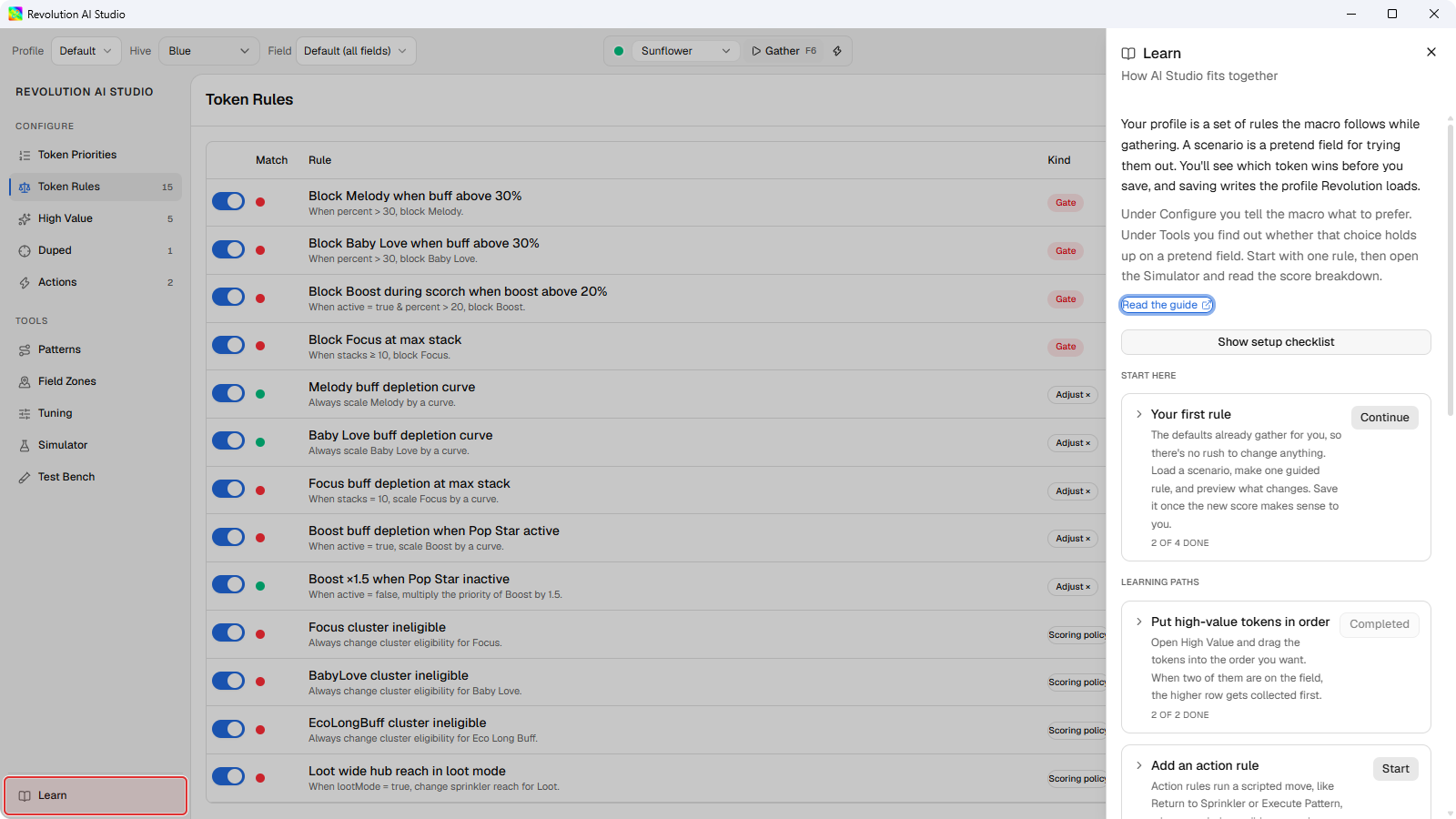
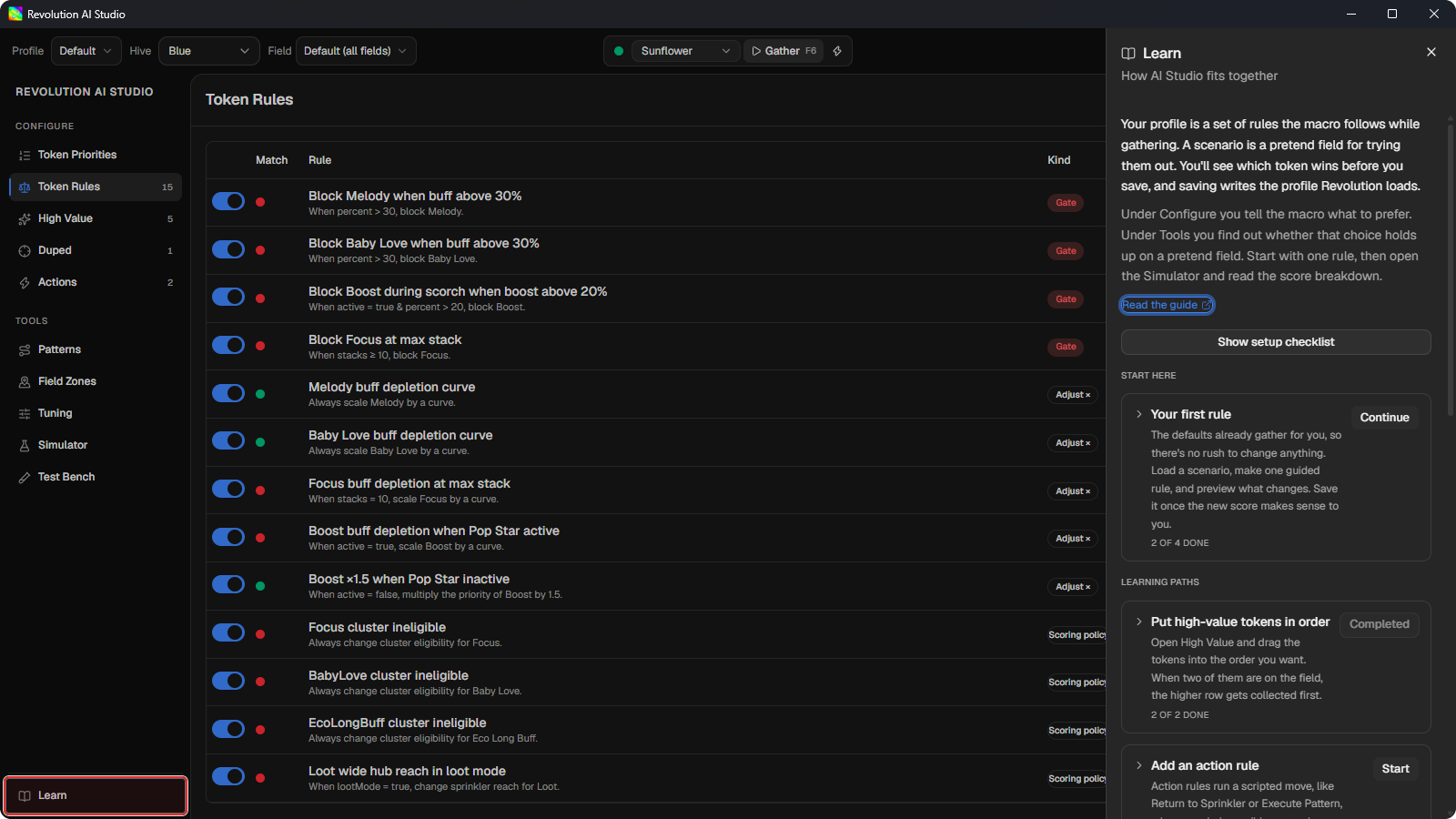
Open Sidebar → Learn, expand Your first rule, and click Start.
Learn is the set of guided walkthroughs built into AI Studio. Its first step loads a scenario called Early field, low buffs: a pretend field with your Melody buff at 5% and three tokens near you, a Melody, a Focus, and a Haste. You’ll try your rule on this field before it ever touches a real gather.
-
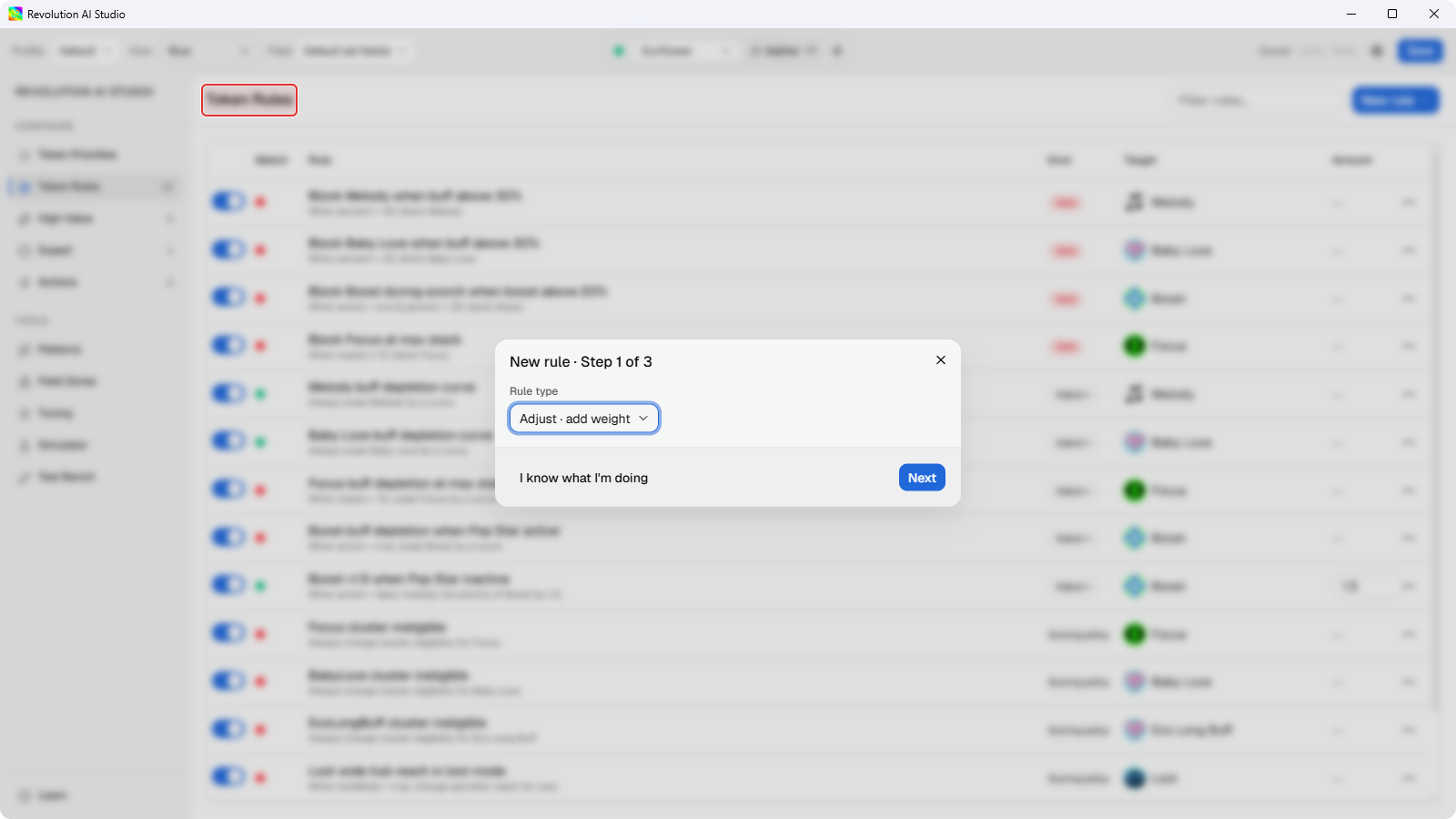
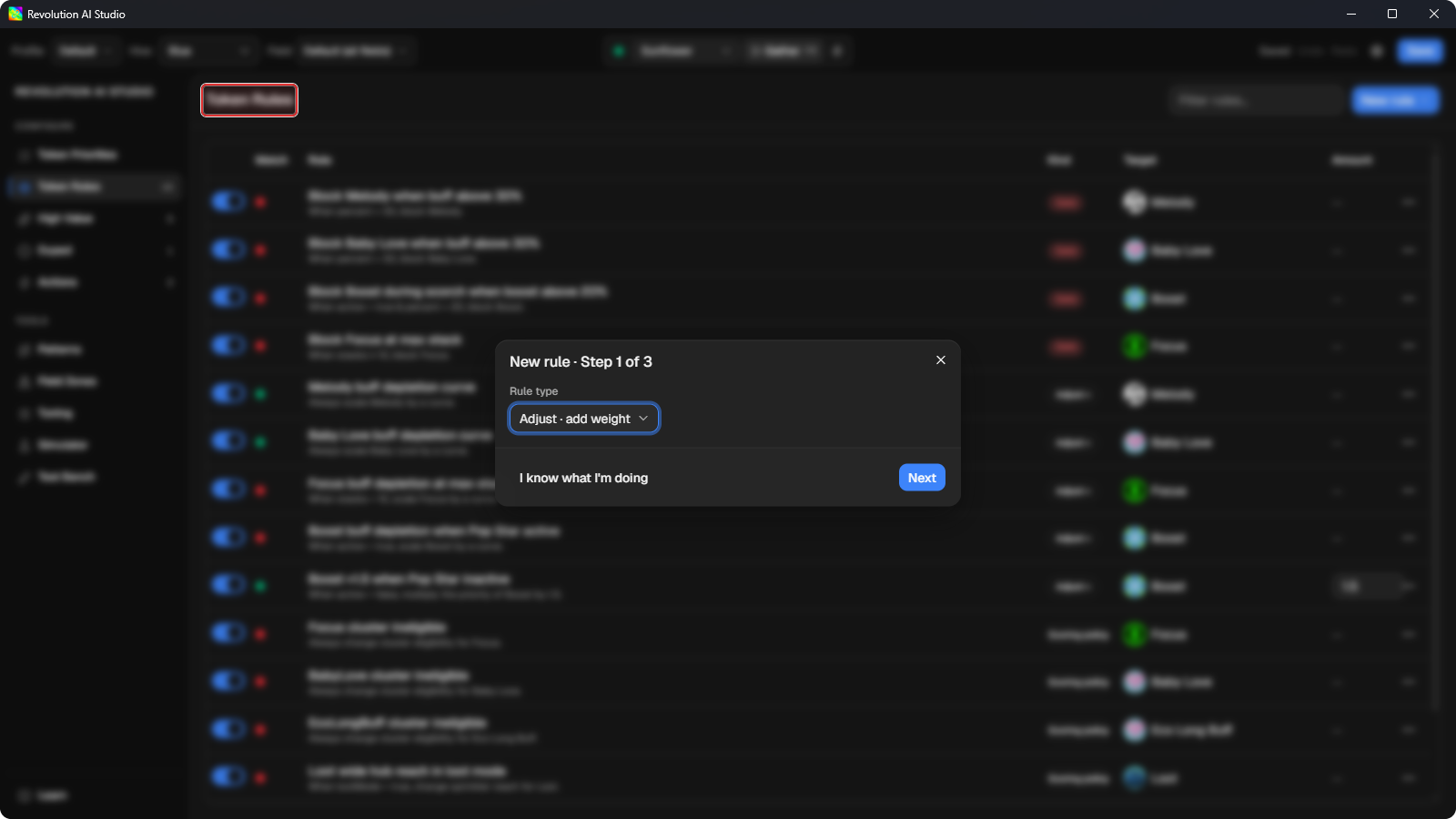
Click through the guided wizard, from New rule · Step 1 of 3 to step 3. Keep Rule type at Add weight and Condition at Buff is low.
Add weight raises Melody’s score by a set amount while your Melody buff is low. The default gate already blocks Melody while the buff is high, so the two rules cover opposite ends of the same buff and never fight each other.
-
On the last step, click Edit details, and make a guess before you look any further.
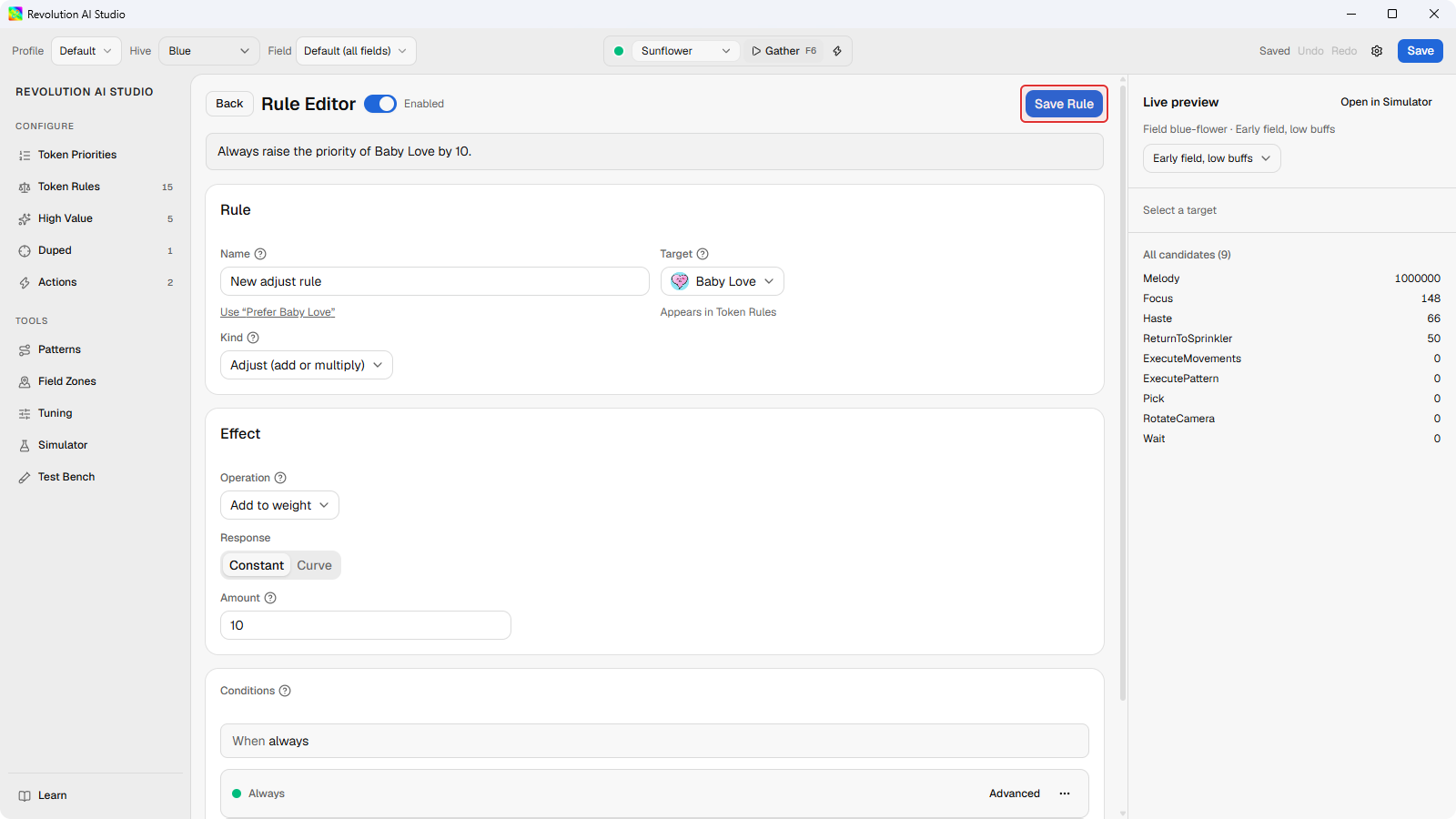
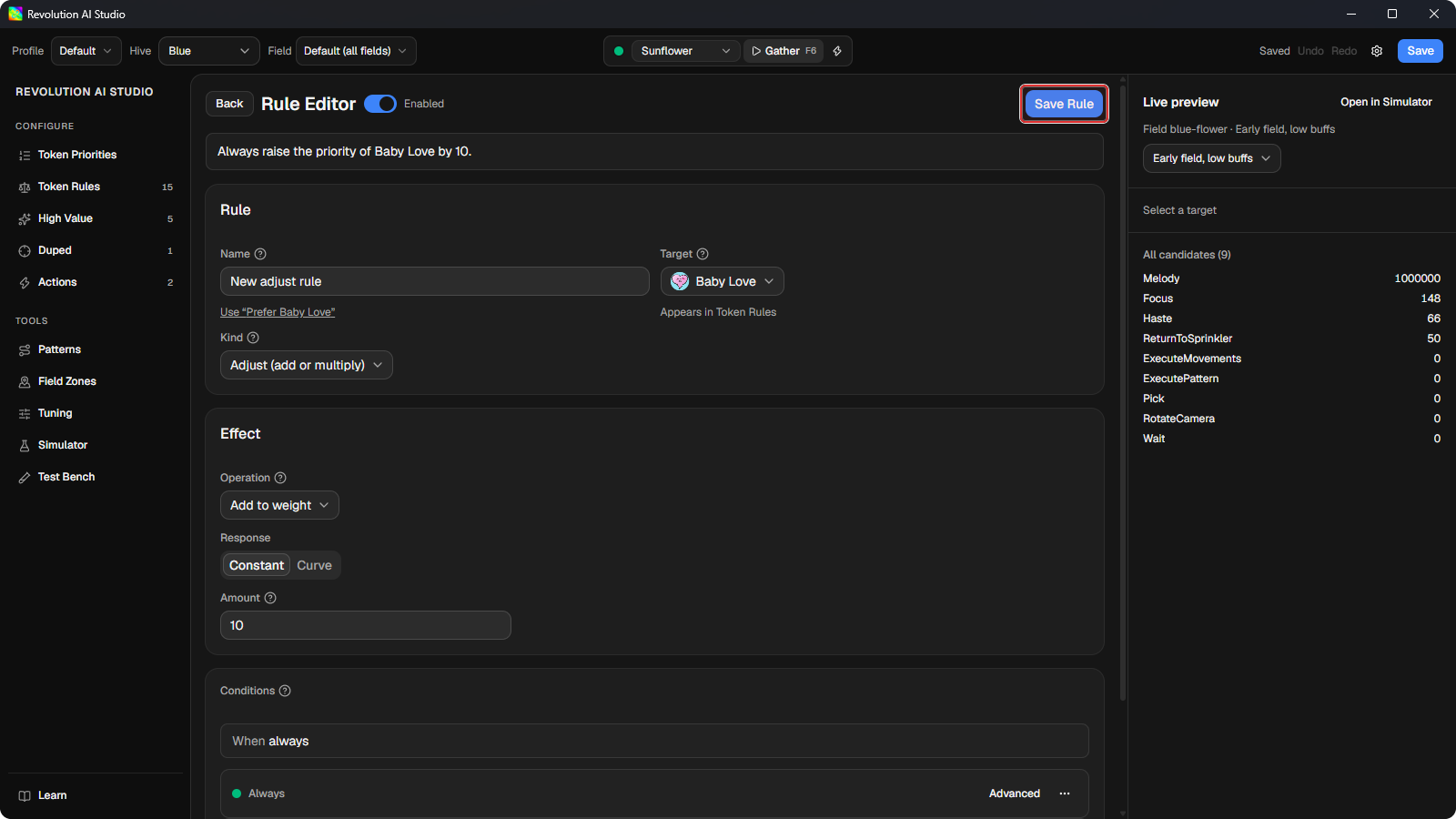
The Rule Editor opens with your rule as a draft, which means nothing has changed in your profile yet. On the right is Live preview, a list of the three tokens with the one the macro would walk to on top. Don’t read it yet. Guess: will your rule change which token is on top, or only make Melody’s score bigger?
-
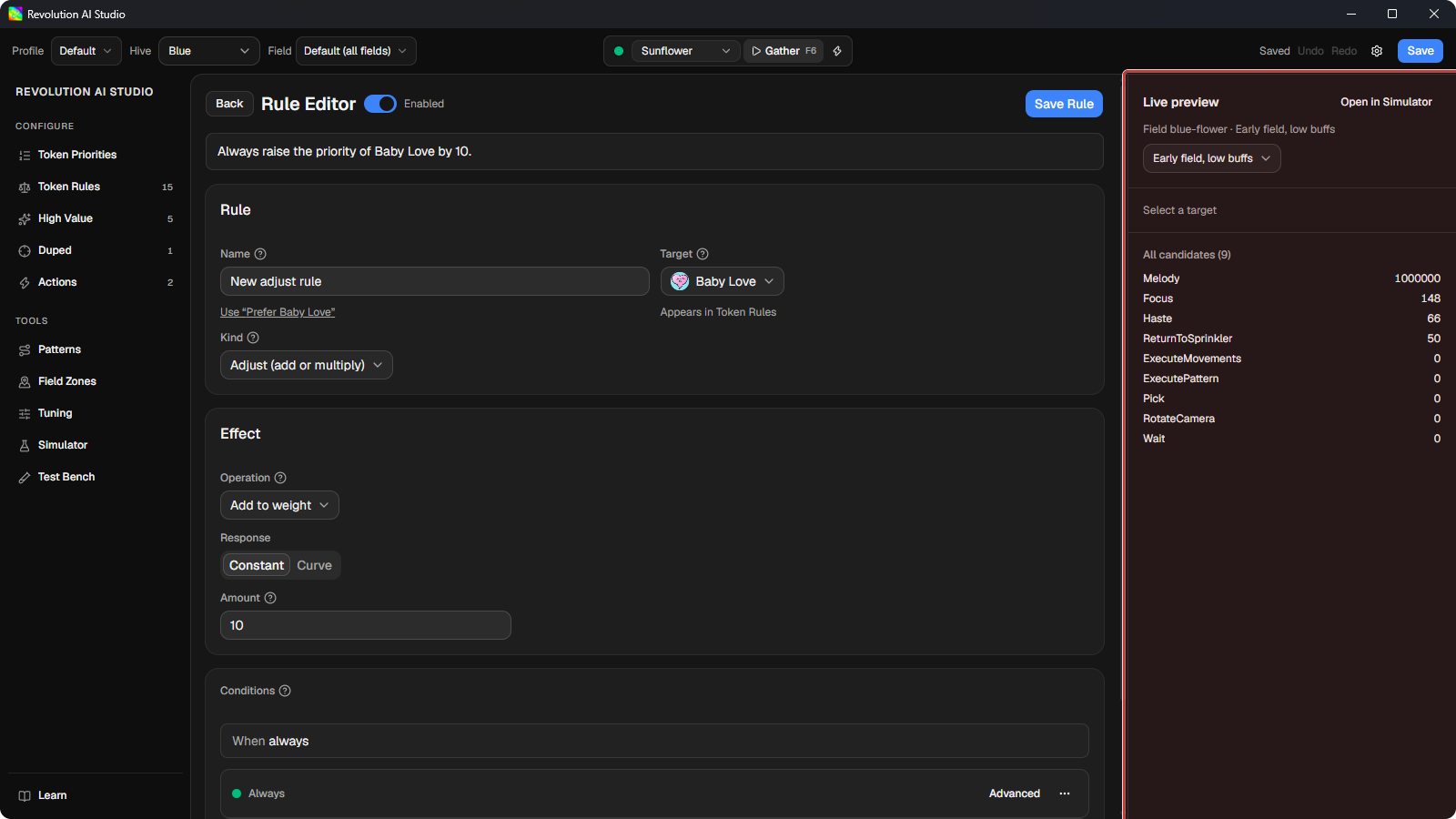
Now read Live preview.
Check your guess against the order. Then click Melody to open its score breakdown, the list of everything that went into its score. Your rule shows up as its own line adding to it, because your buff is at 5% and the rule is active. You might see
Evaluating…for a moment while AI Studio works it out, orSelect a targetuntil you click a token. A token showingGatedinstead of a score is being blocked by a gate.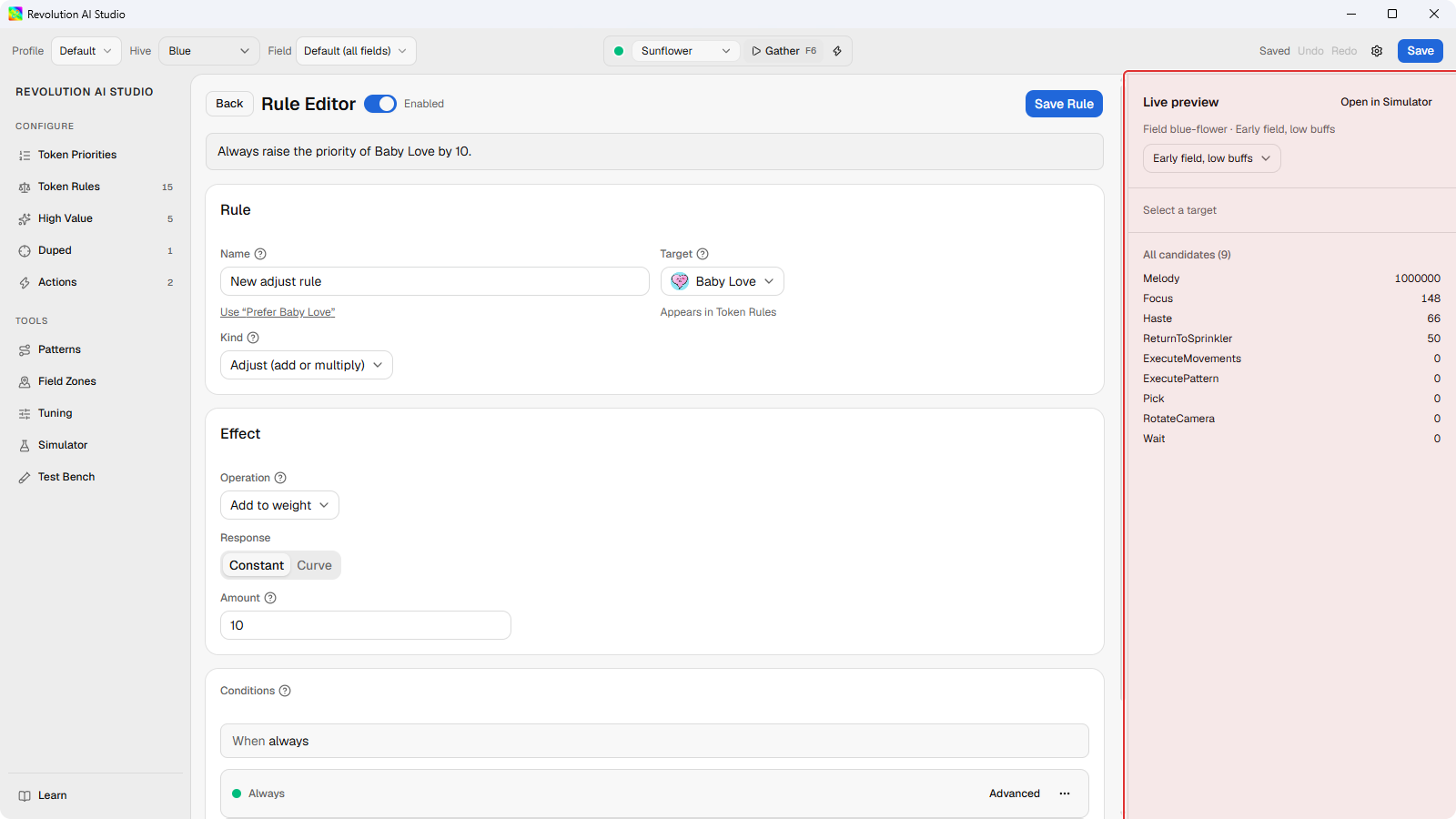
-
Click Save Rule.
A message says
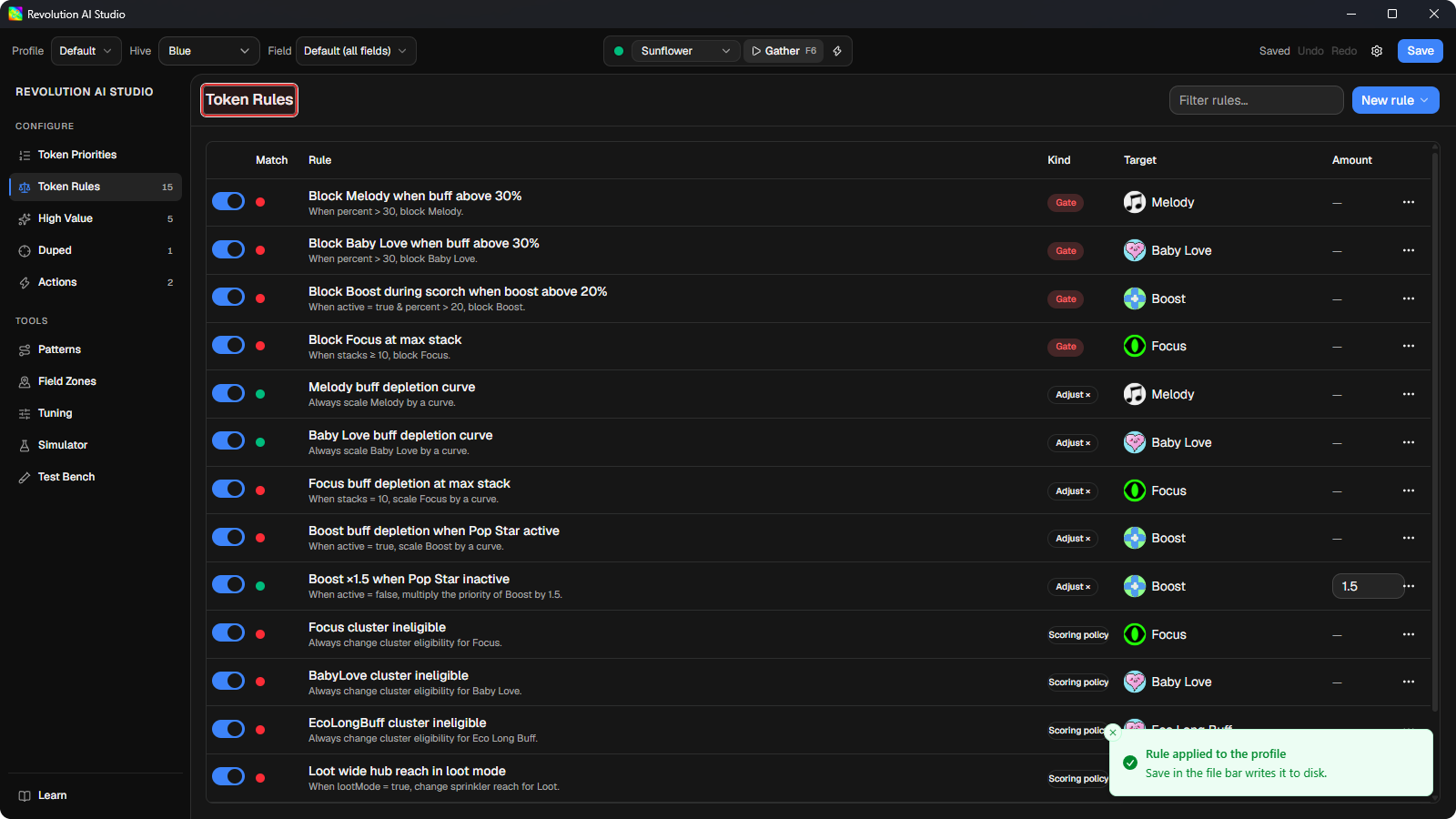
Rule applied to the profile. Your rule now sits in the table next to the default gates, but it isn’t saved to disk yet.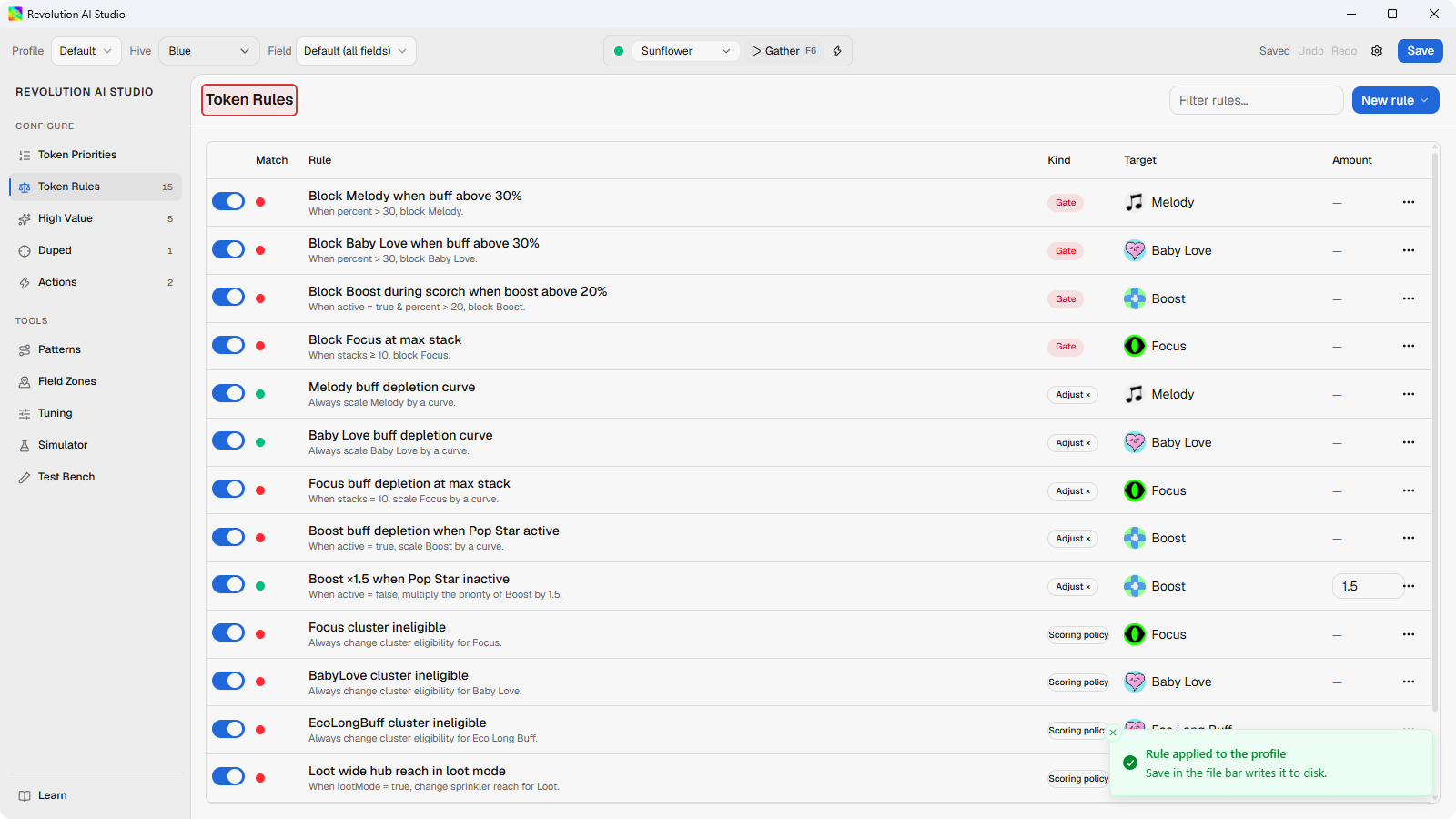
-
Click Save at the top of the window.
The label next to it goes from
UnsavedtoSaved. If Revolution Macro is running on this PC, it picks up the change straight away. If it isn’t, it picks it up the next time it loads your profile.
What you just did
Section titled “What you just did”You read one default rule, added one of your own, and checked it on a pretend field before it touched a real gather. That’s the whole loop. Every other page here is a variation on it: find a decision, change one thing, check it, save.
If you want to know exactly how much your rule added and why Melody landed where it did, How scoring works follows four tokens through the numbers.
If you skipped the wizard
Section titled “If you skipped the wizard”I know what I’m doing hides the wizard for good. You can still add the same rule in one click. Open Configure → Token Rules, click Browse templates, and add Prefer Melody when buff is low. Then click Save Rule, then Save.