
Custom gather patterns in Bee Swarm Simulator
A gather pattern is the path your character walks while farming a field. Revolution ships built-ins such as Kettle, plus AI Gather and Bloom Gather. A custom pattern is your own path as a Lua script — once it loads, its name shows up under Gather → Fields → Select pattern like any built-in.
This page covers installing a finished script, copying pattern settings between field cards, and testing a pattern from the console with Dev Mode so the macro only runs what you queue.
In this section
Section titled “In this section”| Page | Use it when |
|---|---|
| Writing your first gather pattern | You are learning Walk, Sleep, and how to write a script |
| Custom patterns (this page) | You have a .lua file ready, want to copy settings between fields, or need the console / Dev Mode loop |
| Pattern API | You need a call-by-call lookup while editing a script |
For picking fields and tuning Length, Position, and Tilt on a card, see Choose fields and patterns.
Add a custom Lua pattern
Section titled “Add a custom Lua pattern”-
Save a
.luafile in the patternsgatherfolder.Use
patterns\gathernext to the Revolution app, or%APPDATA%\RevolutionMacro\patterns\gatherwhen that folder is unavailable.Use
Patterns/gatherunder~/Library/Application Support/RevolutionMacro/. -
Near the top of the file, call
SetName("YourPattern")with the name you want in the picker. Put the rest of the script below it. -
Restart Revolution Macro so the pattern list reloads.
-
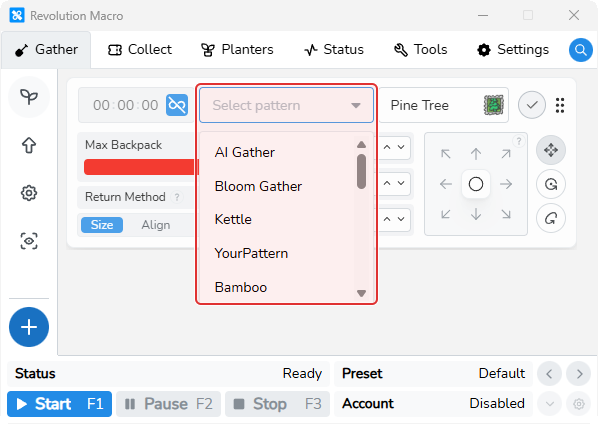
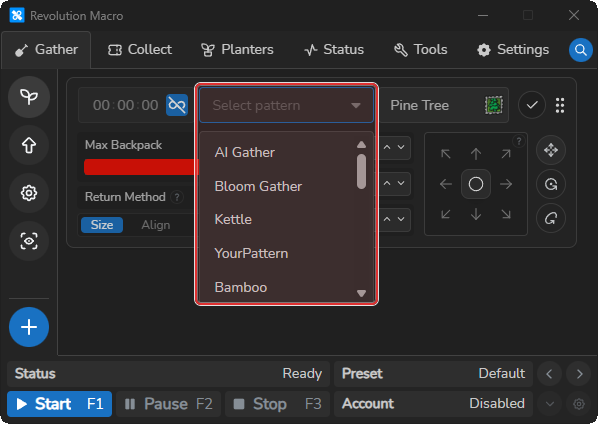
Open Gather → Fields, edit a field, open Select pattern, and choose your name.
-
Confirm the field row shows your pattern name. Leave Alignment Level at low unless you already know you need high alignment.
You should see: your SetName value next to Kettle, AI Gather, Bloom Gather, and any other loaded patterns. Writing the script body from scratch is covered in Writing your first gather pattern.
Copy pattern settings between fields
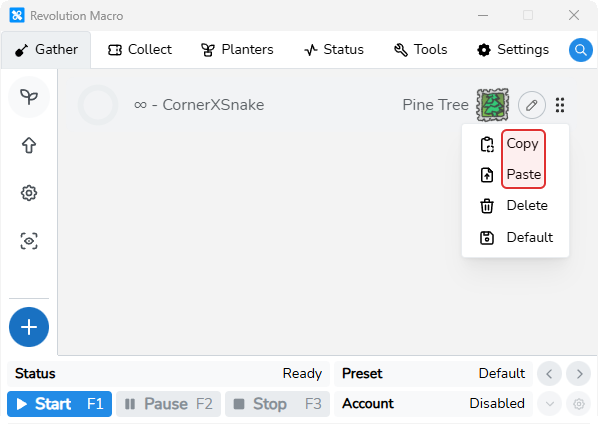
Section titled “Copy pattern settings between fields”If someone shared field settings (or you want the same pattern setup on another field), use the field card menu instead of a new Lua file.
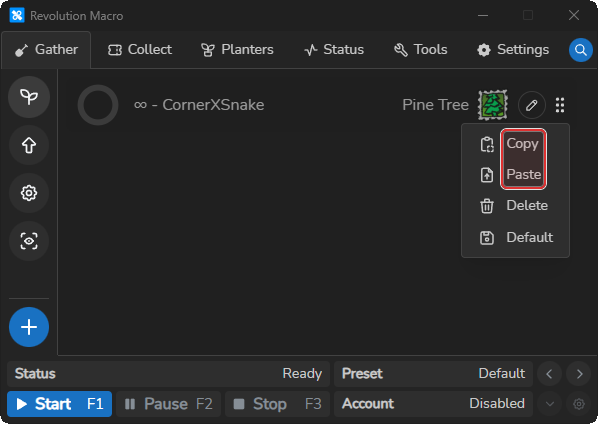
- On the source field card, open the grip menu and choose Copy.
- On the target field card, choose Paste.
- Check Select pattern, Size, Position, and Tilt — treat the paste as a starting point, not a finished setup.
The console
Section titled “The console”The console is a command line inside Revolution. You type short commands and press Enter. Pattern authors use it to turn on Dev Mode and run a gather pattern without waiting for the normal gather → convert cycle.
Open the console
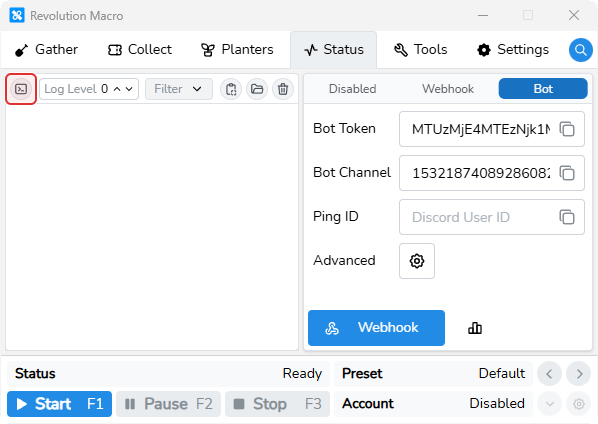
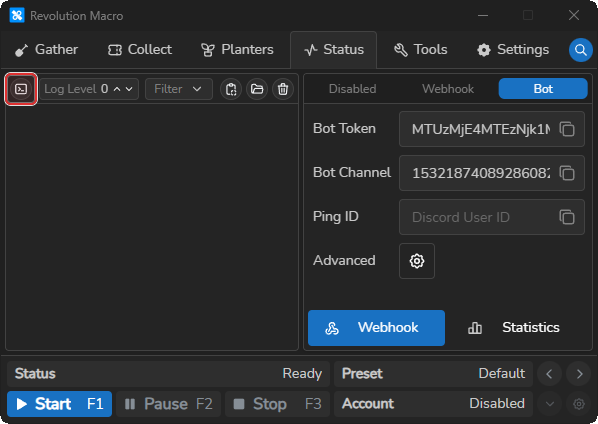
Section titled “Open the console”- Open the Status tab.
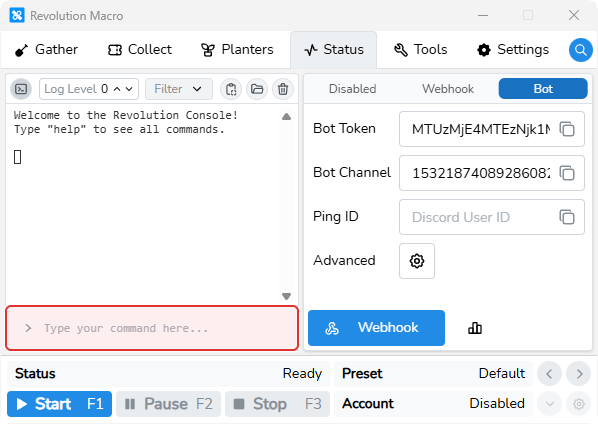
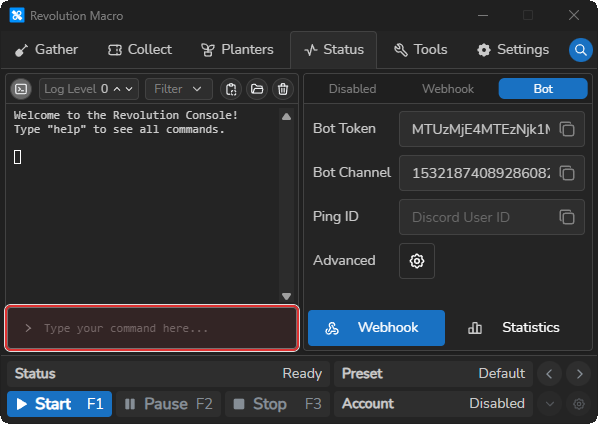
- On the logs toolbar, click the terminal icon (Show Console). The same control switches back to Show Logs when the console is open.
- You should see the console welcome text and an input row at the bottom (
Type your command here...).
Type a command and press Enter. Use ↑ / ↓ to step through recent commands. Type help to list application and macro commands. Type clear to clear the console panel.
Test a pattern with Dev Mode
Section titled “Test a pattern with Dev Mode”While you are writing or tuning a gather script, Dev Mode lets you start the macro and drive it only from console commands. With Dev Mode on, Revolution skips the usual gather destinations and scheduled tasks, so it will not pull you into a full farming loop while you iterate.
-
Open the console (steps above).
-
Type
devmodeand press Enter.The console prints
Dev Mode Toggled. The command flips Dev Mode on or off each time you run it. Leave it on for this setup. -
Start the macro as usual (play control). Keep Bee Swarm Simulator focused and stand where you want the pattern to begin — typically on the field you are testing.
-
Queue your pattern by
SetNamevalue:execpattern YourPatternA success line says the pattern was queued. If you see
Macro not started!, start the macro first. If you seePattern "…" does not exist!, confirmSetName, restart Revolution if the file is new, or runlistpatternsto see loaded names. -
Edit the
.luafile, save it, then re-run the same pattern without typing the name again:execlastpatternThat re-queues the last successful
execpatternname. Useexecpattern YourPatternagain whenever you want a different pattern or after a full app restart. -
When you are done testing, type
devmodeagain to turn Dev Mode off, then stop the macro if you no longer need it running.
Commands for pattern work
Section titled “Commands for pattern work”| Command | Alias | What it does |
|---|---|---|
devmode | Toggles Dev Mode. When on, the macro skips normal gather destinations and tasks so console commands can drive what runs. Works before the macro is started. | |
execpattern <name> | p <name> | Queues a loaded pattern by name (the SetName("…") string). Requires the macro to be started. |
execlastpattern | lp | Queues the same pattern as the last successful execpattern / p. Requires the macro to be started, and at least one of those in this session. |
listpatterns | Lists loaded pattern names in the console. Handy when you are unsure of the exact SetName. | |
help | Lists application and macro console commands. |
So a typical Dev Mode loop is: devmode → start the macro → p YourPattern → edit and save → lp.
Other console aliases
Section titled “Other console aliases”These short forms also work in the console (same as typing the full command):
| Alias | Expands to |
|---|---|
p <name> | execpattern <name> |
lp | execlastpattern |
v | execpattern vic_path |
Tips that matter
Section titled “Tips that matter”- Match Player Movespeed under Settings → Game → Movement to in-game speed with no buffs. A mismatch makes every pattern drift, custom or built-in.
- Corner patterns such as Kettle, Skillet, Bowl, and CornerXSnake turn off drift compensation on that field when it was enabled.
- Prefer the Dev Mode +
execpatternloop above while editing. Use Select pattern on the field card when you want the pattern in a normal gather session.
Troubleshooting
Section titled “Troubleshooting”Failed to compile Lua pattern or Failed to extract metadata from Lua pattern
Section titled “Failed to compile Lua pattern or Failed to extract metadata from Lua pattern”Cause: Revolution could not load your gather script or read SetName from it.
Fix:
- Confirm the file is under the
gatherfolder. - Keep
SetName("YourPattern")as a string literal near the top. - Fix any syntax error in the dialog, save, and restart Revolution.
- Until the custom name loads, pick Kettle or another listed pattern on the field card.
Custom name missing from Select pattern
Section titled “Custom name missing from Select pattern”Cause: The pattern did not load into the picker, or logs show Invalid pattern and the field fell back to its default.
Fix:
- Open Gather → Fields, edit the field, and confirm your name under Select pattern. An empty search shows
No Patterns Found. - If it is missing, confirm the file saved under
gatherand that no compile dialog appeared at startup. - Restart Revolution after saving, then check the picker again.
- In the console, run
listpatternsand confirm yourSetNameappears.
Macro not started! after execpattern
Section titled “Macro not started! after execpattern”Cause: Pattern execution commands need a running macro.
Fix: Start the macro, then run execpattern or execlastpattern again. Turn on devmode first if you want console-only control.
No pattern has been executed yet!
Section titled “No pattern has been executed yet!”Cause: execlastpattern has nothing to replay until a successful execpattern in this session.
Fix: Run execpattern YourPattern once, then use execlastpattern for repeats.
If gather walks the wrong path or feels stuck after the pattern is set, see Macro resets or gets stuck and Choose fields and patterns.