
Choose fields and patterns in Bee Swarm Simulator
Setting up Revolution Macro to gather in the fields you want is easy. You can configure the macro to gather in as many fields as you want, each with unique settings and patterns. The macro will cycle through each field you add in the Gather tab and you can re-order and configure them as you need.
-
Open Gather → Fields. With no fields configured, you see
Press the + button to gather at a field. Otherwise you see your active field cards.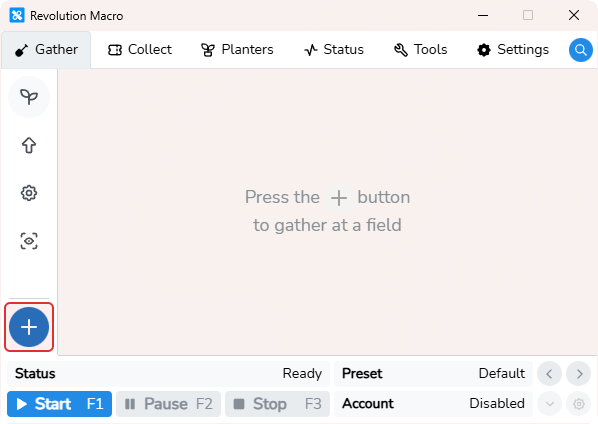
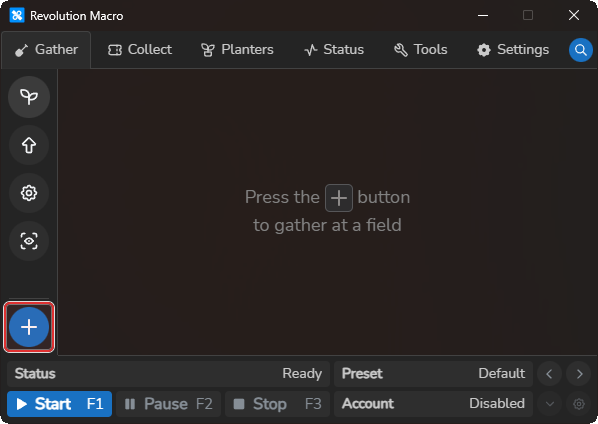
-
Click + Add Field and pick a field. A new field card appears in the list.
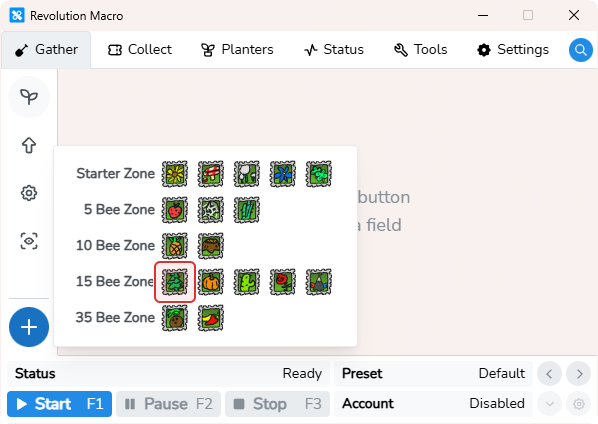
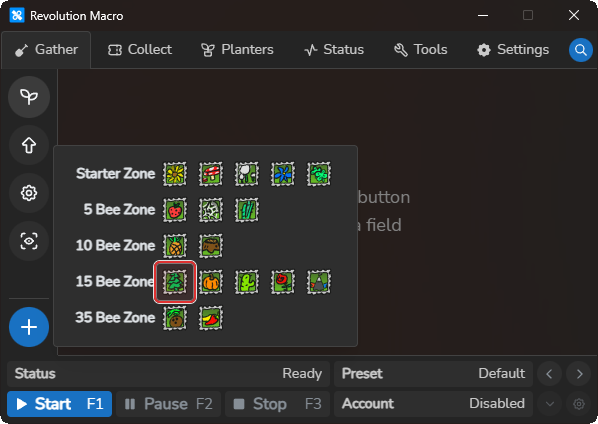
-
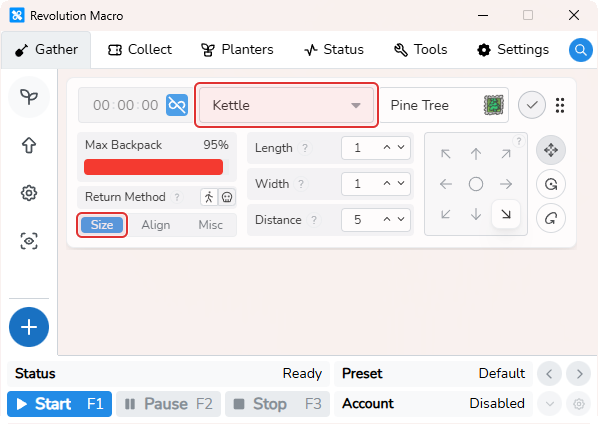
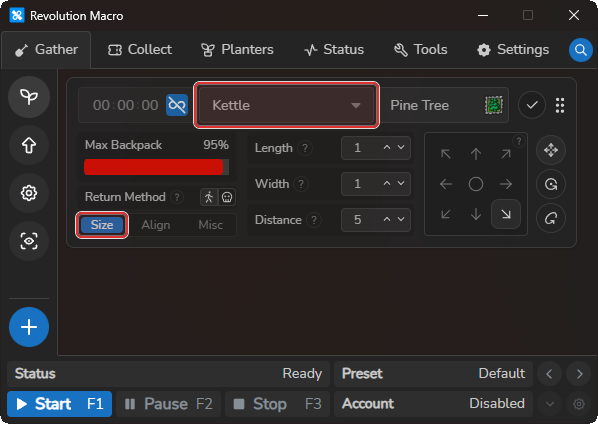
Click the pen on the field card. You see the pattern selector, Max Backpack, Return Method, Size, Align, and camera controls Position, Rotation, and Tilt.
-
For Pine Tree with Kettle, copy this configuration, click the field grip on the card, then choose Paste. Revolution will read what’s on your clipboard:
{"position":"bottom-right","length":1,"width":1,"distance":5,"pitch":3,"backpackPercent":95,"seconds":600,"shiftLock":true,"walkReturn":true,"gatherPattern":"Kettle","field":"pinetree"}This starter configuration recommends 95% Max Backpack. Pine Tree’s built-in field default is 97%. For other fields, open the pattern picker (
Select pattern), choose a gather pattern, then set Length, Width, Distance, Position, and Tilt on Size. -
Set Max Backpack to 95% or less unless the paste already did. Keep it high enough that gather does not leave too early, and low enough that you convert before a completely full backpack stalls the exit.
-
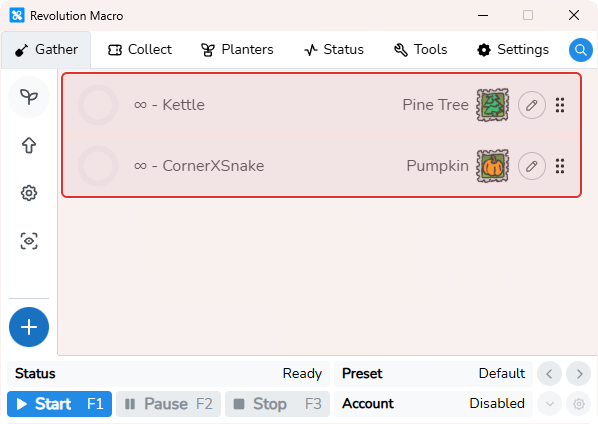
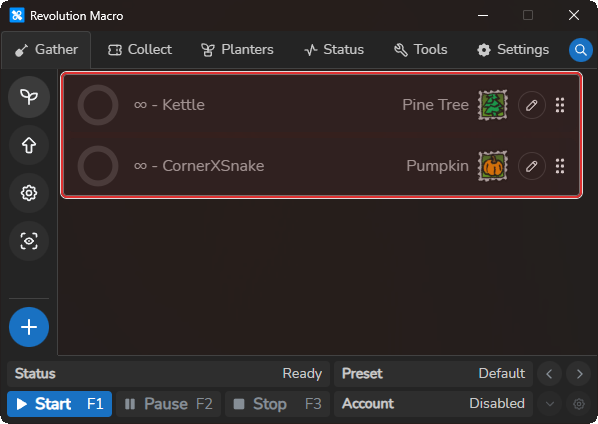
Drag field cards to set gather order. The list order is the cycle order for the next gather run.
-
Start the macro. Status shows travel to the first field in your list, then gather using the pattern on that card. Active field cards stay listed on Gather → Fields in that order.
Account-wide gather timers and sprinkler settings are on Gather settings. Match Player Movespeed on General, Game, Macro settings before you tune field alignment.
More settings
Section titled “More settings”Active fields
Section titled “Active fields”Ordered list of fields and patterns the macro cycles while gathering. Drag cards to reorder. Pen edits change pattern and field settings per field. The field card menu offers Copy, Paste, Delete, and Default to save a card as a Field Default.
Max Backpack
Section titled “Max Backpack”Sets the backpack fill percent that ends gather on this field card. When your bag reaches that threshold, the macro stops the pattern and leaves the field. At 95% or lower, gather leaves room to convert cleanly. Unset (0) uses 95% as the threshold. Too high can stall on a completely full backpack. Too low sends you back to convert sooner.
Return Method
Section titled “Return Method”Chooses how the macro travels back to the hive when gather ends on this card. Walk walks straight back and disables reset for that trip. Reset lets the macro respawn to return, which is often faster, but your bees must rest at the hive for a while and you lose all the pollen in your backpack.
Walk Return
Section titled “Walk Return”When enabled on the field card, the macro walks back to the hive instead of resetting on the exit path. Use it when a full backpack makes reset returns fail.
Gather time
Section titled “Gather time”Seconds to gather on this field card before the macro leaves. When the infinity control is active and the time box is greyed out, the field is set to gather forever and only Max Backpack or Inactive Honey Timeout ends the run. See Gather settings for Inactive Honey Timeout.
Gather → Fields → field penTab for the pattern footprint on the field. It controls how large the walk path is and where it anchors on the field tiles.
Length is the pattern depth in studs (one flower tile is 4 studs). It controls how far the pattern moves forward and backward across the field.
Width is the pattern span in studs. It controls how far the pattern moves left and right across the field.
Distance is how many studs the macro moves from the chosen Position in the opposite direction before the pattern starts. Use it to back up from a field edge so the full pattern fits. When Position is center, Distance has no effect.
Gather → Fields → field penTab for pattern-specific alignment studs and repetitions. These apply only to patterns that use alignment moves, such as CornerXSnake, and fine-tune how strictly the walk path lines up before the main loop runs.
Position
Section titled “Position”Picks which corner or edge of the field the macro treats as its starting anchor, measured from your character facing toward the hives (the direction you face after respawn). It determines where the macro enters the field and where sprinklers align.
Rotation
Section titled “Rotation”Sets camera yaw from that hive-facing view. The bottom setting faces toward the hives. The top faces away. Wrong rotation makes the pattern walk in the wrong direction relative to the field.
Gather → Fields → field penSets camera pitch from a top-down view down to a level, straight-ahead view. Patterns rely on a consistent tilt so movement lines up with the field tiles.
Field Defaults
Section titled “Field Defaults”Per-field defaults used when you add a field and as a fallback when no active pattern matches while gathering. Fill defaults for fields you farm so missing rows still use your preferred field settings.
Pine Tree Kettle starter configuration
Section titled “Pine Tree Kettle starter configuration”For your first Pine Tree Kettle setup, copy and paste this configuration on the field card (field grip → Paste). Re-paste it if sprinklers drift after converts:
{"position":"bottom-right","length":1,"width":1,"distance":5,"pitch":3,"backpackPercent":95,"seconds":600,"shiftLock":true,"walkReturn":true,"gatherPattern":"Kettle","field":"pinetree"}The same starter configuration is also in Your first gathering session.
AI Gather
Section titled “AI Gather”Set a field’s gather pattern to AI Gather and match hive color on Set up AI Gather. Fixed patterns like Kettle walk a pre-determined path; AI Gather ranks what it sees instead. See Why AI Gather.
Troubleshooting
Section titled “Troubleshooting”No valid field configuration was found: Add at least one field on Gather → Fields. See Macro resets or gets stuck.Sprinkler Required: Set Sprinkler Type on Gather settings to match your in-game sprinkler, then select AI Gather on the field card again.Invalid pattern: Open the field pen editor and choose a listed pattern such as Kettle from the pattern picker.- Sprinkler position drifts after converts: Re-paste the Pine Tree Kettle configuration above, then match Player Movespeed. See Macro resets or gets stuck.
More help