
Failed to harvest planter in Revolution Macro
Planter cycles can fail because of inventory, display, or Auto Planters settings. If planting or harvesting stops, a cycle shows a red warning badge, or the macro does not create a schedule, one of those settings may be blocking the cycle. This guide covers common fixes that may resolve those problems.
For Auto Planters setup see Set up auto planters. For manual tracks see The planter timeline. For nectar or quest reads that fail while tokens still work, see Detection problems.
Failed to harvest planter / cycle failed / won’t replant
Section titled “Failed to harvest planter / cycle failed / won’t replant”Cause: A planter cycle is marked failed with a stored reason, so planting and harvesting stop for that cycle until you clear it.
Fix:
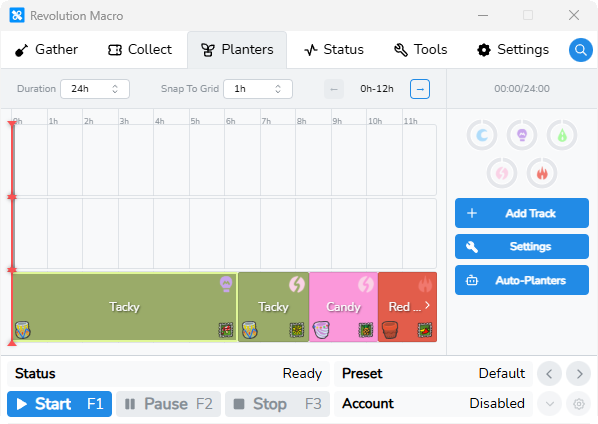
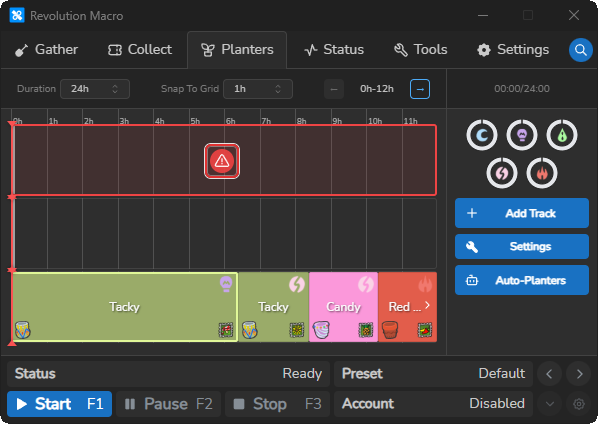
- Hover the red warning and read the failure reason (for example
Failed To Harvest,Failed To Find,Planter Missing From Inventory, orPlanter Failed To Place). - If the reason is
Failed To Find,Planter Missing From Inventory, orPlanter Failed To Place, pick up all your planters from fields in-game and confirm the planter is in your inventory. - Click the red warning to clear it. That cycle can plant and harvest again.
- If it still will not run, stop and restart the macro.
Macro not placing planters / cannot scroll planters in inventory
Section titled “Macro not placing planters / cannot scroll planters in inventory”Cause: Roblox text scale or an unusual resolution breaks inventory scrolling for planters.
Fix:
- In Roblox, set text size / text scale to zero bars.
- Set your monitor resolution to 1080p (1920×1080) when you can. Minimum supported display is 1366×768.
- Clear the red warning once you can scroll planters in inventory again.
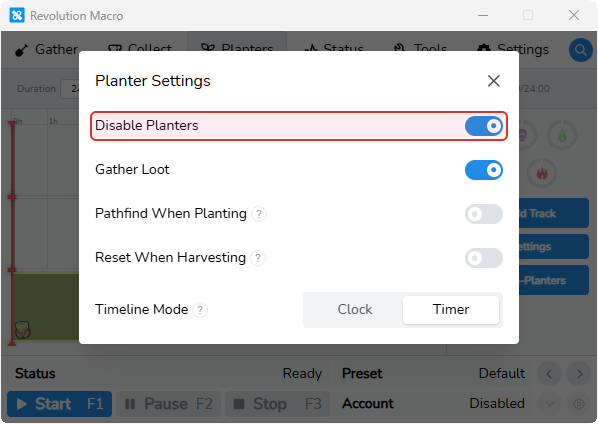
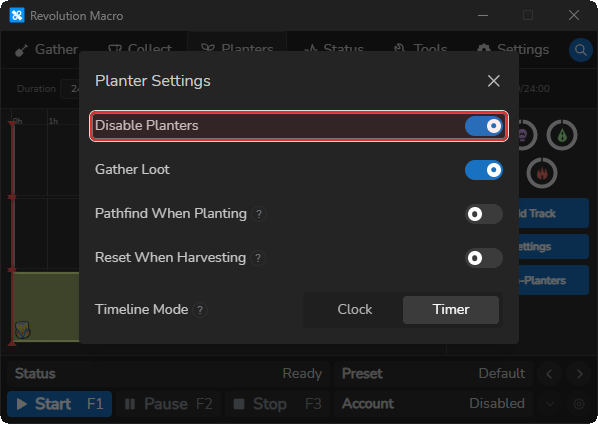
Disable Planters left on: nothing plants or harvests
Section titled “Disable Planters left on: nothing plants or harvests”Cause: Disable Planters is on, so the macro will not plant or harvest and will not regenerate an empty Auto Planters schedule.
Fix: Open Planters → Settings, turn Disable Planters off, then start or restart the macro.
Auto Planters won’t generate a schedule
Section titled “Auto Planters won’t generate a schedule”Cause: Auto Planters is off, blocked by settings, or still building a schedule. With Auto Planters on, planter timing follows that schedule, not Timeline Mode.
Fix:
- Turn Auto Planters on under Planters → Auto-Planters → Settings, then start the macro and wait for
Generating Planter ScheduleorPlanter Studio will generate your planter schedule when you start the macro. - If Planter Studio shows an error overlay, fix what it says:
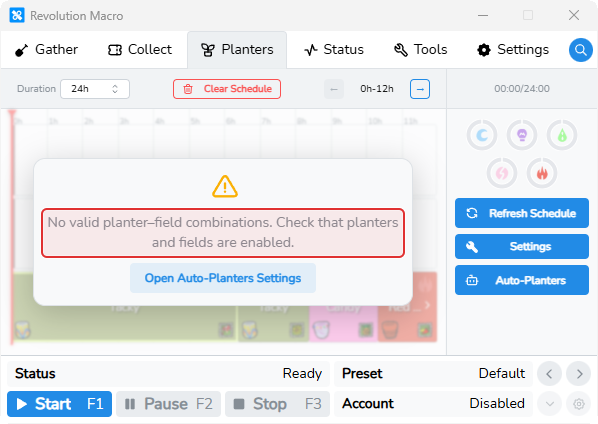
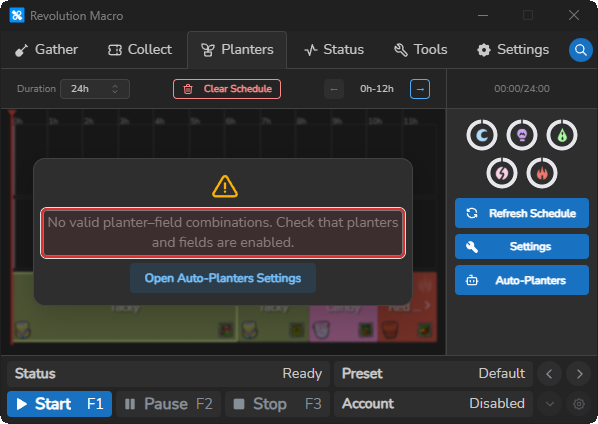
No valid planter–field combinations. Check that planters and fields are enabled.Open Planters → Auto-Planters → Settings and enable more planters and fields — restrictions on the Planters and Fields tabs can block every combination even when some are already on.Harvest hour settings leave no valid planter durations.Disable Harvest Automatically and Harvest Fully Grown, and set minimum and maximum harvest duration both to 2 hours.
- If the schedule stays empty, stop and restart the macro.
Planter timer frozen / schedule stuck
Section titled “Planter timer frozen / schedule stuck”Cause: The timeline still holds old tracks or failures, and you need a fresh schedule instead of clearing one cycle at a time.
Fix:
- Collect every planter that is still down in-game. Do not clear while planters remain in fields.
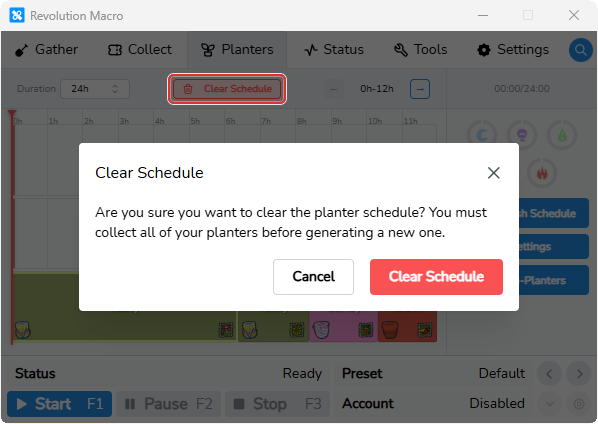
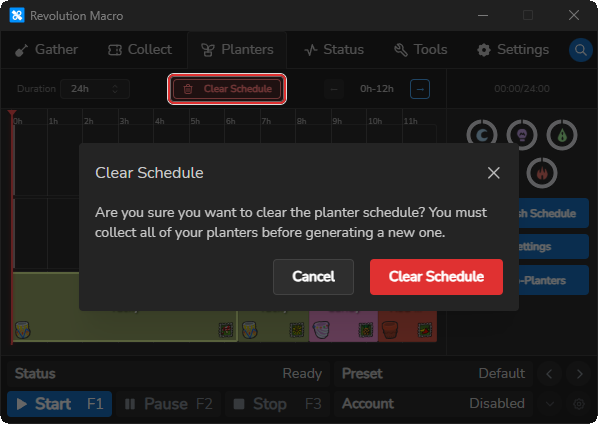
- In Planter Studio, click Clear Schedule and confirm when asked
Are you sure you want to clear the planter schedule? - With Auto Planters on, start the macro so the schedule regenerates.
If you’re still stuck
Section titled “If you’re still stuck”Check these values and share them when you ask for help:
- The failure-reason tooltip from the red warning (or Status text such as
Planter Missing From Inventory,Failed To Harvest,Failed To Find, orPlanter Failed To Place) - For
Failed To FindorPlanter Missing From Inventory, whether you picked up all your planters and confirmed the planter is in inventory - Whether Disable Planters and Auto Planters are on
- Your OS and Revolution Version from Settings → Credits
Open the Status tab, set Log Level to 4, and click the clipboard icon (Copy Logs).