Fix Access is denied in Revolution Macro
Revolution Macro can fail to start or save your settings for a variety of reasons. If you encounter errors like Access is denied, your settings reset every launch, or screen capture fails, your install folder or OS permissions are likely blocking the macro from working correctly. Check out the fixes below and see if any of them match what you’re facing.
Before you start
Section titled “Before you start”Match the symptom below to the section that fits what you see. For display scale, HDR, resolution, and Roblox recognition checks, see Detection problems. For Roblox open or load restart loops after folder and permissions are fixed, see Roblox launcher loops.
Access is denied / settings won’t save
Section titled “Access is denied / settings won’t save”Cause: The executable is not in a folder with write permission, often still in Downloads or inside an unextracted zip.
Fix:
-
Extract the macro fully. Do not run RevolutionMacro.exe from inside the zip archive.
-
Put RevolutionMacro.exe inside a dedicated folder, and do not run it in Downloads, so settings and logs can be written.
-
If settings still reset every launch, move the whole folder to another location with normal user write access and relaunch.
-
Delete duplicate or old Revolution executables so you always launch the copy in your dedicated folder.
macOS Accessibility or Screen Recording blocked
Section titled “macOS Accessibility or Screen Recording blocked”On a Mac, Revolution cannot drive Roblox until Accessibility and Screen Recording are granted. Without Accessibility, opening Roblox can stop with accessibility permissions required.
Cause: A stale Accessibility or Screen Recording entry after an update, or the app was never granted both permissions.
Fix:
- Open System Settings → Privacy & Security → Accessibility.
- Select Revolution Macro, click minus to remove it, then plus to re-add it from Applications.
- Open System Settings → Privacy & Security → Screen Recording and enable Revolution Macro for capture.
- Restart the macro.
If the virtual display helper shows Screen recording permission required, grant Screen Recording again and click Retry on the helper prompt.
macOS virtual display / DeskPad modals
Section titled “macOS virtual display / DeskPad modals”Cause: On Retina-only Macs, the macro needs a way to run Roblox outside Retina (virtual monitor, DeskPad, or Enable Low DPI Patching). With Disable Virtual Monitor on and no external monitor, opening fails instead of creating a virtual display.
Fix:
- Open Settings → Macro → Capture.
- Leave Disable Virtual Monitor off so the macro can create a virtual monitor at Virtual Monitor Resolution (default 1920×1080, also 1600×900 or 1366×768).
- On Retina Macs, you can turn on Enable Low DPI Patching if you prefer patching over a virtual monitor on the next Roblox open.
- If the error asks you to install DeskPad, follow Install DeskPad below and retry opening Roblox.
Errors you may see include A non-retina display could not be found. Attach a monitor or install DeskPad to add a virtual monitor. and Retina displays are not supported. Attach a monitor or install DeskPad to add a virtual monitor. Leave Disable Virtual Monitor off unless you want that hard error and will attach a monitor or install DeskPad yourself.
Install DeskPad
Section titled “Install DeskPad”DeskPad is a free virtual monitor for macOS. Use it when Revolution asks you to install DeskPad, when you prefer your own virtual display instead of Revolution Macro (Virtual Display), or when you already run Roblox on DeskPad and want to turn on Disable Virtual Monitor at Settings → Macro → Capture.
Download the latest build from the DeskPad GitHub Releases page (asset DeskPad.app.zip on the newest release).
-
Open DeskPad GitHub Releases. Under Assets, download DeskPad.app.zip from the latest release.
-
Unzip the file and drag DeskPad.app into Applications.
-
Open DeskPad from Applications. If macOS blocks the first launch, right-click DeskPad and choose Open, then confirm.
-
Open System Settings → Displays. Select DeskPad Display, open DeskPad Screen Options, and turn on Show all resolutions if you do not see 1920 × 1080. Set the DeskPad display to 1920 × 1080. If two 1920 × 1080 entries appear, try the other one if Roblox or the macro still fails to open on DeskPad.
-
Leave DeskPad running. If you want Roblox on DeskPad instead of Revolution Macro (Virtual Display), open Settings → Macro → Capture, turn on Disable Virtual Monitor, then start the macro.
-
Start Roblox from Revolution again. If Status still mentions DeskPad or a non-Retina display, quit and reopen DeskPad, recheck the resolution in Displays, and retry.
More help
Section titled “More help”Failed to open Roblox/ game loading restart loop → Roblox launcher loops- Windows capture won’t start after install → Detection problems
- Vic Hop open loops after the checklist → Vic Hop failures
Known limitations
Section titled “Known limitations”- Settings and logs must write beside the executable, so the install folder needs normal user write access.
- With Disable Virtual Monitor on and no non-Retina display available, opening fails instead of creating a virtual monitor.
If you’re still stuck
Section titled “If you’re still stuck”Collect the full error text, your OS, and your dedicated install folder path. On Windows, note your Capture Mode.
- Open the Status tab.
- Set Log Level to 4.
- Click the clipboard icon to Copy Logs.
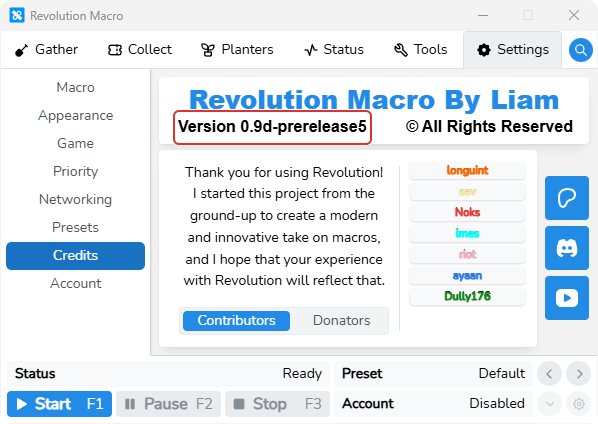
- Open Settings → Credits and include the Version line.