
Fix high CPU and RAM in Revolution Macro
AI Gather and screen capture can push CPU or RAM harder than a low-end PC can handle. If Status shows extreme resource use, models fail to load, or the macro feels stuck, a prediction rate, Eco Mode, overlay, or capture setting may be involved. Check the fixes below and see if any match what you see.
Before you start
Section titled “Before you start”Revolution reads pixels from the Roblox window and runs local AI models. Higher AI prediction and capture rates use more CPU and RAM.
Match display and capture setup before you tune performance. Finish Detection problems (Before you start) once.
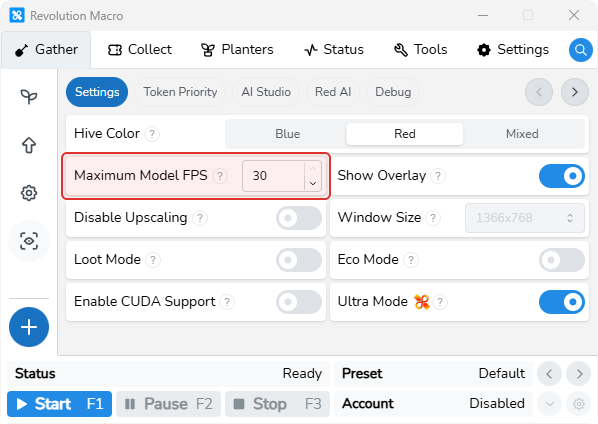
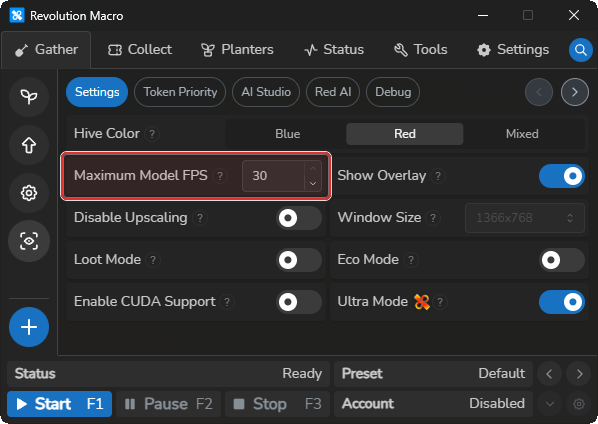
Extreme CPU/RAM after raising AI detection FPS
Section titled “Extreme CPU/RAM after raising AI detection FPS”Cause: AI Gather is predicting tokens faster than your PC can sustain. Each extra prediction pass adds CPU and GPU work.
Fix:
- Open Gather → AI Gather → Settings. Leave Maximum Model FPS at 30, or lower it when CPU or GPU stays high during AI Gather.
- Turn on Eco Mode for lighter token and loot models unless Hive Color is Mixed.
- Turn on Disable Upscaling and pick a Window Size your monitor fits.
- Open Task Manager on Windows or Activity Monitor on macOS and confirm CPU and memory drop.
- If AI Gather fails to start with Screen Too Small, your monitor cannot fit the AI window (minimum 1366×768). Prefer 1920×1080 when possible. It is not a hard requirement when upscaling is allowed.
High CPU during AI Gather with Show Overlay on
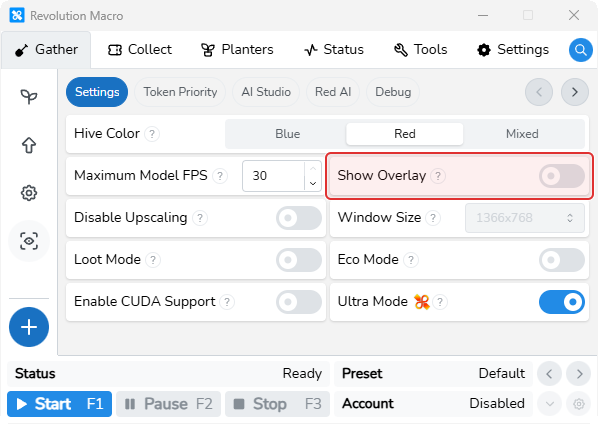
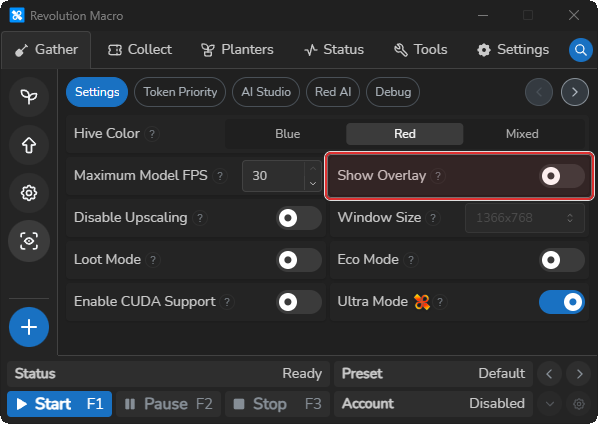
Section titled “High CPU during AI Gather with Show Overlay on”Cause: Show Overlay draws bounding boxes over detected tokens and sprinklers on top of Roblox while AI Gather runs. That extra drawing work stacks on top of the AI model and can keep CPU or GPU high even when Maximum Model FPS is already at 30.
Fix:
- Open Gather → AI Gather → Settings and turn off Show Overlay.
- Start the macro again on an AI Gather field. Gathering still works without the boxes on screen. You only lose the on-screen confirmation that detection is running.
- If CPU is still high, lower Maximum Model FPS or turn on Eco Mode in the same panel.
- Turn Show Overlay back on when you need to debug missing boxes. See Detection problems if detection fails with overlay on.
High CPU even when AI Gather is light
Section titled “High CPU even when AI Gather is light”Cause: Detection and capture checks still run at full rate while the macro farms, even when AI Gather activity on the field is light.
Fix:
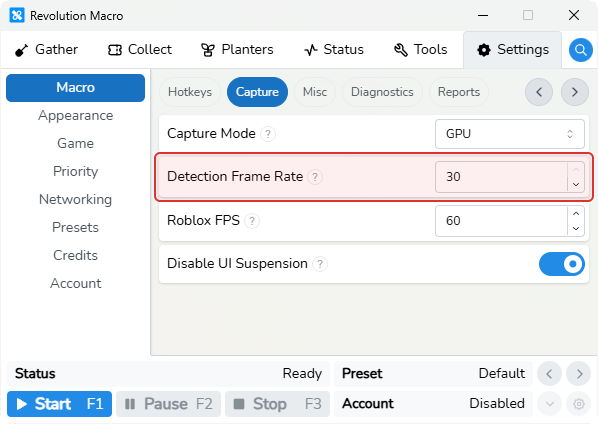
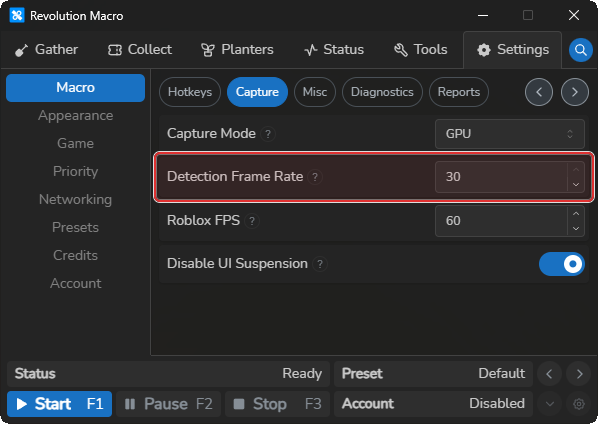
- Open Settings → Macro → Capture and set Detection Frame Rate toward about 10 on low-end PCs when overall macro CPU stays high outside AI Gather.
- Leave Disable UI Suspension off so the macro can pause its UI to save CPU.
- Optionally lower Roblox FPS after you close Roblox so the cap applies cleanly.
- If detection breaks after capture changes, complete Detection problems.
How AI Gather and capture load works
Section titled “How AI Gather and capture load works”Local AI models and separate capture checks both scale with the rates you set. For the full AI Gather setup, see Set up AI Gather. For capture mode and diagnostics, see Capture and diagnostics.
- Maximum Model FPS: leave at 30 for first setup, or lower it when AI Gather keeps CPU/GPU high.
- Detection Frame Rate: lower toward about 10 on low-end PCs when CPU stays high outside AI Gather.
More help
Section titled “More help”- AI model load failure / detection failed to start → Detection problems
- Duplicate Roblox clients or extreme CPU during Vic Hop → Vic Hop failures
Known limitations
Section titled “Known limitations”- Higher AI Gather prediction rate and capture check frequency trade responsiveness for CPU and RAM.
- Eco Mode uses lighter models with slightly worse detection and cannot stay on when Hive Color is Mixed. Ultra Mode is exclusive to Revolution Pro, needs a Red hive, and costs more resources.
If you’re still stuck
Section titled “If you’re still stuck”- Open the Status tab, set Log Level to 4, and click Copy Logs.
- Include your OS, Settings → Credits version, Capture Mode, Detection Frame Rate, and the AI Gather toggles you changed.