
Presets for Bee Swarm Simulator
Presets are essential when your accounts gather, run tools, or use different game setups. Revolution Macro saves each setup under a name so you can switch, import, or export it. This guide covers Settings → Presets.
What a preset saves
Section titled “What a preset saves”A preset stores your Gather, Collect, Planters, Tools, and most Settings choices. Shared presets do not replace Player Movespeed, Sprinkler Type, or Private Server Link. Those settings stay with the preset that is already active for your account.
Create and activate a preset
Section titled “Create and activate a preset”-
Open Settings → Presets.
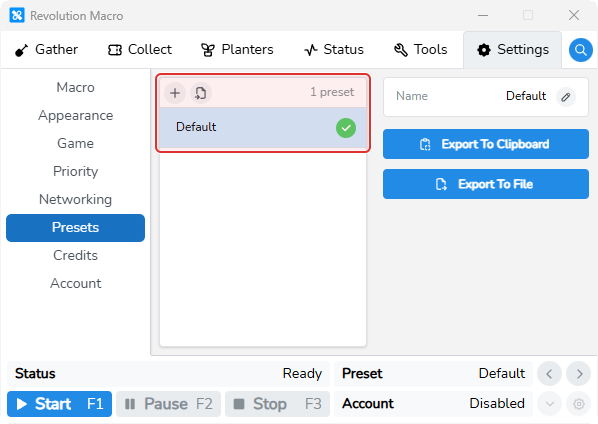
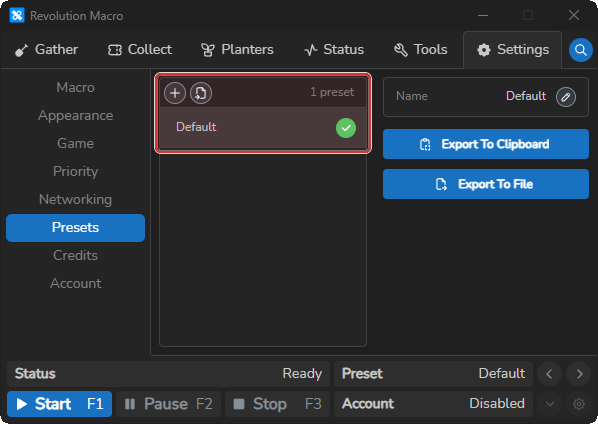
You see the preset list, Create Preset (+), and Import Preset.
-
Click Create Preset (+) and enter a unique name.
-
Click Create. The new preset appears in the list.
-
Select the account in the account switcher.
-
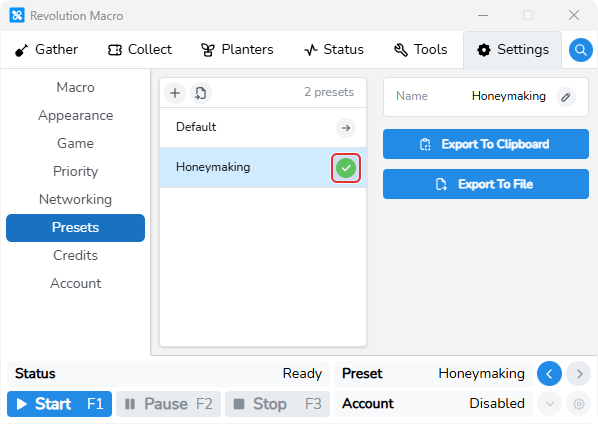
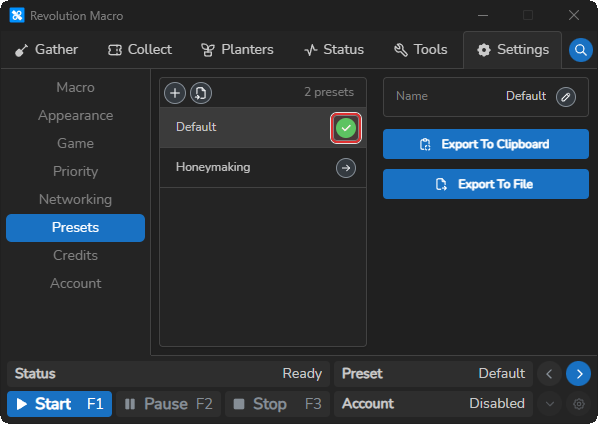
Click the activate arrow on your new preset. The green checkmark marks that account’s active preset.
-
Configure the new preset for that account’s playstyle.
Import a preset
Section titled “Import a preset”-
On Settings → Presets, click Import Preset.
-
Pick a preset file, enter a unique name, and click Import.
The imported preset appears in the list.
-
Select the account in the account switcher, then click the activate arrow on the imported preset.
The green checkmark marks the active preset. Player Movespeed, Sprinkler Type, and Private Server Link stay unchanged.
Switch presets
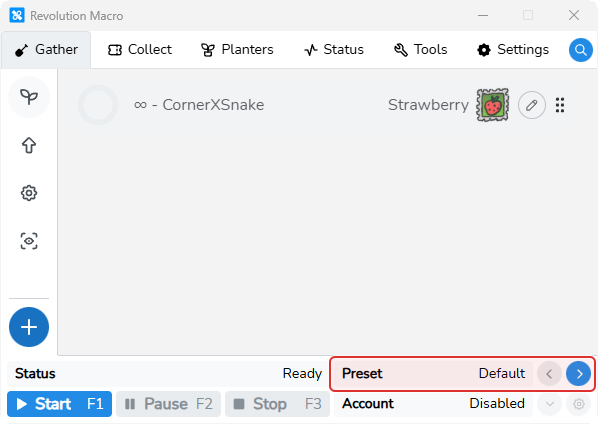
Section titled “Switch presets”Each account keeps one active preset. Use the Preset switcher in the bottom-right control bar to move between that account’s presets without opening Settings → Presets.
-
Open Gather or any main tab so the control bar is visible at the bottom of the window.
-
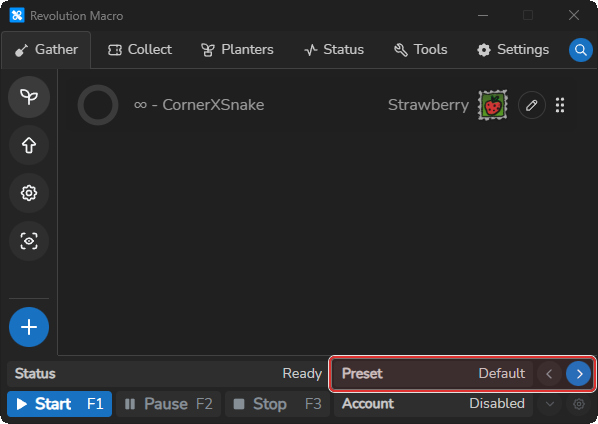
In the bottom-right, find Preset with the active preset name and the left and right arrows beside it.
-
Click the right arrow to move to the next preset, or the left arrow to go back. Revolution loads that preset for the active account.
Export, duplicate, or delete
Section titled “Export, duplicate, or delete”-
On Settings → Presets, click a preset in the list.
The right panel shows Export To Clipboard, Export To File, and the preset name with Edit Name.
-
Click Export To File to save the preset as a file, or Export To Clipboard to copy it.
If clipboard export fails, use Export To File instead.
-
To duplicate or delete, hover a preset row and click Duplicate Preset or Delete Preset.
You cannot delete the active preset or the last preset in the list. Activate another preset first when you want to delete the current one.
-
To rename, select a preset and click Edit Name next to the preset title.
Use different tool setups
Section titled “Use different tool setups”Each preset includes its own tool settings. Switch presets when one account gathers and another needs a different setup, such as Vic Hop or RBC Gather.
Troubleshooting
Section titled “Troubleshooting”If you cannot import a preset, choose a Revolution preset export and give it a unique name. For movement problems after changing a preset, see Macro resets or gets stuck.