Doesn't join back after a disconnect
Revolution may fail to rejoin after Roblox kicks you or your connection drops. If it stays on Disconnection Detected, never reaches Game Loaded, or keeps leaving and rejoining on a Mac, your private server or join setup may be blocking the reconnect. This guide covers common fixes that may resolve those problems.
Before you start
Section titled “Before you start”Keep the macro loaded. A Roblox disconnect popup should start automatic rejoin, and Status shows Disconnection Detected first.
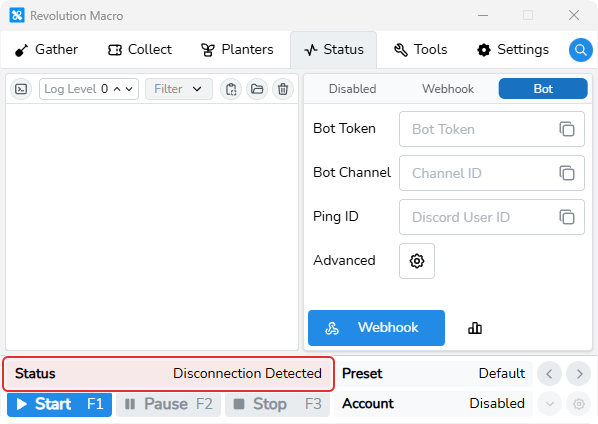
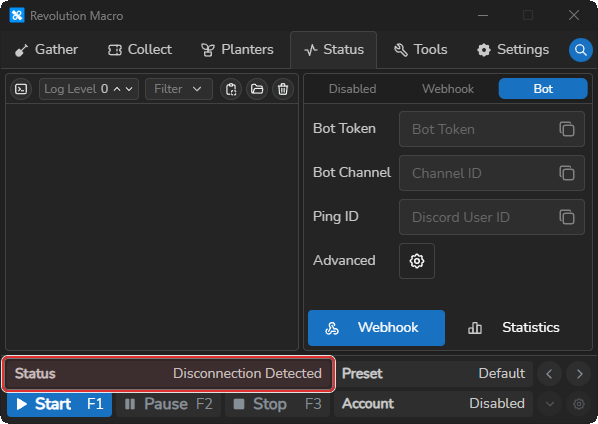
When the join finishes, Status shows Opening Roblox, then Game Loading, then Game Loaded.
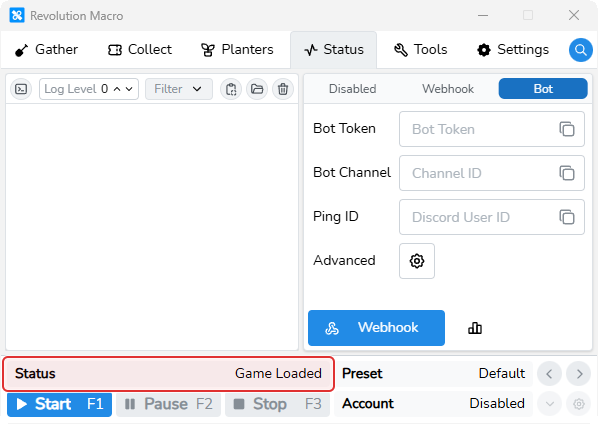
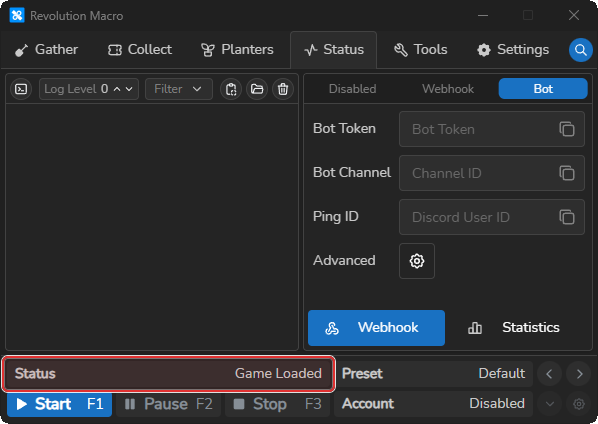
Display and capture problems often look like a stuck rejoin. See Detection problems before changing capture settings or jumping to installer fixes.
Kicked from private server / internet drop: macro doesn’t join back
Section titled “Kicked from private server / internet drop: macro doesn’t join back”Cause: The macro is loaded and Status shows Disconnection Detected, but the rejoin never reaches Game Loaded.
Fix:
- Keep the macro loaded and watch Status. After
Disconnection Detected, expectOpening Roblox, thenGame Loading, thenGame Loaded. With Disconnect Pings enabled, the sameDisconnection Detectedtext can also appear as a Discord ping. - If Status shows
Disconnected During ReconnectorDisconnected During Game Load, wait for the nextOpening Robloxattempt. - Confirm Private Server Link at Settings → Game → Join is still valid. If Status or an error shows
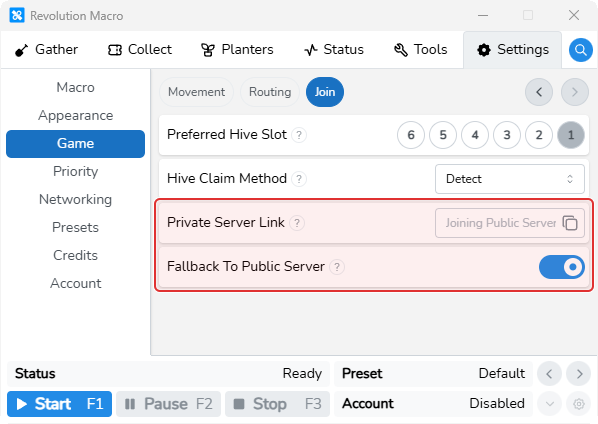
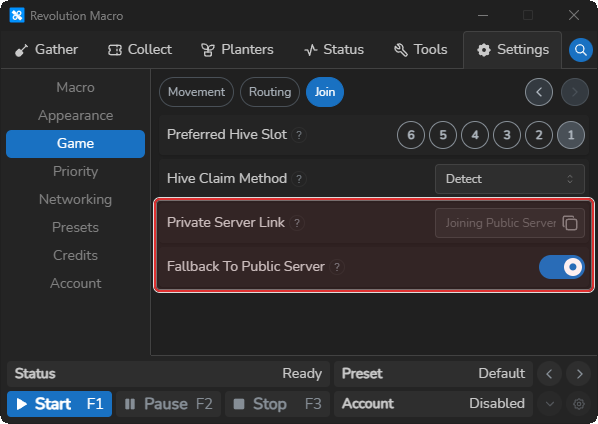
Invalid private server link format, paste a valid Roblox private/share URL, or clear the field to join public servers. - Keep Fallback To Public Server on so repeated private join failures can eventually join without the link. After many failed private joins, restart the macro so the failure count resets, then fix or clear the link.
- If Status shows
Game Start-Up Failed,Game Load Timeout Exceeded, orWaiting 10 seconds before retrying, see Roblox launcher loops for Load Timeout and private-join fallback. - If the macro cannot read the loading screen, see Detection problems before changing Capture Mode.
Infinite leave and rejoin on Mac after private server reset
Section titled “Infinite leave and rejoin on Mac after private server reset”Cause: After a private server reset, Status keeps cycling through open and load without reaching Game Loaded.
Fix:
- Confirm Private Server Link at Settings → Game → Join still works. Keep Fallback To Public Server on so repeated private join failures can eventually join without the link.
- Watch for
Disconnected During ReconnectorDisconnected During Game Load. Status returns toOpening Robloxafter those strings. - On macOS, keep Disable Virtual Monitor off at Settings → Macro → Capture unless you already have a real non-Retina display or DeskPad. For DeskPad, Low DPI, and permission grants, see Install and permission problems.
- See Detection problems if the macro cannot read the join or load screen.
Game Start-Up Failed / Game Load Timeout Exceeded
Section titled “Game Start-Up Failed / Game Load Timeout Exceeded”If Status shows Game Start-Up Failed, Game Load Timeout Exceeded, or Waiting 10 seconds before retrying during rejoin, raise Load Timeout and work the open/load Fixes on Roblox launcher loops.
More help
Section titled “More help”Failed to open Roblox/ game loading restart loop → Roblox launcher loops- Macro keeps rejoining during Vic Hop → Vic Hop failures
- RBC Gather alt keeps rejoining → Connect accounts with relay
Known limitations
Section titled “Known limitations”- When Fallback To Public Server is on, more than five private join failures make the next open ignore Private Server Link. Fix the link and restart the macro so the failure count resets.
- After a full join failure, Status shows
Waiting 10 seconds before retryingbefore the next open attempt. That wait is automatic.
If you’re still stuck
Section titled “If you’re still stuck”Check these values in your preset and share them when you ask for help:
- Full Status or error text (
Disconnection Detected,Disconnected During Reconnect,Game Start-Up Failed, and similar) - Your OS
- Whether Private Server Link is filled or empty
- Capture Mode (Settings → Macro → Capture)
- Load Timeout (Settings → Macro → Misc)
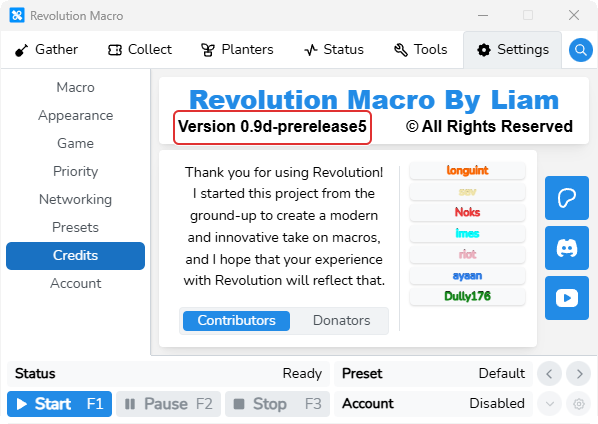
Open the Status tab, set Log Level to 4, and click the clipboard icon (Copy Logs). Include the Version from Settings → Credits.