
Roblox won't open in Revolution Macro
If the macro fails to open Roblox properly, the join sequence may never move from Opening Roblox through Game Loading to Game Loaded. You may see repeated launch attempts, a loading screen that never finishes, or a public server instead of your private one. The standard Roblox launcher is known to have issues that can prevent Roblox from opening properly, and connection or join settings can cause the same symptoms. Read the guide below for fixes that may help.
Before you start
Section titled “Before you start”Revolution reads the Roblox window during join. Display and capture problems often result in open or load failures, so finish the checklist on Detection problems first. If that checklist is clean and Roblox still will not open or finish loading, try the installer and timeout fixes in this guide.
If you see install-folder write errors or macOS Retina permission error-popups, see Install and permission problems. If you frequently encounter rejoin stalls after a disconnect popup, see Disconnect and rejoin problems.
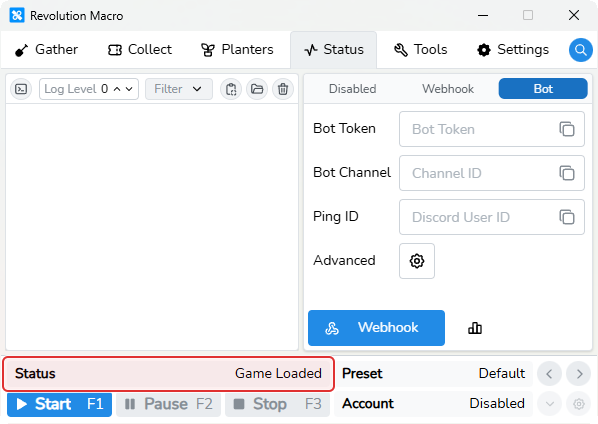
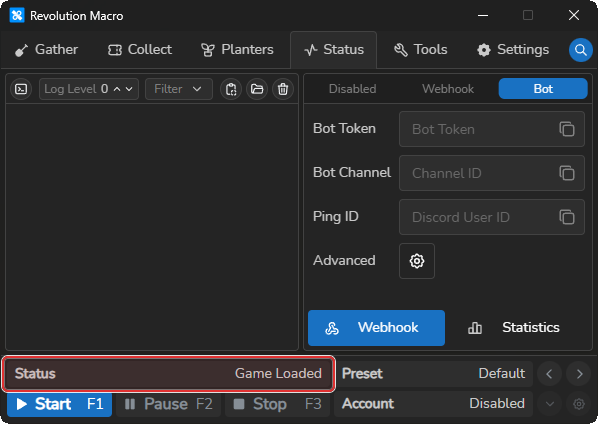
Failed to Open Roblox / game loading restart loop
Section titled “Failed to Open Roblox / game loading restart loop”Cause: Roblox never opens, or it opens but stays on the loading screen. If you frequently encounter this, assuming there is an issue with your Roblox installation or launcher is a sensible first step. Display and capture setup can also keep the macro from recognizing when Bee Swarm has finished loading.
Fix:
- Complete the display and capture checklist on Detection problems.
- If Roblox shows installer errors, update loops, or
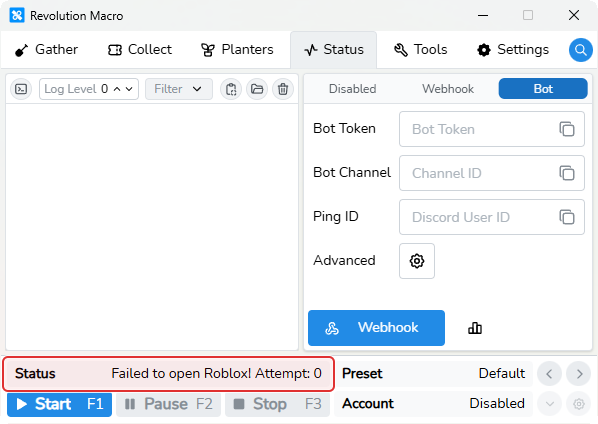
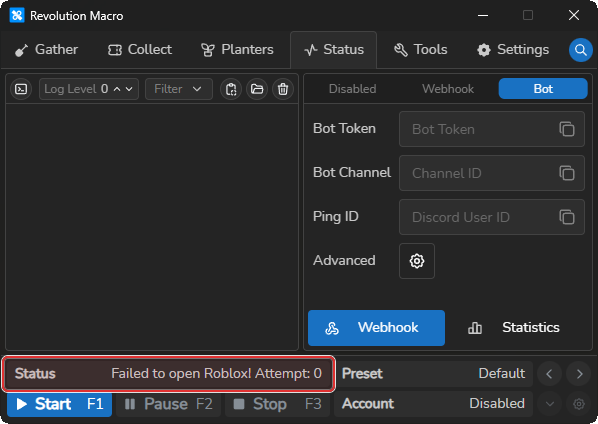
Failed to open Roblox!keeps retrying, install an alternative launcher such as Bloxstrap.
Alternative Roblox launchers (Bloxstrap)
Section titled “Alternative Roblox launchers (Bloxstrap)”When you click Play in a browser or the Roblox app, a small Windows program runs first. It checks for updates, downloads the Roblox player if needed, and starts the game. Revolution depends on that program finishing cleanly. When it does not, Status may show Failed to open Roblox! or sit on Game Loading even though Bee Swarm itself is fine.
What goes wrong with the official Roblox installer
Section titled “What goes wrong with the official Roblox installer”The standard Roblox launcher is known to have issues that can prevent Roblox from opening properly. The stock installer is small and usually invisible, but it is also a common failure point on Windows:
- Update loops: the installer keeps downloading or says another installer is already open when Task Manager shows nothing.
- Crashes on launch: the installer closes immediately after a Roblox or Windows update, so Roblox never opens.
- Microsoft Store builds: the Store copy can fail to update or launch while the roblox.com desktop installer still works.
- Corrupted local files: interrupted installs leave broken files under
%LOCALAPPDATA%\Roblox. Every new launch fails until that folder is cleared.
What Bloxstrap is
Section titled “What Bloxstrap is”Bloxstrap is a free, open-source alternative launcher for Roblox on Windows. It replaces the official installer program with one that still downloads and launches the same Roblox player from Roblox. It does not modify the game client the way exploits do. Many players install it when the official installer will not finish an update or open Roblox at all.
You can install Bloxstrap from bloxstraplabs.com or run winget install Bloxstrap in Command Prompt. Bloxstrap needs the Microsoft .NET 6 Desktop Runtime. The installer prompts you if it is missing.
Community forks such as Fishstrap work the same way if you already use Bloxstrap and want an actively maintained variant.
Try Bloxstrap when the installer fails
Section titled “Try Bloxstrap when the installer fails”- Install Bloxstrap from bloxstraplabs.com (or
winget install Bloxstrap). - Open the Bloxstrap menu from the Start menu and let it install or repair the Roblox player when prompted.
- Launch Bee Swarm once through Bloxstrap and confirm Roblox opens normally outside the macro.
- Start Revolution Macro again and watch Status move through
Opening Roblox→Game Loading→Game Loaded.
Leave Bloxstrap’s Mods, custom fonts, and custom cursors off until the macro joins reliably. Those options change how Roblox draws UI text, and Revolution reads that text to detect hive, backpack, and field state. Wrong fonts can result in Detection problems even when Roblox opens fine.
Clean reinstall Roblox on Windows
Section titled “Clean reinstall Roblox on Windows”If Bloxstrap still cannot open Roblox, reset the local install:
- End every Roblox task in Task Manager (including RobloxPlayerBeta and RobloxPlayerInstaller).
- Press Win+R, type
%LOCALAPPDATA%, and delete the Roblox folder. - Download the desktop installer from roblox.com and reinstall. Do not use the Microsoft Store build for macro use.
- Open Roblox once manually, then start Revolution Macro again.
If switching launchers results in wrong UI text or fonts, open the Bloxstrap menu, remove applied custom fonts under Mods, and relaunch Roblox.
Status stuck on Game Loading
Section titled “Status stuck on Game Loading”Cause: You see Game Loading, but Game Loaded never appears before the load timer runs out. The macro keeps waiting for Bee Swarm to finish loading, and that signal never arrives.
Fix:
- Complete the display and capture checklist on Detection problems.
- Open Settings → Macro → Diagnostics and set UI Offset Consensus to 1 if loading never finishes (default 2).
- If load still never progresses, install Bloxstrap or reset the local Roblox install on Windows.
Game Start-Up Failed / Game Load Timeout Exceeded
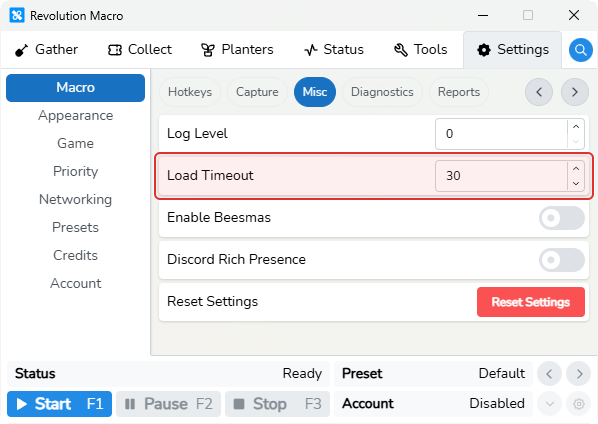
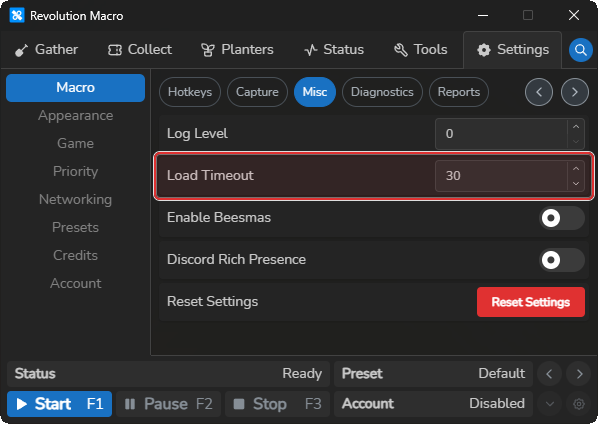
Section titled “Game Start-Up Failed / Game Load Timeout Exceeded”Cause: The game did not finish starting or loading before Load Timeout ran out. You may see Game Start-Up Failed or Game Load Timeout Exceeded.
Fix:
- Open Settings → Macro → Misc and raise Load Timeout. The default is 30 seconds. On a slower PC, try about 60 seconds.
- Start the macro again and watch for
Game Loaded. - If timeouts keep happening, finish the display and capture checklist on Detection problems before raising Load Timeout again.
Private join fails then lands on a public server
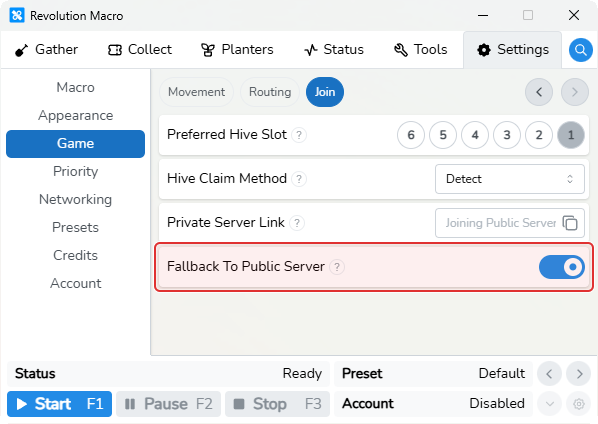
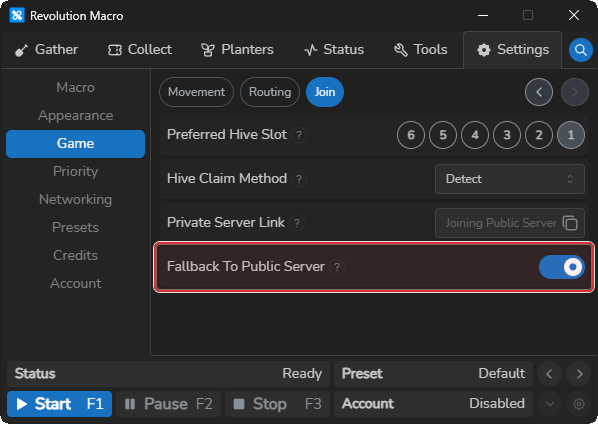
Section titled “Private join fails then lands on a public server”Cause: Fallback To Public Server is on (default). When private joins keep failing, the next open ignores Private Server Link and joins without it.
Fix:
- Open Settings → Game → Join and confirm Private Server Link is correct. If Revolution rejects the link as
Invalid private server link format, paste a fresh private-server invite. - Leave Fallback To Public Server on unless you must never land on a public server. If you must stay private, fix the link, network, or permissions instead of relying on fallback.
More help
Section titled “More help”- Infinite leave and rejoin on Mac after a private server reset → Disconnect and rejoin problems
- Capture or window errors during join → Detection problems
- macOS Retina / DeskPad / Accessibility → Install and permission problems
Access is denied/ settings will not save → Install and permission problemsFailed to open Robloxduring Vic Hop hops → Vic Hop failures- RBC Gather alts that keep rejoining when main and alt links do not match → Connect accounts with relay
Known limitations
Section titled “Known limitations”- With Fallback To Public Server on, the macro ignores Private Server Link after repeated private join failures.
- On macOS Retina-only setups, Roblox open needs a virtual monitor or Enable Low DPI Patching. See Install and permission problems.
If you’re still stuck
Section titled “If you’re still stuck”- Open Status, set Log Level to 4, and click the clipboard icon (Copy Logs).
- Include your Revolution version from Settings → Credits, your OS, Capture Mode, Load Timeout, and whether Private Server Link is set or empty.