
Set up AI Gather in Bee Swarm Simulator
You can tune an AI Studio profile perfectly and still see a fixed Kettle walk if the field has not been switched to AI Gather. This setup turns on the ranked gather mode for one field and gives you Overlay as the first visible proof that Revolution is reading it. For the field problem behind it, see Why AI Gather. For the live pick loop after setup, see How AI Gather decides where to move.
Before you start
Section titled “Before you start”- Display resolution must be at least 1366×768 (prefer 1920×1080). AI Gather can fail to start below that floor with Screen Too Small.
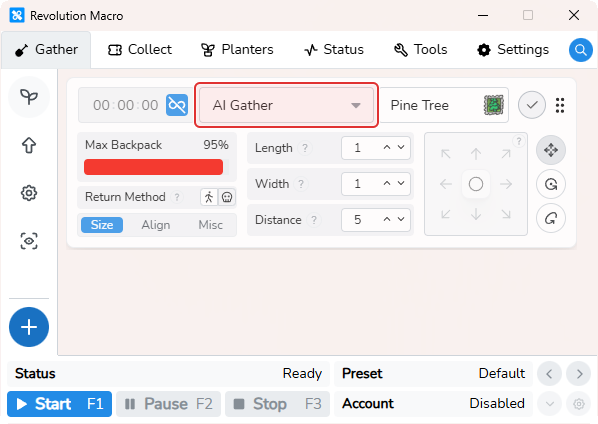
- AI Gather is a per-field gather pattern name, not a global toggle. Each field keeps a standard gather pattern until you change it to AI Gather.
-
Open Gather → Fields and select one gather field. Add Pine Tree for a blue-hive start, or Pepper for red hive, if you need a new card.
-
Copy the recommended AI Gather configuration for your hive, click the field grip (6 dots to the right) on the card, then choose Paste. Revolution will read what’s on your clipboard:
Blue hive (Pine Tree):
{"position":"top-left","length":4,"width":4,"distance":4,"yaw":3,"backpackPercent":98,"seconds":600,"walkReturn":true,"driftComp":true,"gatherPattern":"AI Gather","field":"pinetree"}Red hive with Red AI (Pepper):
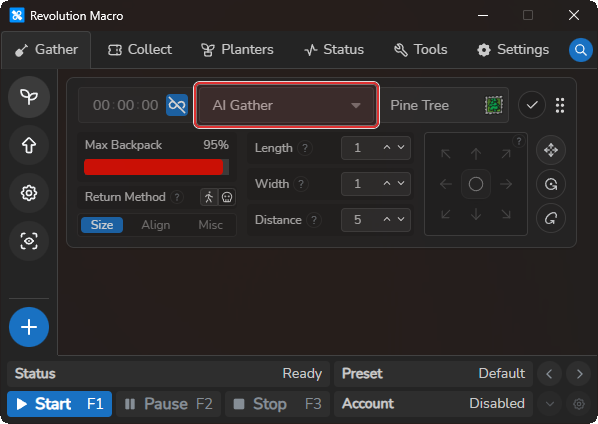
{"position":"center","length":6,"width":6,"alignment":15,"repetitions":4,"yaw":2,"backpackPercent":95,"seconds":600,"walkReturn":true,"gatherPattern":"AI Gather","field":"pepper"}After pasting, the field card should show AI Gather.
-
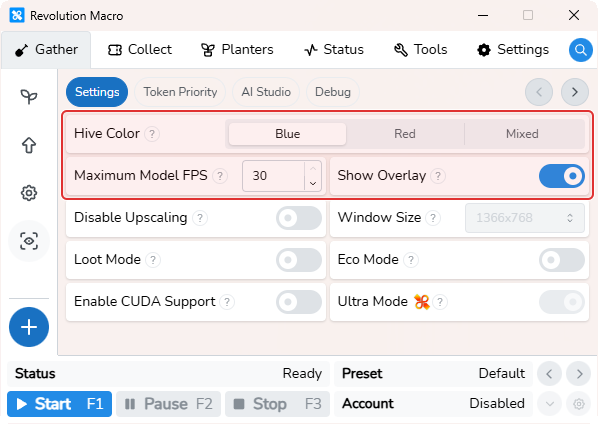
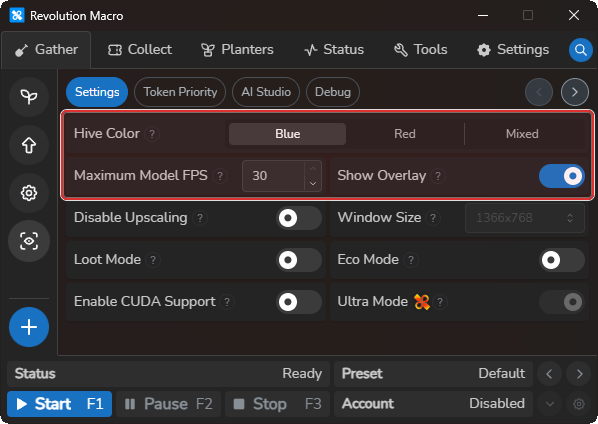
Open Gather → AI Gather → Settings, set Hive Color to match your hive (Blue or Red). For first setup, leave each of these at their defaults:
- Show Overlay: on
- Maximum Model FPS: 30
- Eco Mode: off
- Loot Mode: off
- Ultra Mode: off
- Disable Upscaling: off
-
Start the macro on that field. With Show Overlay on, confirm bounding boxes appear over detected tokens and sprinklers.
More settings
Section titled “More settings”Hive Color
Section titled “Hive Color”Blue uses the standard token model. Red uses the red-hive model. Mixed uses the unified model. Empty or unknown values behave as blue. Change it when your hive is not blue.
Show Overlay
Section titled “Show Overlay”Defaults to on. Draws bounding boxes over detected tokens and sprinklers during AI gathering so you can confirm detection is working. When Show Overlay is off, the overlay does not start.
Maximum Model FPS
Section titled “Maximum Model FPS”Defaults to 30. Lowering it reduces GPU load and can reduce token collection accuracy.
Eco Mode
Section titled “Eco Mode”Uses a lightweight model. More efficient, slightly worse accuracy, limited token priority. Keep Eco Mode off for first setup unless your hardware or GPU can’t keep up — you may need the lighter model.
Loot Mode
Section titled “Loot Mode”Optimizes the AI for collecting loot like fruits. Keep Loot Mode off for normal token gathering.
Ultra Mode
Section titled “Ultra Mode”Loads larger ultra models that increase accuracy, especially for busy fields. Only applies when Hive Color is red and Ultra Mode is on.
Disable Upscaling
Section titled “Disable Upscaling”Can improve performance. Window Size is the target resolution when Disable Upscaling is enabled (1920×1080, 1600×900, or 1366×768). Leave Disable Upscaling off unless you need the performance tradeoff.
Use Dipper
Section titled “Use Dipper”Defaults to on. Holds the gather tool click at window center while gathering. Leave it on unless you do not want the tool to swing. See Gather settings.
Troubleshooting
Section titled “Troubleshooting”- AI Gather enabled but uses a pattern / doesn’t collect tokens: The field’s gather pattern must be AI Gather (exact name). See How AI Gather decides where to move.
- AI overlay invisible / no detection boxes: Turn on Show Overlay under Gather → AI Gather → Settings. If detection still fails, see Detection problems.
- Screen Too Small: Display resolution must be at least 1366×768 (prefer 1920×1080). See Detection problems.
More help