
How AI Gather decides where to move
AI Gather detects tokens on screen, ranks what it can see, and walks to the best available pick under your active movement profile. This page shows the live macro loop: Overlay, visible candidates, and the next move. For why ranking beats a fixed pattern like Kettle, start with Why AI Gather.
What Revolution actually sees
Section titled “What Revolution actually sees”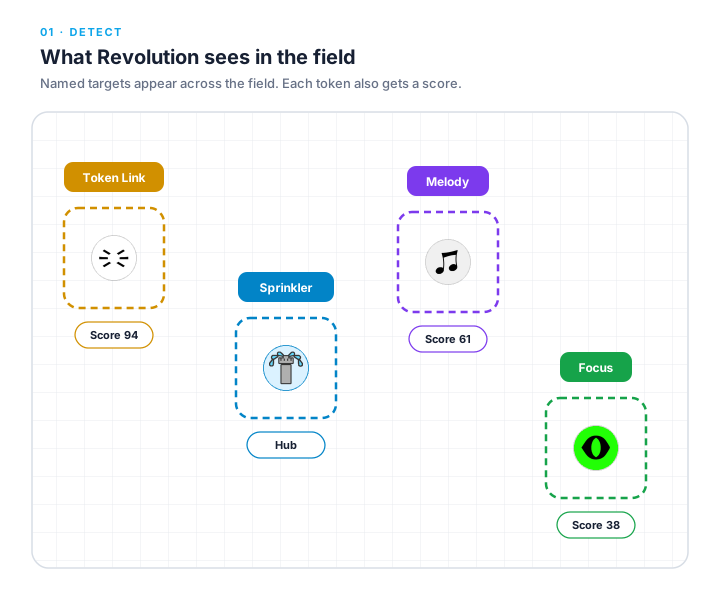
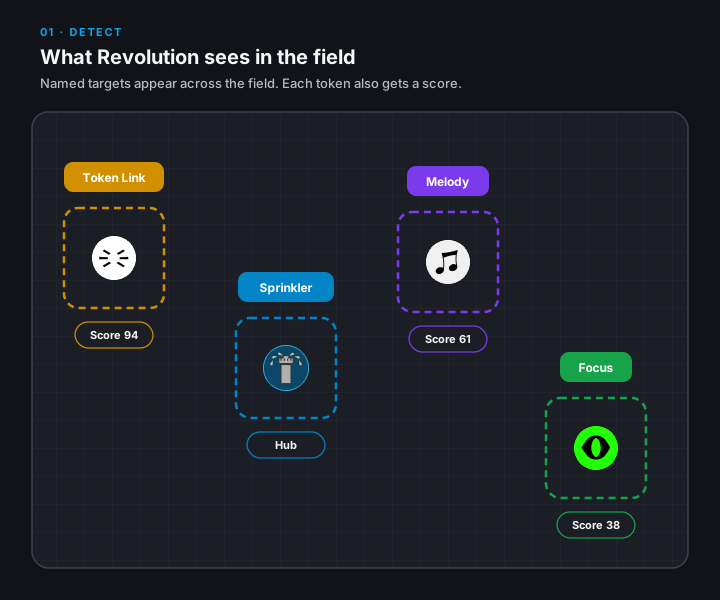
Revolution repeatedly reads the Roblox window and updates the token candidates it can see. With Show Overlay on, those same boxes appear over the live game. If you never see boxes while gathering, AI Gather is not reading the field for that session.
Hive Color chooses which token set Revolution uses (Blue, Red, or Mixed). Match it to your hive. If a selected mode is not available on the linked macro, the macro handles that at session start.
Why the field pattern still matters
Section titled “Why the field pattern still matters”Settings under Gather → AI Gather do nothing for a field whose gather pattern is still CornerXSnake, Kettle, or anything else. Only the exact pattern name AI Gather turns AI gathering on for that field.
That mix-up is common: AI settings tuned, active field never switched. Find the setup steps in Set up AI Gather. Switch the gather pattern to AI Gather, then confirm Overlay boxes appear.
Choosing the next token
Section titled “Choosing the next token”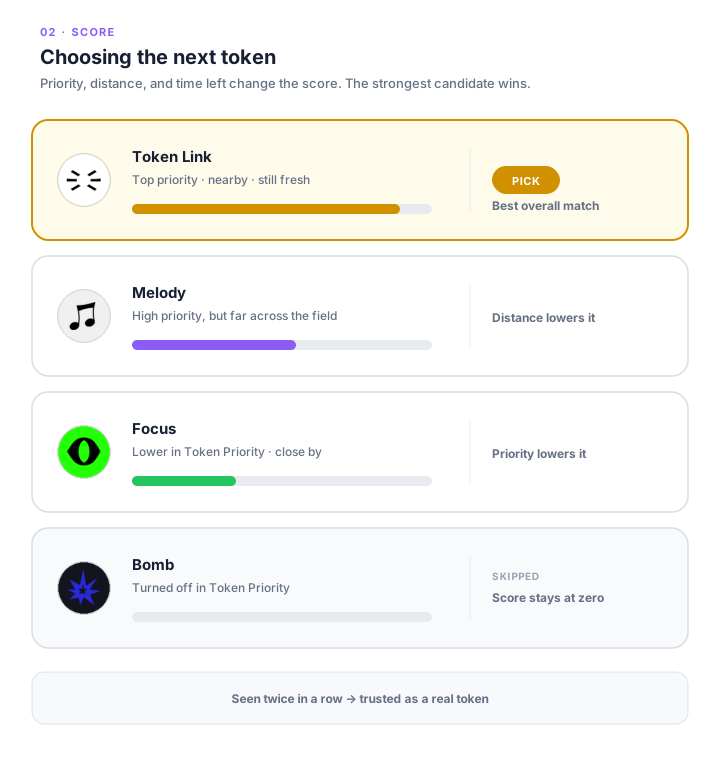
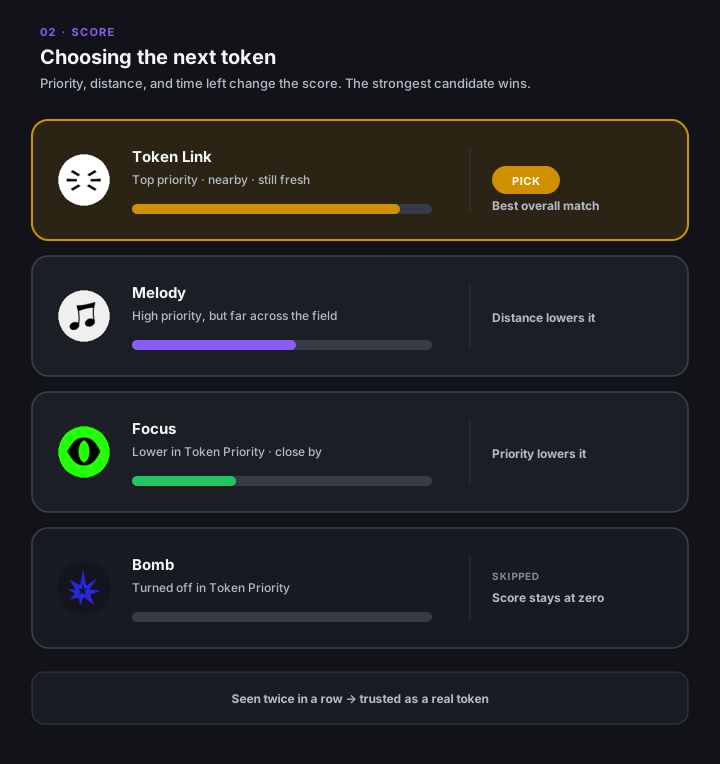
The active movement profile supplies a class’s base weight and the rules that change it for the current field state. Distance, token age, confidence, sprinkler reach, Field Zones, and nearby tokens then reshape that value. A far token that is about to disappear can still beat a near token, while a weak token nearby can still lose. That is the ranking AI Studio lets you inspect with How scoring works.
Leave Eco Mode and Loot Mode off for normal token gathering. In Loot Mode, the macro uses loot-focused behavior instead of ordinary token ranking. You can find Hive Color, Show Overlay, and Maximum Model FPS on Set up AI Gather.
Moving, collection, or going back to the sprinkler
Section titled “Moving, collection, or going back to the sprinkler”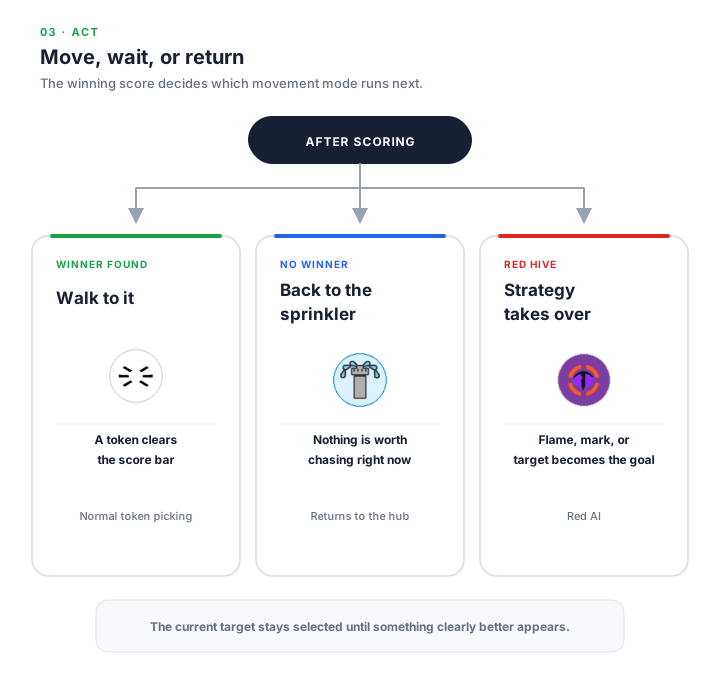
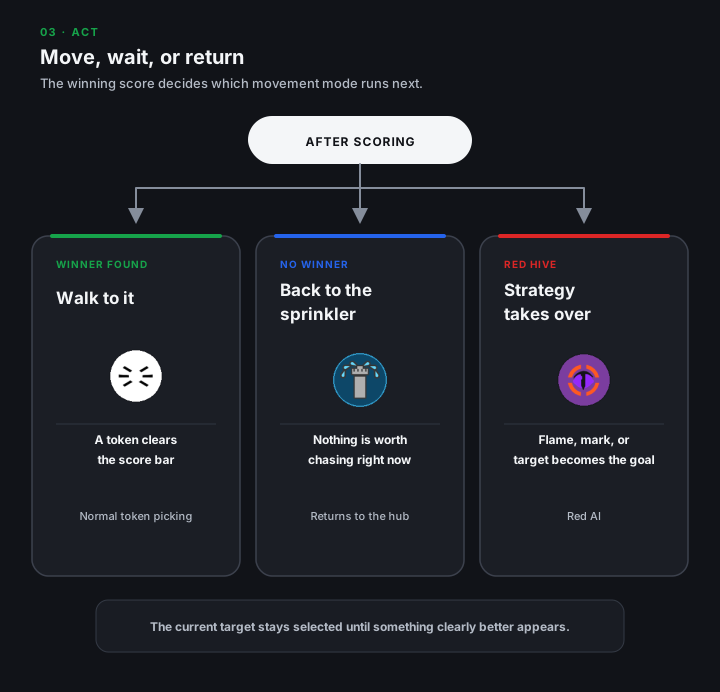
When a token clears the score bar, the character walks toward that box. Revolution sticks with the token it is already walking to unless something clearly better appears. When nothing is worth chasing, it walks back to the sprinkler rather than wandering the field.
While gathering, Status can show Gathering: with the field name (or elapsed and max when a max time is set). Overlay boxes over tokens and sprinklers confirm AI Gather is running for the active field. If a walking pattern runs instead, the field’s gather pattern isn’t AI Gather. See Set up AI Gather.
Red hive strategies
Section titled “Red hive strategies”Set Hive Color to Red under Gather → AI Gather → Settings when your linked macro supports the selected mode.
Extra red-hive toggles appear with Red: Collect Flames, Convert Flames, Collect Precise Marks, and Collect Duped Tokens. Collect Flames is a normal red setting. The advanced red strategies require Revolution Pro on the linked macro. Those toggles decide which red strategies can take over from ordinary token scoring for a while.
On blue hive, collecting duped tokens, including smiley, also requires Collect Duped Tokens (or a live AI Studio test session). On red or mixed, smiley stays allowed when that toggle is off.
Keep Loot Mode off on red hive. Loot Mode on red disables red-hive gathering. Turn Loot Mode on only when you want fruit and loot picks instead of normal red-hive gathering.
If red settings are missing, confirm Hive Color is Red. If an advanced red toggle stays locked, check the linked macro’s Revolution Pro access.
When it looks broken
Section titled “When it looks broken”- Uses a pattern instead of AI / stats show no honey: Set up AI Gather
- Overlay invisible / no detection boxes: Set up AI Gather and Detection problems
- Drift off the field: Macro resets or gets stuck