
Import and use presets for Bee Swarm Simulator
Presets are essential to get you up-and-running with the best macro configuration right away, while allowing you to maintain different settings for all of your accounts or unique playstyles. Presets bundle settings under a single name so that you can switch between them, import them from Discord, or export them to share your settings without tuning all of your macro’s settings by hand.
What goes in a preset
Section titled “What goes in a preset”A preset holds the macro-side setup for one playstyle:
- Gather: field cards, patterns, and gather settings
- Collect, Planters, and Tools: dispensers, auto planters, Vic Hop, Tad Sync, and the rest
- Most options under Settings that belong to that playstyle
Some settings are locked to your account and will not change when you import a preset: Player Movespeed, Sprinkler Type, and Private Server Link. You only need to configure account-specific settings once. See Presets for export, duplicate, and the full list.
Community presets
Section titled “Community presets”Presets and field configs are posted in Discord. Join the server, open #patterns-and-configs, and download a .yaml to import.
Join Discord
-
Open the Revolution Macro Discord using the button above.
-
In the channel list, open #patterns-and-configs.
-
Pick a preset from that channel, then continue with Import or Create below.
Set up a preset
Section titled “Set up a preset”-
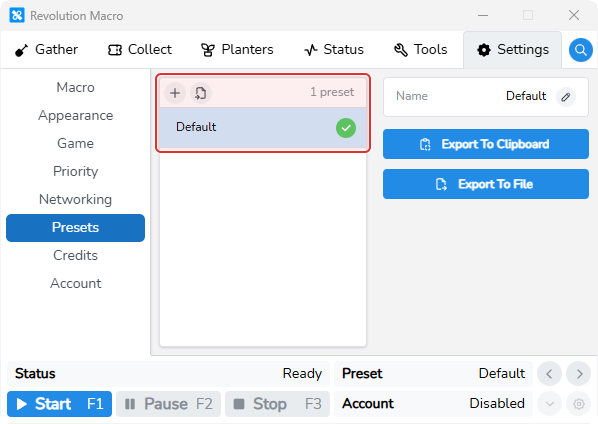
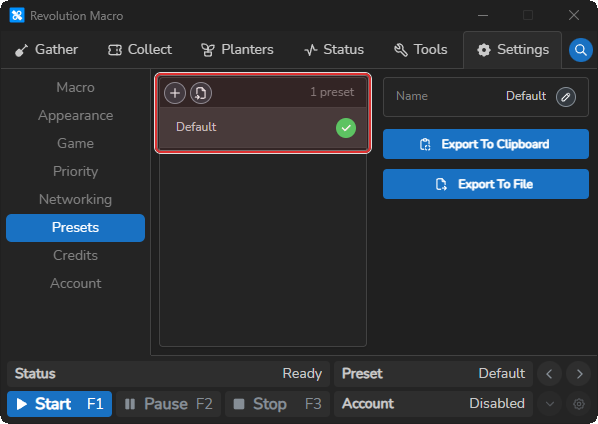
Open Settings → Presets.
-
If you have a
.yamlor.ymlfile: click Import Preset, pick the file, give it a unique name, and click Import.If you are starting fresh: click Create Preset, enter a unique name, and click Create. Configure Gather, Collect, Planters, Tools, and Settings for that playstyle.
-
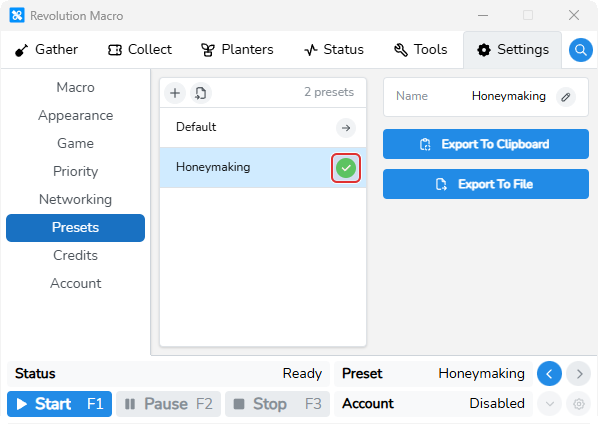
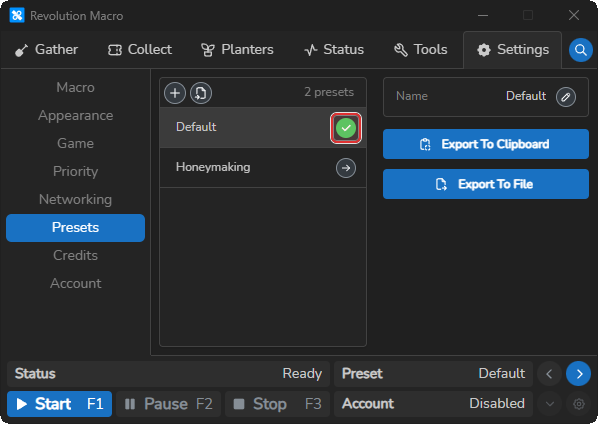
Select your account in the account switcher, then click the arrow on the preset row until the green checkmark shows for that account.
-
You only need to configure account-specific settings once: Settings → Game → Movement → Player Movespeed to your in-game walk speed with no speed buffs, and Gather → Settings → General → Sprinkler Type to match your sprinkler.
Switch presets
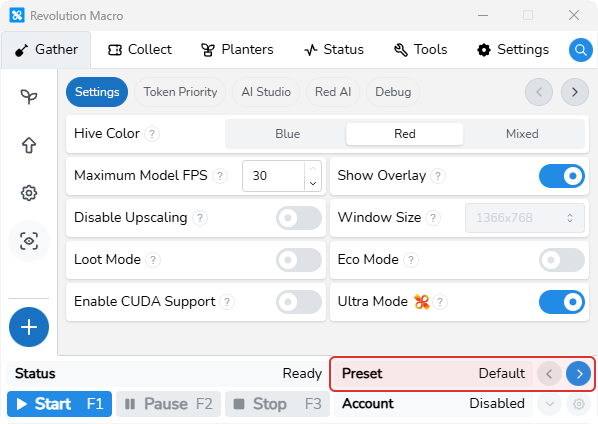
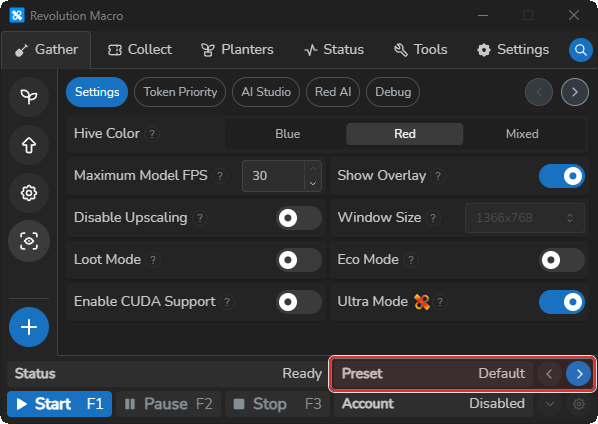
Section titled “Switch presets”Each account is associated with a single preset that the macro will switch back to. The Preset switcher in the bottom-right control bar steps through presets for the active account without opening Settings → Presets.
-
Open Gather or any main tab so the control bar is visible at the bottom of the window.
-
In the bottom-right, find Preset with the active preset name and the left and right arrows beside it.
-
Click the right arrow to move to the next preset, or the left arrow to step back. Revolution loads that preset’s gather, collect, and tool settings for the active account.
To export, duplicate, or rename presets, see Presets.
Troubleshooting
Section titled “Troubleshooting”If import fails (Failed to parse YAML, Preset "…" already exists, or you cannot delete the last preset), follow the fixes on Presets. If the macro goes to the wrong field or will not return to the hive after you change fields or patterns, see Macro resets or gets stuck.