
Set up auto planters in Bee Swarm Simulator
Your nectar uptime is critical to improving your honey hourly. Revolution Macro offers useful features for automatically managing planters and generating efficient schedules that upkeep all of your desired nectars. For more advanced setups, you can manually tune your desired schedule by checking out The planter timeline.
-
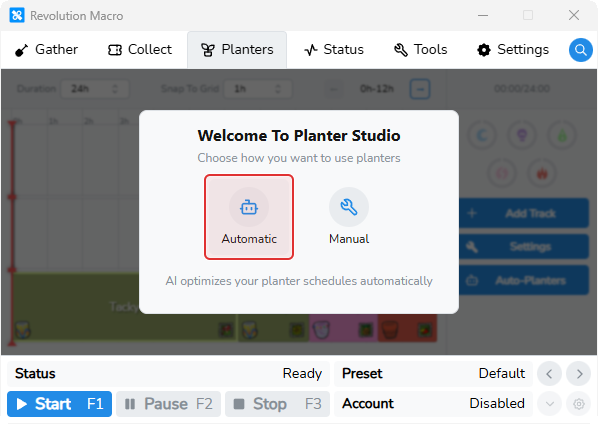
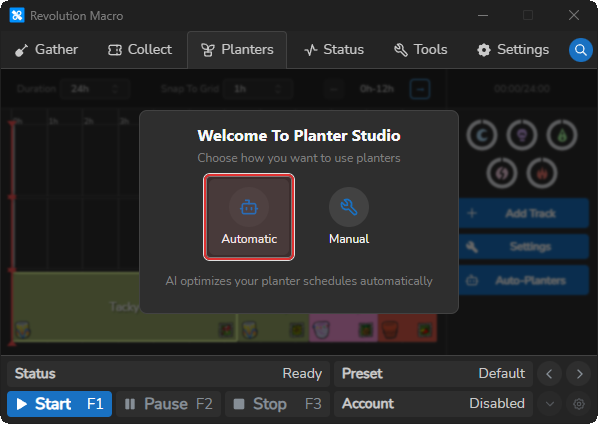
Open Planters. On your first visit, Welcome To Planter Studio offers Automatic and Manual.
-
Click Automatic. Auto Planters turns on and Choose Your Planters opens.
-
Enable at least one planter type you own, then continue to Choose Your Nectar Goals. For a typical blue setup, aim for:
- Comforting, Motivating, Satisfying, and Refreshing at roughly 50–70%
- Invigorating low or at 0%
- Priority order: Comforting ≥ Motivating ≥ Satisfying → Refreshing → Invigorating (drag rows so Invigorating sits lowest)
Set at least one goal above 0%, then finish the intro with the check control.
-
Open Planters → Settings and turn Disable Planters off. Set Duration to 12h in the timeline controls.
-
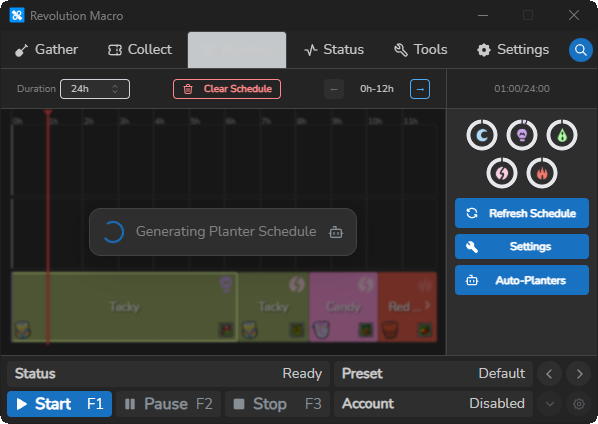
Start the macro, or click Refresh Schedule in the sidebar if you already finished the intro. Planter Studio shows
Generating Planter Schedulewhile it builds tracks.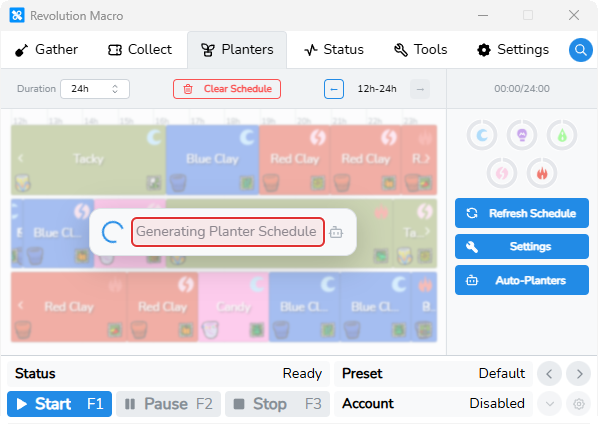
-
When
Generating Planter Schedulefinishes, tracks appear on the three cycle rows. The sidebar shows Refresh Schedule instead of Add Track.
More settings
Section titled “More settings”You can find Auto Planters under Planters → Auto-Planters, with tabs for Settings, Nectar Goals, Fields, and Planters.
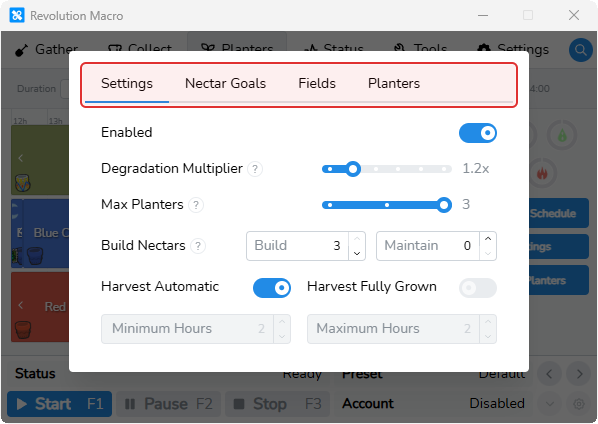
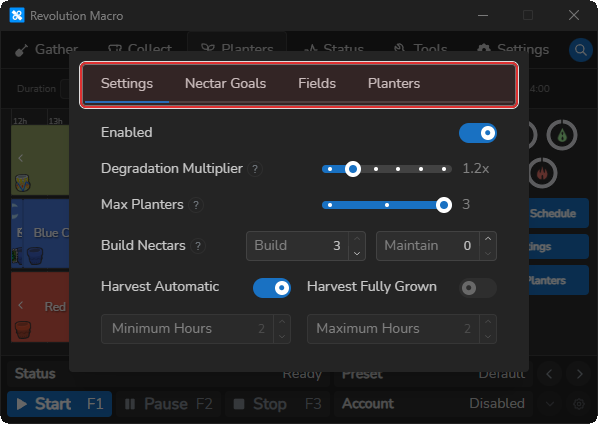
Enabled
Section titled “Enabled”Turns Auto Planters on so Revolution builds and refreshes planter schedules instead of manual tracks. Turn on for automatic schedules. Turn off when you want to place and edit tracks yourself with Add Track.
Disable Planters
Section titled “Disable Planters”Stops all planting and harvesting, and blocks Auto Planters from regenerating empty schedules. Leave it off for normal Auto Planters use. Turn it on only when you want planters fully stopped.
Refresh Schedule and Clear Schedule
Section titled “Refresh Schedule and Clear Schedule”With Auto Planters on, the sidebar shows Refresh Schedule instead of Add Track, and Clear Schedule replaces Snap To Grid in the top bar. You can drag the timeline to scan the schedule. You cannot add a track or drag and resize individual tracks by hand.
Timeline Mode
Section titled “Timeline Mode”Clock lines the timeline up with real-world time so you can time planter pick-ups and placements with buffs like Mondo Chick. Timer runs the timeline on its own clock instead. While Auto Planters is on, Clock is ignored and the timeline uses Timer. Turn Auto Planters off if you need Clock on the timeline.
Harvest timing
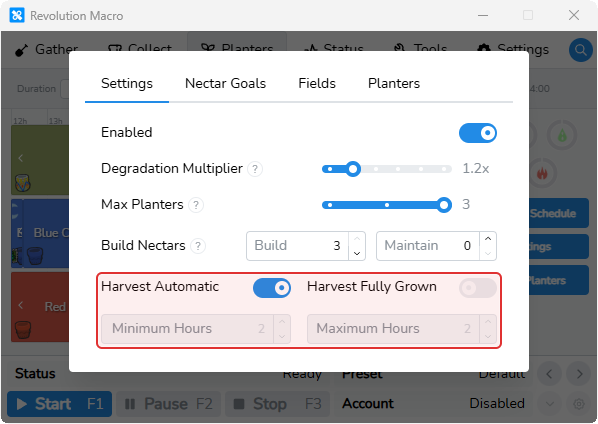
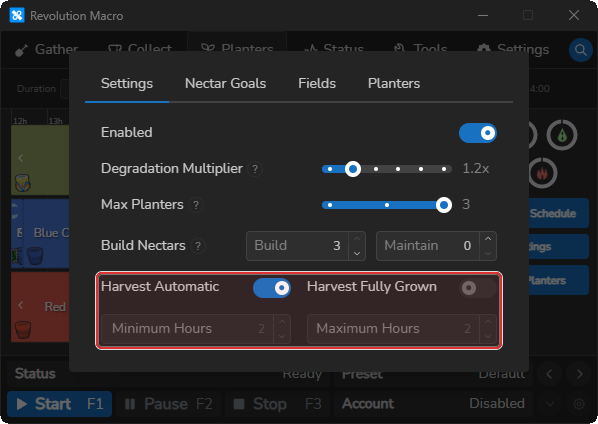
Section titled “Harvest timing”Shorter grow windows rotate nectar faster across fields. Longer windows pull more nectar from each plant. On Planters → Auto-Planters → Settings, Harvest Automatic, Harvest Fully Grown, Minimum Hours, and Maximum Hours decide how long each scheduled planter stays down before the macro harvests it.
Harvest Automatic
Section titled “Harvest Automatic”Leave this on for standard Auto Planters. Revolution picks grow time for each track (from a short floor up toward full growth) so harvests line up with your nectar goals. When it is on, Harvest Fully Grown, Minimum Hours, and Maximum Hours are locked.
Harvest Fully Grown
Section titled “Harvest Fully Grown”Only matters when Harvest Automatic is off. Turn it on when you want every track to wait until that planter is fully grown before harvest. Turn it off when you want a fixed Minimum Hours / Maximum Hours window instead.
Minimum Hours and Maximum Hours
Section titled “Minimum Hours and Maximum Hours”Only matter when Harvest Automatic is off and Harvest Fully Grown is off. Revolution keeps each planter down at least Minimum Hours and no longer than Maximum Hours (capped by how long that planter can grow on that field). Set minimum less than or equal to maximum. If minimum is higher than maximum, Planter Studio cannot build a schedule and shows Harvest hour settings leave no valid planter durations.
After you change harvest timing, close the modal and click Refresh Schedule so the timeline rebuilds with the new grow windows.
Build vs. maintain nectars
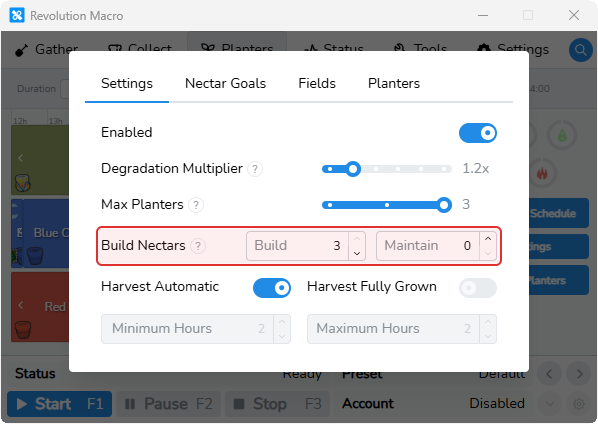
Section titled “Build vs. maintain nectars”Keeping roughly 50–70% on all five nectars usually beats maxing only a few — Balloon Blessing and nectar uptime are what move your hourly. On Settings, Build Nectars and Maintain Nectars decide how Revolution spends your cycles: catch up the goals you still miss, or top off nectars that are already above target.
Build Nectars
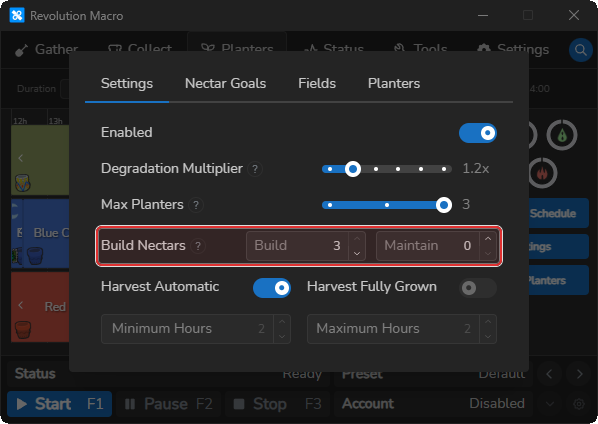
Section titled “Build Nectars”How many nectars still under their Nectar Goals targets get dedicated cycles. Revolution takes the highest-Priority nectars that are below target (up to this count) and focuses tracks on those until each goal is met. Standard is 3. The UI keeps Build at least 1, and Build plus Maintain Nectars cannot exceed 3.
Maintain Nectars
Section titled “Maintain Nectars”How many nectars already over their targets stay topped off while Build works on the rest. Revolution prefers the lowest over-target nectars first. Standard is 0. The UI caps Maintain at 2, and Build plus Maintain cannot exceed 3. Raise Maintain only after your main goals are already met and you want top-off tracks instead of another Build slot.
Priority on Nectar Goals
Section titled “Priority on Nectar Goals”Drag the nectar rows to set Priority (top of the list is highest). When several nectars are under target, Build uses that order to decide which goals get dedicated cycles first. For blue planter setups, put Comforting, Motivating, Satisfying, and Refreshing above Invigorating, or keep Invigorating low or off.
After you change Build, Maintain, or Priority, click Refresh Schedule so Revolution rebuilds tracks for the new focus.
Planter and field restrictions
Section titled “Planter and field restrictions”You still need a valid planter–field path to every nectar you want up. Under Planters → Auto-Planters, the Planters and Fields tabs let you allow or block combinations so Auto Planters never schedules a planter you do not own, a field you cannot reach, or a pair that hurts your setup.
Planters tab
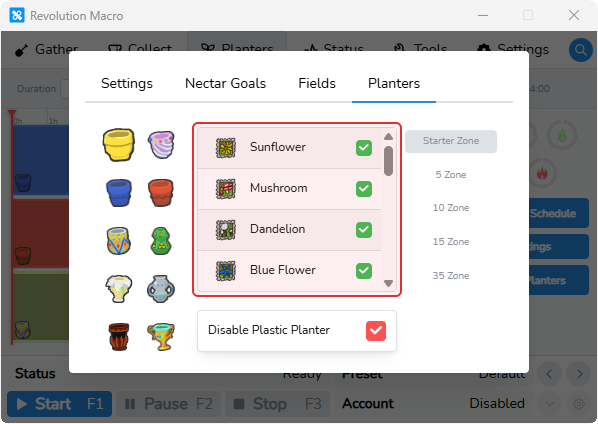
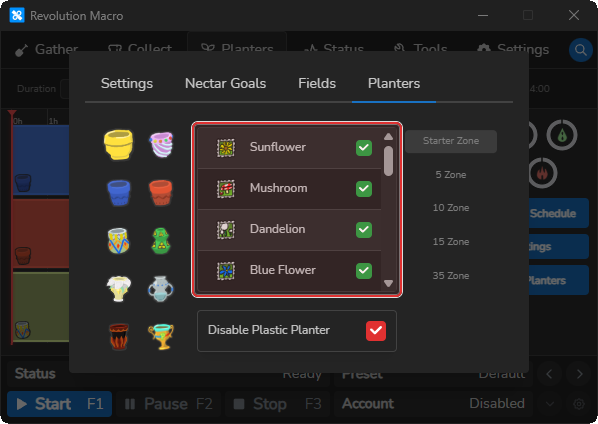
Section titled “Planters tab”Open Auto-Planters → Planters, then click a planter type. The fields on that screen show which fields that planter may use. Uncheck a field to block that pair. Use Disable under the fields to remove that planter type from the schedule entirely — useful for types you do not own yet.
Fields tab
Section titled “Fields tab”Open Auto-Planters → Fields. Fields are grouped by nectar type. Click a field, then allow or block planter types on it, or disable the field so Auto Planters never plants there. For mid/late blue setups, disable Pine Tree here so bees do not sip nectar from the planter while you gather.
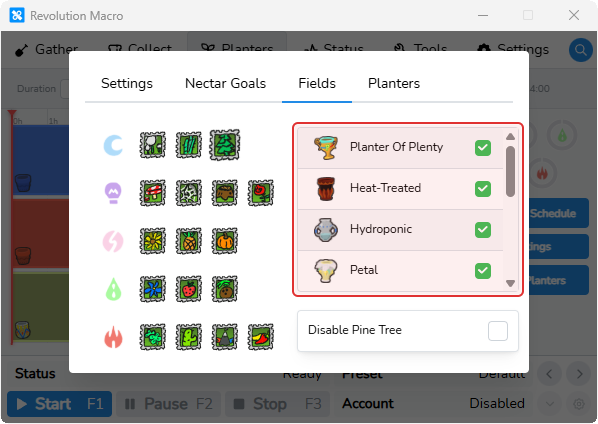
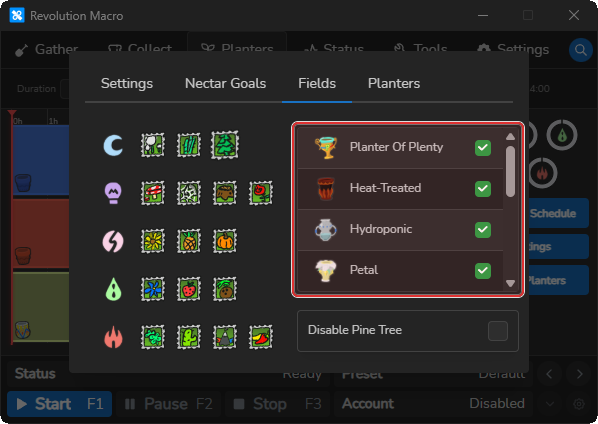
Either direction removes that planter–field pair from scheduling. Leave at least one allowed pair for each nectar goal above 0%, or Planter Studio shows an overlay such as No valid planter–field combinations. Check that planters and fields are enabled. Fix the tabs, then click Refresh Schedule.
Troubleshooting
Section titled “Troubleshooting”Invalid auto planter configuration or schedule blocked
Section titled “Invalid auto planter configuration or schedule blocked”Overlays may show:
Invalid auto planter configurationNo valid planter–field combinations. Check that planters and fields are enabled.All planters are disabled. Enable at least one planter type.All fields are disabled. Enable at least one field.All nectar targets are zero. Set at least one nectar goal above 0%.Harvest hour settings leave no valid planter durations.Schedule used a fallback; check Auto-Planters settings if this persists.
Click the button below the message to open the right tab, fix the blocked setting, then click Refresh Schedule.
Nothing plants or empty schedule never rebuilds
Section titled “Nothing plants or empty schedule never rebuilds”If Disable Planters is on, or Clear Schedule left the timer stuck, follow the Fixes on Failed to harvest planter. After you turn Disable Planters off, click Refresh Schedule or start the macro. If the schedule stays empty, fix blocked settings from the overlay above, then refresh again.
No Add Track or can’t edit tracks
Section titled “No Add Track or can’t edit tracks”Cause: Auto Planters is on. Add Track is replaced by Refresh Schedule in the sidebar. You can drag the timeline to scan the schedule. You cannot add a track or drag and resize individual tracks by hand.
Fix: Use Refresh Schedule to rebuild the auto schedule. To edit tracks by hand, turn Auto Planters off and follow The planter timeline.
More help
- Failed to harvest planter: cycle failed, won’t replant, or Clear Schedule when the timer is stuck
- Detection problems: when nectars or quests are not detected but tokens and planters work