
Fix detection failed in Revolution Macro
There are multiple reasons why the macro’s detection can fail, resulting in issues like nectar, hive, quests, and more not being detected or resulting in errors. If your macro can’t detect hives, nectars, quests, or more, the fixes in this guide may resolve those issues.
Before you start
Section titled “Before you start”Revolution reads pixels from the Roblox window. It never reads game memory.
- Resolution: minimum 1366×768, with 1920×1080 recommended (not required). Horizontal widescreen only. Portrait layouts break recognition.
- Scale: 100%. Scaled displays break detection offsets and can block startup with
Your monitor scale must be set to 100% in order for the macro to start. - HDR: off, including Auto-HDR.
- Windows text size accessibility at 100%. No high-contrast themes.
- Leave Capture Mode on Default under Settings → Macro → Capture unless a symptom below tells you to change it.
- Place the macro window at the bottom-right. Turn off Always on Top while troubleshooting.
- macOS 11 or later preferred.
- Resolution: 1920×1080 or 1920×1200 preferred, minimum 1366×768.
- Color profile: Display P3 preferred for detection.
- Grant Accessibility and Screen Recording permissions. If those grants or Retina/virtual-monitor setup are broken, see Install and permission problems.
- Select US English (ABC) as the keyboard input source.
- Website and experience language English (USA / Original).
- Camera Mode Classic or Default, and Movement Mode Default (Keyboard).
- Text scale and background transparency 0 (no white bars).
- Performance Stats and MicroProfiler off, and fullscreen off.
- Choose Manual over Automatic for Roblox display if Revolution flags setup warnings.
Detection Failed: Hive
Section titled “Detection Failed: Hive”Cause: Logs show Detection Failed: Hive when a hive or alignment detector misses its on-screen target.
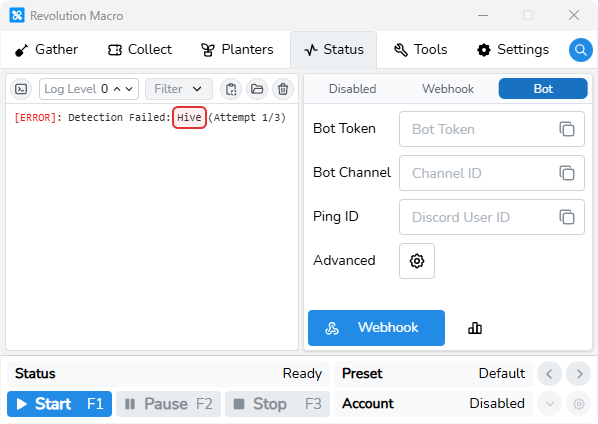
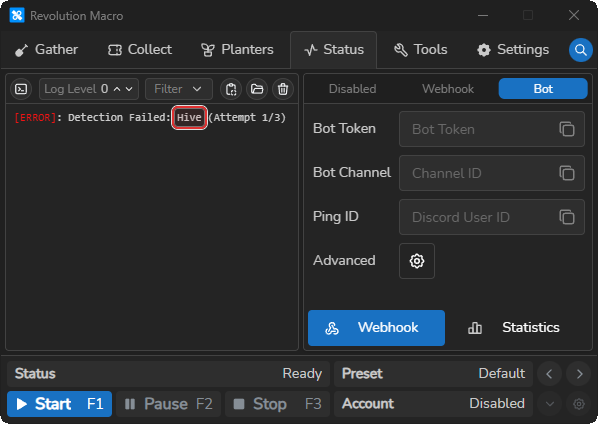
Fix:
- Set Player Movespeed at Settings → Game → Movement to your Bee Swarm walk speed with no speed buffs active.
- Rejoin the game and start the macro so it can claim the correct hive.
- If detection falsely claims a hive slot, set Hive Claim Method to Check at Settings → Game → Join. Detect remains the usual starting default.
- Turn on Disable Red Cannon at Settings → Game → Routing if cannon routes continue failing.
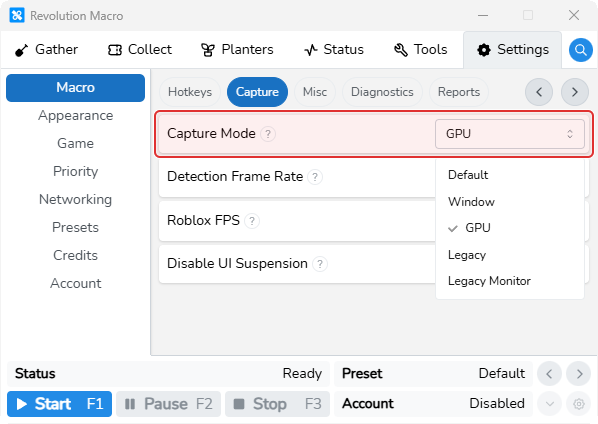
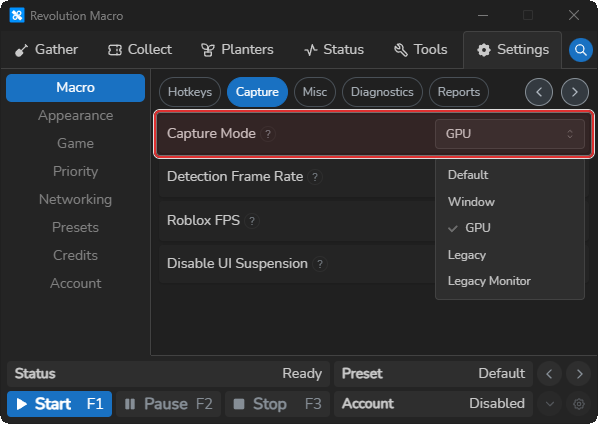
- Open Settings → Macro → Capture. Leave Capture Mode on Default unless detection still fails after the steps above. Then try Legacy Monitor, Window, or Legacy and confirm Proceed on the Change Capture Mode dialog.
Walking in a circle or stuttering
Section titled “Walking in a circle or stuttering”Cause: Roblox Camera Mode or Movement Mode is wrong, or Player Movespeed does not match your walk speed.
Fix:
- In Roblox settings, set Camera Mode to Default (Classic) and Movement Mode to Default (Keyboard). Turn Performance Stats and MicroProfiler off.
- Match Player Movespeed at Settings → Game → Movement to in-game speed with no speed buffs.
- On low FPS (roughly 17–40), turn on Use High Alignment at Settings → Game → Routing.
- On Windows, open Device Manager, expand Human Interface Devices, disable HID-compliant touch screen devices, then restart the PC.
- If logs say the macro is moving but your character is not, disable the Discord overlay and run Revolution and Roblox as administrator.
AI overlay is invisible
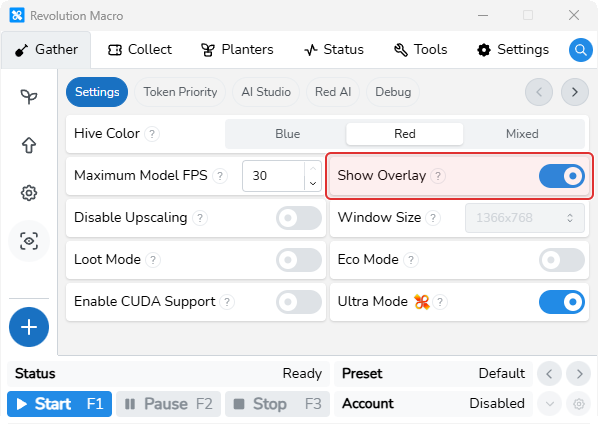
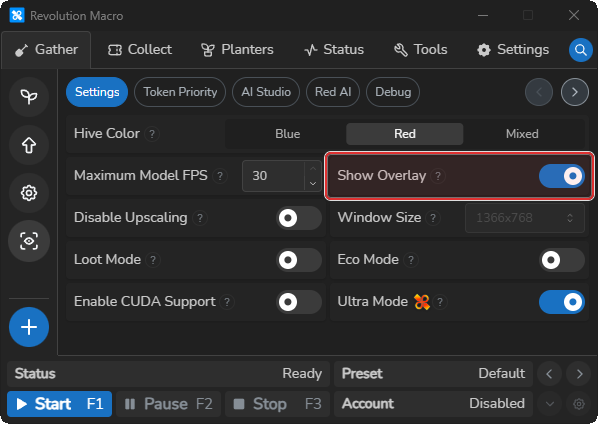
Section titled “AI overlay is invisible”Cause: Show Overlay is off under Gather → AI Gather → Settings (default on).
Fix:
- Open Gather → AI Gather → Settings and turn on Show Overlay.
- If Screen Too Small appears (
A minimum resolution of 1366x768 is required), raise display resolution to at least 1366×768 or leave Disable Upscaling off. - If AI Gather is enabled but the field still runs a pattern, see Set up AI Gather.
AI detection failed or Failed to load AI model
Section titled “AI detection failed or Failed to load AI model”Cause: AI detection can fail to start or load on your PC. Slow model loading, a missing Visual C++ redistributable, internal inference failures, or GPU drivers that cannot run the models can cause this. If you are using an older laptop or other device, it may lack the drivers or computational power to load and run them. Logs may show a line starting with [ORT] inference failed, or a Model Load Failure dialog that says Failed to load AI model. AI models can load for a maximum of 5 minutes.
Fix:
- Restart Revolution Macro if you see
Failed to load Vic detection model: inference response timeout, or a dialog that says Failed to load AI model. - On Windows, install the latest Visual C++ redistributable when AI detection fails to start.
- On Windows with an NVIDIA GPU, open Gather → AI Gather → Settings, turn on Enable CUDA Support, click Proceed on the confirmation dialog, then restart Revolution Macro.
Nectars or quests not detected
Section titled “Nectars or quests not detected”Cause: Display or capture settings are off, so detection misses buffs, nectars, and quests. On macOS, a Color LCD profile can throw off detection.
Fix:
- Open Settings → Macro → Capture. Leave Capture Mode on Default unless detection still fails. Then set Capture Mode to Legacy Monitor or Window.
- On macOS, open System Settings → Displays → Color and try Display P3 instead of Color LCD while macroing if detection still fails. Switch back when done.
- If planter inventory scrolling fails, see Planter cycle failures.
Gather won’t stop when expected
Section titled “Gather won’t stop when expected”Cause: When resolution, scale, or capture settings are wrong, the macro may never detect a full bag, so it continues gathering instead of leaving the field to convert at the hive.
Fix:
- Open the field’s pattern and check Seconds. Then open Gather → Gather Settings → General and check Full Bag Timeout.
- Confirm resolution is at least 1366×768, Windows display scale is 100%, HDR is off, and Capture Mode is Default under Settings → Macro → Capture so the macro can detect a full bag.
- If you still have issues with hive return or gathering not ending, see Macro resets or gets stuck.
More help
Section titled “More help”- High CPU or RAM during AI Gather → Performance and memory problems
- Status stuck on game loading, open/load loops → Roblox launcher loops
Access is denied, settings won’t save, macOS permissions, or Retina/virtual monitor → Install and permission problems
Known limitations
Section titled “Known limitations”- At least 1366×768 resolution is required for AI detection. With Disable Upscaling on, falling below that floor triggers Screen Too Small.
- At Roblox FPS 30 or below, Use High Alignment is required and cannot be turned off until you raise Roblox FPS.
- Capture Mode (Default, Legacy Monitor, Window, Legacy) is Windows-only. On Windows, try another mode when Default still misreads the Roblox window.
- On macOS, open Settings → Macro → Capture for macOS-specific options. Enable Low DPI Patching patches Roblox to a lower-DPI window the macro can read on a built-in Retina screen.
- Leave Disable Virtual Monitor off (default) so the macro can create a virtual display when you have no external monitor.
- Set Virtual Monitor Resolution (default 1920×1080) to control that virtual display size. For DeskPad and permission setup, see Install and permission problems.
- AI models can load for a maximum of 5 minutes.
If you’re still stuck
Section titled “If you’re still stuck”Attach this when you ask for help:
- The exact error text (for example,
Detection Failed: Hiveor a log line starting with[ORT] inference failed). - Your OS and Revolution version from Settings → Credits.
- Capture Mode, Detection Frame Rate, and Roblox FPS from Settings → Macro → Capture.
- Player Movespeed from Settings → Game → Movement.
- Turn on Enable Capture Tracing under Settings → Macro → Diagnostics, reproduce the failure, then open the Status tab, set Log Level to 4, and click Copy Logs.